


 Sonar Tracker
Results and the school year
KS5 results day
On KS5 results day you upload year 13’s exam results into the Exams data set in Sisra Analytics and publish them. In 2026, schools received A level results from 12:01am on Wednesday 12 August 2026, and students at 8am on Thursday 13 August 2026. The Joint Council for Qualifications (JCQ) sets the dates, which change every year.
Before you start
Section titled “Before you start”You need:
- an authority group with Access Data Section, such as Admin
- year 13 set up and published, with the jobs in Prepare before results day done
- the year’s embargo window, from Juniper Education’s announcement (see The 2026 embargo windows)
Year 13 is the cohort such as 26/27 (Current Yr 13). Year 12 results, such as AS levels, go into the year 12 cohort’s Exams data set in the same way.
Prepare before results day
Section titled “Prepare before results day”Some of these take time, and some cannot be done on the day. In the weeks before results day, make sure that:
- every student has the right status (Check statuses and ages)
- each grade method your qualifications use has an Expected Attainment Pathway (EAP)
- every student has the KS4 core baselines that value added needs (Set up KS5 baselines and EAPs)
- banked results are in Exams, such as AS levels from year 12, exams taken at other centres, and level 2 English and maths resits
- each qualification you want in the reports has a qualification number (QN) and an EAP on the Matching page (Match qualifications in KS5)
- the latest value added national data is chosen (Check the value added national data)
- key filter mapping is complete, for the trends reports and Sisra Multi-School (Map key filters)
- targets and anything else you want to compare with results are published
- the staff who may see results during the embargo have access (Let more staff see embargoed reports)
The core baselines are two KS4 average point scores (APS), KS4 APS GCSE (A8 Pts) and KS4 APS All (A8 Pts). The other two are Prior English (Challenge Points) and Prior Maths (Challenge Points).
Check statuses and ages
Section titled “Check statuses and ages”Statuses decide who counts in the headline figures, so check them before you publish Exams:
- students of academic age 18 need On Roll Aged 18, or Year 13 Only Aged 18 if they joined in year 13, set by hand
- On Roll, Year 12 Only and Year 13 Only students count only if they have enough entries
Enough entries means two or more qualifications each at least the size of an A level, or one at least the size of two. Academic age 18 means 18 on 31 August at the start of year 13: for the 26/27 cohort, 31 August 2026. After any change, publish student data, then every grades data set. Check KS5 statuses and ages explains every status.
Get the results file ready
Section titled “Get the results file ready”- Export the results from your MIS or exams software once the results files from the exam boards (awarding organisations) are in it. Include each student’s Student ID, name, qualification and grade.
- Check that the Student IDs are the ones your student data uses.
- Give AS levels a different name from A levels in the same subject, such as Art AS and Art. Give level 2 qualifications, such as GCSE English and maths resits, names of their own that start with L2.
- Rename other qualifications to match the names on your Matching page.
- Convert any BTEC results that arrive as codes, as Convert BTEC results in JCQ codes explains.
- Save the file as .csv, .xlsx, .xls or .xml.
Convert BTEC results in JCQ codes
Section titled “Convert BTEC results in JCQ codes”For BTECs the size of two A levels or more, JCQ results files give a code, not a grade. Pearson’s table, for example, gives D2 for D*D*D in an Extended Diploma. Sisra treats a code as a grade not in the grade method, so Exams will not publish. Convert the codes in one of two ways.
Add the codes to the grade method
Section titled “Add the codes to the grade method”- Select CONFIG, then Grade Methods, then KS5 Methods.
- Select the grade method’s name, then Reconfigure.
- Select Next until you reach Alternative Upload Values.
- Tick Include alternative upload values, and enter each code next to its grade.
- Select Next through the remaining steps to the end.
If the method already has alternative values for other files, change the file instead, so that earlier uploads are not affected.
Change the codes in the file
Section titled “Change the codes in the file”- In Excel, select the BTEC’s column.
- Press Ctrl + F, then select the Replace tab.
- Enter a code in Find what:, and the grade as your grade method writes it in Replace with:.
- Select Replace All. Repeat for each code and each BTEC, then save the file.
Pearson lists every code on its page Receiving results through EDI and Edexcel Online (Pearson website).
Upload the results
Section titled “Upload the results”- Open year 13 in DATA, as in Open a cohort in DATA.
- Select Grades, then Uploads, then Exams. Exams is fixed to the term KS5 Exams and the grade type Exams.
- Select Upload Grade File, choose Broadsheet or Grade List, and choose the file.
- In Exams Date:, enter a date in the summer exam series. Enter a file title of 2 to 20 characters, then select Upload.
- Check that the columns are mapped, then select Continue with the upload.
- Read the file health check. If the numbers of students and qualifications are what you expect, select Continue with the upload.
- If Confirm Upload Qualification Names opens, set each qualification that is new to the cohort to New, and select Complete the upload.
The first time you upload A level results for students who already have AS results, set the A levels to New. That keeps them separate from the AS levels. Upload grades explains the upload in full.
Set up new qualifications
Section titled “Set up new qualifications”Results day can bring a qualification the cohort has not had before, such as an Extended Project.
Match each new qualification
Section titled “Match each new qualification”- Assign the new qualification to a set of classes: select Students, then Classes, then Assign Quals.
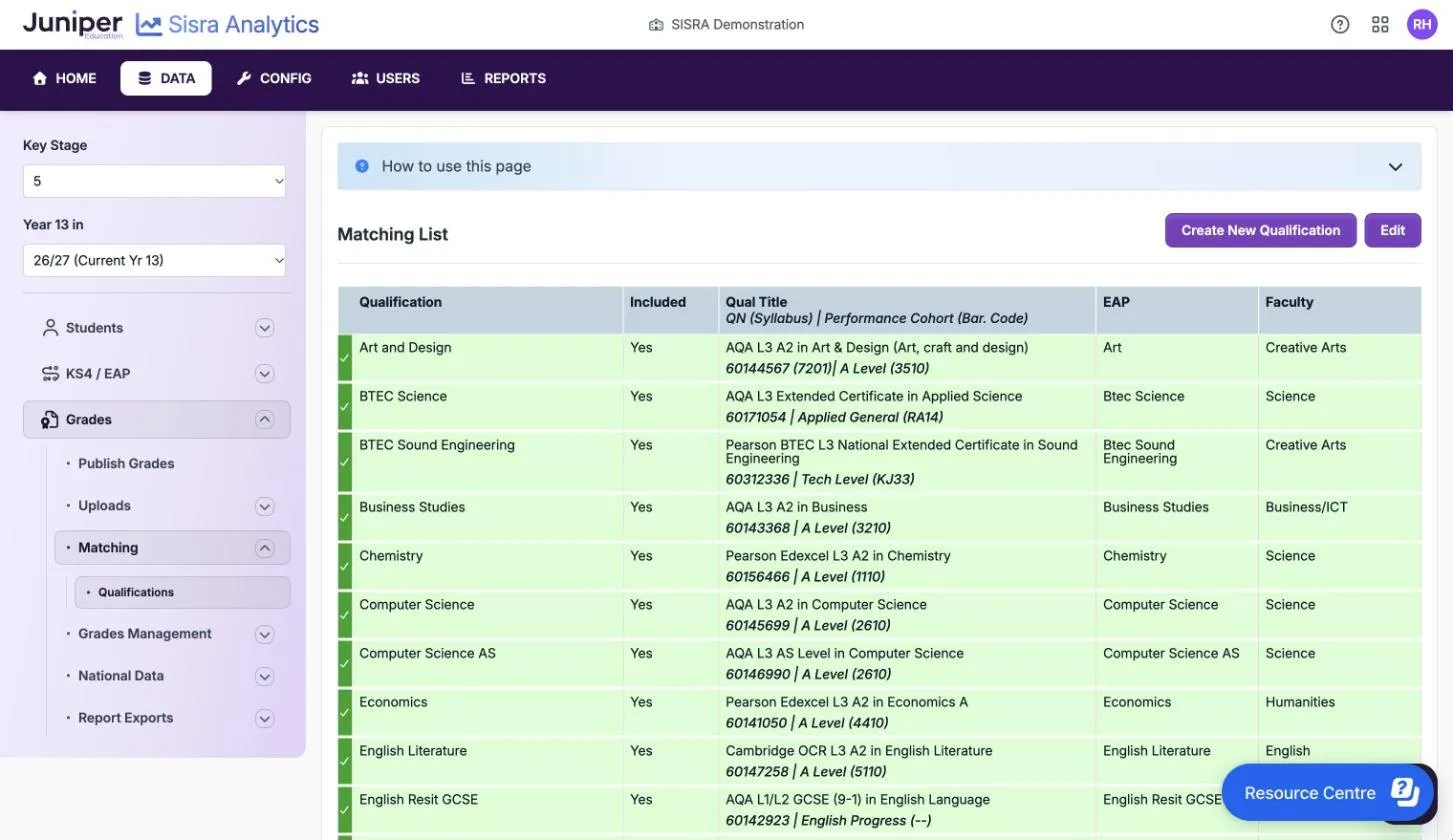
- Select Grades, then Matching, then Qualifications, then Edit.
- Set Included to Yes, enter the QN in Qual Title, and choose an EAP.
- Select Save Changes.
A row turns green when the qualification is matched to an EAP with the right grade method. Amber means matching is not finished, grey means the qualification is excluded, and red means the EAP’s grade method does not match the QN. Every included row must be green before you can publish. For a red row, select the magnifying glass to see the grade method the QN expects.
Give a new qualification an EAP
Section titled “Give a new qualification an EAP”The EAP tells Sisra which grade method a qualification uses. If no EAP uses the grade method a new qualification needs, create one:
- Check that a suitable grade method exists in CONFIG, under Grade Methods, then KS5 Methods. If not, create one: see Create grade methods.
- In the cohort, select KS4 / EAP, then EAP / Baselines, then EAP.
- Select Create EAP, then Create New EAP, and enter a name.
- For Baseline Type, choose KS5 Grade Method or Number Range. If you will not enter expected grades, any EAP Baseline will do, because it then has no effect on your reports.
- Choose the qualification’s grade method in Assessment Methods, then select Create.
- On the Matching page, choose the new EAP for the qualification, and select Save Changes.
- Publish KS4 / EAP, then every grades data set that holds the qualification.
Set up an Extended Project
Section titled “Set up an Extended Project”- Create the qualification: upload its grades with the results and choose New, or select Create New Qualification on the Matching page.
- Check that KS5 Methods has a grade method for it, and that an EAP uses that method.
- On the Matching page, enter the Extended Project’s QN and choose the EAP. The row turns green.
- Publish student data, KS4 / EAP and grades again.
The Extended Project appears in the reports only once it has grades.
Check the value added national data
Section titled “Check the value added national data”Sisra’s KS5 value added compares each student’s results with national data from the DfE. The DfE produces national data for a year only after that year’s results, so on results day you use an earlier year’s data. The figures are then an internal estimate, as the page says.
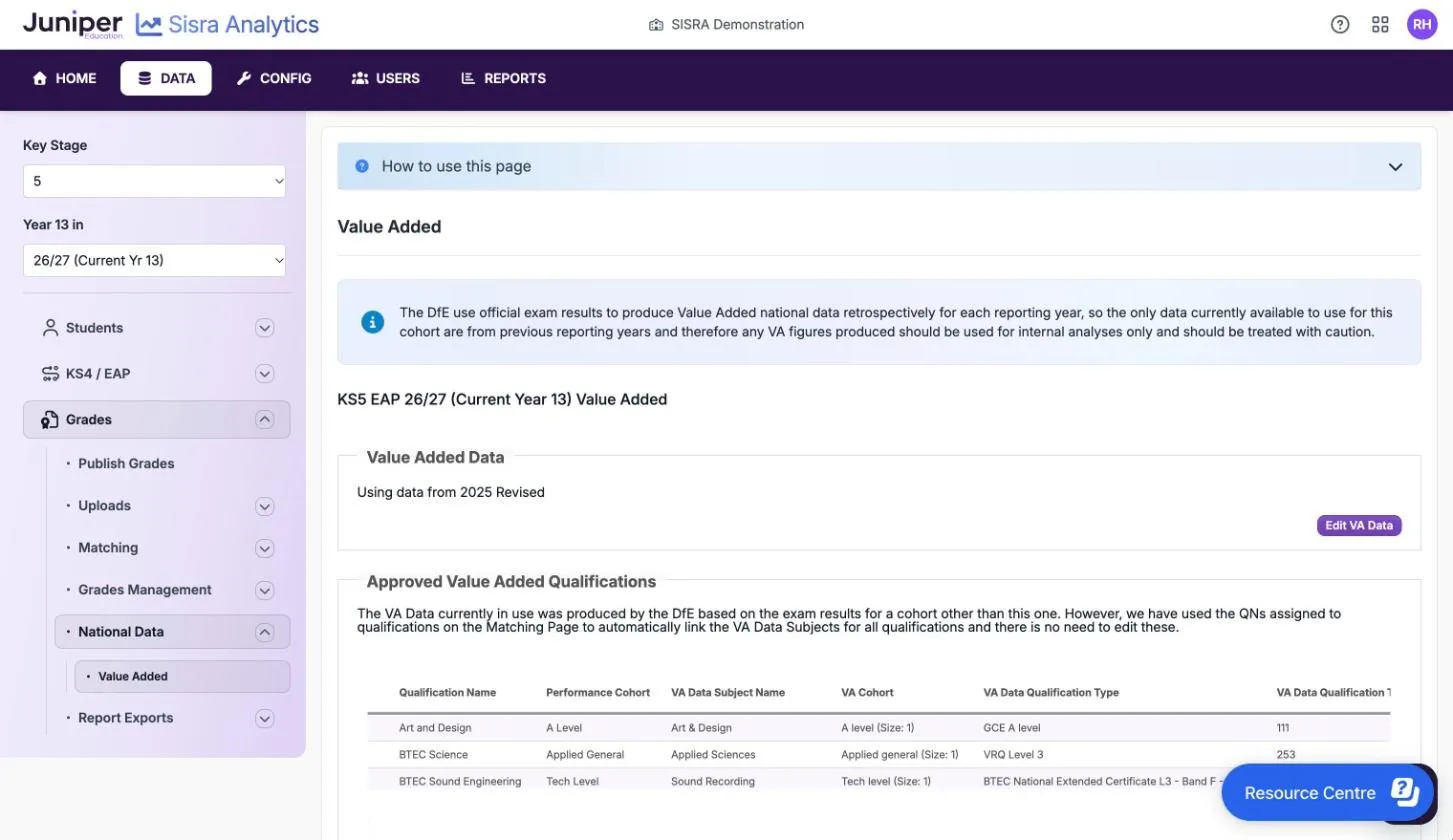
- In the cohort, select Grades, then National Data, then Value Added.
- Check the year after Using data from. If it is not the latest, select Edit VA Data.
- Choose the latest year, such as 2025 Revised as at October 2026, and select Save.
- Check the Approved Value Added Qualifications table.
Set up KS5 value added explains national data and unapproved qualifications.
Publish the results
Section titled “Publish the results”- Publish student data and KS4 / EAP if you have changed them since they were last published. Sisra will not publish grades after a change under Students until you publish student data.
- Select Grades, then Publish Grades, and select Publish on the Exams row.
- Turn on Produce DfE-based Headlines figures.
- Choose the Report Status:, and add a Report Note: if you want one. Turn on the default switch if staff should see Exams first when they open the cohort.
- If a section shows Health Check Failed, select Cancel and fix the problem. Warnings and information do not stop publishing.
- Select Publish.
If some results have not arrived, such as a late BTEC result, you can choose Incomplete as the Report Status:. Staff can still open the report, and it tells them some results are missing. Only members of the built-in Admin group are offered Incomplete.
Published inside the embargo window, Exams is embargoed until the window closes: in 2026, at 8am on Thursday 13 August 2026. MAT Contribution Check Not Passed is expected unless your school’s trust uses Sisra Multi-School.
When the report is ready, open it from REPORTS. Check the headline figures for blanks and surprises, such as the size of the A level cohort. Headlines and Performance Cohorts reports describes each figure.
After results day
Section titled “After results day”Update value added when the DfE’s data is out
Section titled “Update value added when the DfE’s data is out”When Juniper adds the DfE’s national value added data for the results year, choose it in Using data from. See Check the value added national data. Then publish Exams again. The help centre says this comes after the October checking exercise.
Record re-marks and resits
Section titled “Record re-marks and resits”- Select Grades, then Grades Management, then Manage Students. Choose the student and Exams.
- For a re-mark, select Edit Grades, enter the new grade and select Save.
- For a resit, such as a level 2 English resit, select Add Grade and choose the qualification. Enter the resit date and grade, then select Add and Save.
- Publish Exams again.
In KS5, Sisra counts a student’s best grade in a qualification, both in the headline figures and for the student.
Other jobs
Section titled “Other jobs”After results day you may also need to:
- keep results from staff for longer (Keep results hidden after the embargo)
- change any statuses that differ from the DfE’s after the October checking exercise, then publish student data and every grades data set again
If something goes wrong
Section titled “If something goes wrong”Exams will not publish. A health check has failed. These are the usual causes, which you fix in Grades Management or, for core baselines, on Core Baselines List:
| Warning | Usual cause |
|---|---|
| Grade Not In Method | BTEC results still in JCQ codes, or a grade the grade method does not have |
| Missing Student Data | A Student ID that is not in your student data |
| Sub Grades Not Valid In This Data Set | A grade with a + or - sign, which Exams cannot hold |
| Invalid Core Baselines | A KS4 core baseline outside the valid values. It stops only Exams from publishing |
A Matching row is red. The EAP’s grade method does not match the QN. Select the magnifying glass, then choose or create an EAP with the right grade method.
Value added is missing. Check that the students have KS4 core baselines and that a year is chosen under Using data from. Then check that each qualification is linked to national data.
A student is missing from the headline figures. Check their status, their age and the size of their entries.
Staff cannot see the results. The embargo, a Locked status or their authority group is stopping them. See Report status and the results embargo.