


 Sonar Tracker
Publishing
Publish data to the reports
Nothing you import or upload in DATA reaches the reports until you publish it. Each cohort publishes in three parts: student data, then baselines and Expected Attainment Pathways (EAPs), then grades. This page covers all three, at KS3/4 and KS5, and the options that decide what the headline figures show.
Before you start
Section titled “Before you start”You need:
- an authority group with Access Data Section, such as Admin
- the cohort’s student data imported, its qualifications matched, and an EAP chosen for each qualification
Authority groups and permissions explains Access Data Section. How data gets into the reports explains what happens between an upload and a report.
Publish in the right order
Section titled “Publish in the right order”Each cohort has three publish pages, one in each section of its DATA menu.
| Order | Page | What it updates in the reports |
|---|---|---|
| 1 | Students > Publish Students | The cohort, its classes and its filters |
| 2 | KS2 / EAP > Publish KS2 / EAP (KS5: KS4 / EAP > Publish KS4 / EAP) | Baselines, EAP baselines and EAPs |
| 3 | Grades > Publish Grades | One data set or assessment collection at a time |
A new cohort must publish in this order. Until the earlier part is published, the later Publish buttons are unavailable. Sisra Analytics says why, for example: “You must publish KS2/EAP data before you can publish grades”.
After that, publish only what you have changed, and anything that depends on it. When to republish lists the usual cases. Reports always use the most recently published student data, whenever the grades were published.
Open a cohort in DATA
Section titled “Open a cohort in DATA”- Select DATA.
- In Key Stage, choose 3/4 or 5.
- In Year 11 in (Year 13 in at KS5), choose the cohort, such as 26/27 (Current Yr 11).
The left-hand menu shows Students, KS2 / EAP and Grades, with KS4 / EAP in place of KS2 / EAP at KS5. Sisra remembers your key stage and cohort until you sign out. A sign-out for inactivity keeps them.
Publish student data
Section titled “Publish student data”- Select Students, then Publish Students.
- Check the Last Published date in the Data To Publish table.
- Select Publish.
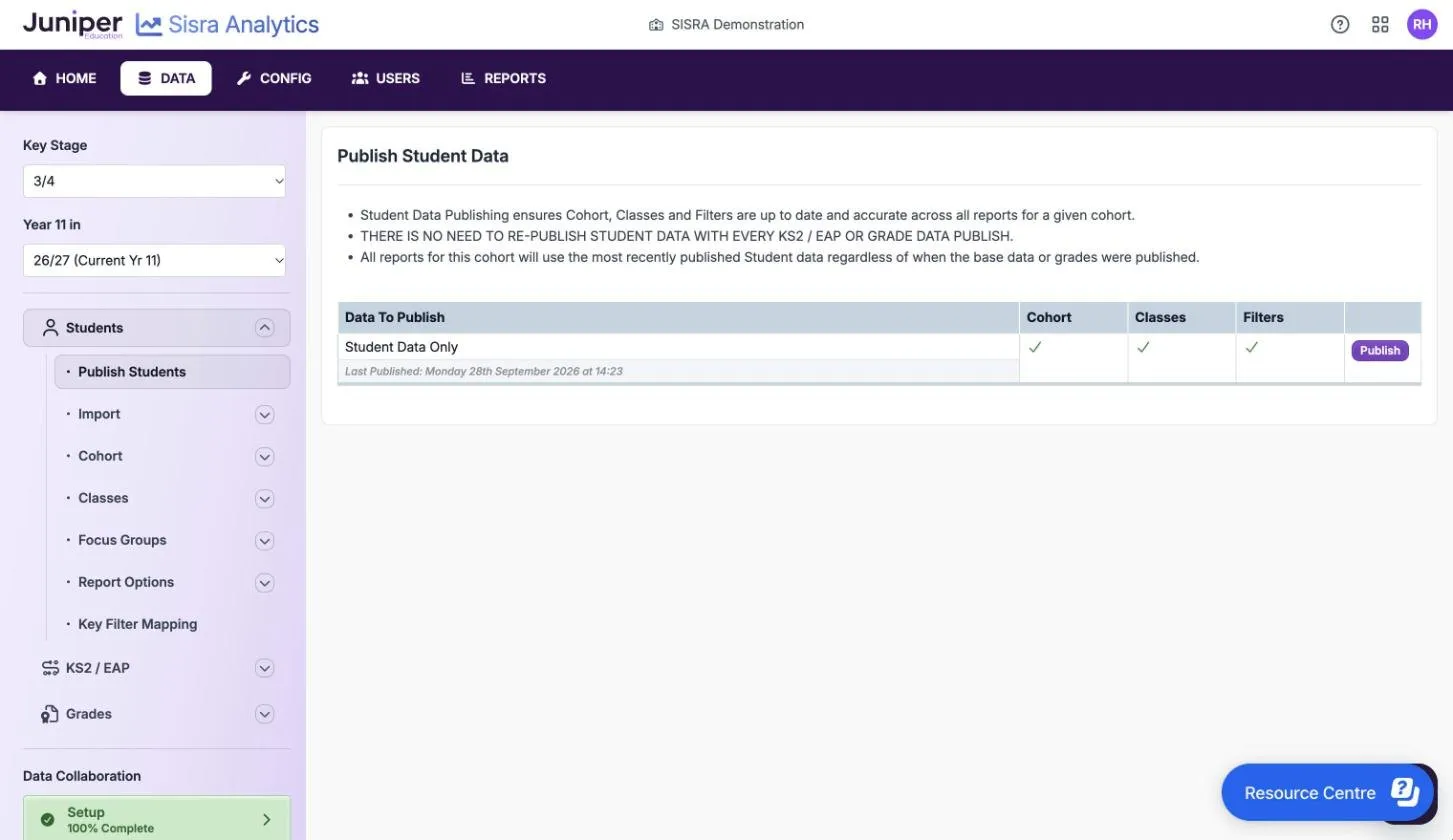
At KS3/4 you do not need to republish grades after you publish student data. At KS5, publishing grades also works out which students count in the headline figures. After you change students’ statuses at KS5, republish every grades data set as well.
If your school takes part in Sisra Data Collaboration and the cohort’s key filters are not mapped, Sisra warns “Filter mapping is currently incomplete”. Map key filters first if you want the cohort in Data Collaboration, trends and trust reports.
Sisra will not publish student data if everyone in the cohort has the status Left School. At least one pupil or student must be On Roll or Guest.
Publish baselines and EAPs
Section titled “Publish baselines and EAPs”- Select KS2 / EAP, then Publish KS2 / EAP. At KS5, select KS4 / EAP, then Publish KS4 / EAP.
- Select Publish.
- At KS3/4, if a dialog opens, read its Health tab, then select Publish in the dialog.
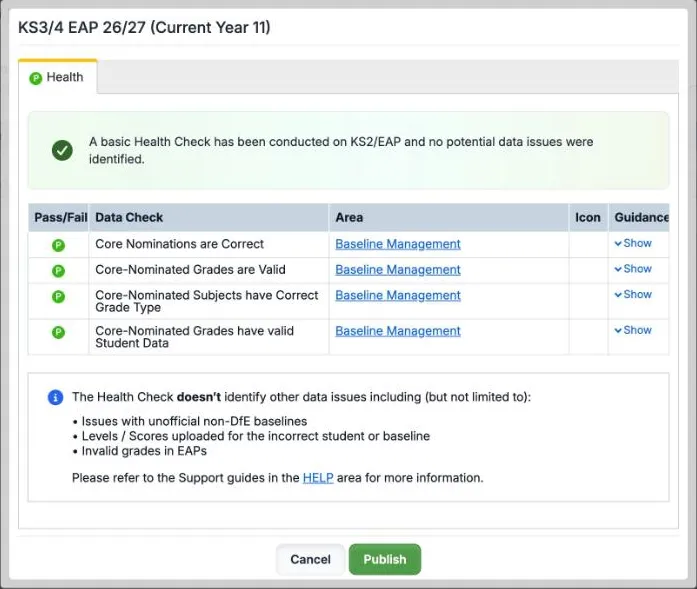
Sisra checks the baselines and EAPs first. Some problems stop publishing, and Sisra shows “The reports cannot be published as there are some issues with your EAPs.” with a list of the EAPs concerned. For example, an EAP may have no KS2 subjects, or no Attainment 8 points for the exam term. Other problems are warnings: select Cancel to fix them, or carry on.
At KS5, the check looks for values that are not valid in the four core baselines. They are KS4 APS GCSE (A8 Pts), KS4 APS All (A8 Pts), Prior English (Challenge Points) and Prior Maths (Challenge Points). Set up KS5 baselines and EAPs explains these baselines.
After you publish baselines or EAPs, republish the grades that use them. Publish Grades marks each data set that needs it, and shows “One or more of your datasets have not been published since you last published KS2/EAP data.”
Publish grades in KS3/4
Section titled “Publish grades in KS3/4”- Select Grades, then Publish Grades. The Publish Individual Reports tab opens on Data Sets.
- To publish a data set, such as Exams or a targets data set, select Publish on its row.
- To publish an assessment collection, select its year tab under ASSESSMENTS, such as Year 11. Select Publish on one of the term’s two slots, then choose the collection.
- Read the Health tab. See Read the health check.
- On the Publishing tab, choose the options. See Choose the publishing options.
- Select Publish.
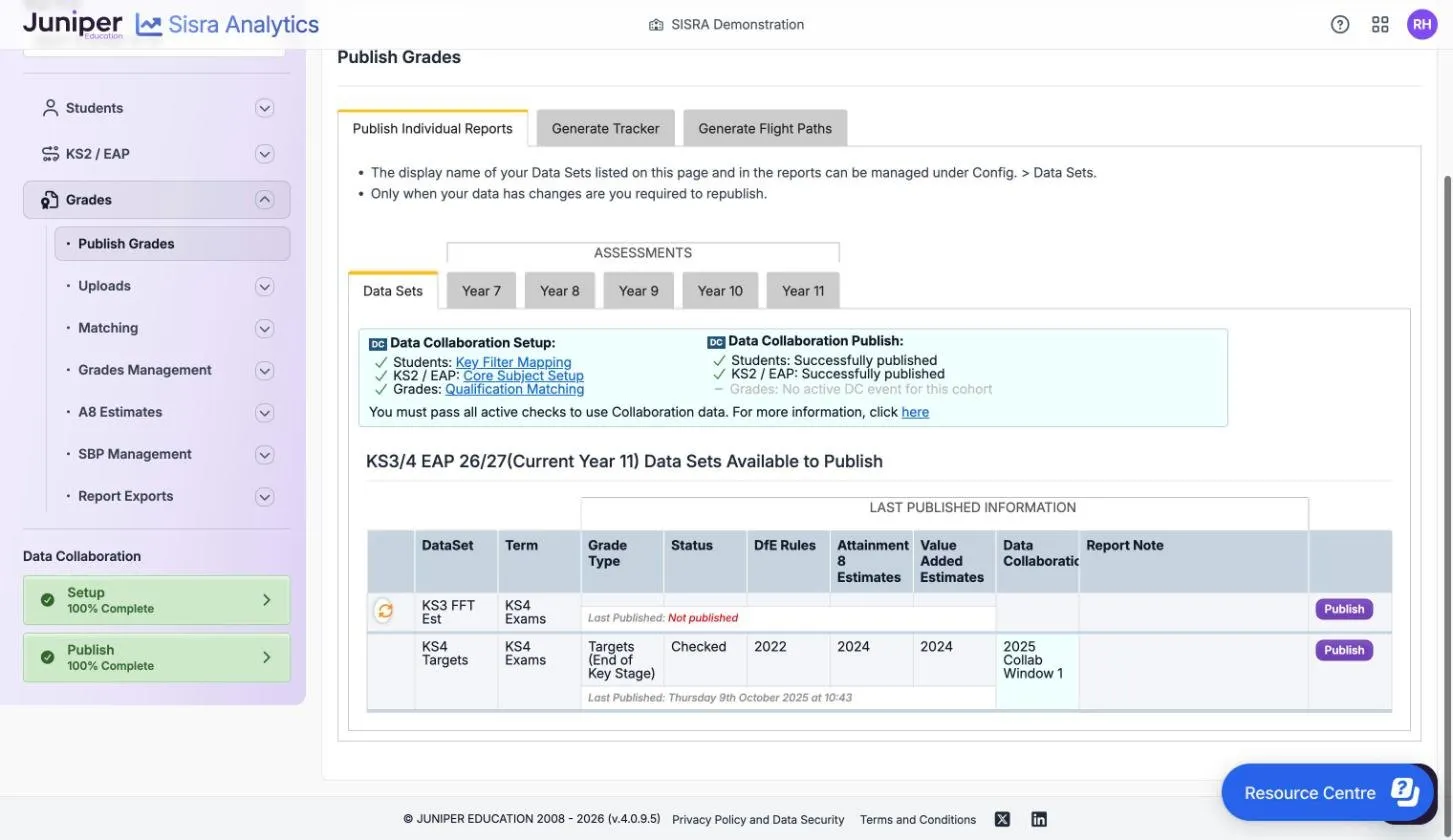
Under LAST PUBLISHED INFORMATION, the table shows the options each data set was last published with. An orange refresh icon marks a data set that has changed since it was published, or has never been published.
Each term has two slots, so you can publish up to two assessment collections a term. You cannot put the same collection in both slots.
The Generate Tracker and Generate Flight Paths tabs build reports from data you have already published. See Generate the tracker and flight paths.
Read the health check
Section titled “Read the health check”When you select Publish, Sisra runs a basic health check on the data set. The Health tab lists each check, its result under Pass/Fail, and the Area where you can fix it.
| Result | Meaning |
|---|---|
| Green, marked P | The check passed |
| Amber | A warning. You can publish, but fix it if you can |
| Red | A failure. Fix it before you publish |
The checks look for:
- grades for pupils who have no student data
- grades that are not in the qualification’s grade method
- subgrades in the Exams data set
- core KS2 subjects nominated wrongly
Grades for pupils with no student data stop any data set or assessment collection from publishing. The other issues stop only the Exams data set: elsewhere they are warnings, and you can publish.
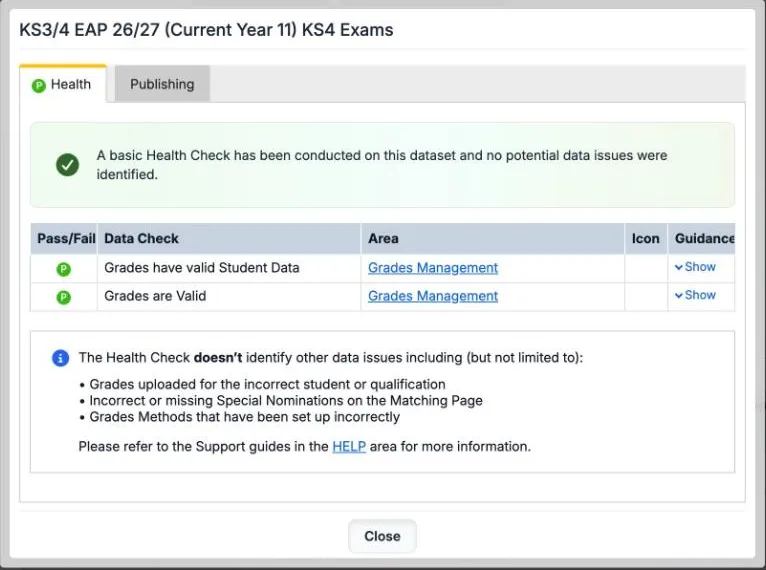
The check does not find grades uploaded against the wrong pupil or qualification, missing special nominations on the Matching page, or grade methods set up wrongly. Check and correct grades covers those.
Choose the publishing options
Section titled “Choose the publishing options”| Option | What it does | What to choose |
|---|---|---|
| Report Note: | A note shown with the report on the reports home page | Optional. Say what the data is, such as “Year 11 autumn predicted grades” |
| Report Status: | Who can open the report: Unchecked, Checked or Locked | See Report statuses |
| Headlines | Produces the DfE-based headline figures, such as Attainment 8, Progress 8, English Baccalaureate (EBacc), and English and maths | On, for any data set you want headline figures for |
| DfE Rules from: | Which year’s DfE rules decide first entries and discounting | The year the pupils will be reported in. If that year is not listed, the most recent: 2022, as at October 2026 |
| A8 Estimates: | The Attainment 8 estimates each pupil’s Progress 8 score is measured against | Leavers: the DfE’s official estimates for the year they were reported in, if they exist. Current cohorts: see the next table |
| VA Estimates: | The estimates for EBacc value added in science, languages and humanities | The same year as A8 Estimates: |
| Data Collaboration | Adds figures from the Sisra Data Collaboration event you choose in Collaboration Data: | On, if your school takes part in that event |
| SISRA Basic Projections (SBP) | Projects each pupil’s grades to the end of KS4 from your EAPs | On, only if your EAPs have expected grades |
A8 Estimates: groups its choices under Official Estimates:, Data Collaboration: and Custom Estimates:. As at October 2026, Juniper advises these choices for cohorts that need Progress 8 or Subject Progress Index (SPI) figures:
| Cohort | Collaboration Data: | A8 Estimates: and VA Estimates: |
|---|---|---|
| 25/26 leavers, if you uploaded converted KS2 scores | 2026 Collab | 2026 - Collab Exams |
| 26/27 onwards | 2024 Collab | 2024, the DfE’s official 2024 estimates |
The 26/27 cohort took KS2 tests in 2022, so it has real KS2 scaled scores, which the 2024 estimates are based on. Create custom Attainment 8 estimates explains the third group of choices.
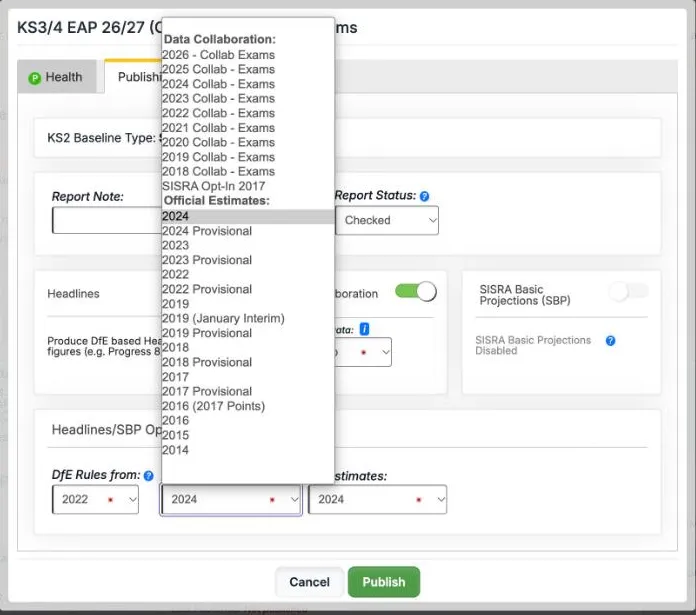
With Headlines off, the data set still publishes its grades, EAP comparisons and residuals, but no headline measures. The tab shows the cohort’s KS2 Baseline Type:. If it does not match the type the estimates were built on, an icon appears by the estimates. Its message warns of “issues for related figures in reports”, and Progress 8 and value added are not calculated.
Publish grades in KS5
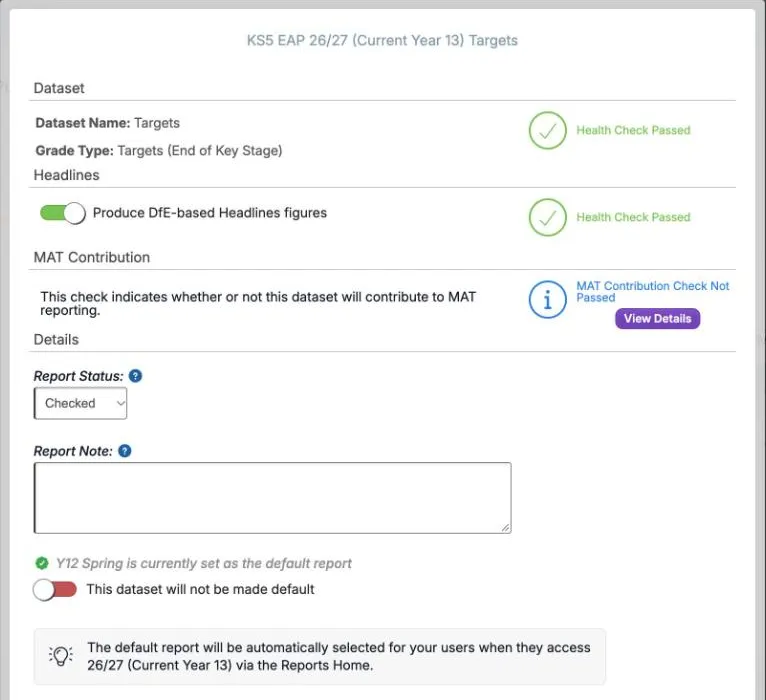
Section titled “Publish grades in KS5”KS5 works the same way, with the year tabs Year 12 and Year 13. The publish dialog has four sections instead of tabs.
| Section | What it shows or sets |
|---|---|
| Dataset | The data set’s name and grade type, and its health check result |
| Headlines | The Produce DfE-based Headlines figures switch, and its health check result |
| MAT Contribution | Whether this data set will reach your trust’s Sisra Multi-School reports. View Details lists the reasons when it will not |
| Details | Report Status:, Report Note:, and whether this becomes the default report |
A Health Check Failed result stops publishing; information and warnings do not. If your school’s trust does not use Multi-School, MAT Contribution Check Not Passed is expected and you can carry on.
The default report is the one Sisra selects for staff when they open the cohort in REPORTS. To make this data set the default, turn on the switch under Report Note:. While it is off, it reads This dataset will not be made default.
After any change under Students, publish student data again before grades. Until you do, Sisra shows “Changes have been made in the Students tab which require the republishing of Student data before you can publish Grades.”
Report statuses
Section titled “Report statuses”| Status | Who can open the report |
|---|---|
| Unchecked | Everyone with access to reports. Sisra tells them the data “has not yet been finalised and may be subject to change” |
| Checked | Everyone with access to reports. The data “has been finalised and verified” |
| Locked | Only authority groups with View Locked Reports. By default, Admin can and User cannot |
| Incomplete (KS5 only) | Everyone with access to reports. It tells them that some results are missing |
To check figures before staff see them, publish as Locked, check the report, then change its status to Checked. You can change a report’s status and note without republishing. Report status and the results embargo explains how, and how the results day embargo works.
Follow the publishing queue
Section titled “Follow the publishing queue”When you select Publish, Sisra adds the request to a queue and publishes it in the background. It warns that this can take several minutes, depending on the amount of data.
While a cohort has an item in the queue:
- that cohort’s pages in DATA are locked
- CONFIG is locked for the whole school
- you cannot queue another item for the same cohort and key stage, so wait for student data to finish before you publish grades
You can still work on other cohorts. The dialog shows your place in the queue, such as “You are currently position 3 in the queue.”, then a percentage, then Publishing Complete. Select Go To Reports to see the result, or Close. Sisra does not email you when publishing finishes.
To cancel, remove the item from the queue before it starts. Queues are longer on results days, when many schools publish at once.
When to republish
Section titled “When to republish”| You changed | Republish |
|---|---|
| Student data: an import, statuses, or new pupils or students | Publish Students. At KS5, also every grades data set |
| KS2 or KS4 baselines, EAP baselines or EAPs | Publish KS2 / EAP (Publish KS4 / EAP at KS5), then the grades that use them |
| A qualification’s EAP or grade method | Publish KS2 / EAP (Publish KS4 / EAP), then each data set that includes the qualification |
| The Matching page | Every grades data set |
| Grades added, edited, moved or deleted, or a file added or deleted | The data set or assessment collection |
| An assessment collection’s name | That collection |
| A new qualification | Student data, then KS2 / EAP (KS4 / EAP), then grades |
If something goes wrong
Section titled “If something goes wrong”“Publishing Failed”. The message goes on: “Existing report(s) for this Cohort / KS will remain.” Try again, and contact support if it fails a second time. If a publish fails in the queue, the reports home tells staff that the report did not publish.
A Publish button is unavailable. Publish the earlier parts first: student data, then KS2 / EAP (KS4 / EAP at KS5). At KS5, republish student data after any change under Students.
“One or more grades methods in use on your matching page have incorrect points values”. Check the grade methods your qualifications use. See Create grade methods.
Progress 8 or value added is missing. Check that Headlines was on, that the cohort has KS2 baselines, and that the baseline type matches the estimates. The 24/25 and 25/26 cohorts have no KS2 results.
The Exams data set will not publish. Fix every issue on the Health tab first.
DATA or CONFIG says it is locked. The cohort has an item in the publishing queue. Wait for it to finish.
Staff say a report is unavailable. While a data set publishes, its report shows “The report is currently being published and therefore cannot be accessed; please try again shortly”.