


 Sonar Tracker
KS5 reports
Open the KS5 reports
Each data set or assessment collection your school publishes for a sixth form cohort in Sisra Analytics appears on the KS5 tab of REPORTS. This page shows how to choose a cohort and data set, check its status, and open a report or one of your classes. KS5 report tools and options explains what you can do once a report is open.
Before you start
Section titled “Before you start”You need:
- an authority group with View EAP KS5 Reports, which the Admin and User groups have by default
- at least one data set or assessment collection published for the cohort
Inside a report, groupings your authority group cannot open are hidden. Authority groups and permissions explains each action. REPORTS is greyed out until your school publishes its first report.
Choose a cohort and data set
Section titled “Choose a cohort and data set”- Select REPORTS.
- Select the KS5 tab.
- Under CURRENT COHORTS, select the cohort’s tab, such as 26/27 (Yr 13). For a leavers cohort, choose it from the LEAVERS list instead, such as 25/26 (Leavers).
- In DATA SET, choose the data set or assessment collection, such as Assessments - Y12 Spring.
Sisra opens on the cohort and data set you chose last time. A green square marks the tab or list in use. Cohorts are named by the academic year in which they finish year 13. In the 2026 to 2027 academic year, 26/27 (Yr 13) is the current year 13. The demo school’s LEAVERS list goes back to 18/19 (Leavers).
A cohort appears once a data set or collection has been published for it. In October 2026 the demo school had no 27/28 (Yr 12) tab, because that cohort had no students yet.
DATA SET lists the cohort’s reports by year, under Year 13 Data and Year 12 Data. Assessment collections, which many schools call data drops, start with “Assessments -”. In the demo school’s 26/27 cohort, Year 13 Data holds Targets. Year 12 Data holds Assessments - Y12 Spring and Assessments - Y12 Autumn.
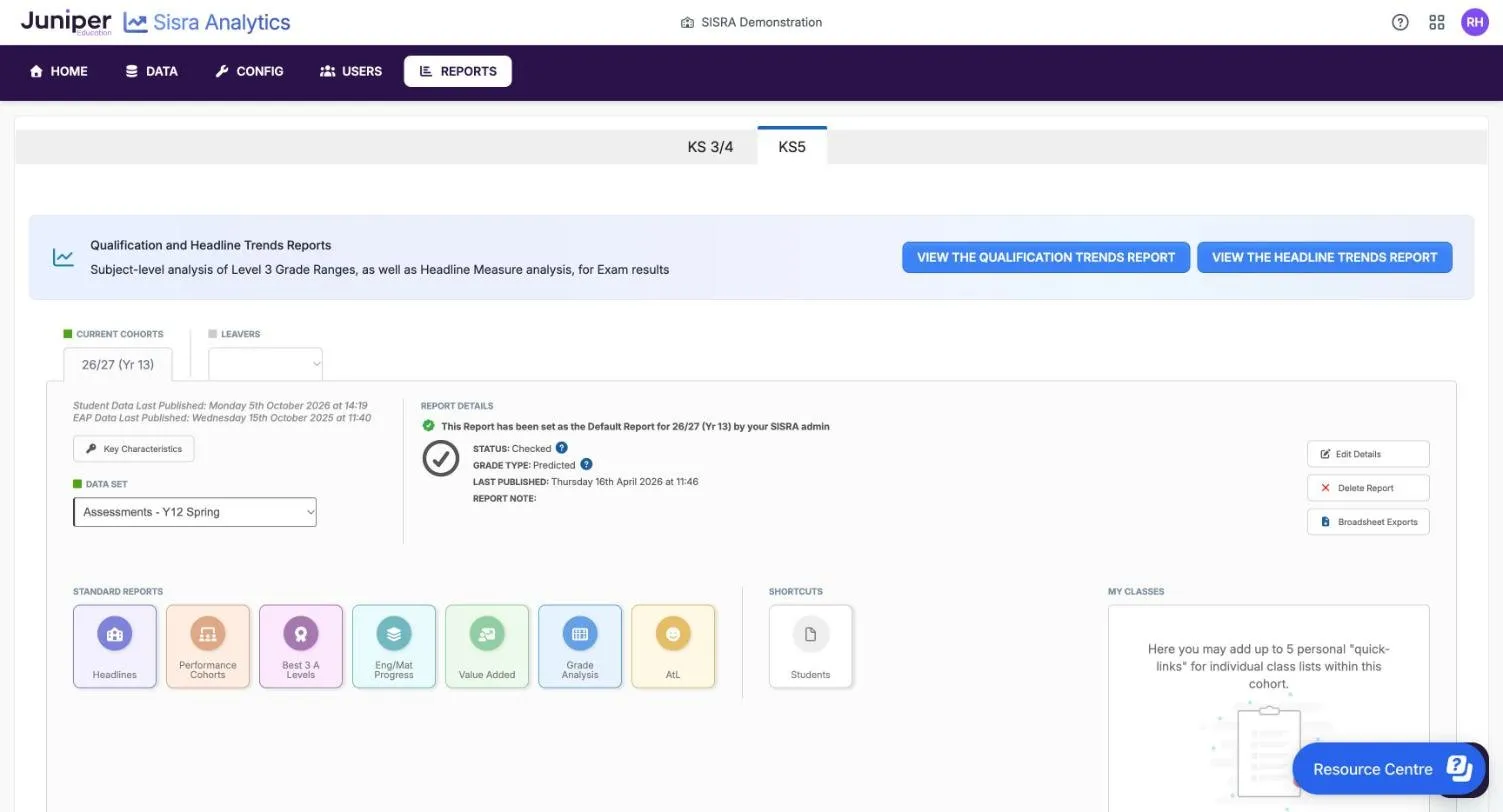
The panel gives two dates for the cohort:
- Student Data Last Published: when its students, classes and filters were last published
- EAP Data Last Published: when its KS4 baselines and Expected Attainment Pathways (EAPs) were last published
Every report for the cohort uses the latest published student data, whenever its grades were published. So a filter shows each student’s value now. Which student data a report uses explains this.
Check the report details
Section titled “Check the report details”REPORT DETAILS describes the data set you chose:
| Item | What it shows |
|---|---|
| Default report message | “This Report has been set as the Default Report for 26/27 (Yr 13) by your SISRA admin”. The default report is the one Sisra chooses for everyone who opens the cohort |
| STATUS: | How far to rely on the figures, and who can open them. See Check a report’s status |
| GRADE TYPE: | What the grades are, such as Predicted, Targets (End of Key Stage) or Exams |
| LAST PUBLISHED: | When the data set was last published |
| REPORT NOTE: | A note from your administrator, if there is one |
The question marks beside STATUS: and GRADE TYPE: explain each one. In the demo school, Assessments - Y12 Spring is Checked, holds Predicted grades and was last published on 16 April 2026 at 11:46am. Its Targets data set has the grade type Targets (End of Key Stage). A collection with the grade type Attainment holds working-at grades: the grade each student would get now, not at the end of the course.
Check a report’s status
Section titled “Check a report’s status”The status tells you how far to rely on a report’s figures, and who can open it. Your administrator sets it when publishing and can change it at any time.
| Status | Who can open the report | What Sisra says about it |
|---|---|---|
| Checked | Everyone who can open the KS5 reports | The data “has been finalised and verified” |
| Unchecked | Everyone who can open the KS5 reports | The data “has not yet been finalised and may be subject to change” |
| Incomplete | Everyone who can open the KS5 reports | Some results “are missing from the data” |
| Locked | Only authority groups with View Locked Reports, which by default means Admin | “Only users with access to Locked reports can view this report” |
Incomplete exists only at KS5. Administrators can use it for exam results that are still arriving, such as a late BTEC result.
Exam results published during the results day embargo open only for authority groups with View Embargo Reports. Until the embargo ends, others see that the report “has been locked down to satisfy the DfE’s embargo rules”. In 2026 the KS5 embargo ran from 12:01am on Wednesday 12 August to 8am on Thursday 13 August. Report status and the results embargo explains both.
The demo school has no locked, incomplete or embargoed KS5 reports, so no screenshot in this guide shows one.
Open a report
Section titled “Open a report”Under STANDARD REPORTS, select a report. Or, under SHORTCUTS, select Students.
| Button | Opens at | Explained in |
|---|---|---|
| Headlines | Headlines Summary, for the whole cohort | Headlines and Performance Cohorts reports |
| Performance Cohorts | L3 Overall, with a row for each student | Headlines and Performance Cohorts reports |
| Best 3 A Levels | Best 3 A Levels, with a row for each student | Best 3 A Levels and Eng/Mat Progress reports |
| Eng/Mat Progress | English Progress, with a row for each student | Best 3 A Levels and Eng/Mat Progress reports |
| Value Added | Value Added, with a row for each qualification | Value Added report |
| Grade Analysis | On Track, with a row for each qualification | Grade Analysis and AtL reports |
| AtL | Your school’s first Attitude to Learning (AtL) category, such as Attitude, by qualification | Grade Analysis and AtL reports |
| Students | Grade Analysis at On Track, with a row for each student | Student reports |
Your administrator chooses where Performance Cohorts, Eng/Mat Progress and Grade Analysis open: see KS5 Report Settings. The table gives the demo school’s settings.
The buttons depend on what the data set holds. AtL appears only for data sets with AtL judgements, so the demo school’s Targets and its leavers’ Exams have no AtL button. Inside a report, the REPORTS bar has the same buttons, so you can move between reports without coming back here.
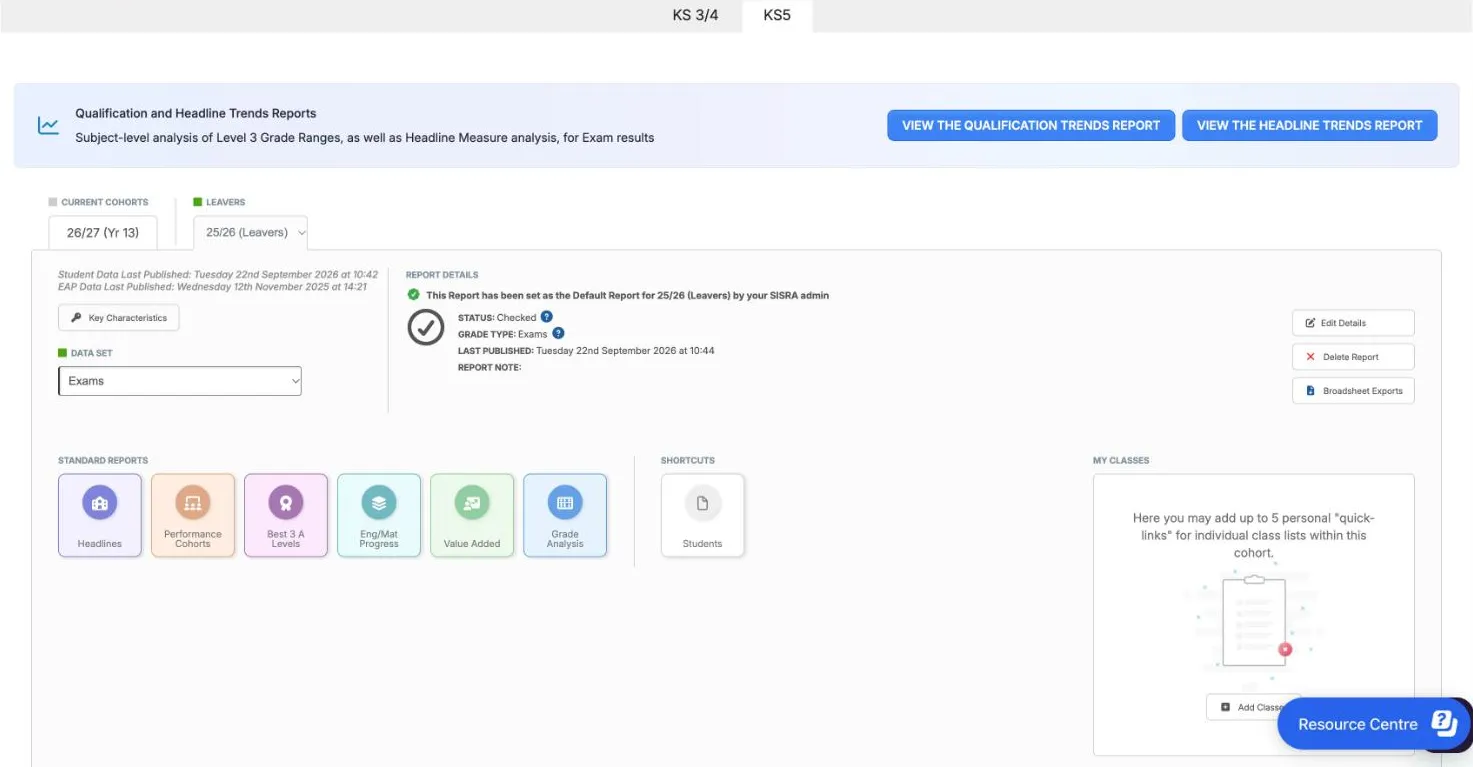
A report you open from this page starts with your school’s default options. Filters and comparisons you set in an earlier visit are cleared. Options that stay set explains how your choices carry between reports.
Save links to your classes
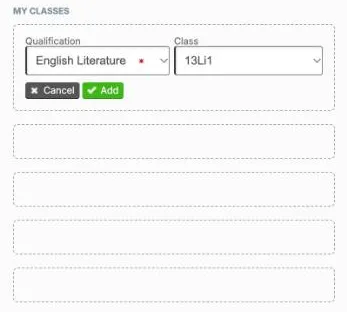
Section titled “Save links to your classes”MY CLASSES holds up to five links to the Grade List for a class or qualification in the cohort. Each person sets their own, and other staff do not see them.
- Choose the cohort on the KS5 tab.
- Under MY CLASSES, select Add Classes.
- Choose the Qualification, such as English Literature.
- Choose a Class, such as 13Li1, or leave it blank for every student in the qualification.
- Select Add.
The link shows a star, the qualification and the class. Select + in the next slot to add another, or the bin beside a link to remove it.
Select a link to open Grade Analysis at the Grade List for that class, on the Simple Grade List tab. Links belong to the cohort, not to a data set. So a link opens the class in whichever data set DATA SET shows. If the class has no grades in that data set, the link is marked as not available.
There are no My Classes links at KS3/4: see Open the KS3/4 reports.
See who is in the cohort
Section titled “See who is in the cohort”Key Characteristics gives the number and percentage of students with each filter value, for the whole cohort. The demo school’s 26/27 cohort has 181 students On Roll and 1 Year 12 Only. Of these 182 students, 44 (24%) are disadvantaged and 6 (3%) have English as an additional language (EAL). Export saves the counts as a spreadsheet, and Close closes the panel.
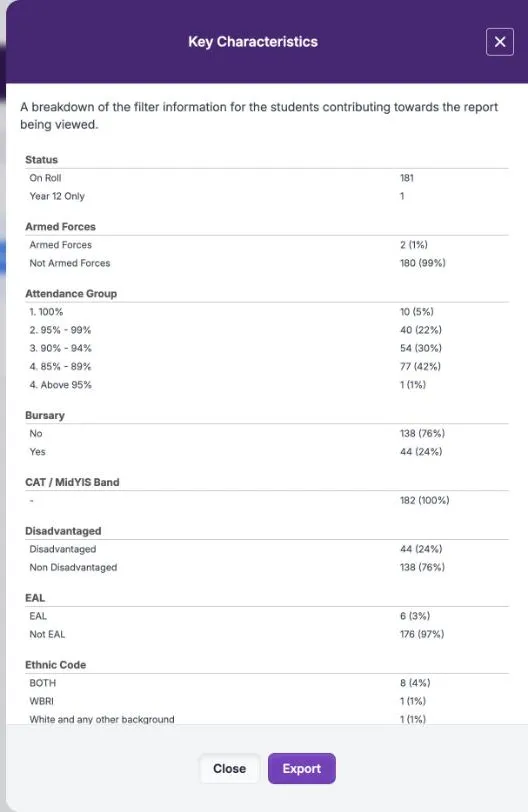
Inside a report, Key Characteristics describes only the students in that report: see Key Characteristics.
Open the trends reports
Section titled “Open the trends reports”The Qualification and Headline Trends Reports banner sits at the top of the KS5 tab, above the cohorts. It shows only if your authority group has View Qualification Report.
- VIEW THE HEADLINE TRENDS REPORT opens KS5 Headline Trends, which sets each year’s headline measures side by side.
- VIEW THE QUALIFICATION TRENDS REPORT opens KS5 Qualification Trends, which does the same for one qualification’s grades.
The trends use only Exams data sets. In the demo school they cover four years of results, from 22/23 to 25/26. Headline Trends and Qualification Trends explains both reports.
Tools for administrators
Section titled “Tools for administrators”Staff with Access Data Section see these buttons beside REPORT DETAILS:
| Button | What it does |
|---|---|
| Edit Details | Changes the report’s status and note, and whether it is the cohort’s default report, without republishing |
| Delete Report | Removes the report from the reports home, after you confirm with Delete |
| Broadsheet Exports | Exports the report’s grades as spreadsheets. It also appears for authority groups with View Student Report |
Change a report’s status or note gives the steps for Edit Details. Export from the reports home describes the exports. Only members of the built-in Admin group are offered Incomplete.
If something goes wrong
Section titled “If something goes wrong”REPORTS is greyed out. Your school has not published a report yet.
A cohort has no tab. No data set or collection has been published for it. A new year 12 cohort appears once its first data set or collection is published.
The AtL button is missing. The data set has no AtL judgements.
Value Added or Eng/Mat Progress is missing. Ask your Sisra administrator to check the set-up. Value added needs national data and the students’ KS4 baselines, and English and maths progress needs Prior English (Challenge Points) and Prior Maths (Challenge Points). See Set up KS5 value added.
A My Classes link is marked as not available. The class has no grades in the data set chosen in DATA SET. Choose another data set.
A report will not open on results day. The results embargo is in force. In 2026 the KS5 embargo ended at 8am on Thursday 13 August.
A report says it “is currently being published”. Your administrator is publishing it. Try again shortly, as the message says.
Sisra says “Unknown report settings were specified”. Report settings expire after 48 hours, so an old link to a report no longer works. Open the report again from the reports home.