


 Sonar Tracker
Users and access
Authority groups and permissions
An authority group is a set of permissions in Sisra Analytics, called group actions. Each member of staff is in one group, which decides the areas, reports and report levels they can open. Sisra has two locked groups, Admin and User, and your school can create its own.
Where to find it: USERS > Groups > Group List.
Who can use it: authority groups with Access Users Section, such as Admin.
Staff join a group through the role you give them in Juniper Portal. See Choose a role.
The Authority Groups list
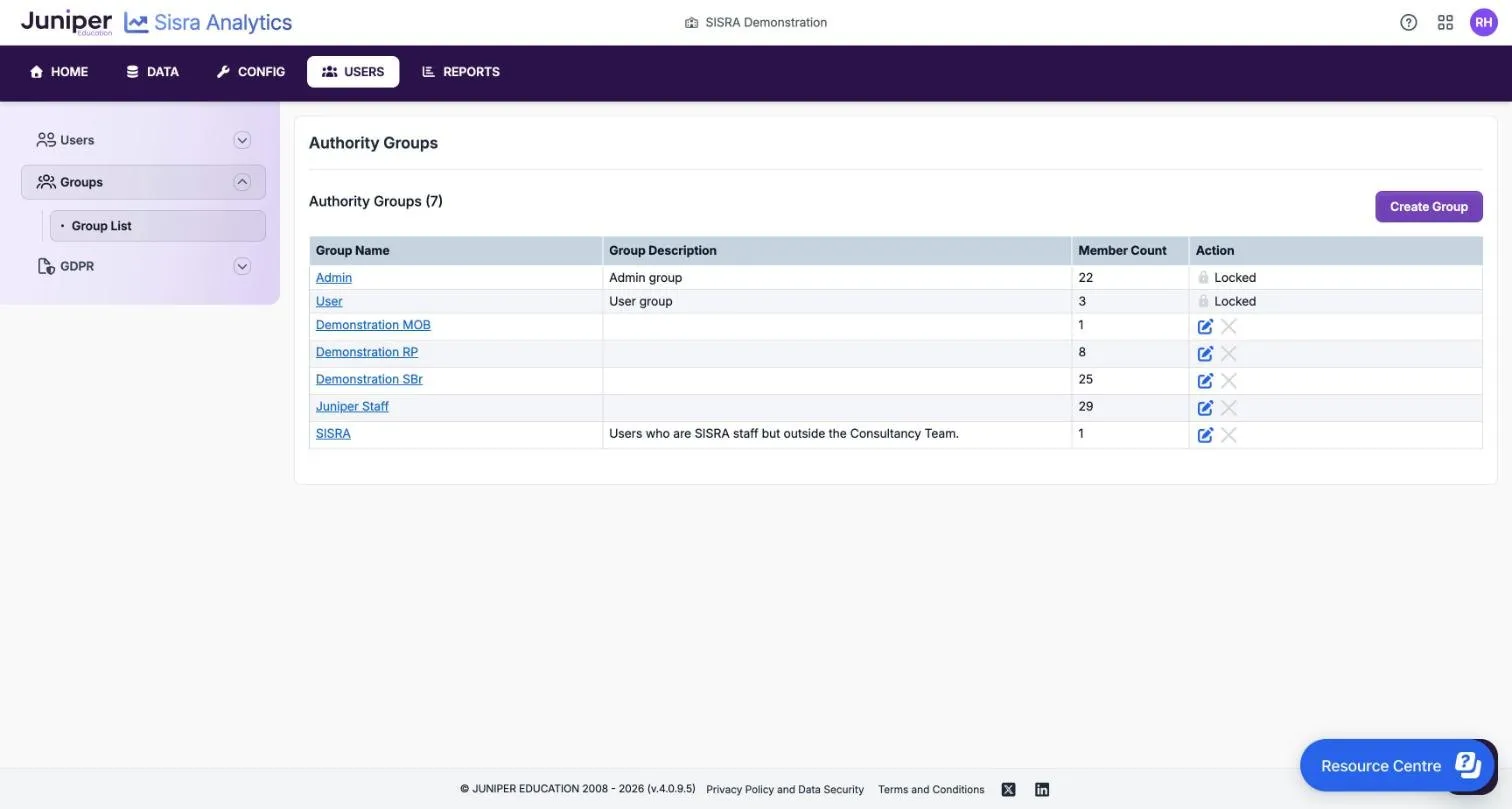
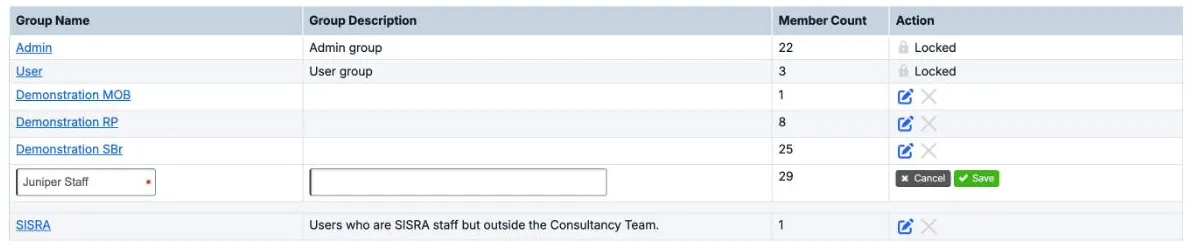
Section titled “The Authority Groups list”Group List shows every group with its Group Name, Group Description, Member Count and Action. Admin and User are marked Locked. Each custom group has a pencil icon to rename it and a cross to delete it. Select a group’s name to see its actions and members.
Group actions
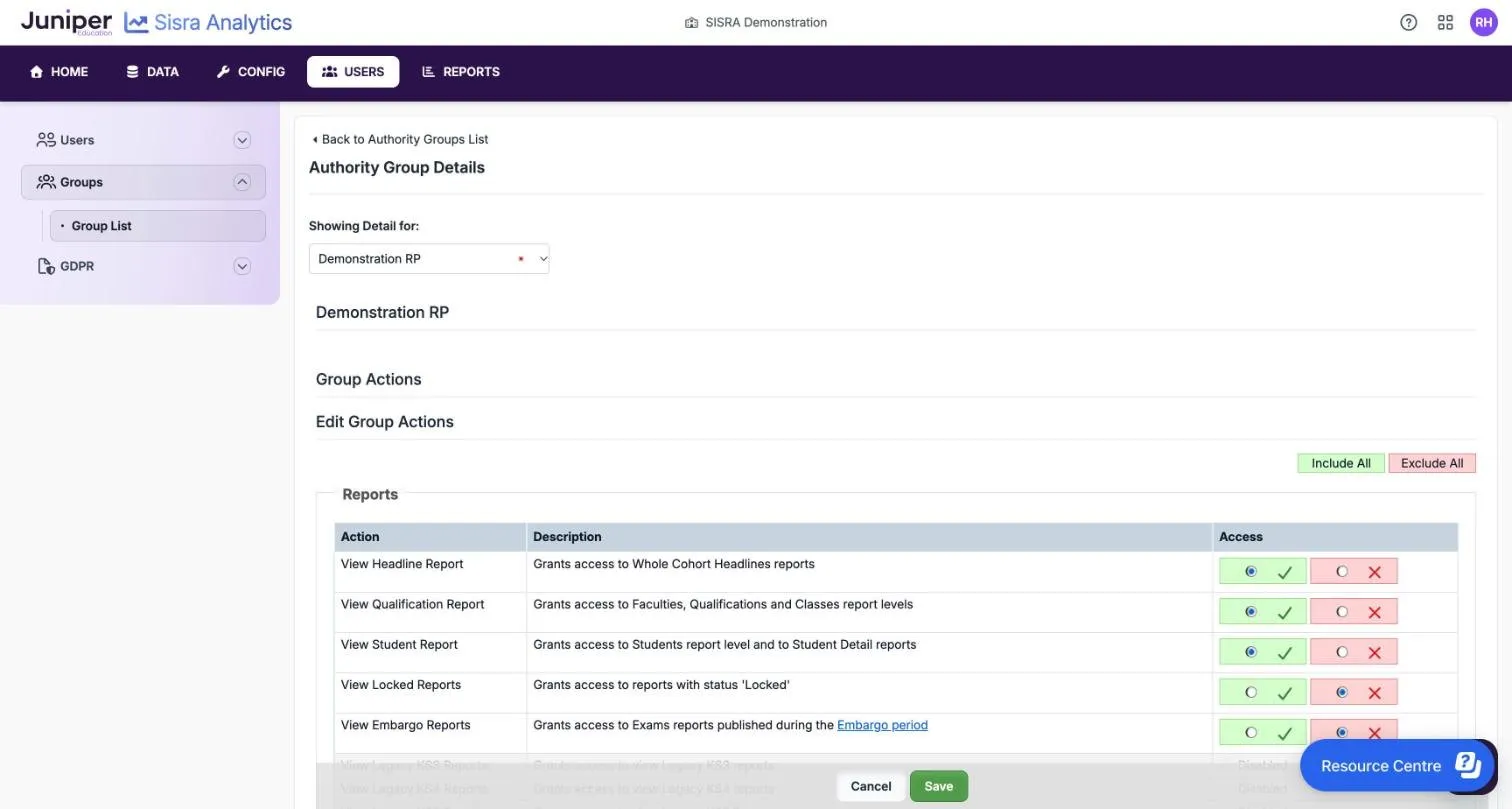
Section titled “Group actions”A group’s details page lists its actions in five boxes: Reports, Users, Data, MAT and Home. A green tick under Access means the group has the action.
| Box | Action | What it allows | Admin | User |
|---|---|---|---|---|
| Reports | View Headline Report | The Whole Cohort level of reports, with the headline figures. At KS5, it is also needed for Performance Cohorts, Best 3 A Levels, Eng/Mat Progress, Value Added and a student’s Headlines Summary | Yes | Yes |
| Reports | View Qualification Report | The faculty, qualification and class levels of reports, plus Filters at KS3/4 and Groups at KS5. Also the trends banner on the reports home, which opens Headline Trends and Qualification Trends | Yes | Yes |
| Reports | View Student Report | The student level of reports, Student Detail, grade lists and Broadsheet Exports | Yes | Yes |
| Reports | View Locked Reports | Reports whose status is Locked | Yes | No |
| Reports | View Embargo Reports | Exams reports published during the results day embargo | Yes | No |
| Reports | View EAP KS3/4 Reports | The KS3/4 reports | Yes | Yes |
| Reports | View EAP KS5 Reports | The KS5 reports | Yes | Yes |
| Users | Access Users Section | USERS: authority groups, Admin History, Usage and Access History | Yes | No |
| Data | Access Data Section | DATA and CONFIG, the admin actions on the reports home page, such as Edit Details and Delete Report, and announcements marked Privacy: Admin | Yes | No |
| MAT | Access MAT Section | Described on screen as sending published report data to your trust. See the note under this table | Yes | No |
| Home | Create Announcement | Posting, editing and removing your school’s announcements on HOME | Yes | No |
To open a report, a person needs the action for its key stage, such as View EAP KS3/4 Reports. They also need the action for its level, such as View Qualification Report. Someone with no level actions sees “No reports are available for your access level” on the reports home page.
Access MAT Section: Sisra Analytics has no MAT section, and nothing in it depends on this action. Taking it away does not stop your data reaching Multi-School. Sisra sends a school’s published data to Sisra Multi-School as part of publishing, when the school belongs to a trust that uses it. See Get school data into Multi-School.
The Reports box also lists View Legacy KS3 Reports, View Legacy KS4 Reports and View Legacy KS5 Reports. They are for older reports that Sisra no longer has, and they are greyed out when you create or edit a group.
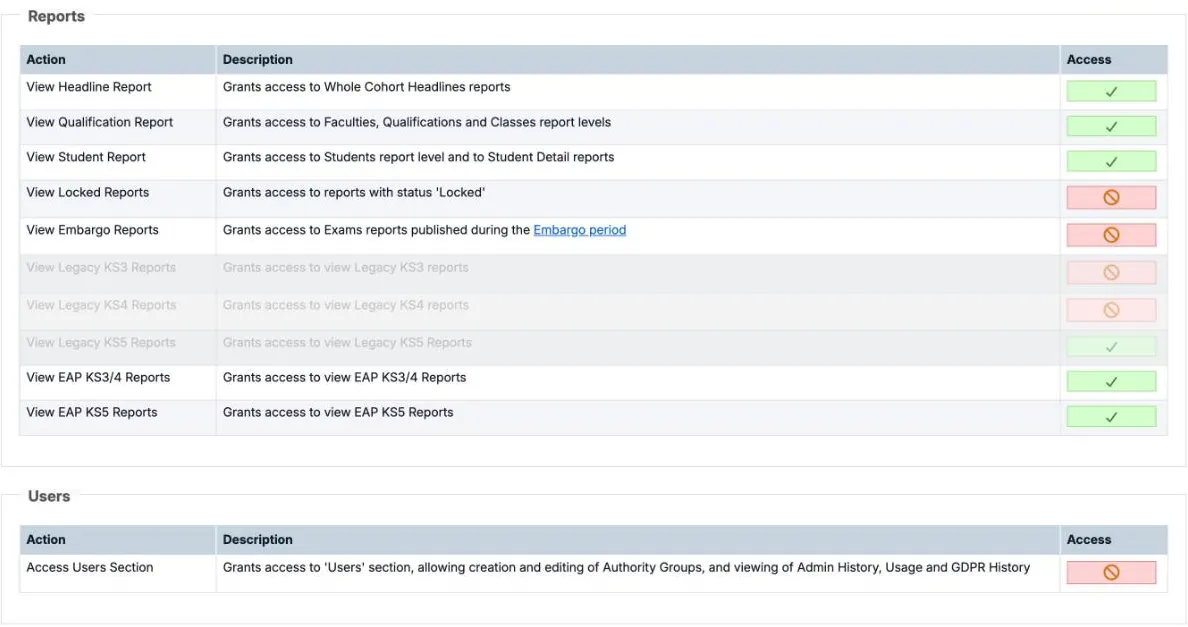
An action your school cannot use is greyed out. The message says this is because of your subscription, or because the key stage has no published reports yet.
What groups do not control
Section titled “What groups do not control”No action limits someone to their own classes, subjects, pupils or students. Anyone who can open a report level can open it for every class and qualification in the cohort. My Classes links and a default focus group help staff find their own classes, but they do not restrict what staff can see.
The Admin and User groups
Section titled “The Admin and User groups”Juniper Education creates Admin and User for every school, and you cannot change them. The list marks them Locked, their details page says “This is a SISRA group and cannot be edited”, and Edit Group Actions is greyed out.
Admin has every action. It is for the staff who set up, upload and publish data. User can open every report except Locked reports and results under embargo, and suits most staff.
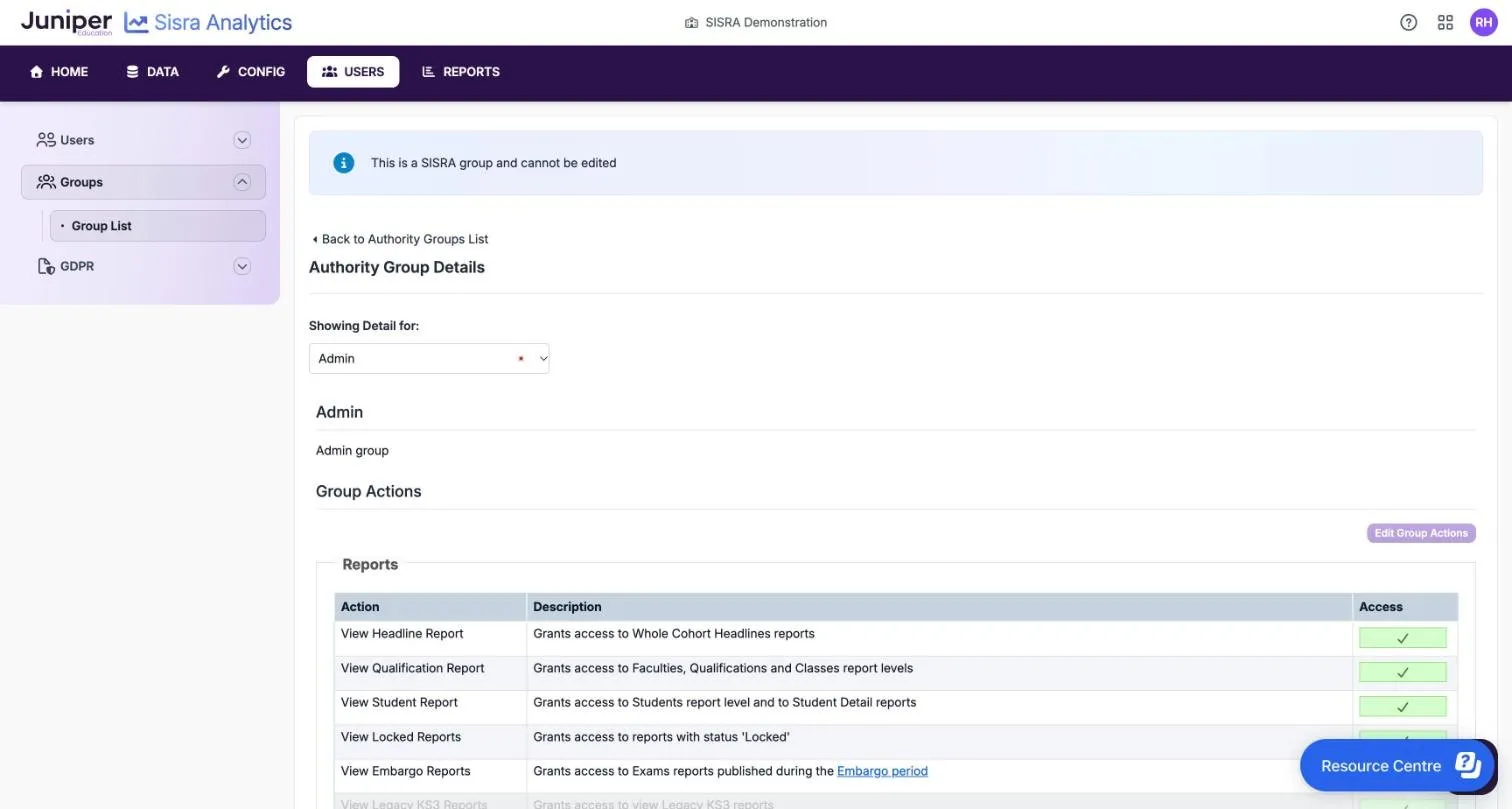
The Admin group also holds Juniper’s support account, Admin SISRA. Access History records when Juniper staff access your school’s data.
Members of a group
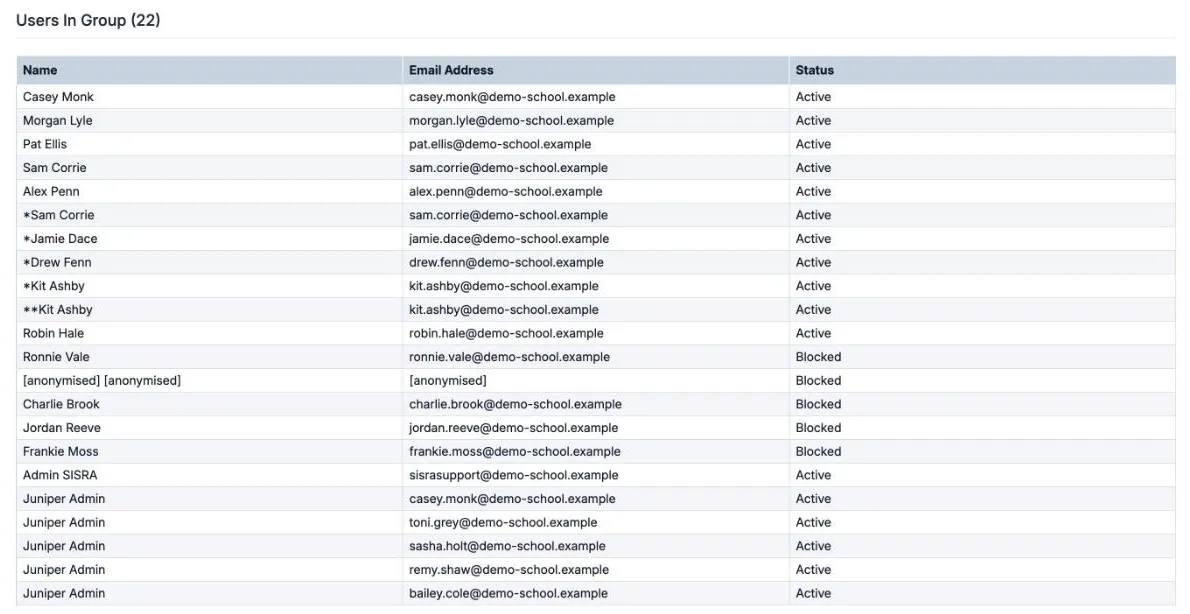
Section titled “Members of a group”Below the actions, Users In Group lists each member with their Name, Email Address and Status. Active members can sign in. Blocked members cannot, for example because their Sisra role has been removed in Juniper Portal.
Create a custom group
Section titled “Create a custom group”Create a group when some staff need more than User but less than Admin, such as senior leaders who need Locked reports but not DATA.
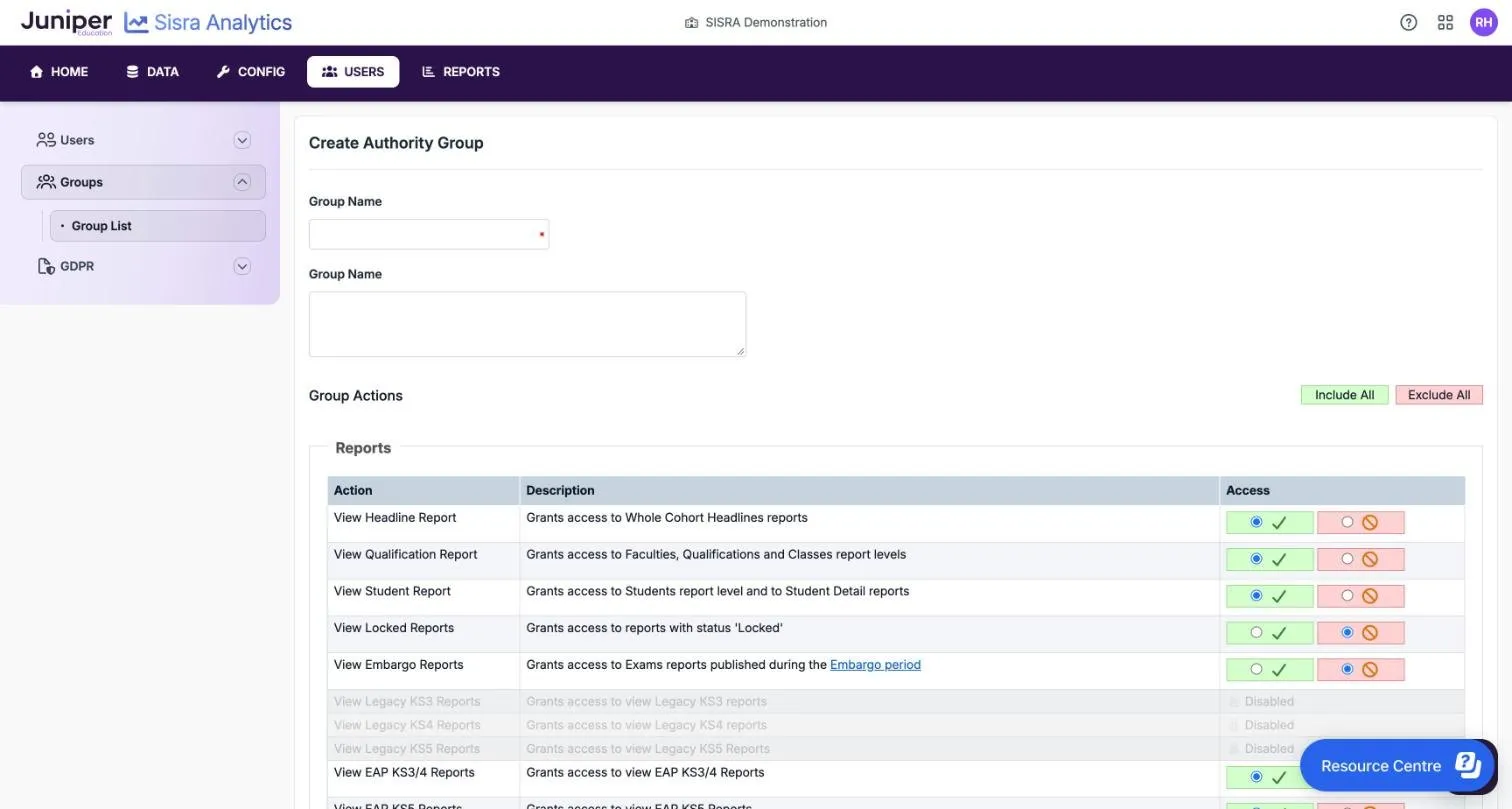
- In Group List, select Create Group.
- Enter a Group Name of 2 to 50 characters.
- In the second box, enter a description of up to 100 characters. This box is also labelled Group Name, but Sisra saves it as the group’s description.
- Under Group Actions, set each action to allowed (the tick) or not allowed (the no-entry sign). Include All and Exclude All set every action at once.
- Select Create Group.
Sisra shows “Authority group successfully created”. A new group starts with five actions allowed: View Headline Report, View Qualification Report, View Student Report, View EAP KS3/4 Reports and View EAP KS5 Reports. Each group needs its own name. If the name is taken, Sisra says “This group name is already in use”.
Sisra adds the group to Juniper Portal as a role with the same name. To put staff in the group, give them that role, as described in Choose a role.
Edit a custom group
Section titled “Edit a custom group”Rename a group
Section titled “Rename a group”- In Group List, select the pencil icon next to the group.
- Change the name or the description.
- Select Save.
Change what a group allows
Section titled “Change what a group allows”- In Group List, select the group’s name.
- Select Edit Group Actions.
- Set each action to allowed (the tick) or not allowed (the cross), or use Include All or Exclude All.
- Select Save.
Sisra shows “Authority group actions successfully changed”. You cannot edit your own group: Edit Group Actions is greyed out, with the tip “You cannot edit the group that you belong to.”
Delete a custom group
Section titled “Delete a custom group”You can delete a group only when it has no members. Until then its cross is greyed out, with the tip “Cannot delete - users are assigned to this group”. Move its members to other roles in Juniper Portal first.
- In Group List, select the cross next to the group.
- Confirm when Sisra asks whether to delete the group.
Sisra shows “Authority group successfully deleted”.
See your own permissions
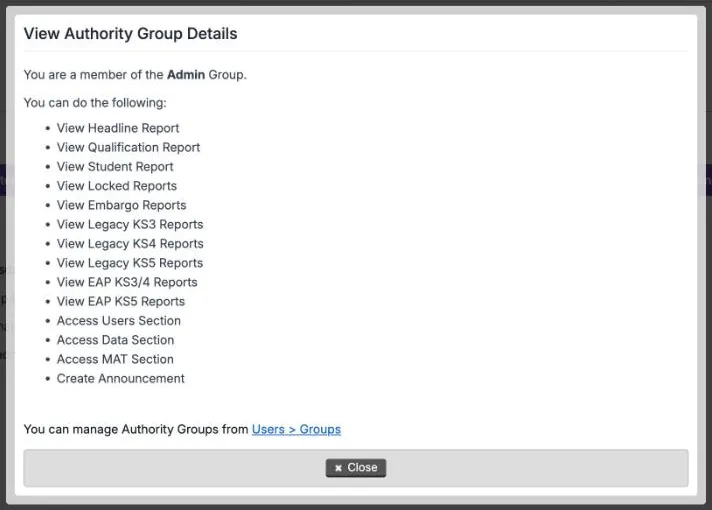
Section titled “See your own permissions”Anyone can see their own group. Select your initials in the header, then View Authority Details. The View Authority Group Details box names your group and lists what you can do. Select Close to shut it.
Set up a group for the results day embargo
Section titled “Set up a group for the results day embargo”On results day, Sisra hides Exams reports published during the embargo from anyone without View Embargo Reports. By default only Admin has it. Juniper sets the embargo times each year: Report status and the results embargo explains them.
To let other staff, such as your headteacher, see results during the embargo:
- In Group List, select Create Group and name the group, for example Embargo.
- Allow View Embargo Reports, and the report actions the staff need.
- If you will keep the Exams report Locked after the embargo ends, allow View Locked Reports too.
- Select Create Group.
- Give the staff the matching role in Juniper Portal.
If something goes wrong
Section titled “If something goes wrong”Edit Group Actions is greyed out. The group is Admin or User, which nobody can change, or it is your own group.
A group’s cross is greyed out. The group still has members. Change their roles in Juniper Portal first.
“Failed to create group in Portal - please try again and contact Support if this persists.” Sisra could not add the group to Juniper Portal, so it did not keep it. Try again, and contact Juniper support if it fails again.
“Changes reverted due to Portal sync failure - please try again and contact Support if this persists.” Sisra could not copy your change to Juniper Portal, so it undid it. Try again, and contact Juniper support if it fails again.
Someone cannot open a report. Check that their group has the action for the report’s key stage and level. KS5 Headlines, Performance Cohorts, Best 3 A Levels, Eng/Mat Progress and Value Added need View Headline Report too. For a Locked report, they also need View Locked Reports.