


 Sonar Tracker
Getting started
Find your way around
Every page in Sisra Analytics has the same header and top menu, and each area has its own menu down the left. Use this page to find a menu or button, or to work out why a colleague sees something you do not.
The header
Section titled “The header”| Item | What it does |
|---|---|
| Juniper logo | Goes back to Juniper Portal, Juniper Education’s account service |
| Sisra Analytics | Goes to the HOME page |
| School name | Shows whose data you are looking at, such as SISRA Demonstration |
| Help (question mark icon) | Opens the Sisra Analytics section of Juniper’s help centre |
| Products (grid icon) | Opens Juniper Products, to switch to another product such as Intelligence or Portal |
| Your initials | Opens your account menu |
Sign in and switch schools explains how to switch schools and products.
Your account menu
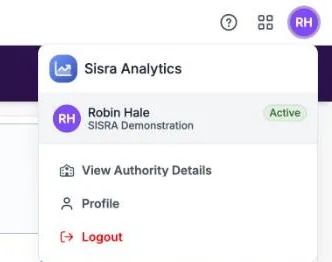
Section titled “Your account menu”The account menu shows your name and school, marked Active, and any other schools you can switch to.
| Item | What it does |
|---|---|
| View Authority Details | Shows your authority group and what it lets you do. See See your own permissions |
| Profile | Opens your profile in Juniper Portal, where you change your password or login email |
| Logout | Signs you out of Sisra and Juniper Portal |
Sisra has no password, email or two-factor authentication settings of its own. They are all in Portal.
The top menu
Section titled “The top menu”| Item | What you find there | Who sees it |
|---|---|---|
| HOME | Announcements from Juniper and from your school | Everyone |
| DATA | Each cohort’s student data, baselines, Expected Attainment Pathways (EAPs) and grades, and the publish pages | Authority groups with Access Data Section |
| CONFIG | Settings for the whole school, such as filters, grade methods and data set names | Authority groups with Access Data Section |
| USERS | Authority groups, admin history, usage and access history | Authority groups with Access Users Section |
| REPORTS | The KS3/4 and KS5 reports | Everyone, but it works only for authority groups with View EAP KS3/4 Reports or View EAP KS5 Reports |
By default, the Admin authority group sees every item, and the User group sees HOME and REPORTS. Authority groups and permissions explains each action.
REPORTS is greyed out until your school publishes its first report. A number on DATA is the count of cohorts with changes waiting to be published. On a narrow screen, the menu folds into one drop-down list, named after the area you are in.
If you open a page your group cannot use, Sisra shows “You do not have the access rights to view this page”. Ask your Sisra administrator if you need it.
The menus down the left
Section titled “The menus down the left”| Area | Left-hand menu |
|---|---|
| DATA | Key Stage and Year 11 in (Year 13 in for KS5), then Students, KS2 / EAP (KS4 / EAP for KS5) and Grades for the cohort you choose |
| CONFIG | Student Data, Staff Initials, Grade Methods, Attitude to Learning, Data Sets, Faculty, Settings and Data Collaboration |
| USERS | Users (User List, Admin History and Usage), Groups (Group List) and GDPR (Access History) |
Each heading opens to show its pages. Some pages depend on your school’s key stages: a school without KS5, for example, has no KS5 Methods under Grade Methods. REPORTS has no menu down the left. It opens on tabs for KS 3/4 and KS5, where you choose a cohort.
An item is greyed out when the cohort does not yet have the data it needs. Point to it to see why, for example “You need to have at least one KS2/Baseline to access this section”. While a cohort is publishing, Sisra locks its pages with messages such as “No access while Grades are publishing”.
The Home page
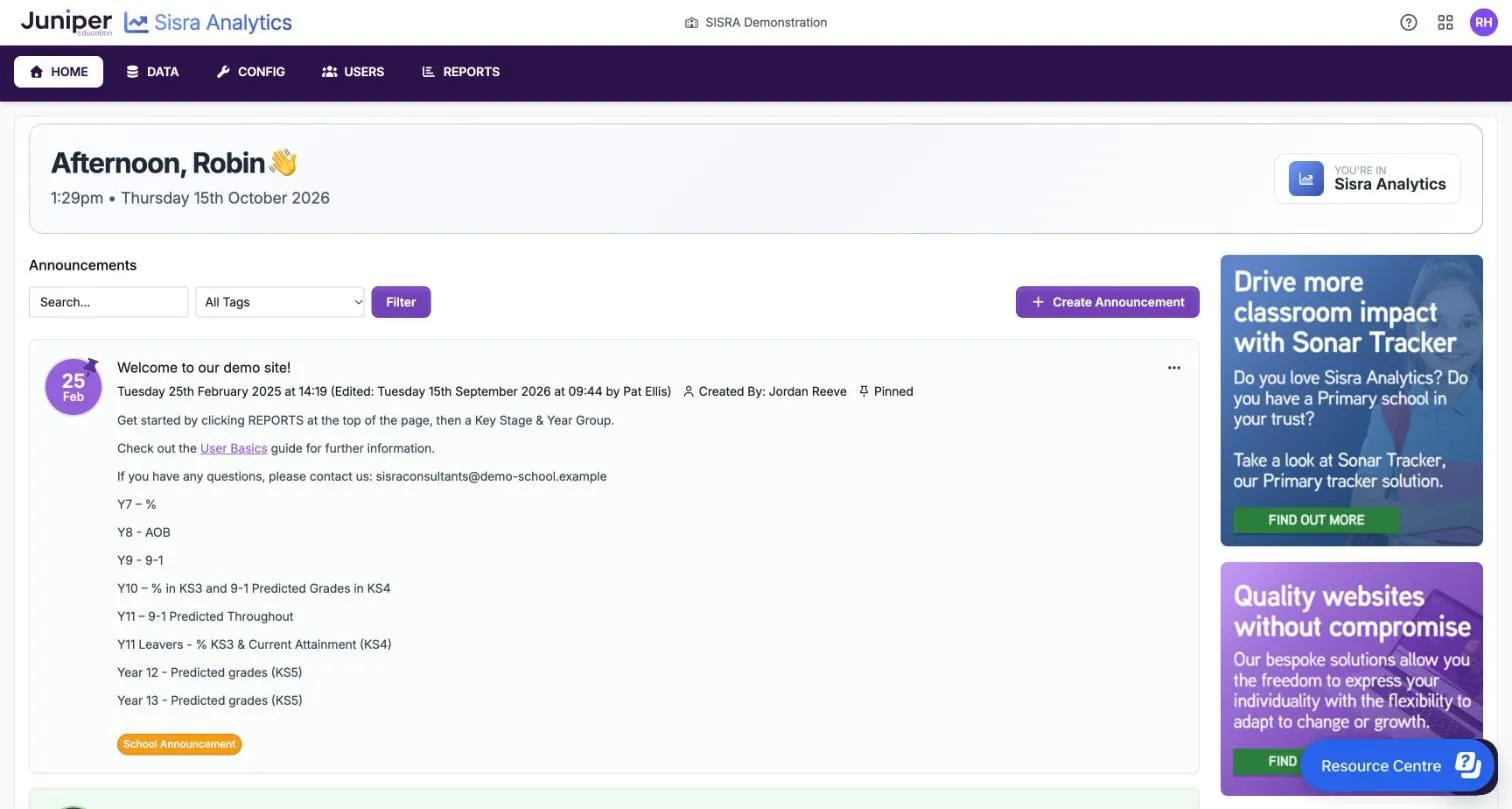
Section titled “The Home page”HOME opens with a greeting, the time and the date. Below them, Announcements lists Juniper’s announcements about Sisra and your school’s own. Your school’s pinned announcement comes first, then the rest, newest first.
| Item | What it does |
|---|---|
| Search… | Finds announcements that contain the words you type |
| All Tags | Narrows the list to one tag, such as Results Day or KS5 |
| Filter | Applies your search or tag |
| Create Announcement | Posts an announcement for your school. Only groups with Create Announcement see it |
| Load More | Shows older announcements |
Your school’s announcements are tagged School Announcement. Juniper’s use Downtime, Events, GDPR, Hints & Tips, KS3/4, KS5, Release, Results Day and Sisra Announcement.
Each announcement shows its date, who created it and, once edited, who changed it. Announcements from the last few days have a green background and a star before the date. Privacy: Admin marks one that only staff with Access Data Section can see. Pinned marks your school’s pinned announcement.
The banners beside the announcements link to Juniper’s other products and to its training and events. Post announcements explains how to post, pin, edit and remove your school’s announcements.
Help and the Resource Centre
Section titled “Help and the Resource Centre”Help, the question mark icon in the header, opens the Sisra Analytics section of Juniper’s help centre.
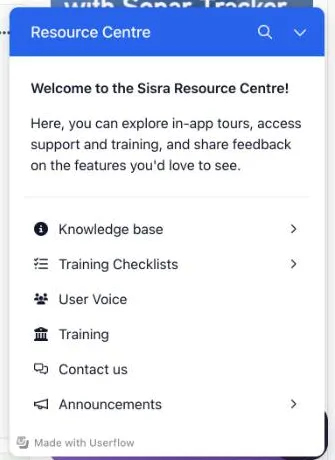
Select Resource Centre, which is on every page, to open a panel with these items:
| Item | What it offers |
|---|---|
| Knowledge base | A search of the help centre, with Suggested articles |
| Training Checklists | KS3/4 Onboarding Checklist, KS5 Onboarding Checklist, KS4 Results Day Preparation Checklist and KS5 Results Day Preparation Checklist |
| User Voice | A place to suggest features you would like in Sisra |
| Training | Links to Juniper’s training |
| Contact us | Live chat with Juniper support, for Sisra administrators |
| Announcements | Juniper’s news about Sisra |
Live chat works only if your school’s firewall allows *.zopim.com. Get support and training lists the other ways to contact Juniper.
The DATA landing page
Section titled “The DATA landing page”Staff with Access Data Section see this page when they open DATA before choosing a cohort.
- In Key Stage, choose 3/4 or 5.
- In Year 11 in (Year 13 in for KS5), choose the cohort, such as 26/27 (Current Yr 11).
Each choice applies as soon as you make it. Sisra remembers it until you sign out, and keeps it after a sign-out for inactivity. The cohort list shows current cohorts first, then leavers, such as 25/26 (Leavers).
Until you choose, the page shows Juniper’s announcements, with those from the last few days marked New.
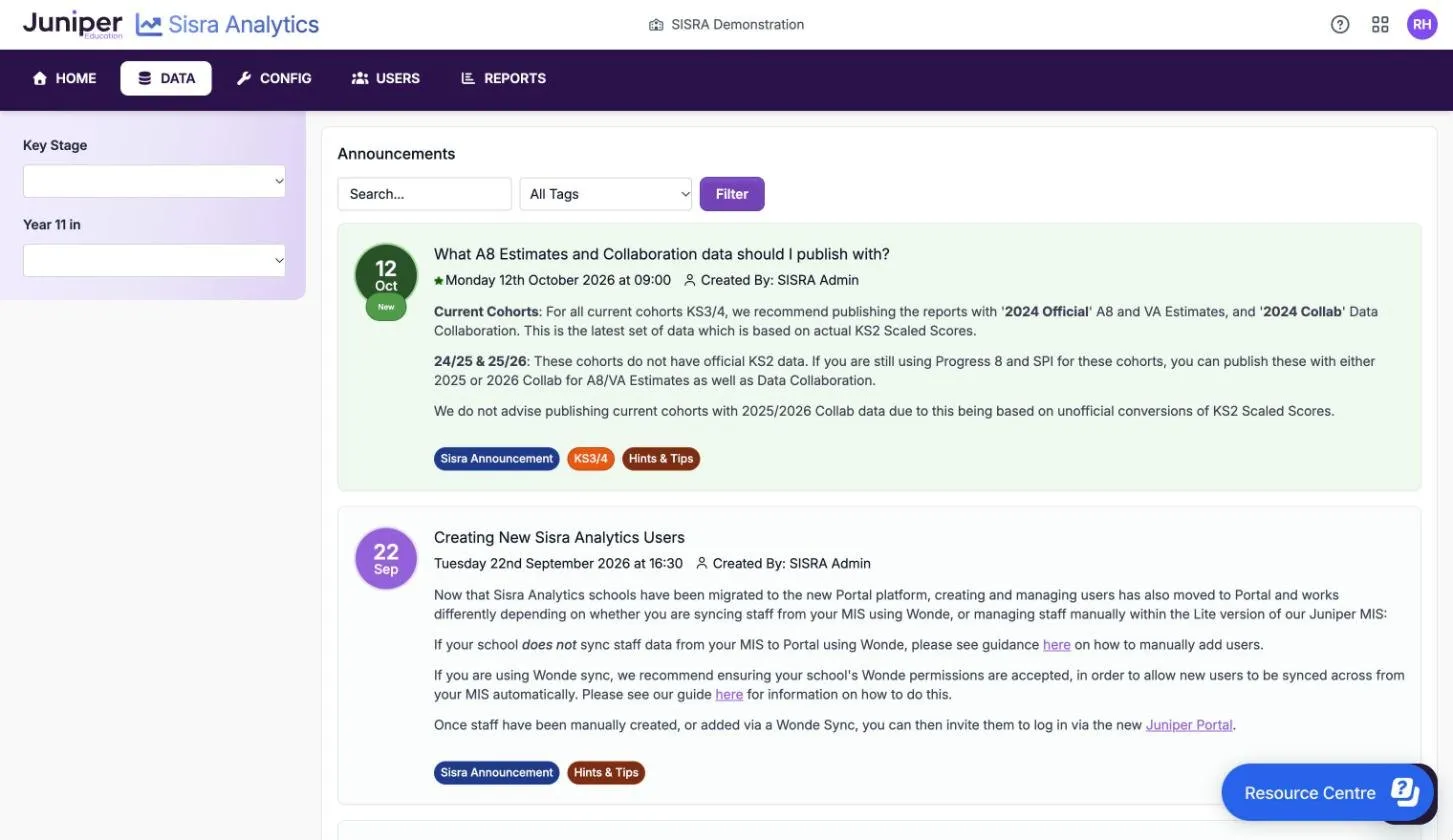
Once you choose a cohort, the menu shows its Students, KS2 / EAP (KS4 / EAP for KS5) and Grades sections. At KS3/4, a Data Collaboration panel in the menu shows how much of the cohort’s Data Collaboration set-up and publishing is complete. Get started as a Sisra administrator explains the order of work in DATA.