


 Sonar Tracker
Students
Set up focus groups and report filters
A focus group is a list of pupils or students you choose by hand, such as an intervention group. Staff can then use it as a filter in the Sisra Analytics reports. Show Filters decides where each of a cohort’s filters appears in the reports. You set both for one cohort at a time, and changes reach the reports when you publish student data.
Before you start
Section titled “Before you start”You need:
- an authority group with Access Data Section, such as Admin
- the cohort’s student data imported
Authority groups and permissions explains Access Data Section. Pastoral leaders without it can ask a data manager to set up a group. Get started as a pastoral leader or SENCO shows how to use groups in the reports.
Create a focus group
Section titled “Create a focus group”- Open the cohort in DATA, then select Students, then Focus Groups, then Focus Groups List.
- Select Create Focus Group.
- Enter a Focus Group Name and, if you like, a Focus Group Description. Select Create.
- On Focus Group Details, tick Include for each pupil or student in the group, then select Save. Rows you include turn green, and the rest stay red.
- Publish student data.
The list shows each group’s Focus Group Name, Description, Student Count and Actions. The pencil edits a group, and the red cross deletes it after you confirm. To change who is in a group, select its name, then Edit Students. You can also add one person to a group from their Student Detail page, under Focus Groups.
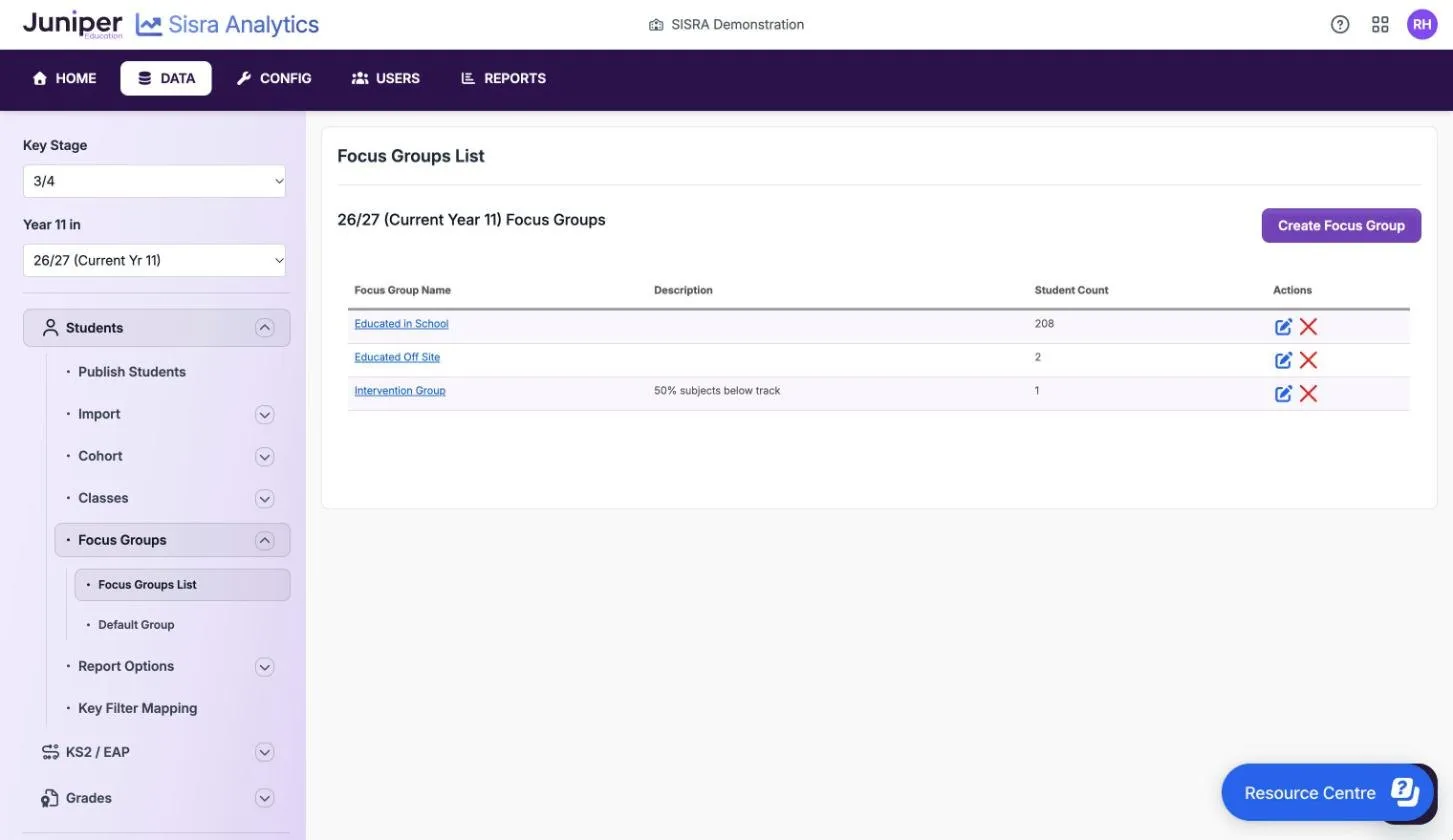
Focus groups suit lists that no filter holds, such as:
- an intervention group
- everyone except a few, to leave outliers out, like the demo school’s Educated in School group of 208 of its 210 pupils
- low, middle and high prior attainment bands for a cohort with no KS2 scaled scores, or at KS5
A focus group works in the Filters tab of the reports. Unlike a filter, it cannot be used in Filter Breakdown or the Filters level of the reports, and you add its members by hand. A filter needs a column in the Student Data Profile and a value in every import.
Highlight a default group (KS3/4)
Section titled “Highlight a default group (KS3/4)”A default group shows its members’ names in a colour in the KS3/4 reports, so that staff can pick them out. Each KS3/4 cohort can have one.
- Select Students, then Focus Groups, then Default Group.
- Select Add Default Group. If the cohort has one already, select Edit or Delete.
- Choose the Focus Group: and a Colour:, then select Save.
- Publish student data.
Until you add one, the page says “No focus group selected.” KS5 cohorts have no default group.
Choose where each filter appears
Section titled “Choose where each filter appears”Show Filters lists the cohort’s filters and the places in the reports where each appears. Every place is ticked until you change it. Use it to remove a filter that means nothing for a cohort, such as Gender in a single-sex school.
- Select Students, then Report Options, then Show filters.
- Select Edit.
- To remove a filter from all the cohort’s reports, untick Include / Exclude Filter. To hide it in one place only, untick that place’s column.
- Select Save.
- Publish student data.
| Column | Unticking it removes the filter from |
|---|---|
| Include / Exclude Filter | Every report for the cohort |
| Apply Filter | The Filters tab, where staff narrow a report to a group |
| Filter Breakdown | Breakdown, which splits a report’s figures by the filter’s values |
| Filters Level Report | The Filters level of the reports |
| Key Characteristics | Key Characteristics, which describes the people in a report |
| Student Detail | The Student Detail reports |
Status shows whether each filter is active, and Filter Count how many values it has in the cohort.
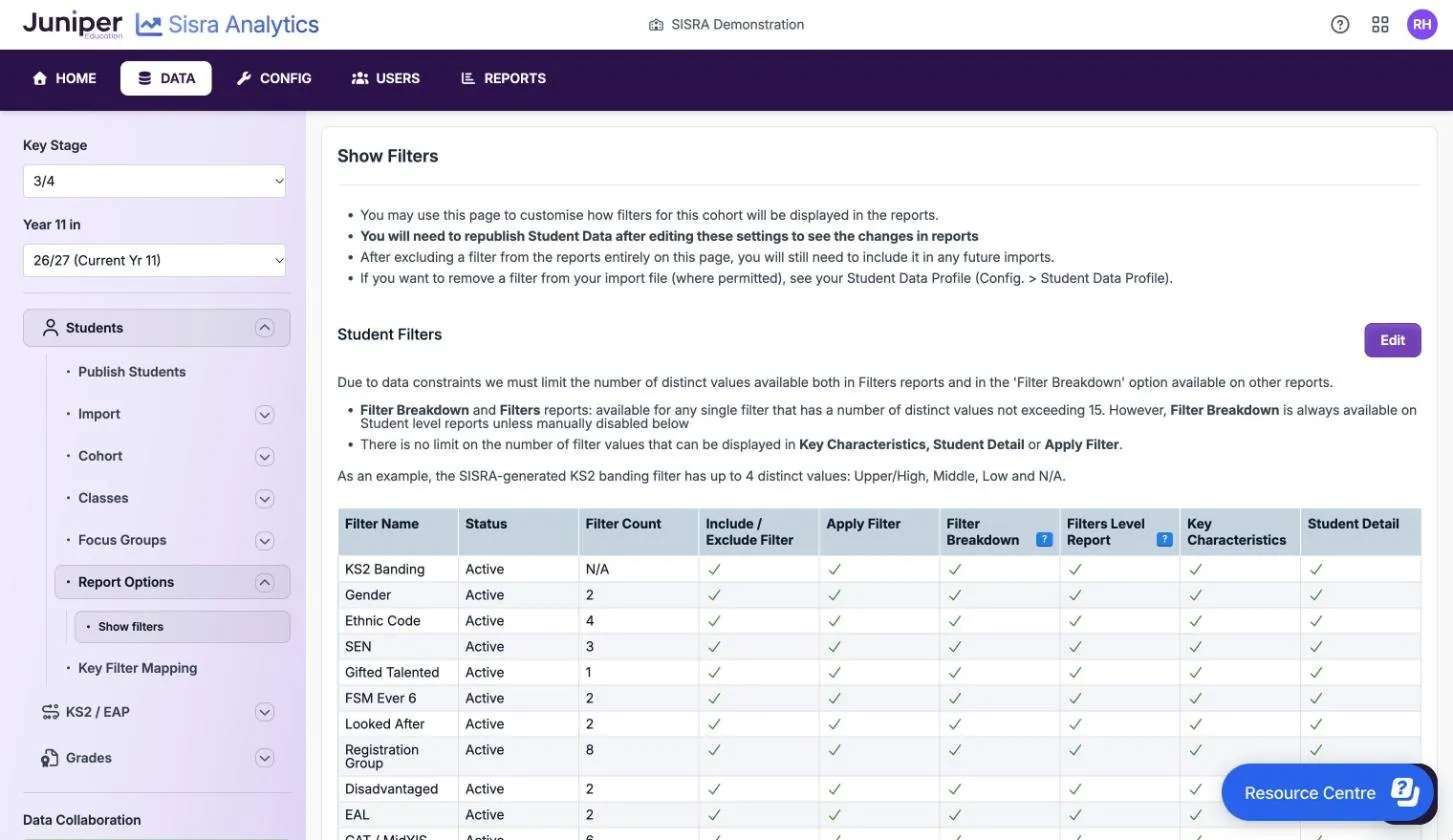
Filter Breakdown and the Filters level work only for filters with 15 values or fewer. Filter Breakdown still works at student level unless you untick it. Key Characteristics, Student Detail and Apply Filter show any number of values.
A removed filter stays in the Student Data Profile, so every import still asks for it. To take one of your own filters out of the files, change the profile: see Add a filter to the profile.
At KS5
Section titled “At KS5”At KS5, Show filters lists each filter with Active, Filter Name and Filter Count. After Edit, turn a filter’s Active setting off to remove it, and it turns red. Show Advanced Filter Options: then shows the separate settings. There, the Filters level is called Groups Level Report, and there is no Apply Filter.

If something goes wrong
Section titled “If something goes wrong”A new focus group or filter setting is not in the reports. Publish student data for the cohort.
A filter is missing from Filter Breakdown. It has more than 15 values in the cohort. Group its values with aliases: see Rename filter values with aliases.
There is no Default Group at KS5. Default groups are for KS3/4 cohorts only.