


 Sisra Analytics
Getting started
About Sonar Tracker
Sonar Tracker is Juniper Education’s assessment tracker for the EYFS, key stage 1 and key stage 2. Teachers record what pupils know and can do, and Sonar turns those records into reports for teachers, leaders, governors and trusts.
Start here
Section titled “Start here”Choose the page for your role. Each one covers the parts of Sonar you will use first.
| If you are | Start with |
|---|---|
| a class teacher or EYFS practitioner | Get started as a class teacher |
| an assessment lead or data manager | Get started as an assessment lead |
| a headteacher, senior leader or governor | Get started as a senior leader or governor |
| a member of trust staff | About Sonar Multi-School |
If you have not used Sonar before, read Sign in and switch schools first, then Find your way around.
What Sonar does
Section titled “What Sonar does”Sonar holds three kinds of information about each pupil:
- teacher assessment, meaning the judgements teachers make at a few points in the year, plus any formative assessment, targets and test scores
- statutory results, such as the phonics screening check and the KS2 tests
- pupil details, such as year group, class and pupil premium, which come from your school’s management information system (MIS)
Reports bring these together. The Primary Flight Path, for example, shows each pupil’s judgements alongside their early learning goal, phonics and KS1 results.
A teacher’s judgement says whether a pupil is on track to meet the expectations for their year group by the end of the year. It is based on what has been taught so far. How assessment works in Sonar explains the thinking behind this.
The parts of Sonar
Section titled “The parts of Sonar”| Part | What it does |
|---|---|
| Pupils and groups | Lists your pupils with their details from your MIS. You can also make your own groups, such as an intervention group, for filters and reports. |
| Teacher assessment | Records summative judgements at each assessment point, with optional formative assessment, targets, end-of-year projections and test scores. |
| Statutory assessment | Holds results of the EYFS profile, the phonics screening check, the multiplication tables check, the optional KS1 assessments, and the KS2 tests and teacher assessment. |
| Observations | Records observations of pupils, with photos, and shares chosen ones with parents. An add-on module. |
| Reports | Turns the data into reports for pupil progress meetings, subject leaders, governors and parents’ evenings. |
| Analysis | Summarises statutory results on the Statutory Dashboard, and pupil numbers and attendance on Pupil Overview. |
| Benchmarking | Compares your school’s teacher assessment with other schools that use Sonar. An add-on module. |
| Parent reports | Creates a Word document for each pupil from your school’s template, filled in with their details and attainment. |
| Sonar Multi-School | Shows assessment data from every school in a trust. A separate product for trusts. |
Subscriptions and modules
Section titled “Subscriptions and modules”What you see in Sonar depends on your school’s subscription. Sonar Tracker is the full product. Sonar Lite covers statutory data entry and the Statutory Dashboard. Most other areas show an information page instead, and Pupils and School are not in the menu. Observations and Benchmarking are add-on modules.
The name in the top bar shows which your school has: Sonar Tracker or Sonar Lite.
A crown icon next to an item in the left menu means that area is not part of your school’s subscription. Select it to see an information page about the module. The menu also depends on your role, so colleagues may see different items.
Portal-linked and stand-alone schools
Section titled “Portal-linked and stand-alone schools”Sonar runs in one of two set-ups, and some tasks differ between them. Many schools, including the demo school used in this guide, are Portal-linked. The Juniper help centre calls the two set-ups “integrated” and “stand-alone”.
| Portal-linked schools | Stand-alone schools | |
|---|---|---|
| Signing in | Through Juniper Portal, with two-step verification | Directly into Sonar |
| Users and roles | Managed in Portal | Managed on the School page in some schools |
| Pupil and class data | From your MIS through Portal, updated overnight | From your MIS through Wonde, updated overnight |
| Importing and exporting common transfer files (CTFs) | In Juniper MIS | In Sonar, on the School page |
To check which set-up your school has, go to School and look at the Users card. In a Portal-linked school, it says users are managed through the Juniper Portal and has a View & Invite Users button. If it has an Add a new user button instead, your school manages users in Sonar. If you cannot open the School page, ask your Account Owner.
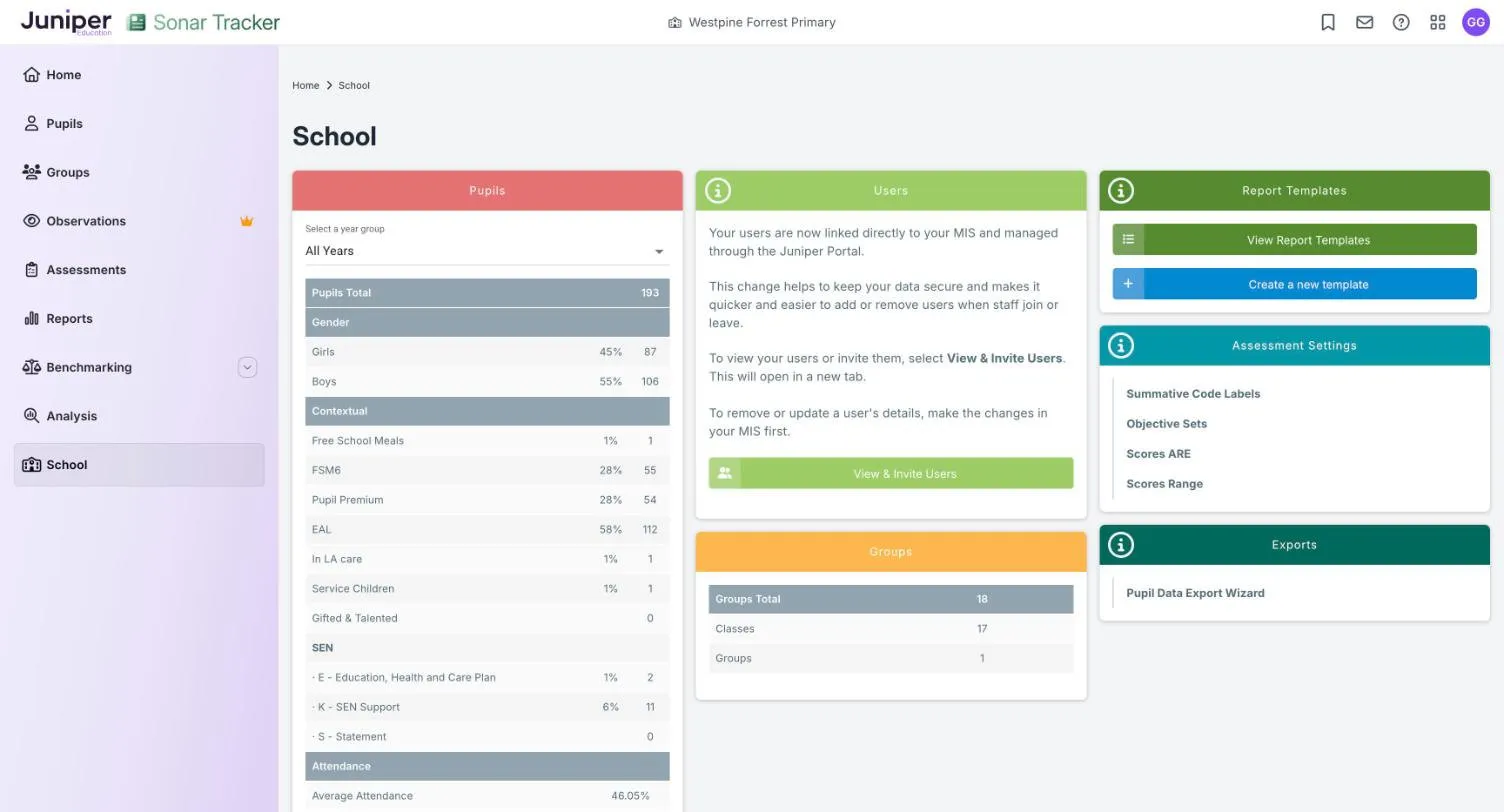
In both set-ups, pupil details come from your MIS, so correct them there. Changes reach Sonar overnight.
How to use this guide
Section titled “How to use this guide”To search, press the / key on any page or select Search the guide, then type a task, report or term. On this page jumps to a section of the page you are reading.
Words in bold, such as Save Preferences, are labels you will see on screen. Where Sonar uses a colour to mean something, the guide shows a swatch and says what it means, for example JA for Just At. Screenshots come from a demo school, Westpine Forrest Primary, and every pupil name is fictional. Your own screens may differ, depending on your role, your subscription and your school’s settings.
Boxes marked Note add useful detail. Warning boxes flag a risk to your data or to a statutory requirement, and Good practice boxes summarise advice from national guidance and research.
Get help
Section titled “Get help”If something is not working, try Troubleshooting first. Get support and training explains how to contact Juniper, and What’s changed lists recent changes to Sonar.