


 Sisra Analytics
Pupils and groups
Pupils and pupil records
The Pupils page lists every pupil on roll in Sonar Tracker. Use it to find a pupil, check the details Sonar holds about them, or select pupils for a group or parent reports.
In most schools, pupil details come from the school’s management information system (MIS), so you cannot change them in Sonar. See How pupil data gets into Sonar.
Find a pupil
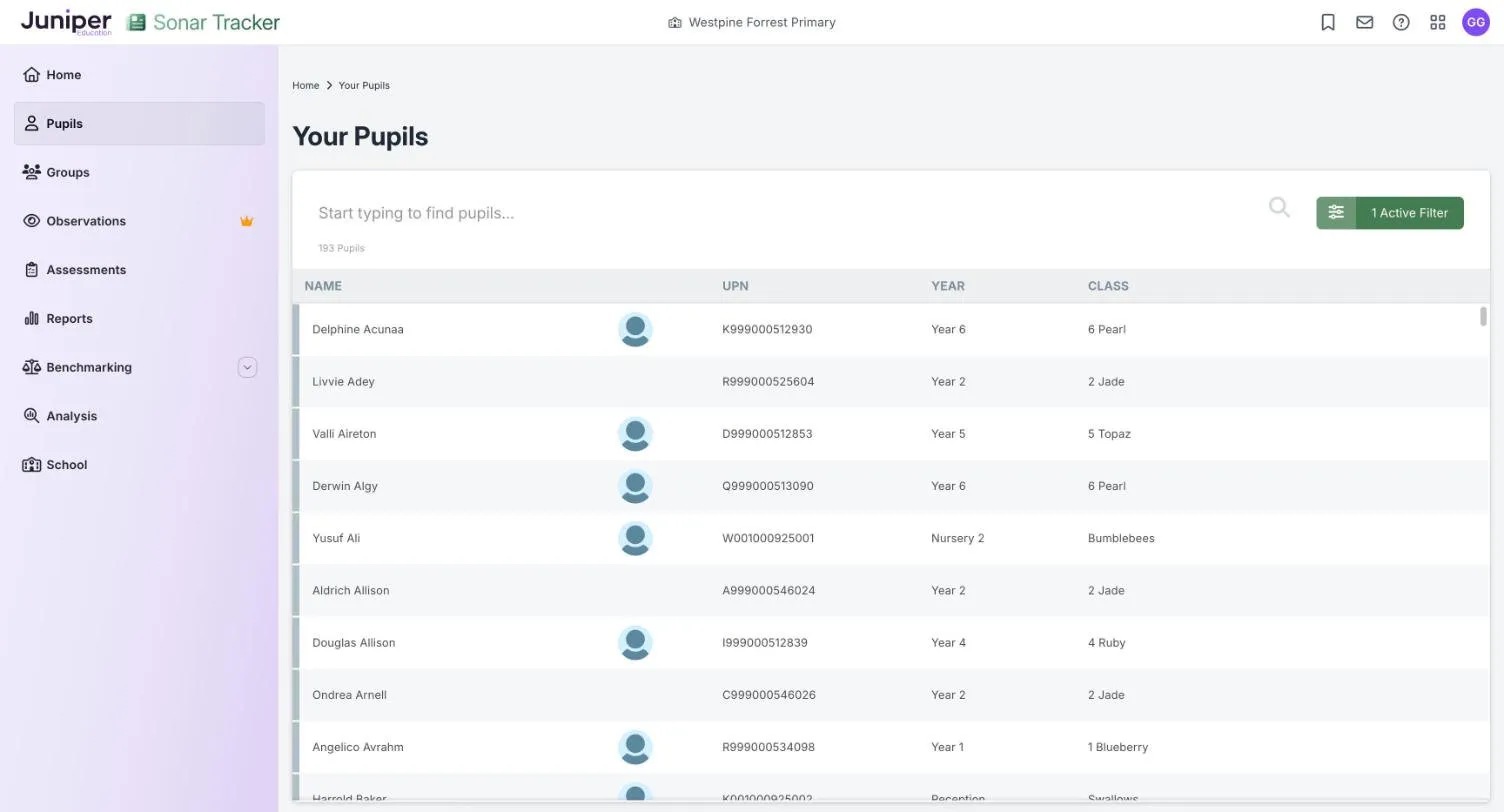
Section titled “Find a pupil”Go to Pupils to open the Your Pupils list. Each row shows a pupil’s name, unique pupil number (UPN), current year group and class. The count above the list, such as 193 Pupils, shows how many pupils match the current filters.
To find someone, enter part of their name in the search box, Start typing to find pupils….
The 1 Active Filter button opens the pupil filters. The one filter that is on by default hides pupils who have left. Filter pupils describes every filter.
Open a pupil record
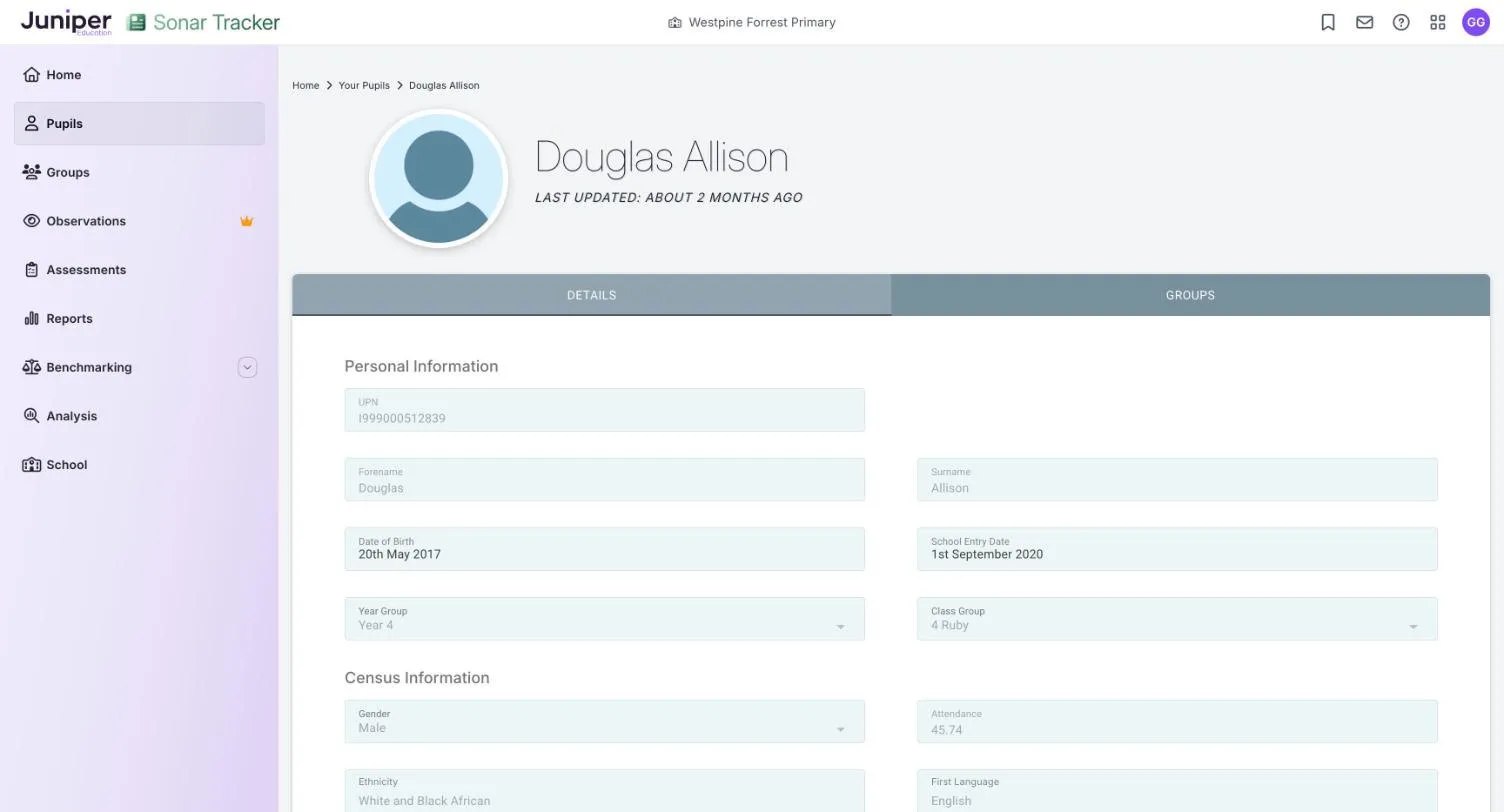
Section titled “Open a pupil record”Select a pupil’s row to open their record, which shows when it was last updated, such as LAST UPDATED: ABOUT 2 MONTHS AGO. The GROUPS tab lists the custom groups the pupil belongs to, and the DETAILS tab has three sections:
| Section | Fields |
|---|---|
| Personal Information | UPN, Forename, Surname, Date of Birth, School Entry Date, Year Group, Class Group |
| Census Information | Gender, Attendance, Ethnicity, First Language |
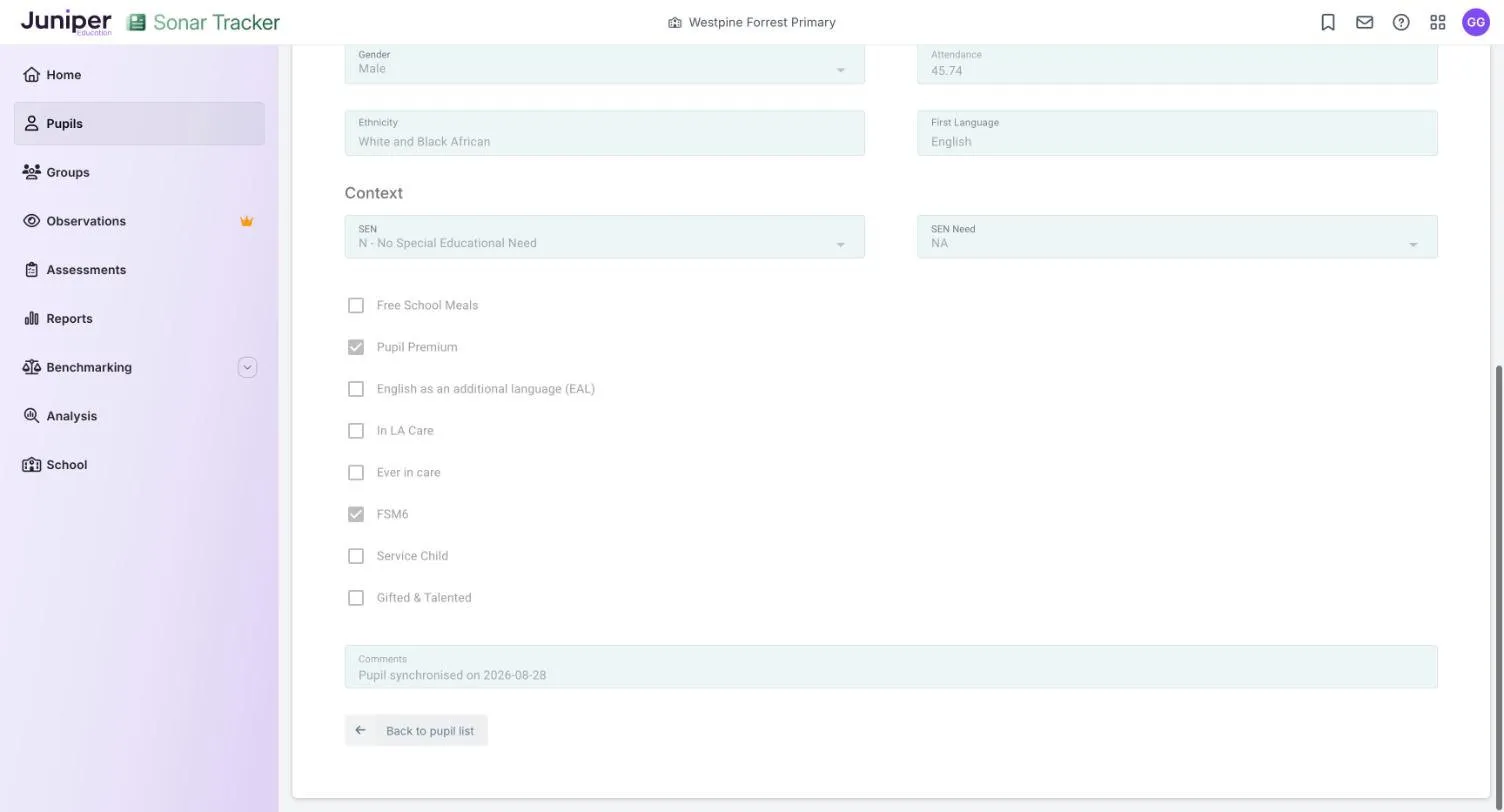
| Context | SEN (special educational needs), SEN Need and a tick box for each characteristic, such as Pupil Premium |
Below them, Comments may show a note such as Pupil synchronised on 2026-08-28. Back to pupil list returns you to the list.
The record does not show assessment data. To see one pupil’s judgements and results together, use the Single Pupil Overview report.
What the context fields mean
Section titled “What the context fields mean”Sonar copies these fields from your MIS, and filters and reports use them to compare groups. Some also show as flags under a pupil’s name on assessment pages, such as EAL (English as an additional language) and PP (pupil premium).
| Field | What it means |
|---|---|
| SEN | The pupil’s SEN status: N - No Special Educational Need, K - SEN Support or E - Education, Health and Care Plan. S - Statement is an older category, replaced by education, health and care (EHC) plans. |
| SEN Need | The pupil’s type of need, using the code from your MIS, such as SLCN (speech, language and communication needs). NA means not applicable. |
| Free School Meals | The pupil is currently recorded as eligible for free school meals (FSM). |
| Pupil Premium | The pupil is recorded as eligible for pupil premium funding. |
| English as an additional language (EAL) | The pupil’s first language is known or believed to be other than English. |
| In LA Care | The pupil is currently looked after by a local authority. The newer filters call this In Care. |
| Ever in care | The pupil is or has been looked after by a local authority. |
| FSM6 | The pupil has been recorded as eligible for free school meals at some point in the last 6 years. |
| Service Child | The pupil is recorded as a service child, with a parent or carer in the armed forces. |
| Gifted & Talented | The pupil is recorded as gifted and talented. |
| Attendance | The pupil’s attendance percentage from your MIS. Assessment pages show it under the pupil’s name. |
Select pupils
Section titled “Select pupils”To work with several pupils at once, turn on selection:
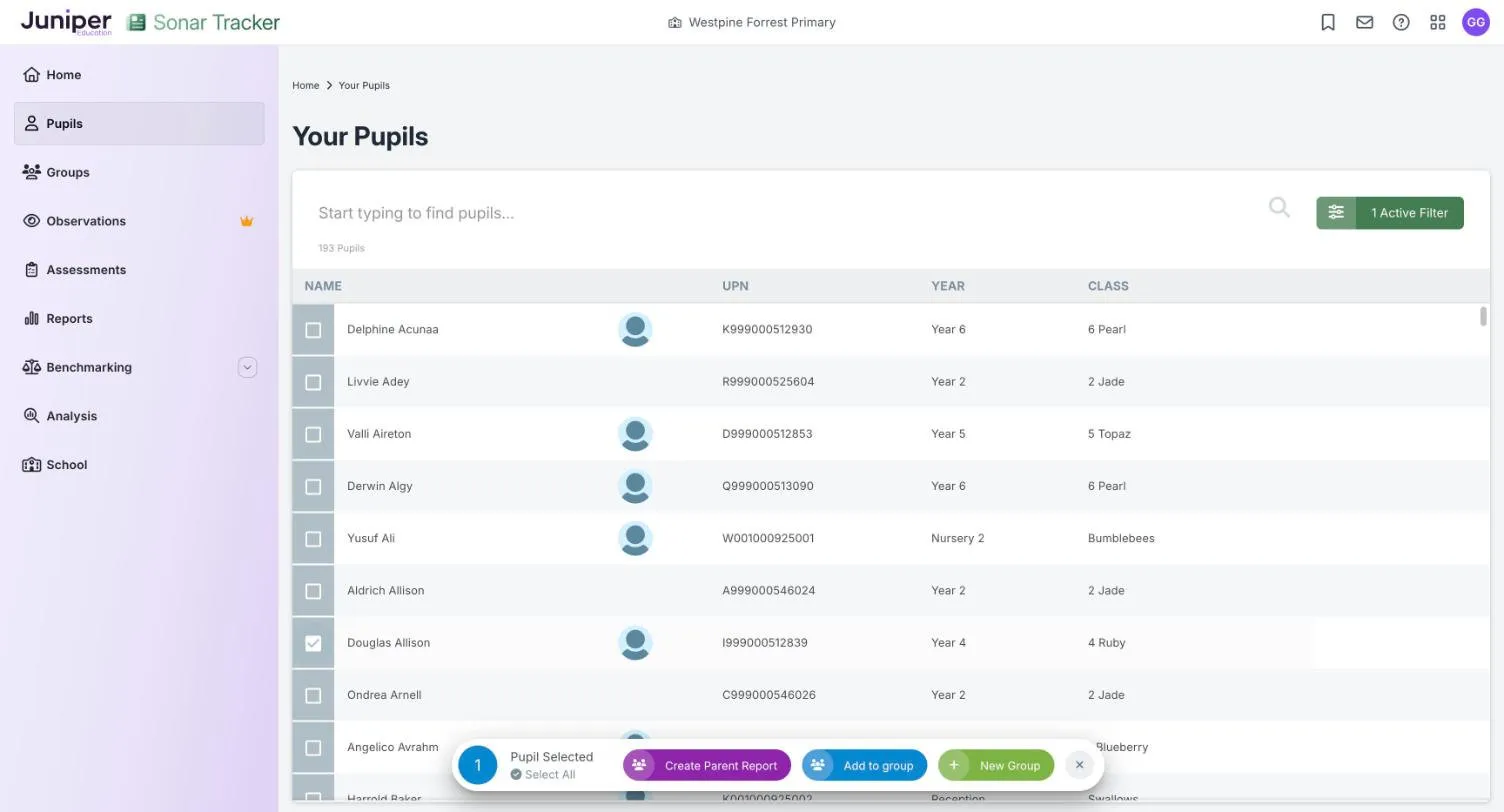
- Select the narrow grey bar at the start of any pupil’s row. A tick box appears on every row.
- Tick each pupil you want, or select Select All to tick every pupil in the list.
- Choose an action from the bar at the bottom of the page.
The bar shows how many pupils you have selected, such as 1 Pupil Selected, and offers three actions:
| Action | What it does |
|---|---|
| Create Parent Report | Creates parent reports for the selected pupils from one of your school’s templates. See Create parent reports. |
| Add to group | Adds the selected pupils to a custom group that already exists. |
| New Group | Creates a new custom group. Check its members afterwards, because the selected pupils may not be added. See Create a group from the pupil list. |
To select a whole class, filter the list to that class first, then use Select All. To turn selection off, select the cross at the end of the bar.
Pupils who have left
Section titled “Pupils who have left”Sonar hides pupils marked as leavers from the pupil list, assessment pages and reports, but keeps their records and assessment data. To see them, change the Leavers filter to include leavers or show leavers only. See Include leavers.
If your pupil data comes from an MIS, record the pupil as a leaver there, and Sonar marks them as a leaver overnight. If a leaver still appears after 48 hours, contact Juniper Education support.
Mixed-age classes
Section titled “Mixed-age classes”Sonar has no special set-up for mixed-age classes. Each pupil keeps their own year group, which shows under their name on assessment pages. The judgement list offers the codes for that pupil’s year group, and reports compare each pupil with the expectations for their own year group.
To look at one year group within a mixed-age class, choose the class and then filter by year group. See Show one year group in a mixed-age class.
Fix missing or wrong details
Section titled “Fix missing or wrong details”If your pupil data comes from an MIS, fix problems there and Sonar picks up each change overnight. A new pupil appears the day after they are added to the MIS. For a pupil in the wrong year group or class, correct their national curriculum year or class in the MIS. If a change cannot wait until the next day, contact Juniper support.
For missing nursery pupils, duplicate pupils and an empty list, see Common problems.
Schools without an MIS link
Section titled “Schools without an MIS link”Only schools whose pupil data does not come from an MIS see these options.
Add a pupil
Section titled “Add a pupil”- Go to Pupils and select Add a new pupil.
- Complete the Add a new Pupil page. Fields marked with an orange dot are required.
- Select Update Pupil. Until every required field is complete, the button reads Some Fields Required.
Sonar saves the record straight away.
Edit a pupil
Section titled “Edit a pupil”Open the pupil’s record, change the fields and select Update Pupil.
Mark a pupil as a leaver
Section titled “Mark a pupil as a leaver”- Open the pupil’s record and select the Remove Pupil tab.
- Select Mark this pupil as a leaver.
- Enter the leaving date.
- Select Mark this pupil as a leaver again.
The pupil no longer appears in pupil lists or on assessment pages. Their assessment data stays, and you can include them in reports with the Leavers filter.
Delete a pupil
Section titled “Delete a pupil”- Open the pupil’s record and select the Remove Pupil tab.
- Select Delete this pupil completely.
- Enter
deletewhen asked, then confirm.
If something goes wrong
Section titled “If something goes wrong”Nothing happens when you select a pupil. Select the row again.
There is no Pupils item in the menu. Sonar Lite does not include the Pupils page. If your school has the full Sonar Tracker, ask your Account Owner whether your role includes it.