


 Sisra Analytics
Statutory assessment
Import and export statutory data
A common transfer file (CTF) is the DfE’s file format for moving pupil data between schools and systems. You use CTFs to bring statutory results into Sonar Tracker and to move them into your management information system (MIS). Where you do this depends on whether your school is Portal-linked or stand-alone.
Check which set-up you have
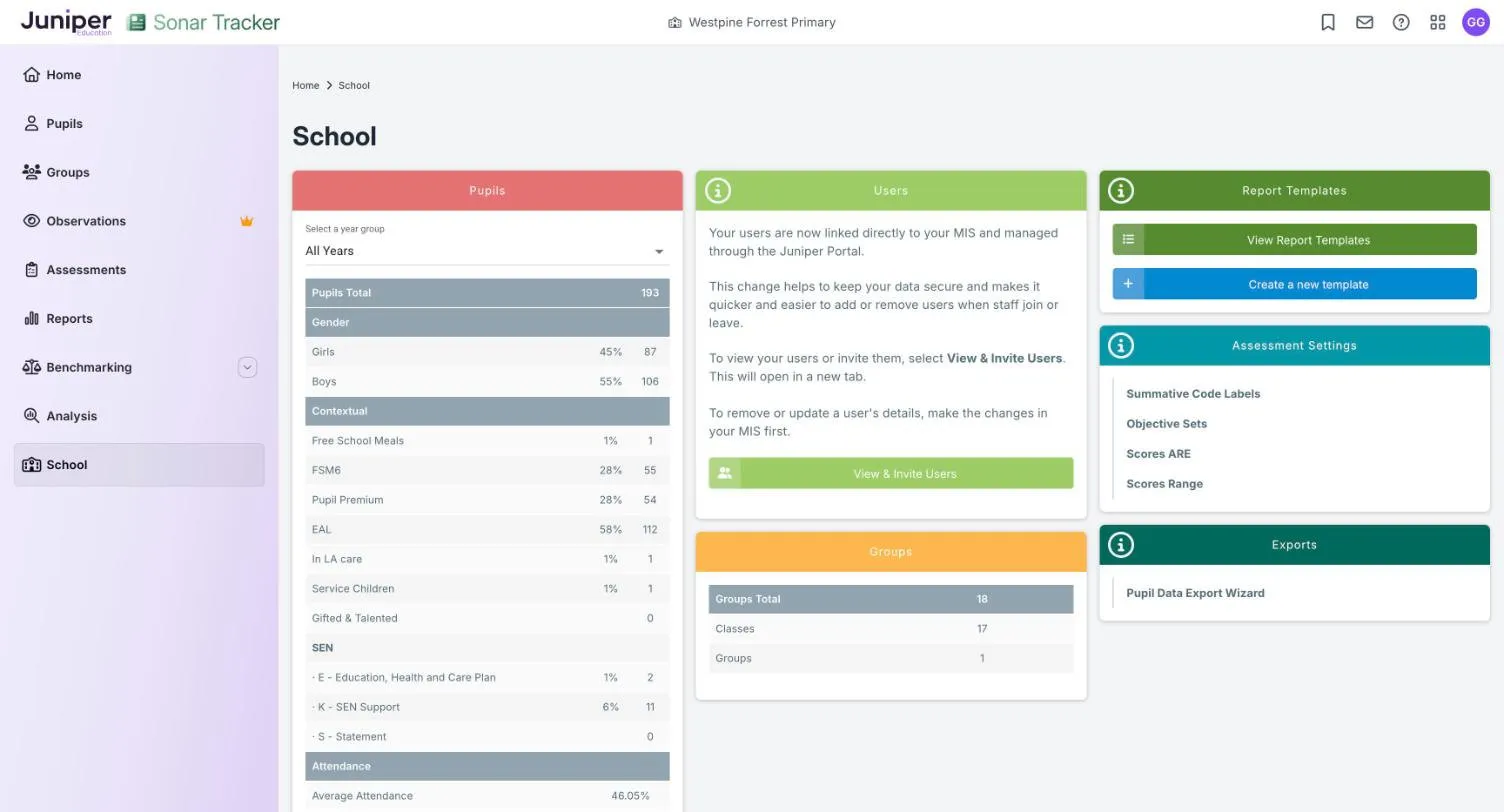
Section titled “Check which set-up you have”Go to School and look at the Users card. In a Portal-linked school, it says your users are managed through Juniper Portal and offers View & Invite Users. The page also has no Send a file to Sonar card. If you are not sure, ask your Account Owner.
Someone with an admin role, such as Account Owner or Account Admin, usually does the importing and exporting.
Portal-linked schools
Section titled “Portal-linked schools”In a Portal-linked school, Juniper MIS handles every CTF, and Sonar has no import or export of its own. Statutory results still live in Sonar: results you enter there pass to Juniper MIS automatically, and results you import into Juniper MIS appear in Sonar. Enter and correct results in Sonar, because you cannot edit them in Juniper MIS.
These help centre articles, outside this guide, cover the Juniper MIS steps:
- MIS: How do I import a CTF?, for example for KS2 or multiplication tables check (MTC) results from the Standards and Testing Agency (STA)
- MIS: How do I export a CTF?, for data returns and pupil transfers
- MIS: How do I send statutory reports to parents?, which sends reports by email or the Juniper Education app through Comms Hub
Before you send KS2 reports to parents, wait until Juniper Education confirms on the help centre’s Status Updates page that national data has been added. Until then, the national data column in the reports is empty.
Rename a downloaded CTF
Section titled “Rename a downloaded CTF”Juniper MIS only imports a CTF named in the DfE format, so rename files you download before you import them. This includes files from the NCA Portal, STA’s online service for national curriculum assessments, and from the DfE’s Get Information about Pupils (GIAP) service.
- Find your school’s DfE number: your local authority number followed by your school number, seven digits in all.
- Rename the file
LLLSSSS_CTF_LLLSSSS_001, putting your DfE number in place of bothLLLSSSS. For example, school 0010115 uses0010115_CTF_0010115_001. - Keep
.xmlat the end of the name. If your computer hides file extensions, do not type it.
The help centre article Renaming a CTF to import into MIS shows how to rename a file in Windows and on a Mac.
Import a CTF in a stand-alone school
Section titled “Import a CTF in a stand-alone school”Use Send a file to Sonar on the School page. One CTF can hold results for all five assessments. Suitable files include:
- a whole-school CTF from your MIS, addressed to your own school
- a CTF of KS2 results from the NCA Portal, or of MTC results from STA
- a CTF from a new pupil’s previous school, or from GIAP
The file must end in .xml. Files addressed to your local authority do not import.
- Go to School.
- Drag the CTF onto the Send a file to Sonar card, or browse to the file.
- Check that Sonar shows A CTF file has been detected and the name of your file.
- Tick the data to import: ELG (early learning goals), KS1, KS2, Phonics or MTC.
- Select Upload and process file.
A message arrives in your Inbox confirming which data you chose, and the results are usually ready to use within an hour. Sonar processes only the data you ticked, and only for pupils in the file. If the data you ticked is not in the file, nothing changes.
Export a CTF from a stand-alone school
Section titled “Export a CTF from a stand-alone school”Statutory Data Export to MIS turns the results in Sonar into a CTF for your MIS, so you only enter them once. You then make data returns and parent reports from your MIS. Sonar cannot send a return to your local authority or STA directly.
Three exports are available: KS2 Data Export, Phonics Data Export and EYFS Profile Data Export. Sonar chooses the year groups for each one, and Last Generated shows when each export last ran.
- Go to School.
- In the Exports card, select Statutory Data Export to MIS.
- Find the export you need.
- Select the Queue Export icon in its row.
- Wait for a message in your Inbox, usually after a minute or two.
- Open the message and download the file.
- Import the file into your MIS, following your MIS supplier’s guidance.
Read the generation report
Section titled “Read the generation report”Each export comes with a generation report. It lists the pupils included and any problems Sonar found. The Inbox message says how many warnings or critical issues there are, and links to the report.
A critical issue stops Sonar creating the file until you fix it. A warning is for information: add the missing results and export again, or create the file without those pupils. Checks include missing ELG results, a high proportion of absent pupils and dates of birth outside the expected range.
What the export includes
Section titled “What the export includes”Each export:
- covers the pupils in the year group now, so run it in the academic year the results belong to
- leaves out leavers, so add their results in your MIS by hand before you make the return
- lists pupils with no results as warnings, such as new joiners whose previous school is sending their results
- uses pupils’ preferred names, so your MIS may not match some pupils
The phonics export includes every year 1 pupil and the year 2 pupils who did not meet the standard in year 1. Some codes, such as D for phonics, may not import into your MIS, so check them there.
Add results for new joiners
Section titled “Add results for new joiners”A new pupil’s details reach Sonar from your MIS, usually the day after they are added there. Their earlier statutory results do not come with them. To add the results:
- Check that the pupil appears in Sonar.
- Get a CTF with their results from their previous school, from your MIS or from GIAP.
- Import the CTF, in Juniper MIS if your school is Portal-linked or with Send a file to Sonar if it is stand-alone.
- Open the statutory page for the pupil’s year group and check their results.
GIAP returns the EYFS profile, phonics and KS1 results submitted for pupils with a valid unique pupil number (UPN), whichever school they were at. You need a DfE Sign-in account. Search for the pupils by UPN and download the results as a CTF. A Portal-linked school renames the file before importing it.
Find results for year 7 and leavers
Section titled “Find results for year 7 and leavers”After the new academic year starts, last year’s year 6 pupils appear under Year 7. Once they have left, Sonar treats them as leavers and hides them. To see their results, open the statutory page, choose Year 7, then change the Leavers filter to include leavers. See Include leavers.
Pupils who left before your school’s data reached Sonar are not in Sonar at all, so you cannot import their results. Look at their results in your MIS instead.
Use legal names in an exported CTF
Section titled “Use legal names in an exported CTF”This applies to stand-alone schools. Sonar’s CTFs use pupils’ preferred names, so your MIS may not match some pupils when you import the file. Correct the names in the file:
- Note which pupils did not match.
- Extract the CTF from the ZIP file Sonar produced.
- Open the CTF in Notepad.
- Use Find to find each pupil’s preferred name, and change it to their legal name by hand, for example from Doug to Douglas.
- Select File, then Save.
- Import the file into your MIS again.
Do not use Replace. It changes every pupil with the same name, not only the one you mean.
If something goes wrong
Section titled “If something goes wrong”Results do not appear after a stand-alone import. Wait an hour, then check the file:
- it is a CTF ending in
.xml, not a spreadsheet (saving a spreadsheet as XML does not make a CTF) - it is addressed to your school: the second number in its name is your DfE number, not your local authority’s
- it is complete: opened in Notepad, its last three lines are
</Pupil>,</CTFpupilData>and</CTfile> - it contains the data you ticked
Juniper MIS will not import a file from STA or GIAP. Rename it in the DfE format. See Rename a downloaded CTF.
If you are still stuck, contact support. You may need to send the file using a secure method that Juniper sets up.