


 Sisra Analytics
Getting started
Find your way around
Every page in Sonar Tracker has the same top bar and left menu, and most pages share the same controls for choosing and filtering pupils. Use this page to find a menu or button, or to check what a colour means.
The top bar
Section titled “The top bar”From left to right:
| Item | What it does |
|---|---|
| Juniper logo | Goes back to Juniper Portal. |
| Sonar Tracker | Goes to the Sonar Home page. Schools with Sonar Lite see Sonar Lite here instead. |
| School name | Shows which school’s data you are looking at. |
| Bookmarks (bookmark icon) | Saves the page you are on, with its filters. See Bookmarks. |
| Inbox (envelope icon) | Opens your messages, including links to files you asked Sonar to make. See The Inbox. |
| Help (question mark icon) | Opens the Sonar Tracker section of the Juniper help centre in a new tab. |
| Products (grid icon) | Switches to another Juniper product, such as Intelligence or Portal. |
| Your initials | Opens the account menu, with Profile, Logout and any other schools you can switch to. |
Sign in and switch schools explains the account menu and the Juniper Products list.
The left menu
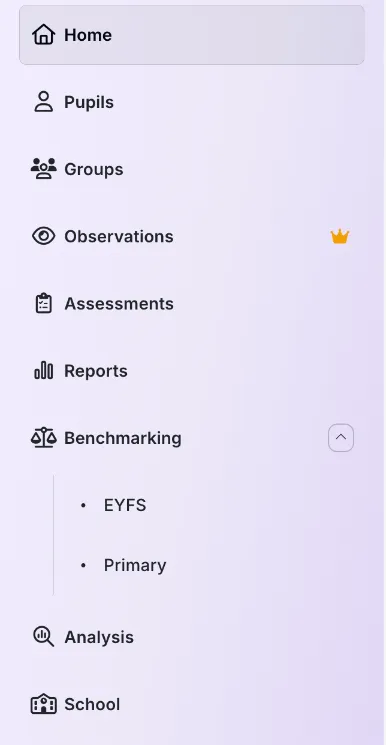
Section titled “The left menu”| Item | What you find there |
|---|---|
| Home | Sonar News, your preferences and your bookmarks |
| Pupils | The list of pupils, and each pupil’s record from your management information system (MIS) |
| Groups | Classes from your MIS, and groups your school makes in Sonar |
| Observations | Observations of pupils, if your school has the Observations module |
| Assessments | Pages for entering teacher assessment, targets, projections, test scores and statutory results |
| Reports | The report library |
| Benchmarking | EYFS and primary benchmarking, if your school has the Benchmarking module |
| Analysis | The Statutory Dashboard and Pupil Overview |
| School | Settings such as users, assessment settings, parent report templates and exports |
The Assessments page groups its pages into four cards: Teacher Assessments, Targets & Projection Pathway, Tests and Statutory Assessments. Benchmarking opens to show EYFS and Primary.
The menu depends on your role and your school’s subscription, so colleagues may see different items. A crown icon next to an item means it is not part of your school’s subscription. Selecting it opens an information page about that module.
The Home page
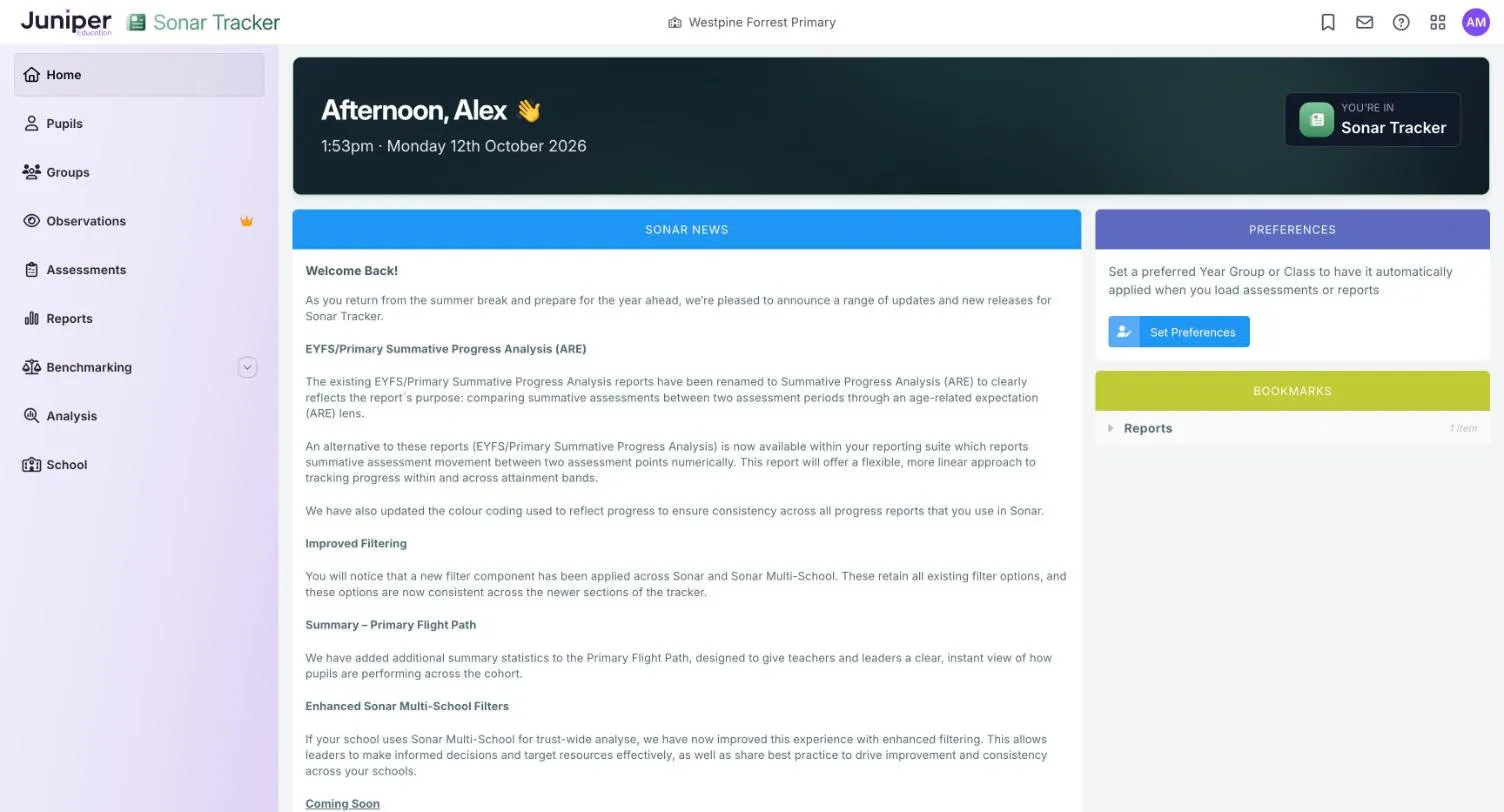
Section titled “The Home page”Home has three panels. Sonar News carries Juniper’s announcements about changes to Sonar. Preferences and Bookmarks save you choosing the same pupils or finding the same page every time.
Set your preferences
Section titled “Set your preferences”A preference loads your year group or class automatically when you open an assessment page or a report.
- On Home, select Set Preferences.
- In Your Preferences, choose your year group from the Year Group list or your class from the Class list.
- Select Save Preferences.
To remove a preference, choose Clear from the list and save again. To close the box without saving, select anywhere outside it.
Bookmarks
Section titled “Bookmarks”A bookmark saves a page with its filters, so you can go back to it from Home.
- Open the page and set it up the way you want, for example a report for your class with filters applied.
- Select Bookmarks in the top bar.
- In Bookmark this Page, enter a name. The button reads Please enter a Title until you do.
- Select Save Bookmark.
Your bookmarks appear in the Bookmarks panel on Home, grouped by type, such as Reports. Older screens also have a Bookmark Assessment button in their coloured bar.
The Inbox
Section titled “The Inbox”Files you ask Sonar to make, such as parent reports, observation PDFs and pupil data exports, arrive as messages in your Inbox. They can take a few minutes.
- Select Inbox in the top bar. Its icon is an envelope.
- Select the message.
- Select the link in the message to download the file.
Each link expires after a set time:
| Download | Link expires after |
|---|---|
| Parent reports | 24 hours |
| Observation PDFs | 4 days |
| Pupil data exports | 14 days |
If a link has expired, create the reports or run the export again.
The PDF button on a report is different. It saves the file straight to your computer’s downloads, not to the Inbox.
Two styles of screen
Section titled “Two styles of screen”Sonar has two generations of screens, both still in use. They do the same jobs but look different, and some labels differ.
| Newer screens | Older screens | |
|---|---|---|
| Top of the page | Page title, with lists for the assessment point and subjects | A coloured bar with the page title, the academic year and small icon buttons |
| Choosing pupils | Select Pupils box, then Open Assessment or Load Report | Select Pupils box, then Load Assessment or Load Report |
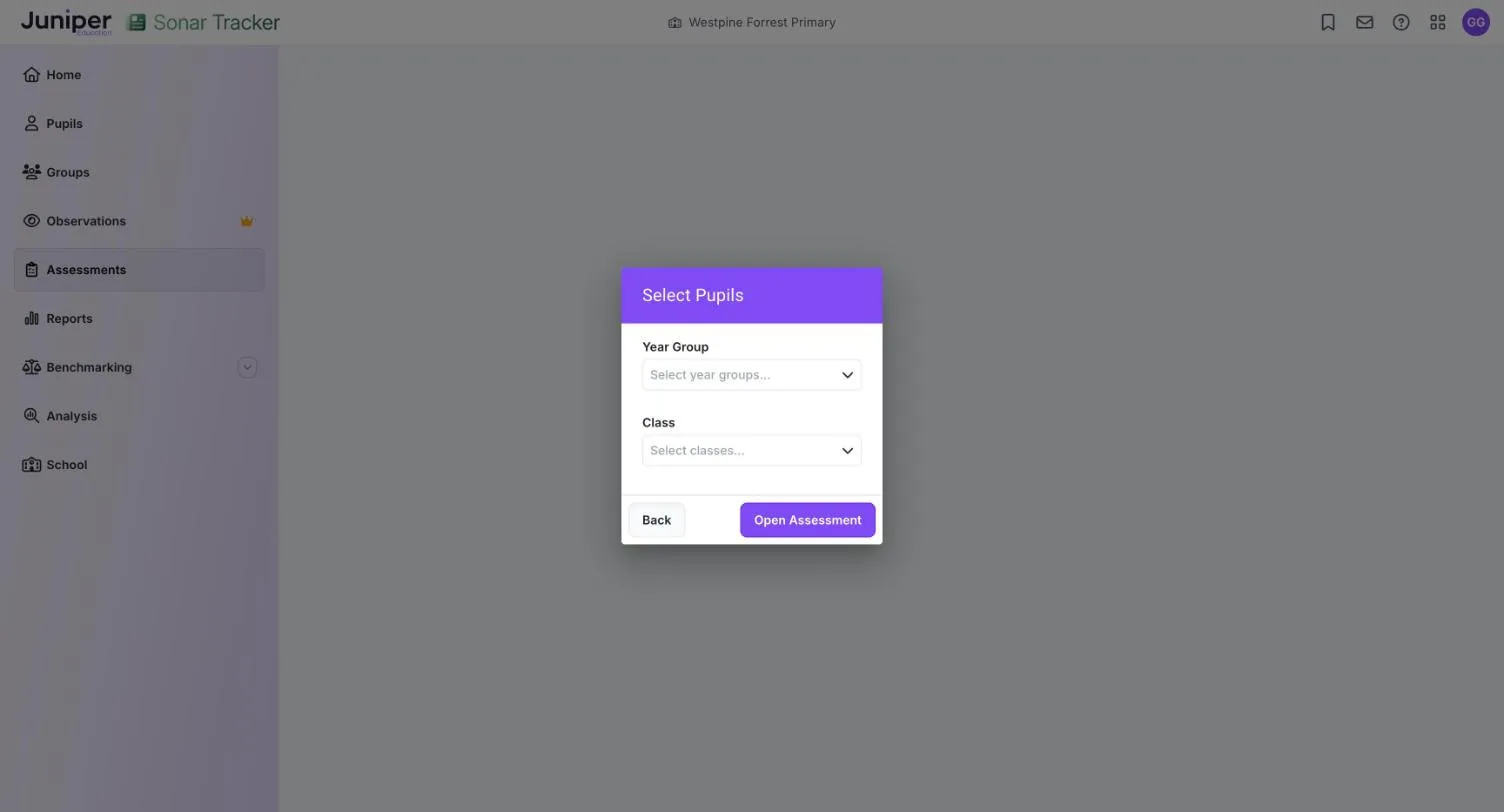
| Filters | Filters opens a panel; select Save to apply | Active Filters opens a filter box; select Apply Filters |
| Above the grid | A summary line listing the assessment point, year group and subjects | Lists for the term and subjects |
| Saving | A short message, such as Assessment Saved | A Saved tick |
Newer screens include Primary Summative Assessment (New), EYFS Summative Assessment (New), Primary Projection Pathway and EYFS Projection Pathway. The statutory assessment pages, Benchmarking, Analysis and newer reports such as Primary Flight Path also use this style.
Older screens include Primary Formative, EYFS Formative, EYFS (2020) Summative 7 Areas of Learning, Primary Targets, EYFS (2020) Targets and Scores. Classic reports, such as Primary Age Related Overview, also use the older style.
EYFS Summative Assessment (New) and EYFS (2020) Summative 7 Areas of Learning show the same judgements, one in each style.
A few filter labels differ between the two styles, such as In Care on newer screens and In LA Care on older ones. Filter pupils lists them.
The Select Pupils box
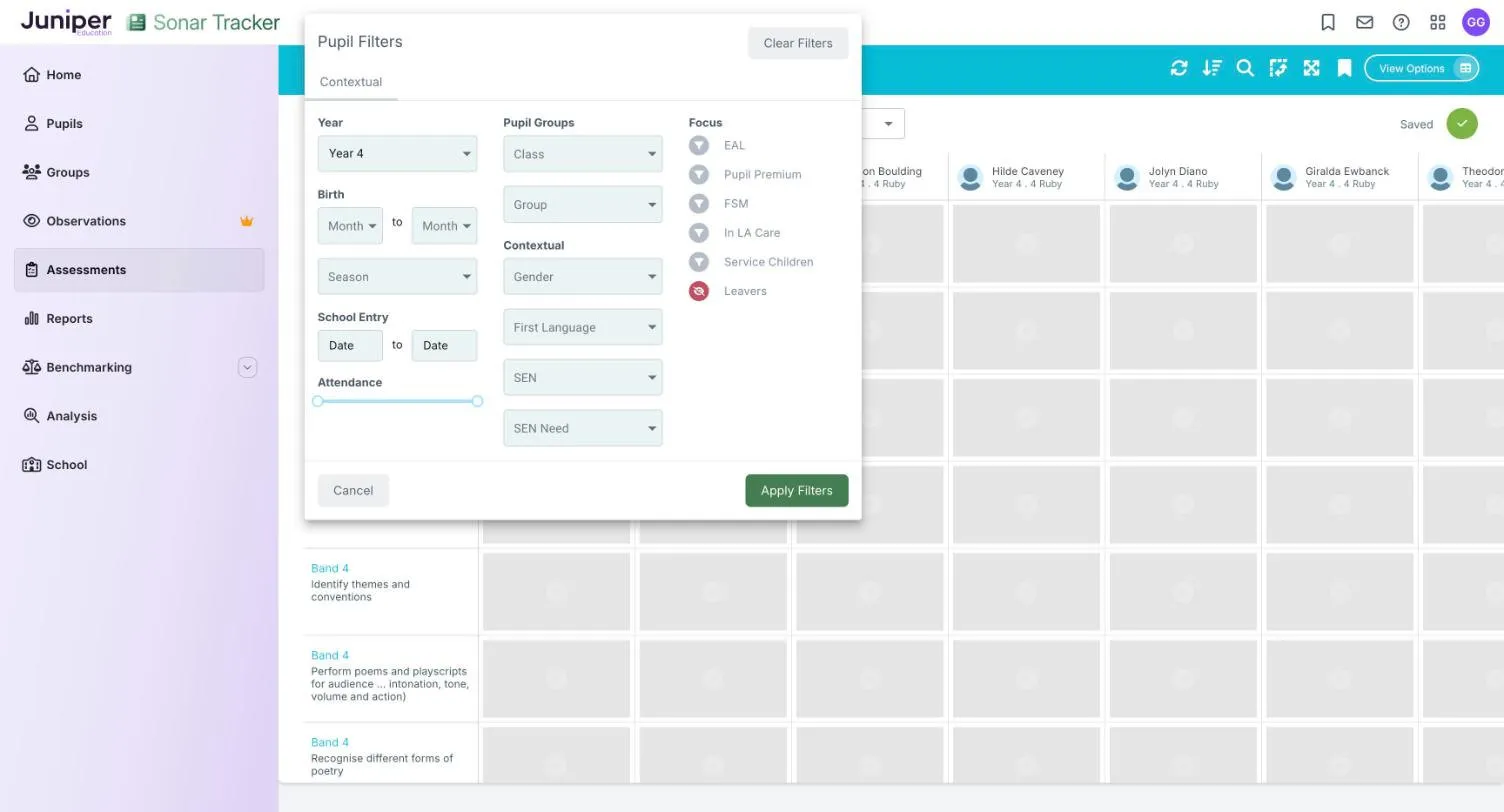
Section titled “The Select Pupils box”Most assessment pages and reports open with a Select Pupils box. On newer screens:
- Choose from the Year Group list or the Class list.
- Select Open Assessment, or Load Report on a report.
Choose a year group or a class, not both. The Class list shows every class in the school, including empty ones, so a year group and a class that do not match return No Records Found.
You can tick more than one item in each list, or use Select All. Pressing Esc does not close these lists, so select somewhere else in the box instead.
Filters
Section titled “Filters”Filters narrow the pupils on a page, for example to pupils eligible for pupil premium or to one of your groups. Leavers are hidden by default, through the Leavers focus filter.
Select Filters on newer screens, or Active Filters on older ones. Filter pupils explains every filter, and how to apply and remove filters in each style of screen.
What the colours mean
Section titled “What the colours mean”Summative judgements, and the reports built on them, use these colours:
| Swatch | Meaning | Colour |
|---|---|---|
| No Assessment | No judgement recorded | grey |
| Significantly Below | A judgement from a band below the pupil’s year group | red |
| B | Below | pink |
| JA | Just At | yellow |
| At | Securely At | light green |
| A | Above | green |
| Significantly Above | A judgement from a band above the pupil’s year group | purple |
Your school can rename the judgements, so your screens may show different words, but the meanings stay the same. Judgements, bands and age-related expectations explains each one.
Formative assessment has its own colours. The entry screen does not label them, so use this key, or select Breakdown on that screen:
| Swatch | Colour |
|---|---|
| Not taught or pupil was absent | grey |
| Taught | red |
| Working Towards | yellow |
| Achieved | green |
| Greater Depth | purple |
Some progress reports also colour the change between two points: Improved is green, Regressed is red and Unchanged is white.