


 Sisra Analytics
Reports
Check data entry
The Summative Data Check Summary shows which summative judgements are missing at an assessment point, by year group, class and pupil. Assessment leads use it in the days before a deadline, to chase gaps before anyone runs reports. Primary Summative Data Check Summary covers years 1 to 6, and EYFS Summative Data Check Summary covers nursery and reception. Trusts see the same figures for each school in Sonar Multi-School: see Find missing judgements.
Before you start
Section titled “Before you start”You need:
- a role that can see the report
- to know which assessment point and subjects teachers should have completed
The report checks the judgements entered on Primary Summative Assessment (New) and EYFS Summative Assessment (New).
Open the report
Section titled “Open the report”- Go to Reports.
- In Search Reports, enter
data check. - Select Primary Summative Data Check Summary or EYFS Summative Data Check Summary.
- In the Select Pupils box, choose the year groups to check. To check the whole school, choose Select All in the Year Group list.
- Select Load Report.
- Check the assessment point list, such as 2026-2027 Autumn 1, and change it if you need to.
- In the subject list, which shows something like 6 Selected, choose the subjects your school is collecting.
Read the completion figures
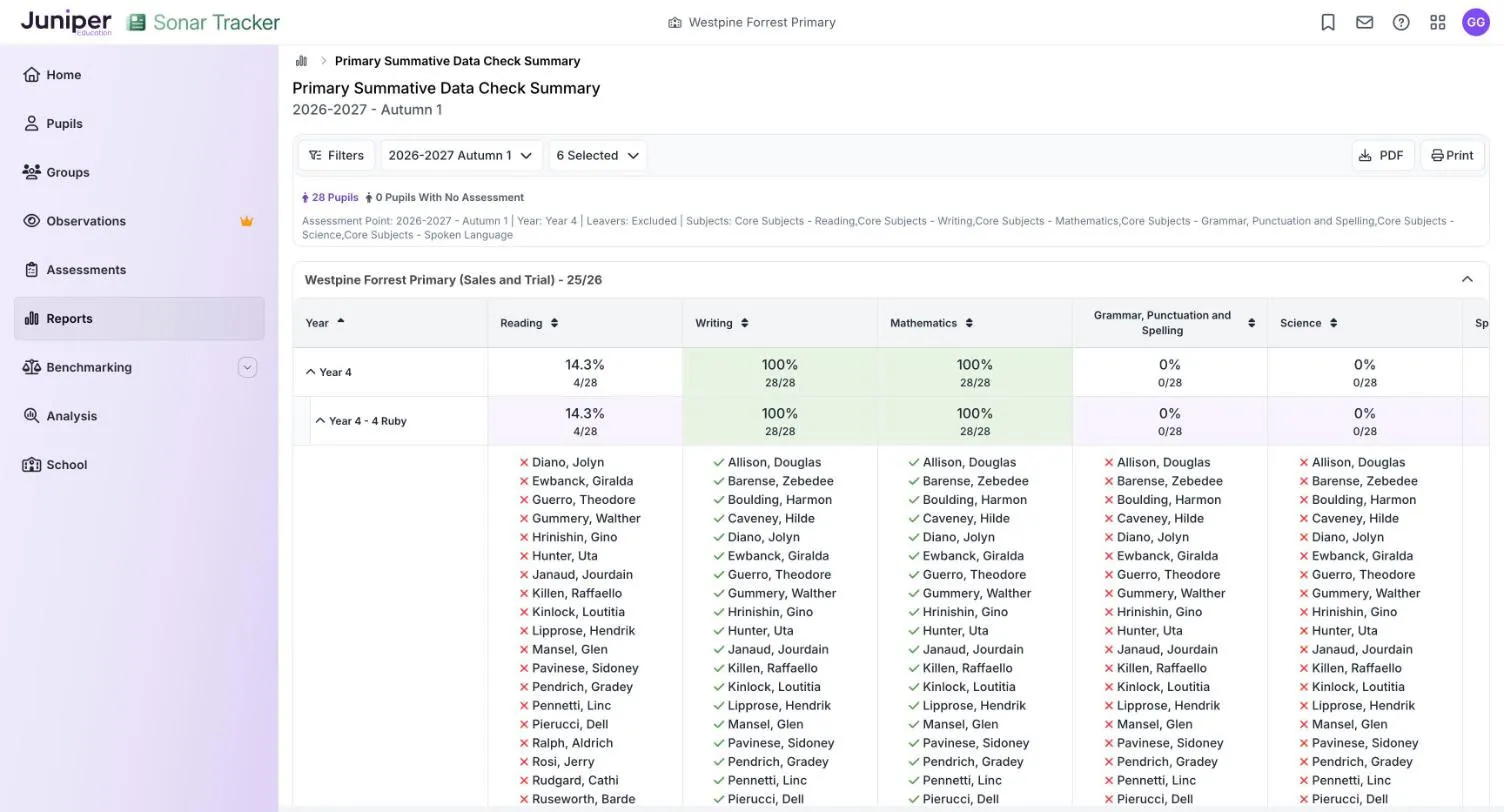
Section titled “Read the completion figures”The table has a row for each year group and a column for each subject, or each goal in the EYFS version. Each cell gives the percentage of pupils with a judgement, then the number entered out of the number expected, for example 14.3% and 4/28.
| Colour | Meaning |
|---|---|
| 100% green | Every pupil in the row has a judgement in that subject |
| 14.3% white | Less than 100%: some judgements are missing |
In the demo school’s year 4 at autumn 1, writing and maths are green at 100% (28/28). Reading is white at 14.3%, because only 4 of the 28 pupils have a judgement. Science and grammar, punctuation and spelling are at 0% (0/28).
What counts as complete
Section titled “What counts as complete”A pupil counts for a subject when they have a judgement in it at the assessment point you chose. Sonar does not carry judgements forward, so a judgement from an earlier point does not count. Leavers are left out unless you include them with Filters.
Pupils above the table counts every pupil in the report. Pupils With No Assessment counts those with no judgement in any of the subjects you chose.
Find the pupils with missing judgements
Section titled “Find the pupils with missing judgements”- Select a year group row, such as Year 4, to show its classes.
- Select a class row, such as Year 4 - 4 Ruby, to list its pupils under each subject.
- Look for pupils marked with a cross, who have no judgement in that subject. A tick means the judgement is in.
Send the names to the class teacher, who can enter the judgements on Primary Summative Assessment (New): see Enter primary summative judgements. Reload the page to see the new figures.
Check EYFS judgements
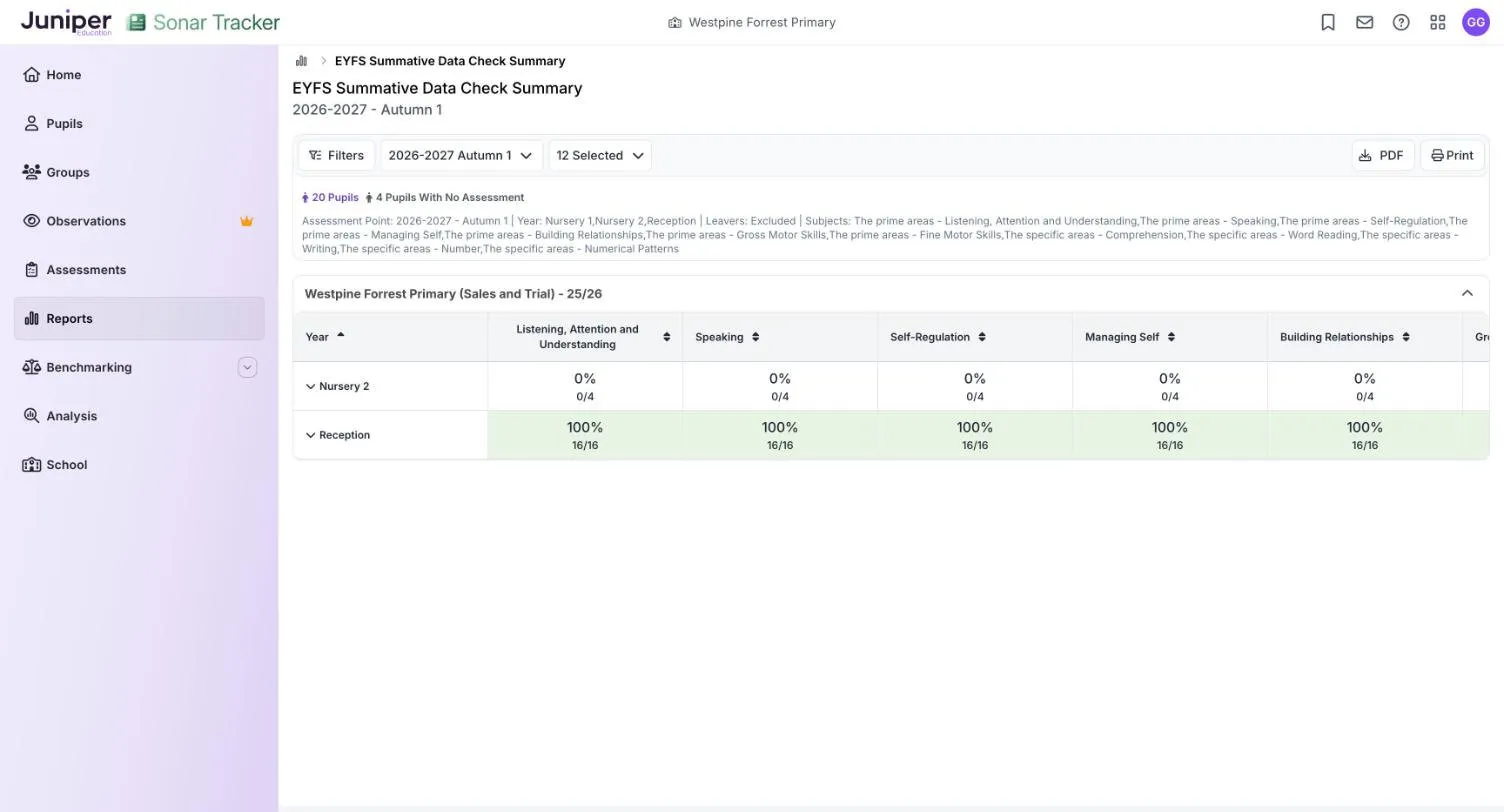
Section titled “Check EYFS judgements”The EYFS version works the same way, with a column for each goal. In the demo school at autumn 1, Nursery 2 is at 0% (0/4), and its 4 children are the 4 Pupils With No Assessment. Reception is green at 100% (16/16) in the five goals on screen. Scroll across before you sign the class off, though: the same class has no Comprehension judgements yet, as EYFS Good Level of Development Tracking shows.
If something goes wrong
Section titled “If something goes wrong”A class shows 0%, but the teacher says the judgements are in. Check the assessment point. Judgements entered at another point, such as the start of year baseline, do not count.
A pupil is missing from the lists. Leavers are hidden unless you include them. New pupils arrive from your management information system (MIS) overnight.
You cannot see every subject. Scroll across the table: subjects such as Spoken Language can sit off the edge of the screen.
The report is not in your list. Ask your Account Owner or Account Admin.