


 Sisra Analytics
Statutory assessment
Enter phonics screening check results
Year 1 pupils take the phonics screening check in June. Pupils who did not meet the expected standard, or who have not taken the check, take it in year 2. Record each pupil’s mark and outcome on the Phonics Screening Check page.
Before you start
Section titled “Before you start”You need:
- an edit role, such as Full Edit or Partial Edit
- each pupil’s mark out of 40, or the reason they have no mark
- the threshold mark for the year of the check
How the check works
Section titled “How the check works”The check has 40 words, so each pupil gets a mark from 0 to 40. A pupil whose mark reaches the threshold meets the expected standard. The Standards and Testing Agency (STA) sets the threshold for each year’s check and publishes it in June, after the check. It can change from one year to the next.
A year 2 pupil must take the check if they have not taken it before or did not meet the standard in year 1. A pupil absent for the whole check period, including the timetable variation week, must be recorded as absent.
In the 2026 to 2027 academic year, the check runs from 14 to 18 June 2027, and STA publishes the threshold on 28 June 2027. The 2027 phonics screening check assessment and reporting arrangements on GOV.UK give the full rules.
Enter marks and outcomes
Section titled “Enter marks and outcomes”- Go to Assessments.
- In the Statutory Assessments card, select Phonics Screening Check.
- In the Select Pupils box, choose Year 1 or Year 2 from the Year Group list.
- Select Open Assessment.
- Select Edit Assessment.
- In Assessment Date, enter the date of the check you are recording.
- Select Start Editing.
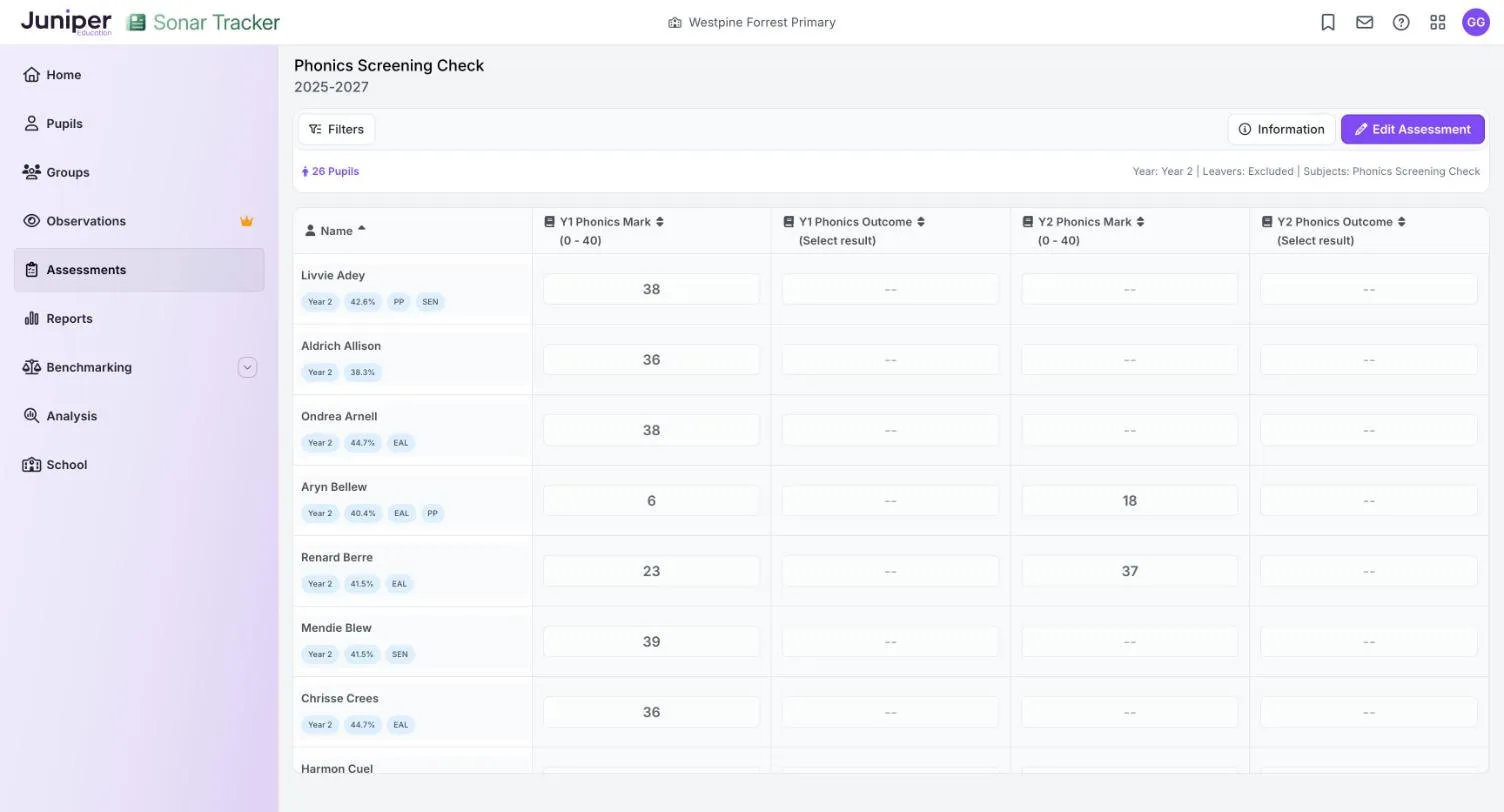
- Enter the pupil’s mark in Y1 Phonics Mark, or in Y2 Phonics Mark for a retake.
- Check the outcome column next to it. If it is empty, choose Wa if the mark reaches the threshold or Wt if it does not.
Press the down arrow key to move to the next pupil’s mark.
Year 1 pupils have the two Y1 columns. Year 2 pupils have all four: their year 1 result and, if they retook the check, their year 2 result. When you choose Year 2, the page covers both academic years, for example 2025-2027.
Use the right date for each year
Section titled “Use the right date for each year”Each result’s date must fall in the year of that check. The Edit Assessment box reminds you to choose the result date for each phonics year. To enter year 1 and year 2 results in one sitting, enter one year’s results, select Change Assessment Date, then enter the other year’s.
Phonics codes
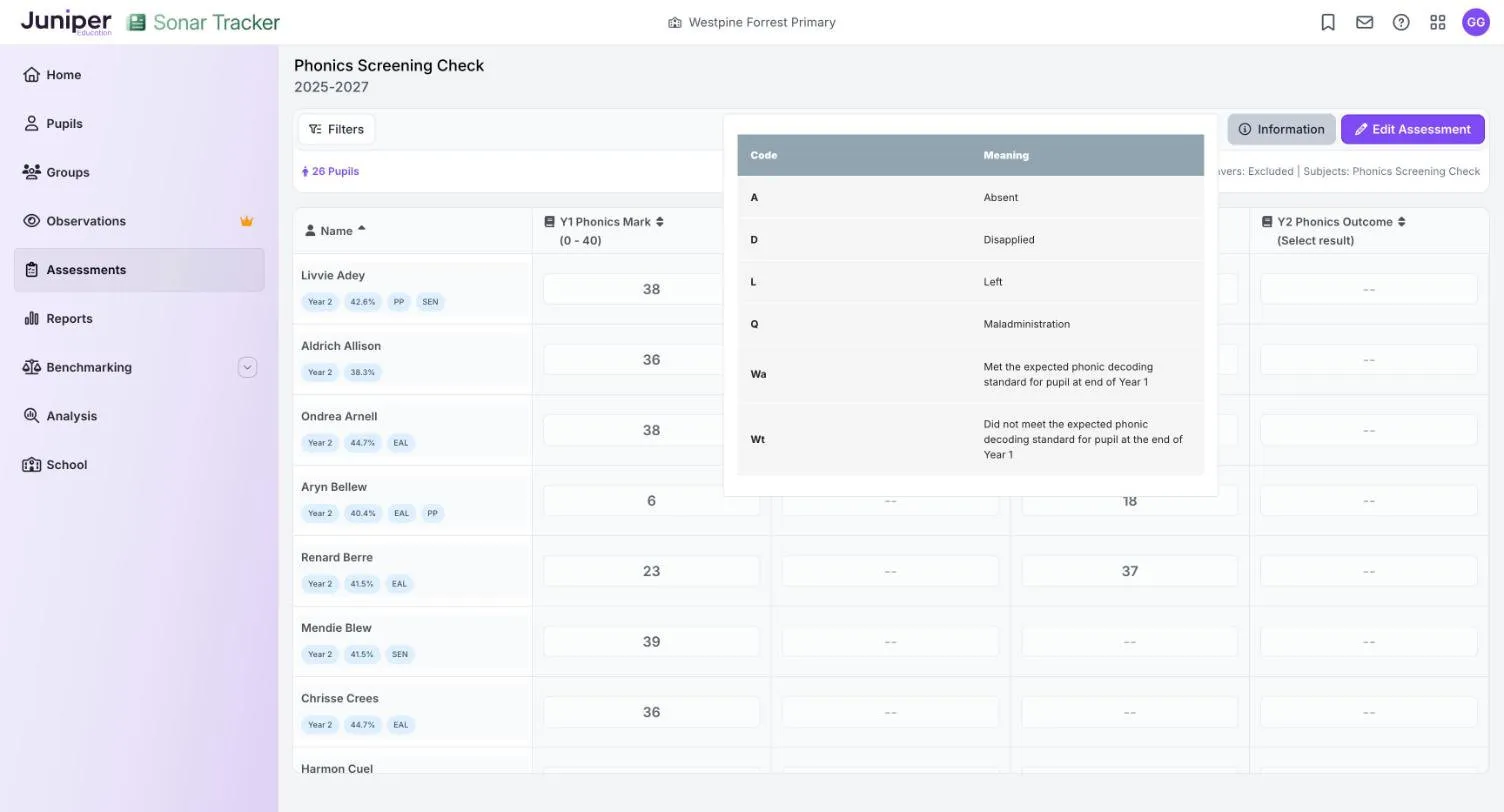
Section titled “Phonics codes”If a pupil has no mark, leave the mark empty and choose a code in the outcome column.
| Code | Meaning |
|---|---|
| Wa | Met the expected phonic decoding standard |
| Wt | Did not meet the expected phonic decoding standard |
| A | Absent |
| D | Disapplied |
| L | Left |
| Q | Maladministration |
Where the results appear
Section titled “Where the results appear”Phonics results appear in:
- the Statutory Dashboard, which shows the percentage meeting the standard in year 1, in year 2 retakes and by the end of year 2
- the year 1 and year 2 phonics columns of the Primary Flight Path report
- the Y1 Phonics and Y2 Phonics columns on Primary Projection Pathway
- the Triangulate panel on the primary summative page
In the dashboard’s phonics figures, a pupil with A, D or Q counts as not meeting the standard. A pupil with L is left out. The dashboard refreshes overnight.
Send the results to your local authority
Section titled “Send the results to your local authority”Schools must send phonics results to their local authority by the deadline it sets. Sonar cannot send them: the return is a common transfer file (CTF) from your management information system (MIS). A Portal-linked school makes it from Juniper MIS.
A stand-alone school exports the results from Sonar with Phonics Data Export, imports the file into its own MIS, then makes the return. The export includes every year 1 pupil and the year 2 pupils who did not meet the standard in year 1. See Import and export statutory data.
If something goes wrong
Section titled “If something goes wrong”The outcome column is empty. Choose Wa or Wt for each pupil with a mark.
A result does not save. Check that the mark is between 0 and 40, and that the date falls in the year of that check.
A year 2 pupil has no year 1 result. If they joined your school after year 1, import their earlier results with a CTF. See Add results for new joiners.