


 Sisra Analytics
Getting started
Sign in and switch schools
How you sign in to Sonar Tracker depends on your school’s set-up. Staff in Portal-linked schools sign in through Juniper Portal, with two-step verification. Staff in stand-alone schools sign in to Sonar directly. If you are not sure which applies, see Portal-linked and stand-alone schools.
Before you start
Section titled “Before you start”You need:
- an invitation from your school, or an existing Sonar account
- access to the email account your invitation went to, because Portal sends verification codes there
Sonar Tracker’s address is sonartracker.juniper.education. Bookmark it in your browser. Some older help centre articles give a different address.
Sign in to a Portal-linked school
Section titled “Sign in to a Portal-linked school”- Go to
sonartracker.juniper.education. - Enter your work email address and select Continue.
- Enter your password and select Login.
- If Portal asks for a verification code, enter the code from the email it sends you.
- In Portal, select Sonar Tracker.
Sonar opens at its Home page. Portal stays open in another browser tab, and you can switch back to it there.
The first time you sign in this way, Portal takes you through setting up two-step verification, also called two-factor authentication (2FA).
Sign in to a stand-alone school
Section titled “Sign in to a stand-alone school”- Go to
sonartracker.juniper.education. - Enter your email address and select Continue.
- Enter your password and select Continue.
Sonar opens at its Home page.
Accept an invitation
Section titled “Accept an invitation”You cannot create an account yourself. Your school’s Account Owner or Account Admin invites you.
In a Portal-linked school, Portal emails you an invitation with a link. Follow the link and the steps on screen to set up your account. Invitations last 14 days, so if yours has expired, ask the person who invited you to send another. If you already use another Juniper product, the email says instead that Sonar Tracker will appear in Portal the next time you sign in.
In a stand-alone school, the email has a link to set your password. If the link has expired, reset your password.
Reset a forgotten password
Section titled “Reset a forgotten password”- Go to
sonartracker.juniper.education. - Enter your email address and select Continue.
- Select Forgot Password or Forgot your password?, whichever appears.
- Enter the email address you use for Sonar, then select Continue or Submit.
- Open the email from Juniper and follow the link to set a new password.
Your new password must be 8 to 70 characters long. It needs at least one lower case letter, one capital letter, one number and one special character.
If the email does not arrive, check your junk or spam folder and the spelling of your address. A colleague can start a reset for you by entering your email address, but the email always goes to you.
Switch to another school
Section titled “Switch to another school”You can have accounts at more than one school, or at a school and its trust, under the same email address. Each account can have a different role.
- Select your initials in the top bar to open the account menu.
- Under Other accounts, select the school or trust you want.
The account you are using is at the top of the menu, marked Active. The school name in the top bar changes when you switch.
If your email address is linked to more than one school, a Select Your Account page appears when you sign in. Choose the school or trust from the Your Accounts list. Trust staff choose their trust to open Sonar Multi-School, the product for trusts (see About Sonar Multi-School).
In some stand-alone schools, the account menu lists your schools directly. Select the one you want.
The account menu also has Profile, which opens your profile in Portal, and Logout.
Switch to another Juniper product
Section titled “Switch to another Juniper product”- Select Products in the top bar. Its icon is a grid of squares.
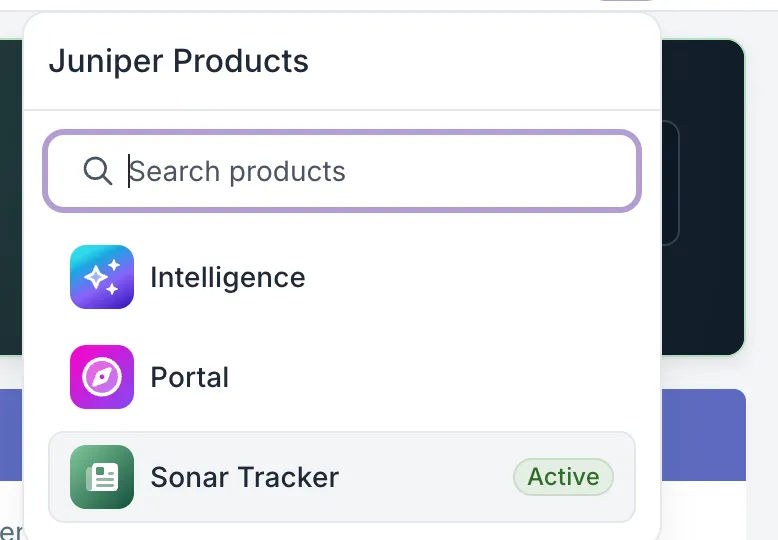
- In the Juniper Products list, select the product you want, such as Intelligence or Portal.
The list shows the products your school uses and marks the one you are in as Active. If the list is long, type a name in Search products.
To go straight back to Portal, select the Juniper logo in the top bar.
Sign out
Section titled “Sign out”- Select your initials in the top bar.
- Select Logout.
On a shared computer, also close the browser, including any Portal tab.
If something goes wrong
Section titled “If something goes wrong”The verification code does not arrive. Check your junk, spam and clutter folders, and ask your school’s IT support whether emails from Juniper are being blocked. If it still does not arrive, contact Juniper support.
The code goes to an old email address. Your Account Owner or Account Admin can fix this in Portal, using the steps in Troubleshooting.
Your account is locked. Sonar shows Your account has been locked. Please contact your system administrator. Ask your Account Owner or Account Admin to reset your access in Portal, using the steps in Troubleshooting.
A page says you do not have permission. Check that you used the address sonartracker.juniper.education. If the message stays, see Error 403: you do not have permission.
One of your schools is missing from the account menu. You need an account at that school under the same email address. Ask that school’s Account Owner to invite you.