


 Sisra Analytics
Getting started
Get started as an assessment lead
If you run assessment in Sonar Tracker, start here. The sections follow the school year, from the checks to make before teachers enter anything to statutory results and rollover in the summer.
Before you start
Section titled “Before you start”You need the Account Admin or Account Owner role for most of these jobs. Some of them differ between Portal-linked and stand-alone schools. Portal-linked and stand-alone schools explains the difference.
At the start of the year
Section titled “At the start of the year”Work through these checks before teachers enter their first judgements.
Check users and roles
Section titled “Check users and roles”Staff come from your management information system (MIS). In a Portal-linked school, you invite them to Sonar in Juniper Portal: go to School and select View & Invite Users on the Users card. Invite staff has the steps. You can only invite staff who are in your MIS with a work email address, and each invitation lasts 14 days.
Choose roles with care. Juniper recommends Partial Edit for class teachers, which lets them change the current academic year only. Give Full Edit to senior leaders who need to correct earlier years. Governors need Minimal Read-only, which hides pupil names.
When someone leaves, remove their access to every Juniper product, not only Sonar. Some stand-alone schools manage users on the School page instead. Users and roles covers both set-ups.
Check your assessment settings
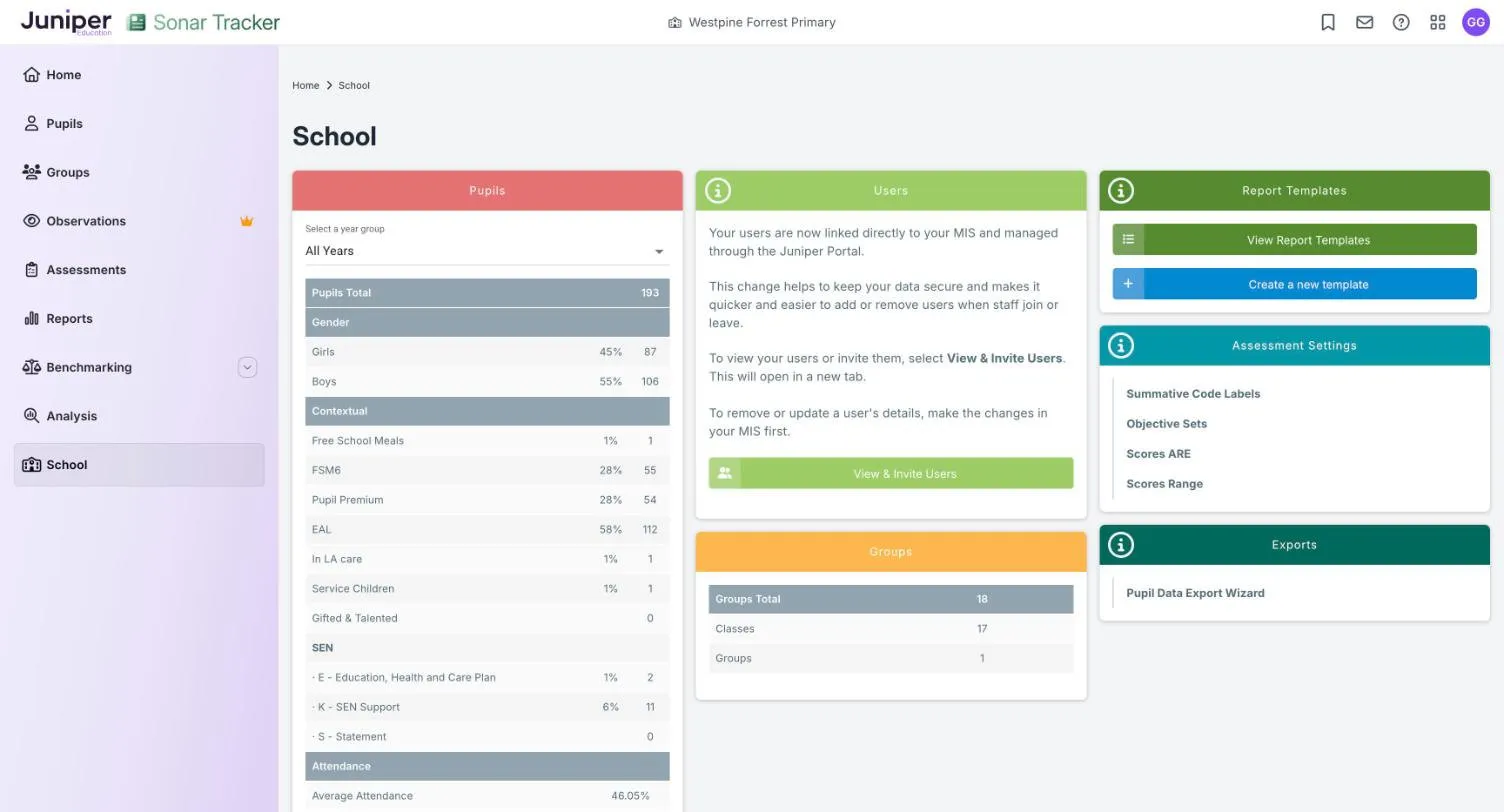
Section titled “Check your assessment settings”The Assessment Settings card on the School page has four pages:
| Page | What it sets |
|---|---|
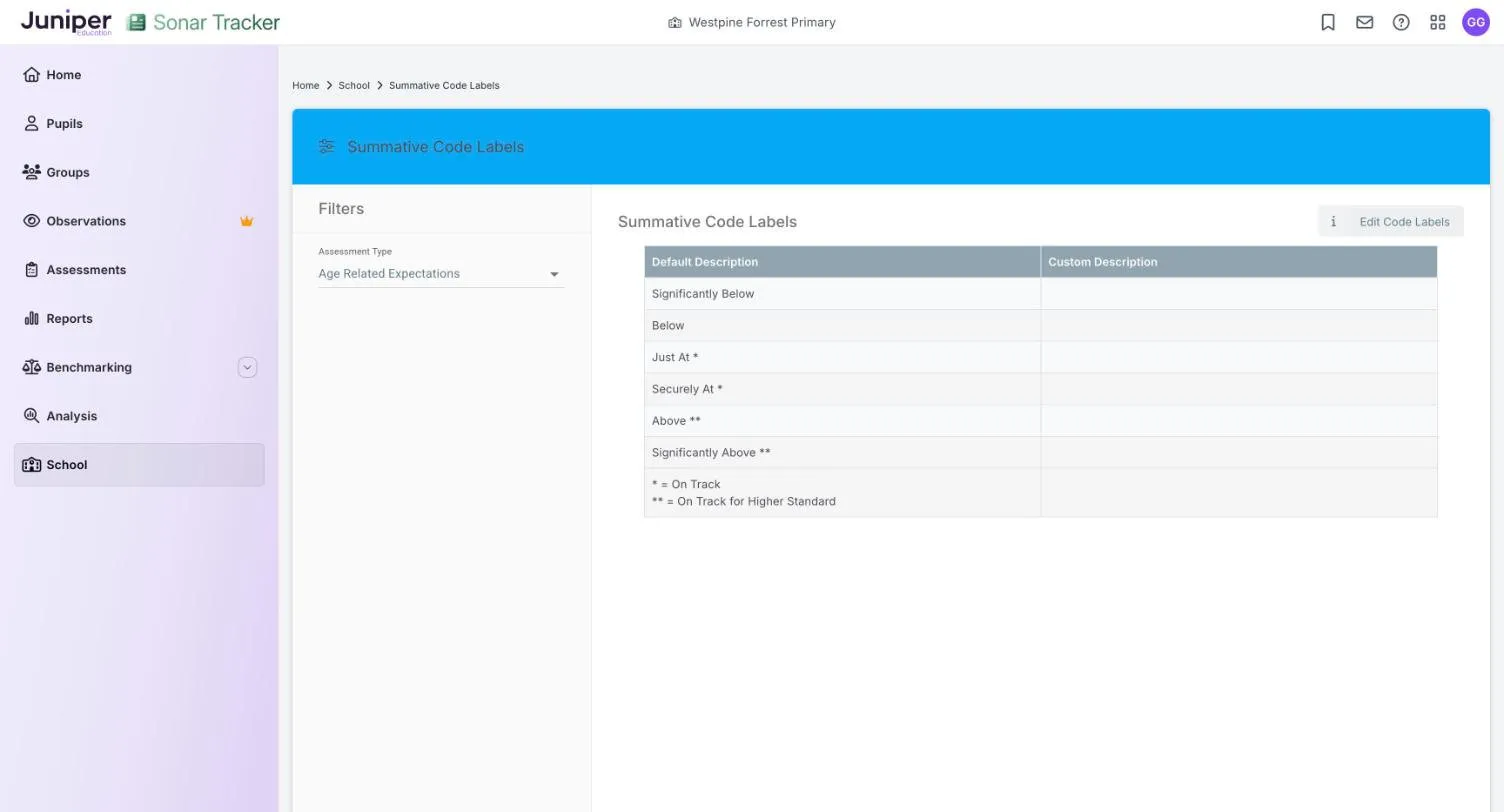
| Summative Code Labels | The names your school uses for each judgement. You can rename them, but their meanings stay fixed. |
| Objective Sets | The curriculum objectives each subject uses for formative assessment. |
| Scores Range | The lowest and highest score allowed for each tested subject and year group. |
| Scores ARE | Which test scores count as below, at or above age-related expectations (ARE). |
Set up Scores Range and Scores ARE before teachers enter test scores, or scores may be coloured wrongly or not at all.
On Summative Code Labels, the key reads * = On Track and ** = On Track for Higher Standard. Just At and Securely At count as on track, and Above as on track for the higher standard.
To change the set of judgements itself, or the assessment points your school uses, contact Juniper support. Assessment settings explains each page.
Check pupils and classes
Section titled “Check pupils and classes”Sonar takes pupils, classes and their characteristics from your MIS. Before anyone enters data:
- compare the totals on the Pupils card of the School page with your MIS, including pupil premium and English as an additional language
- check the Groups page, which lists every class with its number of pupils
- open a few classes in Primary Summative Assessment (New) and check the pupils are right
Correct mistakes in your MIS, and the changes reach Sonar overnight. A pupil in the wrong year group usually has the wrong national curriculum year in the MIS. Classes and groups with no pupils are removed overnight. How pupil data gets into Sonar explains more.
Agree what judgements mean and when they are due
Section titled “Agree what judgements mean and when they are due”Before the first assessment point, agree with staff:
- which assessment points you will use, and the deadline for each
- what each judgement means at each point in the year
- whether to record a start of year baseline
- whether teachers may copy judgements forward, and how they will review them
- whether teachers record formative assessment, and for which subjects
Write the answers into your assessment policy, and use moderation to check that judgements mean the same in every class. How assessment works in Sonar explains the point in time model that Sonar’s judgements follow.
If your school subscribes to Benchmarking, include autumn 2, spring 2 and summer 2 in your calendar. Benchmarking runs only at those points.
At each assessment point
Section titled “At each assessment point”- Tell staff which assessment point to record, such as 2026-2027 - Autumn 2, and the deadline.
- In the days before the deadline, run the Primary Summative Data Check Summary report, and the EYFS Summative Data Check Summary for nursery and reception.
- Ask teachers to fill in any judgements the reports show as missing.
- Hold pupil progress meetings, using the Primary Pupil Progress Meeting report for each class.
- Prepare a summary for senior leaders and governors.
Reports count an empty cell as No Assessment, so close the gaps before you share any figures. Check data entry explains the data check reports, and Get started as a senior leader or governor suggests reports for leaders and governors.
If your school subscribes to Benchmarking, judgements need to be complete by Juniper’s benchmarking deadline, which Sonar News announces each term.
In the summer term
Section titled “In the summer term”Statutory results
Section titled “Statutory results”The EYFS profile, the phonics screening check, the multiplication tables check (MTC) and the KS2 tests all happen in the summer term. KS2 results arrive in July.
Staff with any edit role can enter results on the statutory pages. Results can also be imported from a common transfer file (CTF), usually by an Account Owner or Account Admin. Portal-linked schools import and export CTFs in Juniper MIS. Stand-alone schools use Send a file to Sonar and Statutory Data Export to MIS on the School page.
Statutory assessment in Sonar and Import and export statutory data explain each assessment and file.
End-of-year judgements
Section titled “End-of-year judgements”Make sure summer 2 judgements are complete before the end of the summer term. At autumn 1, teachers can copy them forward as a starting point with Copy Data From Previous Term.
Parent reports
Section titled “Parent reports”If your school writes end-of-year reports in Sonar, set up a template well before they are due. Go to School, then select Create a new template on the Report Templates card. Staff create the reports from the Pupils page, and each batch arrives in the Inbox as a link that expires after 24 hours. See Create a parent report template and Create parent reports.
The new academic year
Section titled “The new academic year”Sonar moves into the new academic year during the summer holiday. Juniper asks schools not to roll their MIS over before 1 August, because an earlier rollover affects your school’s data in Sonar. After the move, pupils appear in their new year groups, and last year’s data stays under last year’s assessment points. The new academic year explains when this happens for your school and what to check.