


 Sisra Analytics
Pupils and groups
Filter pupils
Filters narrow an assessment page, report or export to the pupils you want, such as one class, pupil premium pupils or an intervention group. Sonar Tracker has two filter designs: the newer Filters panel and an older filter box. They work in the same way, but some labels differ.
Where to find them: select Filters on newer pages, or Active Filters on older pages. The older button shows how many filters are on, such as 2 Active Filters.
Who can use them: anyone who can open the page.
Which pages use which design
Section titled “Which pages use which design”| Filters panel | Older filter box |
|---|---|
| Primary and EYFS Summative Assessment (New) | Primary Formative and EYFS Formative |
| Primary and EYFS Projection Pathway | EYFS (2020) Summative 7 Areas of Learning |
| Statutory assessment pages | Primary Targets and EYFS (2020) Targets |
| Newer reports, such as Primary Flight Path | Scores |
| Statutory Dashboard and Pupil Overview, in Analysis | Classic reports, such as Primary Age Related Overview |
The Pupils list and the group pages also have a filter button, labelled with the number of filters on, such as 1 Active Filter. The first step of the Pupil Data Export Wizard shows the newer filters on the page itself.
The Filters panel
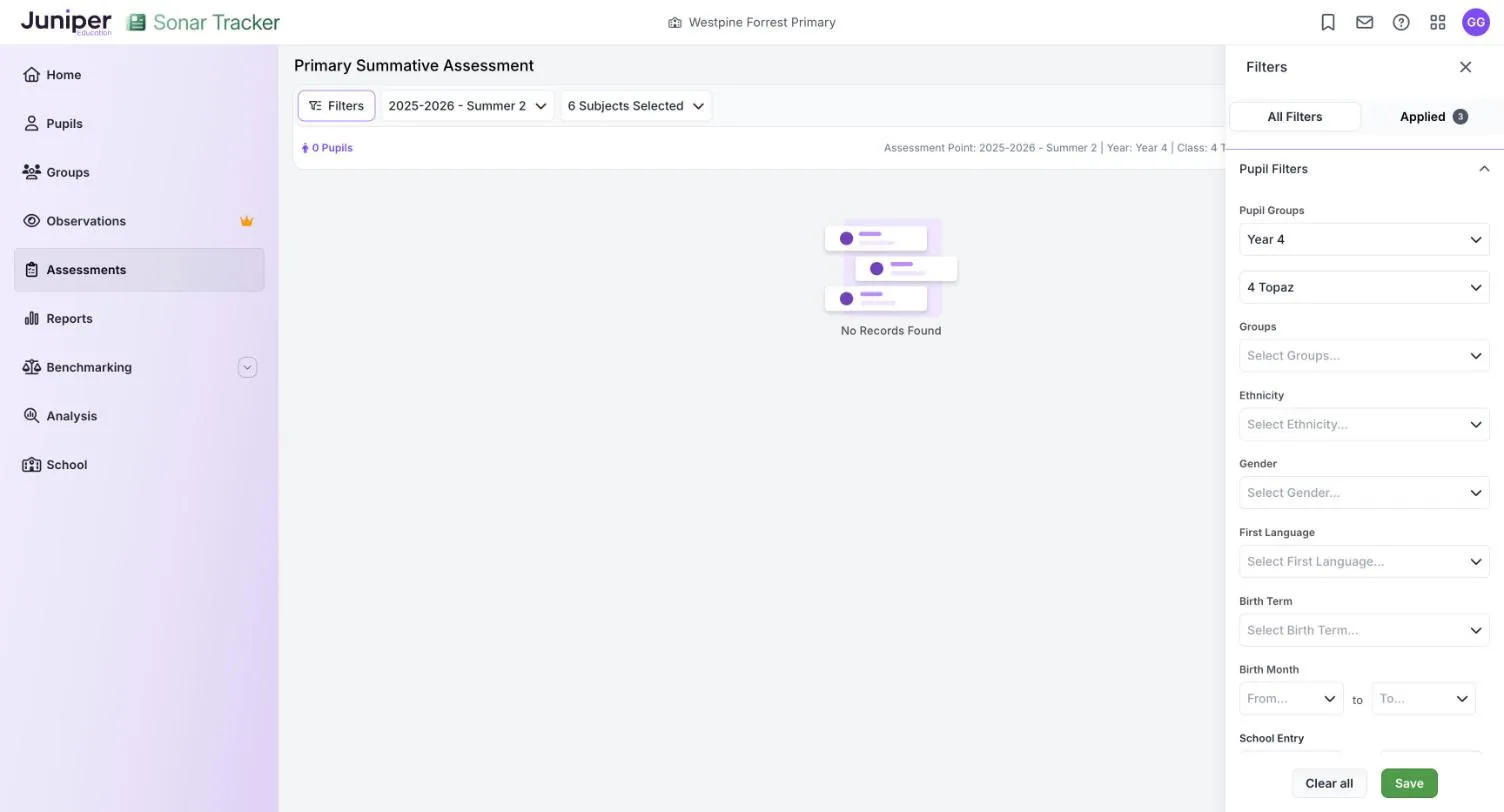
Section titled “The Filters panel”The panel slides in from the side of the page. All Filters shows every filter, and Applied lists only the ones that are on, with a count. Your choices take effect when you select Save. Each filter narrows the list further. The pupil count and the summary line above the grid show what applies, such as 28 Pupils and Leavers: Excluded.
The year group or class you chose in Select Pupils appears under Pupil Groups, where you can change it without going back. A year group always means the pupils’ current year group, even when you look at an earlier academic year.
Pupil Filters
Section titled “Pupil Filters”| Filter | What it does |
|---|---|
| Pupil Groups | The first list chooses year groups. The second, Select Class Groups…, chooses classes. |
| Groups | Chooses custom groups, such as an intervention group. See Create and manage groups. |
| Ethnicity | Chooses one or more ethnic groups, as recorded in your management information system (MIS). Every group is included until you choose. |
| Gender | Male or Female. |
| First Language | English or Not English. |
| Birth Term | Autumn (born 1 September to 31 December), Spring (1 January to 31 March) or Summer (1 April to 31 August). |
| Birth Month | A range of birth months, from one month to another. |
| School Entry | A range of dates on which pupils joined the school. |
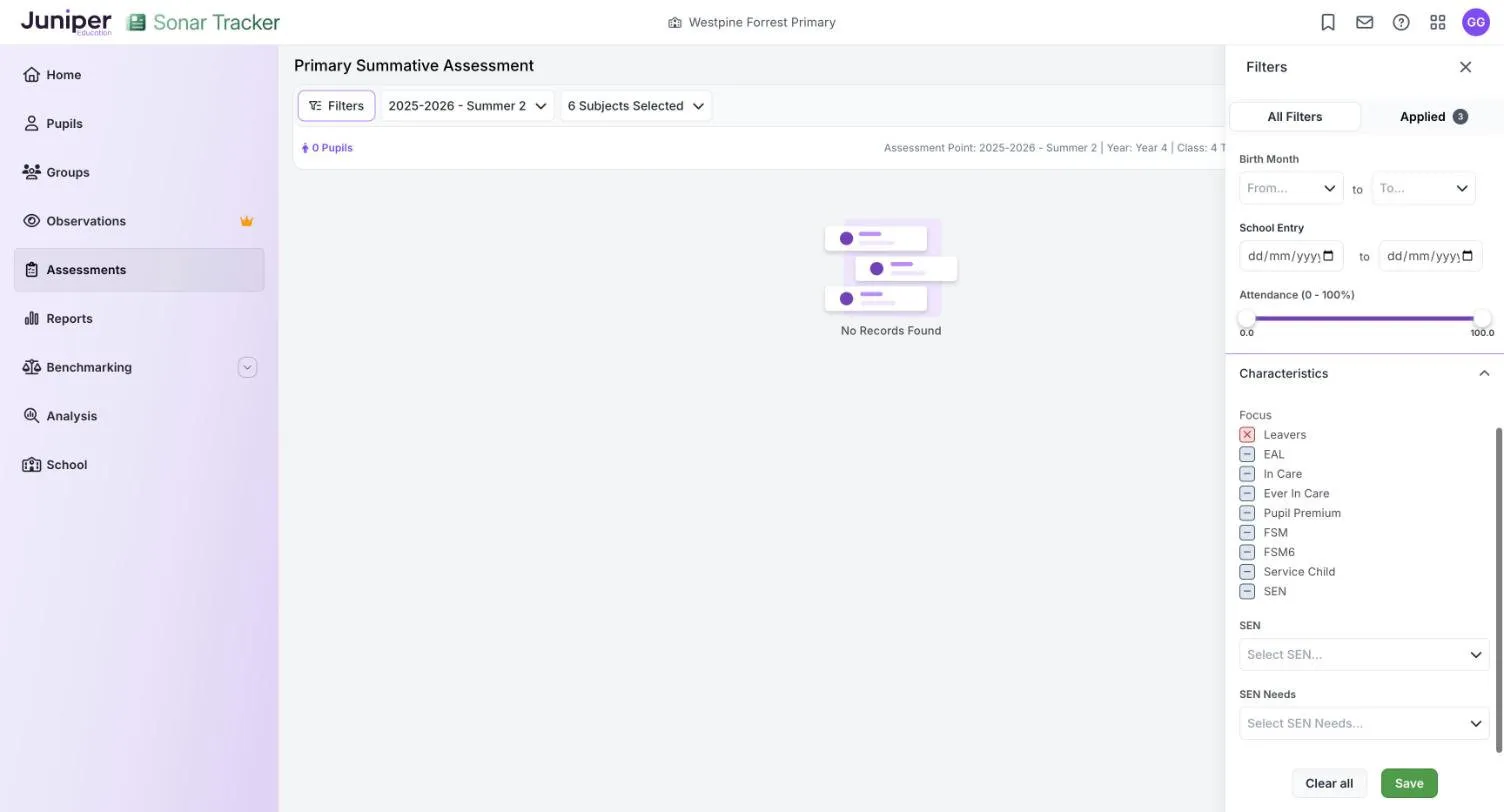
| Attendance (0 - 100%) | A slider. Drag its two handles to set the lowest and highest attendance to include. |
Characteristics
Section titled “Characteristics”| Filter | What it does |
|---|---|
| Focus | A three-state option for each of Leavers, EAL (English as an additional language), In Care, Ever In Care, Pupil Premium, FSM (free school meals), FSM6 (free school meals at any point in the last 6 years), Service Child and SEN. See Focus options. |
| SEN | Chooses pupils by special educational needs (SEN) status: N (no special educational need), K (SEN support), E (education, health and care plan) or S (statement, an older category). |
| SEN Needs | Chooses pupils by type of need, using the codes from your MIS, such as SEMH (social, emotional and mental health). |
Focus options
Section titled “Focus options”Each Focus option has three states. Select an option to change its state, and keep selecting until it shows the one you want.
| State | How it looks | Pupils shown |
|---|---|---|
| Not filtered | EAL grey, with a dash | Everyone, whether or not they have the characteristic |
| Only | Pupil Premium green | Only pupils with the characteristic |
| Excluded | Leavers red, with a cross | Everyone except pupils with the characteristic |
Every option starts as not filtered, except Leavers, which starts as excluded. That is why the filter button shows 1 Active Filter before you change anything.
Focus options combine with each other and with the other filters. For example, Pupil Premium set to only, with Gender set to Male, shows boys eligible for pupil premium.
The older filter box uses the same three states, shown by grey, green and red icons.
Remove filters
Section titled “Remove filters”- Select Filters, then the Applied tab.
- Select the X next to a filter to remove it, or select Clear all to remove every filter.
- Select Save.
After Clear all, check the Leavers option so you know whether leavers are included.
The older filter box
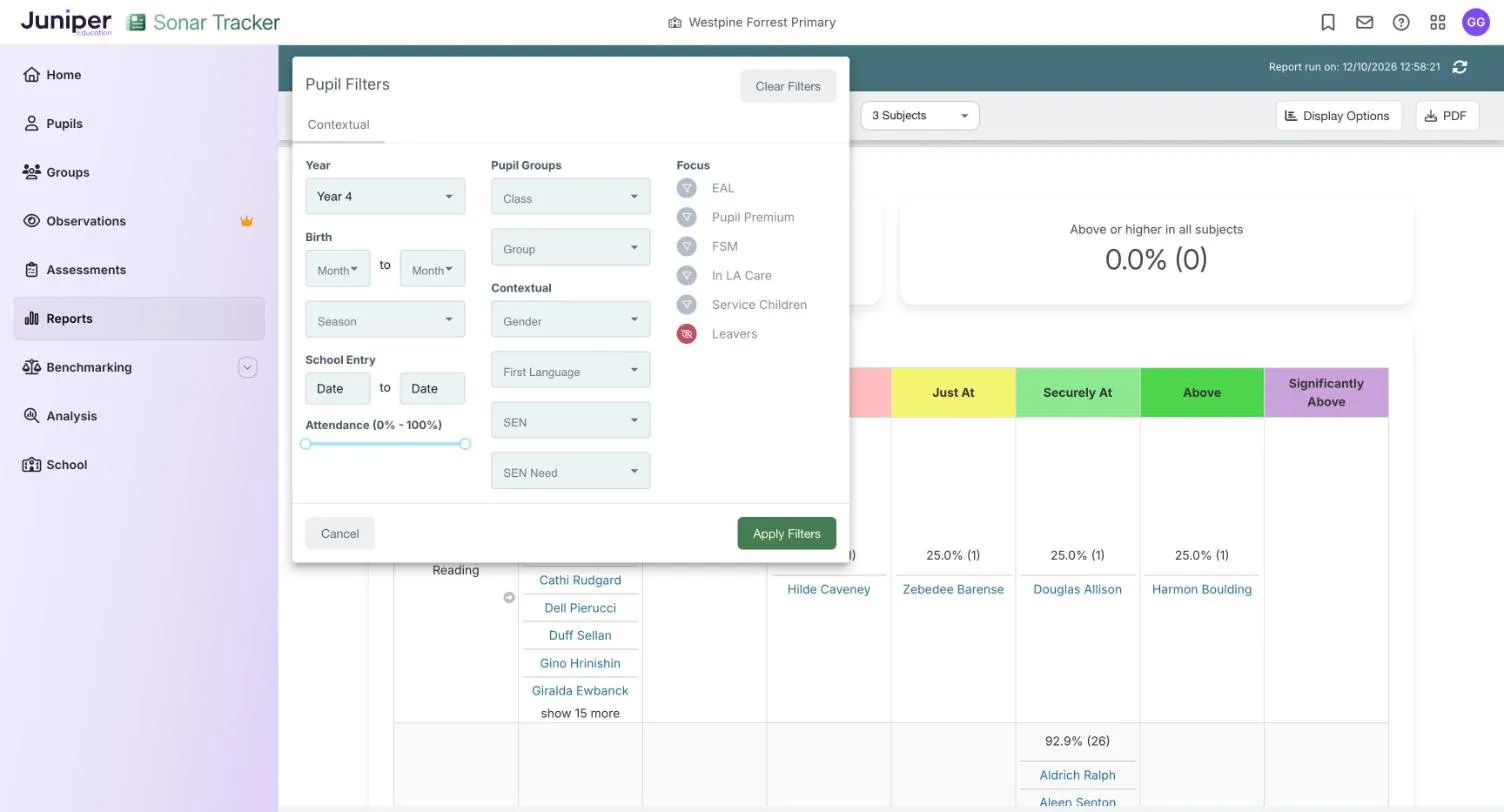
Section titled “The older filter box”On older pages, Active Filters opens a Pupil Filters box. It offers the same kinds of filter as the newer panel, with fewer Focus options and some different names. Make your choices, then select Apply Filters. Clear Filters removes every filter, and Cancel closes the box without changes.
| Filters panel | Older filter box |
|---|---|
| Pupil Groups (year groups) | Year |
| Pupil Groups (classes) and Groups | Pupil Groups: Class and Group |
| Birth Term | Season, under Birth |
| Birth Month | Birth, from month to month |
| SEN Needs | SEN Need |
| In Care | In LA Care |
| Service Child | Service Children |
| Ever In Care, FSM6 and SEN in Focus | Not available |
| Clear all and Save | Clear Filters and Apply Filters |
Filters for common jobs
Section titled “Filters for common jobs”Show one class
Section titled “Show one class”On newer pages, choose the class from the Class list in Select Pupils, and leave Year Group empty. The Class list includes empty classes, and a year group and class that do not match return No Records Found.
On older pages, choose the class in Select Pupils, or under Pupil Groups in the filter box.
Show one year group in a mixed-age class
Section titled “Show one year group in a mixed-age class”- In Select Pupils, choose the class only, then open the page.
- Select Filters.
- Under Pupil Groups, choose the year group from the first list.
- Select Save.
On older pages, choose the year group under Year in the filter box, then select Apply Filters.
Show pupil premium pupils only
Section titled “Show pupil premium pupils only”Select Filters, then select Pupil Premium under Characteristics until it turns green, and select Save. On older pages, do the same under Focus, then select Apply Filters.
Include leavers
Section titled “Include leavers”Select Leavers under Focus until it shows the state you want:
- grey, to include leavers alongside other pupils
- green, to show leavers only
Then select Save, or Apply Filters on older pages.
Find pupils with low attendance
Section titled “Find pupils with low attendance”Drag the upper handle of Attendance (0 - 100%) down from 100.0 to the highest attendance you want to include, such as 90. Then select Save.
Attendance comes from your MIS and updates overnight. The filter stays up to date, unlike a group of low attenders, which changes only when someone edits it.
Show summer-born pupils
Section titled “Show summer-born pupils”Choose Summer in Birth Term, or in Season on older pages, then select Save or Apply Filters.
Keep a filtered view
Section titled “Keep a filtered view”Bookmark the page after you filter it. A bookmark saves the page with its filters. See Bookmarks.