


 Sisra Analytics
Teacher assessment
Set targets and end-of-year projections
Sonar can hold two forward-looking judgements for each pupil and subject: an end-of-year target and an end-of-year projection. You enter them on different pages and they appear in different reports. Your school may use one, both or neither.
How targets and projections differ
Section titled “How targets and projections differ”| End of Year Target | End of Year Projection | |
|---|---|---|
| What it is | What you would like the pupil to achieve | Where the pupil is likely to end up if nothing dramatic changes |
| When you set it | Early in the year | At any point, and again when things change |
| How it changes | Rarely, because it is an aspiration | It can rise or fall as the year goes on |
| Where you enter it | Primary Targets or EYFS (2020) Targets | Primary Projection Pathway or EYFS Projection Pathway |
Before you start
Section titled “Before you start”You need:
- an edit role, such as Full Edit or Partial Edit
- to know your school’s approach, including which term targets are set for
Partial Edit and Minimal Edit can change the current academic year only. Read-only roles can see targets and projections but cannot change them.
Set targets
Section titled “Set targets”Decide which term to set targets for
Section titled “Decide which term to set targets for”Sonar stores each target against a term, and Target Analysis compares judgements with targets for the same point. Many schools set one target for summer 2, the end of the year, which Target Analysis can use once summer 2 judgements are in. Others set one for each assessment point they use, so they can compare during the year. Sonar cannot copy targets from one term to the next, so you enter each set separately. Agree one approach across the school before anyone starts.
Enter targets
Section titled “Enter targets”- Go to Assessments.
- In the Targets & Projection Pathway card, select Primary Targets or EYFS (2020) Targets.
- In the Select Pupils box, choose a year group or a class.
- Select Load Assessment.
- Choose the term from the term list, such as Summer 2.
- Choose the subject group, such as Core Subjects.
- Select a pupil’s cell under the subject.
- In Choose Code, choose Below, Just At, Securely At or Above.
Sonar saves the target straight away, and the Saved tick confirms it. To remove a target, select the cell and choose Clear Result.
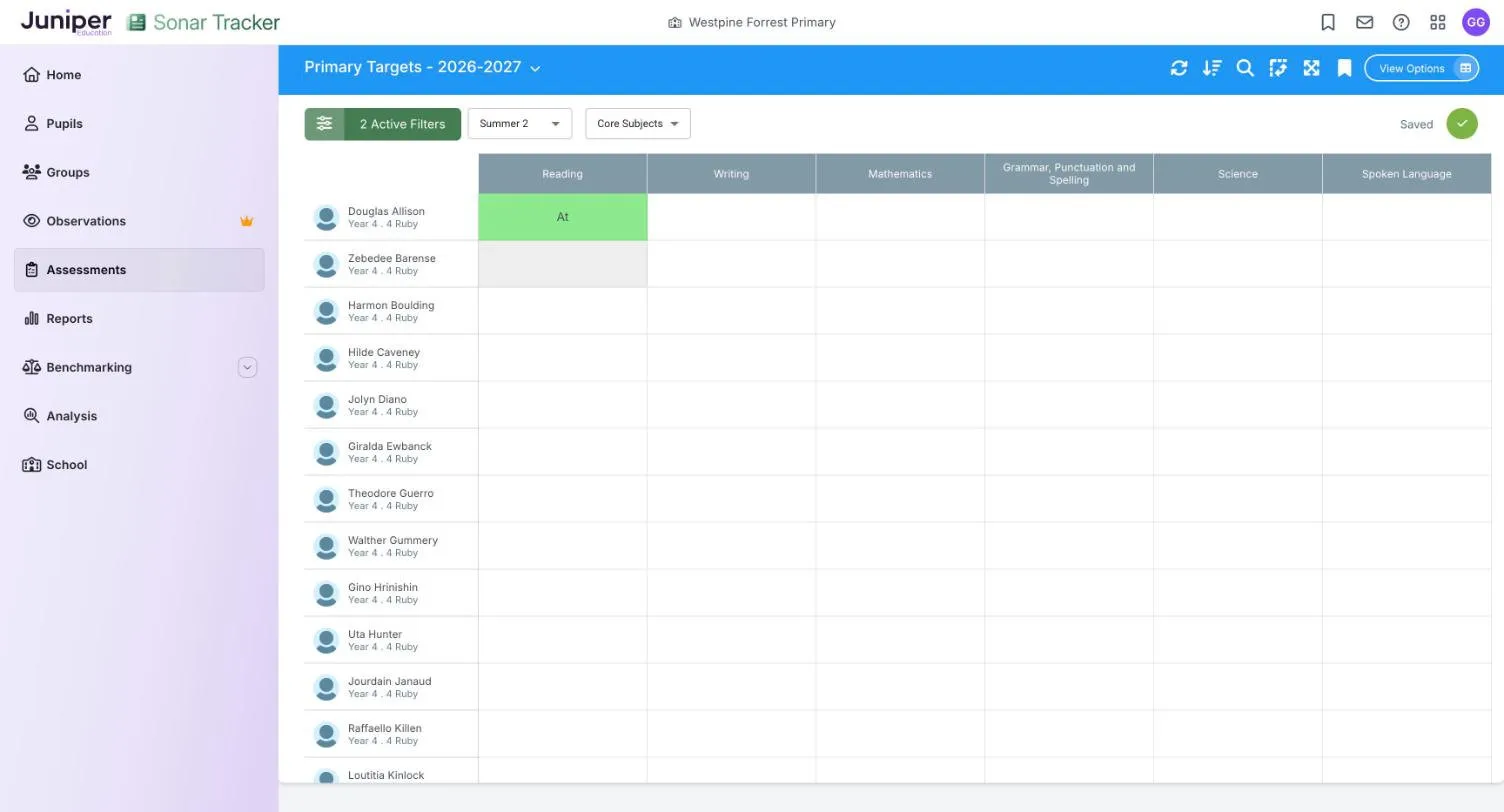
The page does not suggest a term, so check the term list. To choose another academic year, select the title bar, such as Primary Targets - 2026-2027.
For a pupil working on another year group’s curriculum, select Show All Codes in Choose Code and choose a code from the right band. See Assess pupils working below their year group.
Give a whole column the same target
Section titled “Give a whole column the same target”- Select the subject’s column heading.
- Select the box next to Bulk Fill.
- In Choose Code, choose a code.
- Select Bulk Fill.
Every pupil on screen gets that target for the subject. Change the exceptions afterwards.
Record end-of-year projections
Section titled “Record end-of-year projections”Primary Projection Pathway and EYFS Projection Pathway show each pupil’s earlier results in the subject beside the Projection column.
- Go to Assessments.
- In the Targets & Projection Pathway card, select Primary Projection Pathway or EYFS Projection Pathway.
- In the Select Pupils box, choose a year group or a class.
- Select Open Assessment.
- Check that the academic year is right, such as 2026-2027.
- Choose one subject from the subject list, such as Core Subjects - Reading.
- Select the pupil’s cell in the Projection column.
- Choose Below, Just At, Securely At or Above.
Sonar saves the projection straight away and shows End of Year Projection Saved. For a pupil working in another band, select View All Codes.
For reading on the primary page, the columns before Projection are:
| Column | What it shows |
|---|---|
| Y1 Phonics, Y2 Phonics | The pupil’s phonics screening check marks |
| KS1 TA | Their key stage 1 teacher assessment, where your school recorded one |
| Prev. Summer 2 | Their summer 2 judgement from last year |
| Test Score | A test score, if your school records tests |
A judgement from a lower band shows in red with the band number first, such as 3At for Securely At in Band 3.
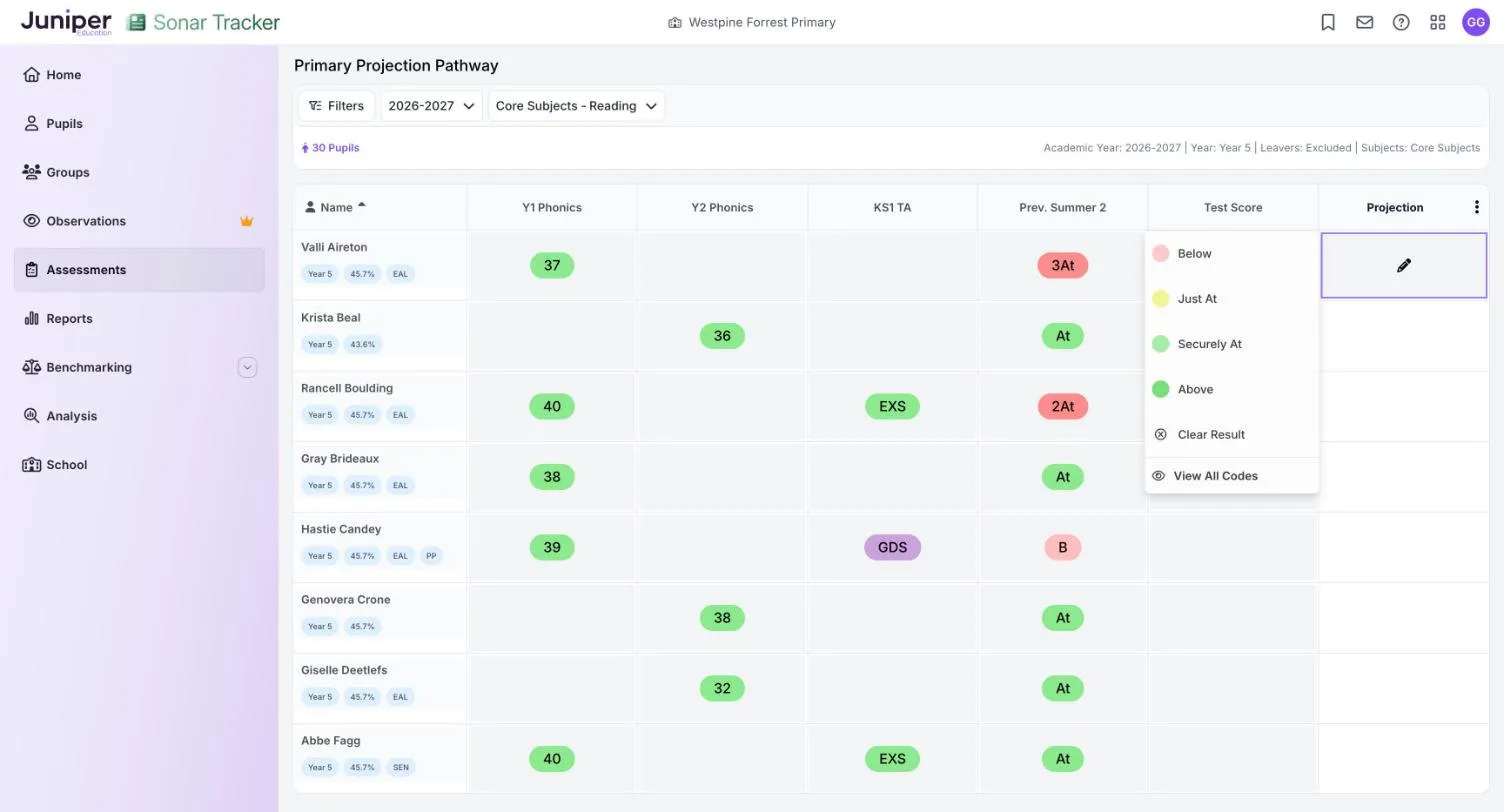
Fill or copy the Projection column
Section titled “Fill or copy the Projection column”The menu next to Projection has two options. Bulk Fill gives every pupil on screen the same projection, and Copy Summative Data copies in their summative judgements from an assessment point you choose.
- Select the three dots next to Projection.
- Select Bulk Fill or Copy Summative Data.
- Choose the code, or the assessment point to copy from.
- Read the summary, then confirm.
Then change the projections that should differ. A copied judgement is only a starting point until you have reviewed it.
Where targets and projections appear
Section titled “Where targets and projections appear”Targets appear in:
- Target Analysis, which shows which pupils are below, on or ahead of their target (Target Analysis)
- Triangulate on the summative pages, as Target (Check other evidence before you decide)
- Primary Triangulation of Data Analysis, as Termly Target (Triangulation of Data Analysis)
Projections appear in:
- Primary Flight Path, as an End of Year Projection column for the current year (Flight Path)
- Primary Triangulation of Data Analysis, as End of Year Projection
- Primary Projection Summary and EYFS Projection Summary, which show how many pupils have each projected judgement (Target and projection reports)
The EYFS version also gives a projected good level of development (GLD). The targets in parent reports are different: Sonar suggests those from formative objectives.
If something goes wrong
Section titled “If something goes wrong”Last term’s targets have not carried over. Sonar does not copy targets between terms. Enter a target for each term you use.
No pupils appear on Projection Pathway. Choose a year group or a class, not both. Classes with no pupils still appear in the Class list and return No Records Found.
An earlier result column is empty. Sonar has no result of that kind for the pupil, such as a phonics mark or a summer 2 judgement.
You cannot change a target or projection. Your role may be read-only, or your role may only edit the current academic year. Ask your Account Owner or Account Admin.