


 Sisra Analytics
Parent reports
Create parent reports
Sonar Tracker can create a Word document for each pupil, filled in with their details, judgements and suggested targets. Teachers then add comments and attitude to learning grades in Word before the reports go home.
Before you start
Section titled “Before you start”You need:
- a parent report template for your phase, which your Account Owner or Account Admin sets up (see Create a parent report template)
- access to the Pupils page
- final summative judgements for the assessment point you’re reporting on
- desktop Microsoft Word, for the best formatting
Parent reports are part of Sonar Tracker, not Sonar Lite. They do not include statutory results, such as the phonics screening check. Portal-linked schools report those from Juniper MIS, and stand-alone schools from their own management information system (MIS). See Statutory assessment in Sonar.
Choose the pupils
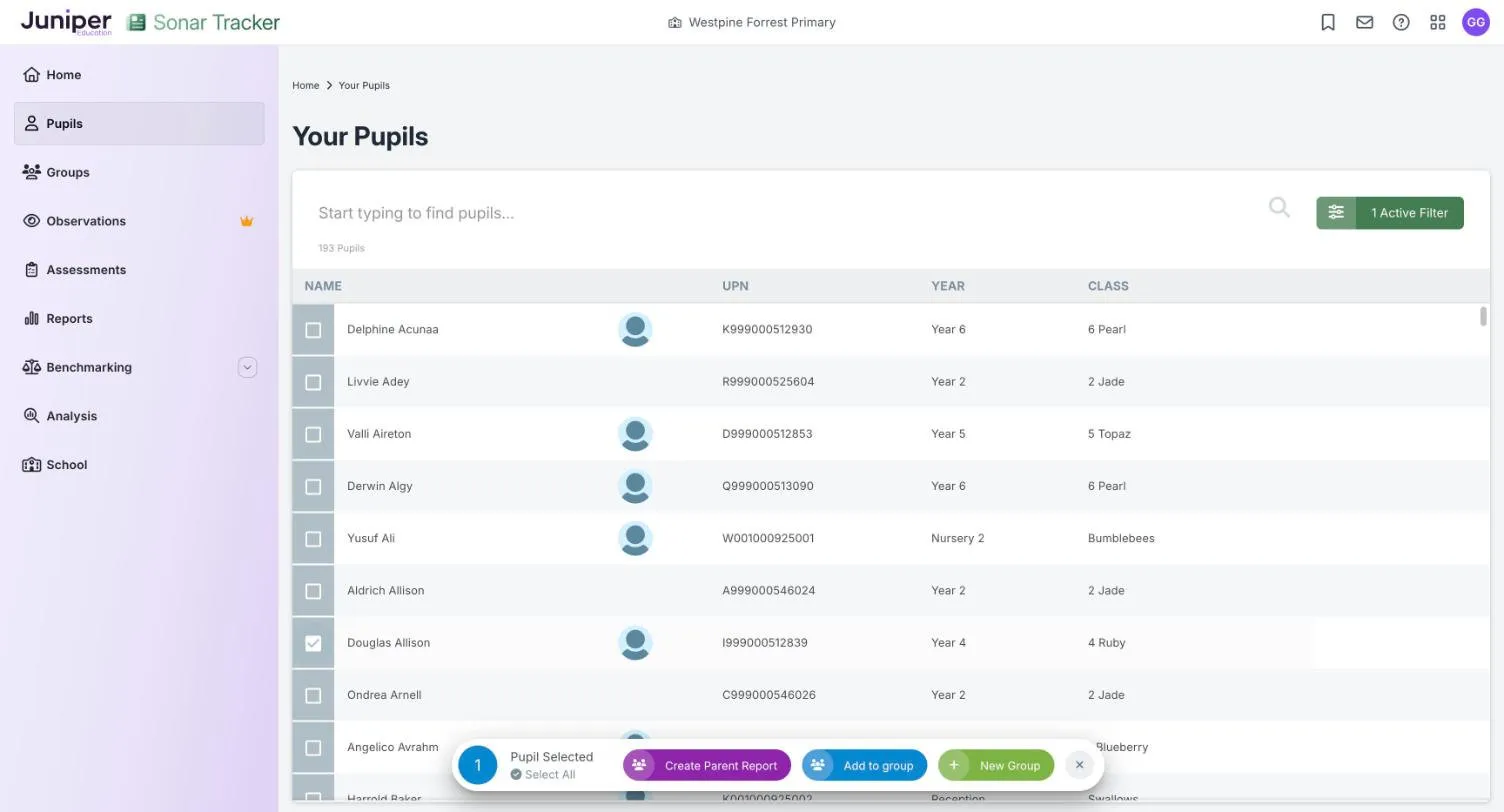
Section titled “Choose the pupils”- Go to Pupils.
- To show one class or group, filter the list with the filter button, which shows something like 1 Active Filter. Filter pupils explains the options.
- Tick the box beside each pupil you want. The first tick opens a selection bar.
- To include everyone in the list, select Select All in the selection bar.
The bar shows how many pupils you’ve ticked, such as 1 Pupil Selected.
Generate the reports
Section titled “Generate the reports”- In the selection bar, select Create Parent Report.
- Under Select Parent Report Template, choose one template.
- Check the details, then select Generate Reports.
Each template shows when it was last changed, which helps you pick the current one. Sonar makes the reports in the background, which can take a few minutes. It sends a message to your Inbox when they’re ready.
Download the reports
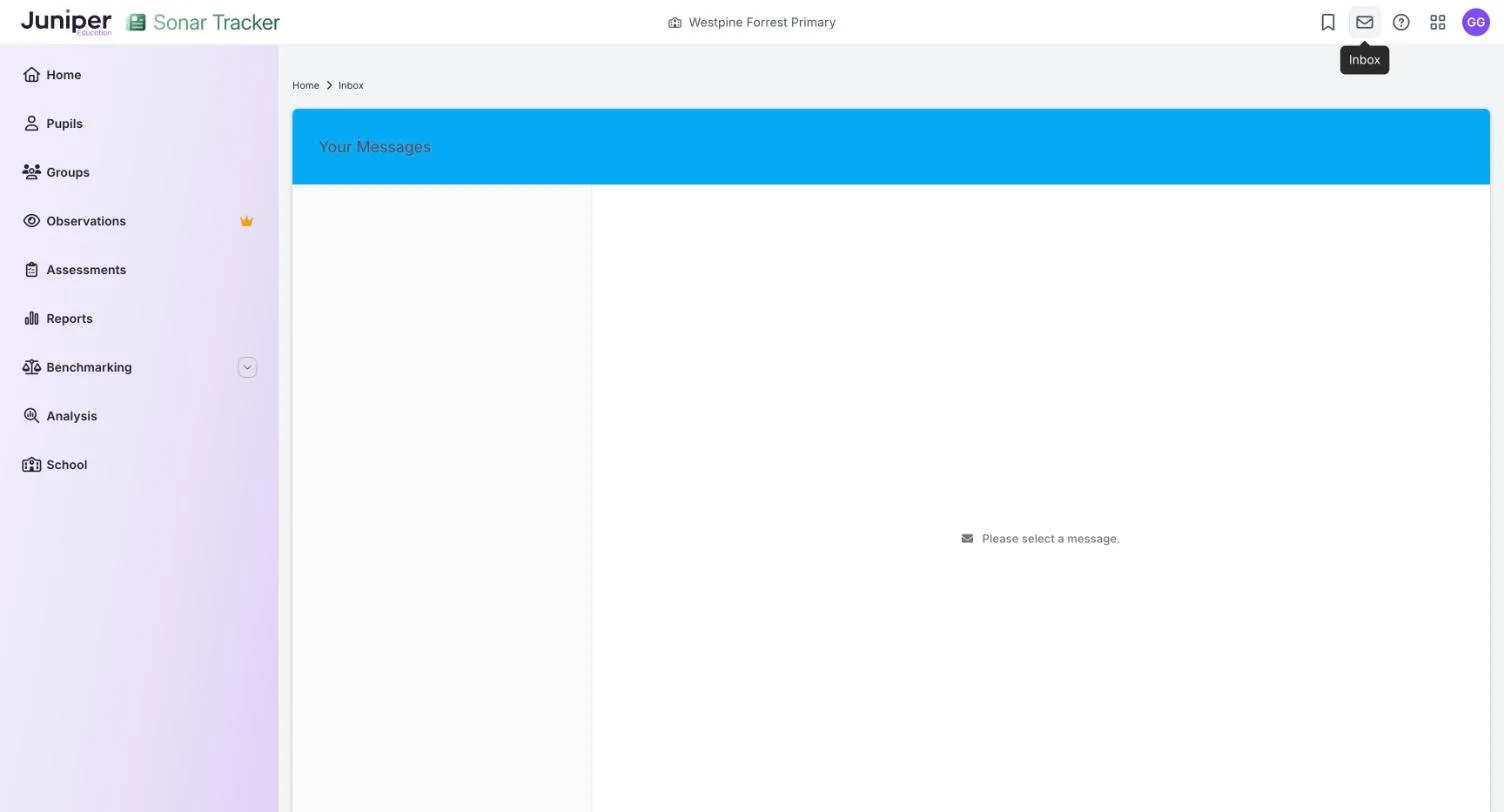
Section titled “Download the reports”- Open your Inbox from the envelope icon in the top bar.
- Open the message. Its title ends with download ready.
- Select the link in the message to download the ZIP file.
- Unzip the file.
The ZIP holds one Word document per pupil, named with the pupil’s full name and the template name.
The link expires after 24 hours. Sonar does not keep copies of reports, so after that you need to generate them again.
Open the reports in desktop Microsoft Word. Word in a web browser can lose some of the formatting.
What Sonar fills in
Section titled “What Sonar fills in”Sonar fills in:
- your school name and the academic year
- each pupil’s name, year group and class
- their summative judgements, shown as your template’s attainment labels, with a key
- up to 3 suggested targets for each subject set to Full
Teachers add, in Word:
- comments on the pupil’s strengths and next steps
- an attitude to learning grade for each subject
- anything else the report has space for, such as a headteacher’s comment
Delete any section you do not use from each report, such as an empty headteacher’s comment box.
The help centre says parent reports cannot include your school logo or pupils’ attendance. If you need them, add them to each report in Word, or ask support.
How Sonar suggests targets
Section titled “How Sonar suggests targets”Targets come from formative assessment recorded in Sonar. For each subject set to Full, Sonar picks up to 3 objectives:
- assessed as Working Towards (yellow) first, then Taught (red)
- from the band for the pupil’s own year group only
- from different strands, where possible
- of 140 characters or fewer, with no more than 290 characters in total
If three objectives come to more than 290 characters, Sonar leaves out the last one. You can edit, remove or add targets in Word.
Write your own targets wherever a report shows There are no formative objectives assessed as RED or YELLOW for this pupil for this subject.
Check reports before you send them
Section titled “Check reports before you send them”Read every report before it goes home. Check that:
- the judgements match what’s in Sonar for the assessment point you’re reporting on
- the labels make sense for pupils assessed in another year group’s band, such as a year 4 pupil judged in Band 2
- the suggested targets suit the pupil and are worded for parents
- every comment and attitude to learning grade is filled in
- the layout looks right in desktop Word
If you change a judgement in Sonar after generating reports, generate those pupils’ reports again. Copy your comments into the new versions and delete the old ones.
If something goes wrong
Section titled “If something goes wrong”Create Parent Report does not appear. Tick at least one pupil first. The button is in the selection bar.
There are no templates to choose. Ask your Account Owner or Account Admin to create one.
The Inbox message has not arrived. Wait a few minutes, then reload the Inbox page.
The download link has expired. Links last 24 hours. Generate the reports again.
A subject has no targets. Targets need formative assessment recorded in Sonar, and only appear for subjects set to Full. Sonar also skips objectives over 140 characters and objectives from other year groups’ bands.