


 Sisra Analytics
Help
Troubleshooting
Use this page when something in Sonar Tracker does not work as you expect. Each heading describes what you see. If nothing here helps, contact support.
Problems on any page
Section titled “Problems on any page”Many problems clear when you reload the page, or sign out and sign in again. Check the school name in the top bar too, in case you are in another school’s account. If several pages fail at once, look for a known problem on the help centre’s Status Updates page.
Something went wrong error
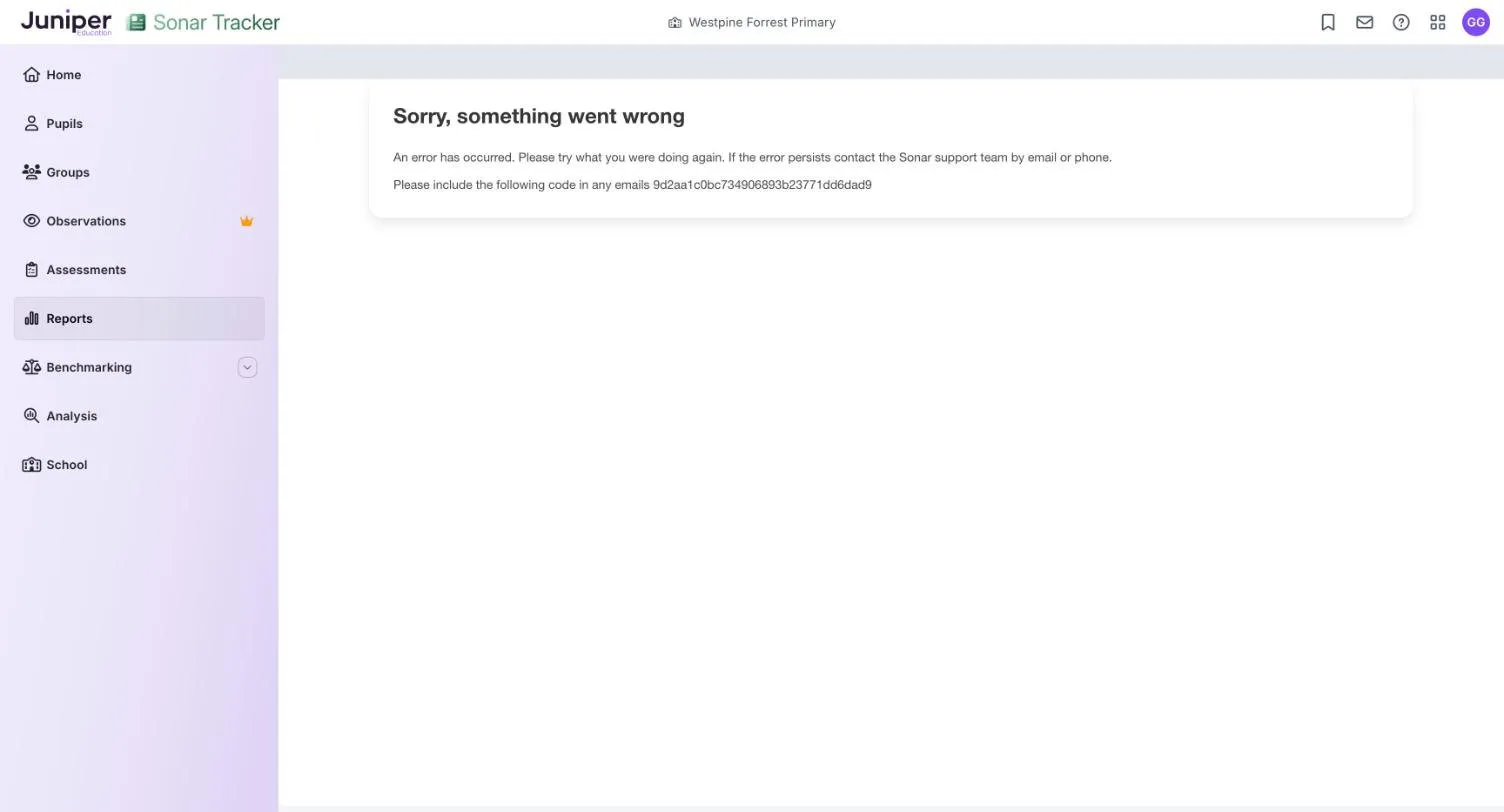
Section titled “Something went wrong error”The page shows Sorry, something went wrong, then a line starting Please include the following code in any emails and a long code.
- Go back and try what you were doing again.
- If you opened the page from a bookmark or a saved link, open it from the menu instead.
- If the error comes back, copy the code from the page.
- Send the code to support with a note of what you were doing.
A page is slow or will not load
Section titled “A page is slow or will not load”Reload the page first. If it is still slow, clear your cookies and cache, then sign in again.
If the formative page shows Failed to load assessment - Please contact support., load one class or a few strands at a time. If you see Sorry, we were unable to load assessment data for the selected Assessment Year and filters., check your choices and try again. Contact support if either message keeps appearing.
A button or list does not respond
Section titled “A button or list does not respond”Straight after a page loads, Sonar sometimes ignores the first thing you select. Wait a moment and select it again. In the Select Pupils box, pressing Esc does not close the Year Group and Class lists, so select somewhere else in the box instead.
Signing in and access
Section titled “Signing in and access”Error 403: you do not have permission
Section titled “Error 403: you do not have permission”The page asks Are you logged into the correct account? and says you don’t have permission to see it. Sometimes the browser keeps returning you to the sign-in page instead. The usual causes are an old web address or bookmark, an out-of-date browser cache, or a password that needs resetting.
- Type
sonartracker.juniper.educationinto the address bar. - Bookmark the page so you use the same address next time.
- If you have accounts at more than one school, select your initials and check you are in the right one.
- If the error continues, clear your cookies and cache and sign in again.
- If it still continues, reset your password with the Forgot Password link on the sign-in page (it may read Forgot your password?).
If none of these work, contact support.
Error 403: the request could not be satisfied
Section titled “Error 403: the request could not be satisfied”A plain black-and-white page shows 403 - The request could not be satisfied. Your browser has usually stored too many cookies. Clear your cookies and cache, then sign in again.
Error 403 from View & Invite Users
Section titled “Error 403 from View & Invite Users”Users are managed in Portal, so go there directly: select Products in the top bar, choose Portal, then select User Invitations. If the error happens again, clear your cookies and cache.
You do not have access to Sonar Tracker
Section titled “You do not have access to Sonar Tracker”This message usually means your account has no access to Sonar at this school. Select Log out, then sign in again with your school email address. If the message comes back, ask your Account Owner or Account Admin to check that you have been invited to Sonar Tracker.
Your account has been locked
Section titled “Your account has been locked”The message reads Your account has been locked. Please contact your system administrator. Your Account Owner or Account Admin can fix this by resetting your role in Portal:
- In Portal, select User Invitations, then Staff.
- Select Edit Roles.
- In Edit Role, choose Sonar Tracker as the Product.
- Choose a lower role than the user has now, for example Partial Edit instead of Full Edit.
- Select the user in the Select Users list.
- Select Save.
- Repeat steps 2 to 6, choosing the user’s original role this time.
- Wait 5 minutes, then ask the user to sign in again.
If the account is still locked, contact support and say that you have already reset the role.
The verification code does not arrive
Section titled “The verification code does not arrive”Check your junk, spam and clutter folders for the two-step verification email. If it is not there, ask your IT support to check that the school’s email filter is not blocking it, then contact support.
The code goes to an old email address
Section titled “The code goes to an old email address”The Account Setup: Enable Two-Factor Authentication screen says it sent a code to an address you no longer use. This can happen after your email address changes, even when Portal shows the new one. Ask your Account Owner or Account Admin to reset your role, using the steps in Your account has been locked.
Your invitation or set-up link has expired
Section titled “Your invitation or set-up link has expired”Invitations sent from Portal last 14 days. If yours has expired, ask your Account Owner or Account Admin to invite you again. If a set-up email has expired or never arrived, or you have forgotten your password, see Reset a forgotten password.
A colleague is missing from Select Users
Section titled “A colleague is missing from Select Users”In Portal, Select Users lists only staff who are in your management information system (MIS) and do not yet use that product. New staff arrive overnight. Users and roles lists what to check.
The requested URL could not be retrieved
Section titled “The requested URL could not be retrieved”This message comes from your school’s firewall or web filter, not from Sonar. Ask your IT support to allow the Juniper addresses you use, including sonartracker.juniper.education and portal.juniper.education.
Pupils and classes
Section titled “Pupils and classes”No pupils show at all
Section titled “No pupils show at all”If Pupils is empty for the whole school, support may be refreshing your data: wait 5 minutes and reload the page. If pupils still do not appear, contact support, as your school’s DfE number may have changed in your MIS. For one empty class or year group, see The page says No Records Found.
New pupils are missing
Section titled “New pupils are missing”Pupil records reach Sonar overnight, so a pupil added to your MIS today appears tomorrow. Check that their MIS record is complete, including year group and class, and contact support if they have not appeared the day after. If your MIS data passes through Wonde, updates also pause from mid-July to early August: see The new academic year.
Pupils are missing from your class
Section titled “Pupils are missing from your class”Leavers are hidden unless you change the Leavers filter, and filters applied earlier or saved in a bookmark can hide pupils too. To clear filters on newer pages, select Filters, then Clear all, then Save. On older pages, select Active Filters, then Clear Filters and Apply Filters. See Filter pupils.
If a pupil is in the wrong class, correct it in your MIS. The change arrives overnight.
Pupils are in the wrong year group
Section titled “Pupils are in the wrong year group”Sonar takes each pupil’s year group from the national curriculum (NC) year in your MIS. Correct it there and the change arrives overnight, or ask support for a manual sync if it is urgent.
After the summer rollover every pupil moves up a year. On earlier assessment points, the Year Group you choose still means the pupils’ current year group: see Look at an earlier assessment point.
A pupil appears twice
Section titled “A pupil appears twice”Duplicate records usually come from a change to the pupil’s details in the MIS. Contact support, who can merge them.
Nursery pupils are missing
Section titled “Nursery pupils are missing”Sonar receives a pupil only if their MIS record has a start date and a unique pupil number (UPN). Add both, using a temporary UPN if a permanent one is not appropriate, and the pupil arrives after the next overnight update. See Nursery pupils are missing.
A leaver is still showing
Section titled “A leaver is still showing”Leavers recorded in your MIS leave pupil lists after the overnight update. If a leaver is still showing 48 hours after you recorded them, contact support.
A new group has disappeared
Section titled “A new group has disappeared”Sonar removes groups and classes with no active pupils every night, so add pupils to a new group on the day you create it. If you made the group from Pupils with New Group, check its Group Members tab: the pupils you selected may not have been added. See Create and manage groups.
You cannot edit a class
Section titled “You cannot edit a class”Classes come from your MIS. Make the change there, and it arrives overnight.
Failed to load pupil information
Section titled “Failed to load pupil information”The message Failed to load pupil information. comes with a reason. For This pupil may be marked as a leaver or deleted., include leavers in Filters to find the pupil. For You may not have permission to view this pupil., ask your Account Owner or Account Admin about your access.
Entering assessments
Section titled “Entering assessments”The page says No Records Found
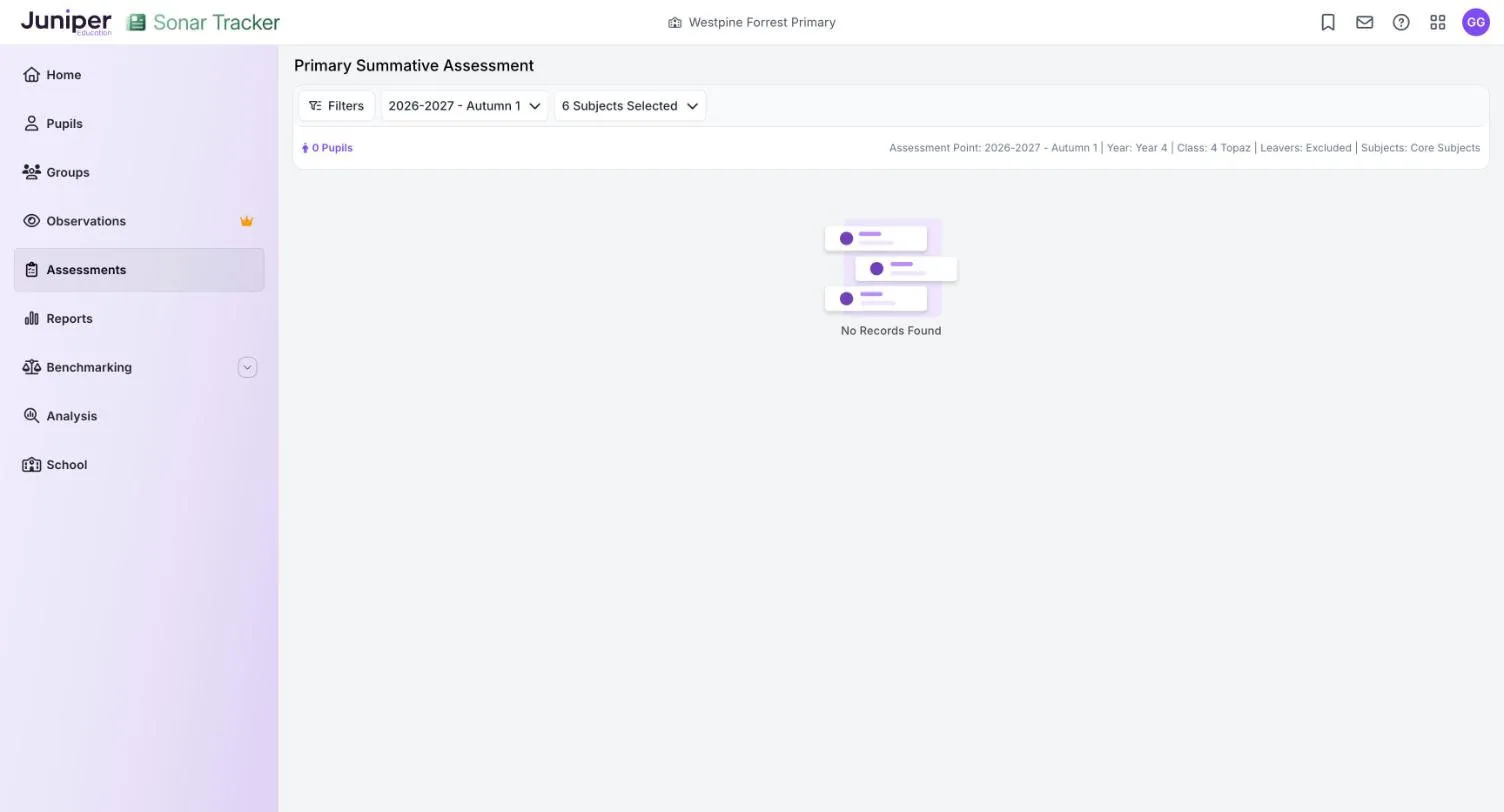
Section titled “The page says No Records Found”Sonar shows No Records Found and 0 Pupils when no pupils match your choices. The usual causes are:
- a year group and a class from a different year, chosen together
- a class with no pupils in it
- a filter that leaves nobody
The Class list shows every class in the school, including empty ones, so choose a year group or a class, not both.
You cannot change a judgement
Section titled “You cannot change a judgement”Read-only roles cannot change judgements, and Partial Edit and Minimal Edit can change them in the current academic year only. To correct an earlier year, ask someone with Full Edit or above. Statutory grids also need you to start editing first. Users and roles explains each role.
A judgement did not save
Section titled “A judgement did not save”Newer pages confirm each entry with Assessment Saved, and older pages show a Saved tick. If you see Error Saving Assessment, or no confirmation appears, check your internet connection. Then reload the page and enter the judgement again. On the formative page, check that the Saved tick is still showing after you use Bulk Fill.
The grid is empty at the start of the year
Section titled “The grid is empty at the start of the year”Sonar does not carry judgements forward from one assessment point to the next. At the start of year baseline or autumn 1, every cell stays empty until someone enters a judgement or copies one in. To start from last year’s summer 2 judgements, use Copy Data From Previous Term and then review each pupil. See Copy judgements from an earlier point.
The page opens at the wrong assessment point
Section titled “The page opens at the wrong assessment point”Entry pages open at the current assessment point. Between the summer rollover and the start of the autumn term, that is Start of Year Baseline, and after that Autumn 1. To use another point, choose it from the assessment point list, which shows something like 2026-2027 - Autumn 1. See Assessment points and the school year.
The formative grid is empty after changing year
Section titled “The formative grid is empty after changing year”The Band list on the formative page does not change when you choose another academic year. If you open last year with this year’s band still selected, the grid is empty. Choose the band the pupils worked in that year, such as Band 3 for this year’s year 4. See Look at an earlier year.
Test scores have no colour
Section titled “Test scores have no colour”Sonar colours a test score only when Scores ARE has a band for that subject, year group and term. The message No validation set up for this Subject or Year Group - Please contact support means a score range is missing. An Account Owner or Account Admin sets both up on the School page: see Why some scores show no colour.
A term is missing from the copy list
Section titled “A term is missing from the copy list”Copy Data From Previous Term offers only earlier points in the same academic year, plus Previous Summer 2. Copying reception judgements into year 1 works only if your EYFS and primary judgements use the same codes: see Copy reception judgements into year 1.
Judgements were overwritten by mistake
Section titled “Judgements were overwritten by mistake”Bulk Fill and Copy Data From Previous Term replace whatever was in the cells, and you cannot undo them. Re-enter the correct judgements by hand.
There is no Ages page
Section titled “There is no Ages page”Educational ages (Ages) appear only where Juniper has switched them on. Contact support if your school needs them.
Statutory data
Section titled “Statutory data”You cannot type in a statutory grid
Section titled “You cannot type in a statutory grid”Statutory grids are read-only until you select Edit Assessment, check the Assessment Date and select Start Editing. All edit roles can enter statutory results, but read-only roles cannot. See Statutory assessment in Sonar.
The result date is not valid
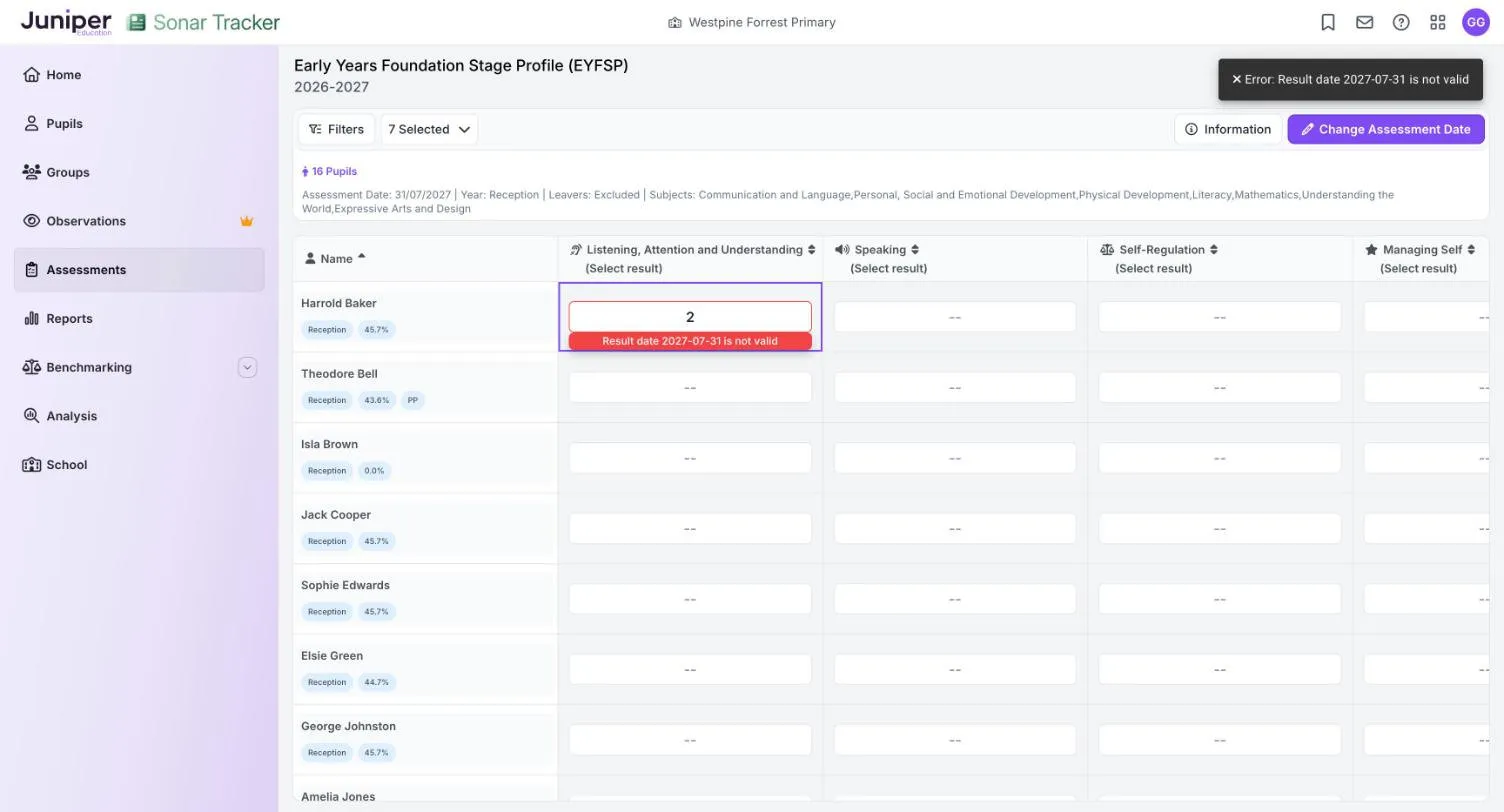
Section titled “The result date is not valid”Sonar shows a message such as Error: Result date 2027-07-31 is not valid, with a red label under the cell. The result is not saved.
Each result is stamped with the assessment date you chose. That date must fall in the academic year in which the pupil took the assessment, even when you correct a result later. On the EYFS profile page, the message also appears if you enter this year’s results in the autumn term, even with today’s date.
- Select Change Assessment Date.
- Choose the date the pupil completed the assessment.
- Select Start Editing.
- Enter the result again.
On the phonics page, the Edit Assessment box asks for a result date for each phonics year. If the message still appears, contact support with the date you used.
Phonics outcomes are blank
Section titled “Phonics outcomes are blank”Entering a mark does not always fill in the outcome. After you enter marks in Y1 Phonics Mark or Y2 Phonics Mark, check the matching outcome column. If it is blank, choose Wa (met the expected standard) or Wt (did not meet it). Use the threshold mark that the Standards and Testing Agency (STA) published for that year. See Phonics screening check.
A multiplication tables check score turns red
Section titled “A multiplication tables check score turns red”The multiplication tables check accepts a score from 0 to 25, or one of the codes listed under Information. Anything else turns the cell red and is not saved.
KS2 scaled scores are empty
Section titled “KS2 scaled scores are empty”Until Juniper adds that year’s conversion tables on KS2 results day, the scaled score columns show Not yet available. Sonar then works out scaled scores from the raw scores. The help centre’s Status Updates page confirms when the tables are in. See Key stage 2.
A KS2 teacher assessment column is locked
Section titled “A KS2 teacher assessment column is locked”In reading and maths, entering a test score locks the teacher assessment column for that subject, and the other way round. Teacher assessment in reading and maths is only for pupils working below the standard of the tests.
Imported results have not appeared
Section titled “Imported results have not appeared”In Portal-linked schools, you import common transfer files (CTFs) in Juniper MIS, and results usually appear in Sonar within minutes. In stand-alone schools, a file sent with Send a file to Sonar can take up to an hour to process. If results still have not appeared, check that the file is a .xml CTF addressed to your school, and that you ticked the right data. See Import and export statutory data.
The CTF export lists no pupils
Section titled “The CTF export lists no pupils”This happens in the CTF export wizard in Juniper MIS, usually because of a cookie or cache problem.
- Sign out of Juniper MIS.
- Clear your cookies and cache.
- Sign in to Juniper MIS again.
- When you are asked about cookies, select Allow all. If you are asked twice, select it both times.
- Return to the CTF export wizard.
If the pupil list is still empty, contact support.
Results from last year seem to be missing
Section titled “Results from last year seem to be missing”After the summer rollover, last year’s year 6 pupils appear under Year 7, and most are now leavers. To see their KS2 results, open End of Key Stage Two, choose Year 7 and include leavers in Filters. In the autumn term, the Statutory Dashboard opens on last year’s results.
Reports and dashboards
Section titled “Reports and dashboards”Report figures do not match
Section titled “Report figures do not match”Before you assume a mistake, check:
- the assessment point, or the two points being compared
- the filters, including any saved in a bookmark or in your preferences
- whether leavers are included, as reports leave them out by default
- which pupils the report counts
Reports treat pupils with no judgement in different ways, so one class can show different percentages in two reports.
| Report | Pupils with no judgement |
|---|---|
| Primary Age Related Overview | Shown as No Assessment, a share of all pupils, but left out of the other percentages |
| Age Related Progress | Counted: every percentage uses all the pupils selected |
| Characteristic Attainment Overview | Counted and shown as No Assessment |
| Primary Pupil Progress Meeting | Left out if they have no judgement at the end point, and counted in Pupils With No Assessment |
| EYFS Good Level of Development Tracking | Shown, with a dash for each goal that has no judgement. A dash counts as not at age-related expectations |
| Statutory Dashboard | Left out of any measure whose rules they do not meet |
| Benchmarking | Counted: your school’s figure uses every pupil in the year group |
This is also why the percentages in the Primary Age Related Overview can add up to more than 100%. The Statutory Dashboard has its own rules for leavers too: see Statutory Dashboard.
The Statutory Dashboard has not updated
Section titled “The Statutory Dashboard has not updated”Dashboards in Analysis refresh overnight, and Last updated shows when. Results you enter or import today appear tomorrow.
In the autumn term, the dashboard opens on the previous academic year, which has the latest statutory results. If you choose another year, it goes back to the default when you leave the page.
A report does not show new judgements
Section titled “A report does not show new judgements”Older reports show Report run on with the date and time, and a refresh icon: select the icon to load the latest data. On newer reports, reload the page.
A report is missing from the Reports page
Section titled “A report is missing from the Reports page”The Search Reports box and the Roles, Phase and Assessment Type filters can hide reports, so clear them and look again. With a Sonar Lite subscription, Reports shows a crown and an information page instead. If you have accounts at more than one school, some newer reports may not appear in every account: contact support.
A printed report is cut off
Section titled “A printed report is cut off”Select PDF to create a file, then print the file. On reports with a Print button, choose More settings in the print window and change Scale.
Benchmarking shows no figures
Section titled “Benchmarking shows no figures”Benchmarking is an add-on module, and it runs for autumn 2, spring 2 and summer 2 only. The Benchmark Period list offers only the periods your subscription covers. EYFS benchmarking also needs judgements in all 17 early learning goals, not only the 7 areas of learning. See Benchmarking.
Downloads and the Inbox
Section titled “Downloads and the Inbox”A download has not arrived
Section titled “A download has not arrived”Parent reports, observation PDFs and data exports are made in the background, and most take a few minutes. A message with a download link then arrives in your Inbox, the envelope icon in the top bar. Wait, then reload the Inbox page, but do not run the export again. The PDF button on a report is different: it saves the file straight to your Downloads folder.
A download link has expired
Section titled “A download link has expired”Links last 24 hours for parent reports, 4 days for observation PDFs and 14 days for data exports. Create the reports or run the export again to get a new link. See The Inbox.
Parent reports look wrong in Word
Section titled “Parent reports look wrong in Word”Open and edit them in desktop Microsoft Word. Word in a web browser can change the layout.
Observations
Section titled “Observations”A crown shows next to Observations
Section titled “A crown shows next to Observations”Your school does not have the Observations module, which is an add-on to Sonar Tracker. See The Observations module.
If there is no crown but you cannot record observations, your role may not include them. Ask your Account Owner or Account Admin.
Parents cannot see an observation
Section titled “Parents cannot see an observation”Parents see an observation only if it was published for Home, has a note and a photo and tags their child. It must also be approved in Comms Hub, and the parent must have joined the Juniper Education app. If a parent cannot see an observation has the full checklist.
You cannot save another draft
Section titled “You cannot save another draft”You can keep up to 25 draft observations. Open My Drafts in the Observations Feed, then publish or delete some.
You cannot add more photos
Section titled “You cannot add more photos”The message Number of selected images exceeds max allowed means you chose too many. An observation can have up to 5 photos, or more if your school has the increased limit.
Sonar Multi-School
Section titled “Sonar Multi-School”You cannot find Sonar Multi-School
Section titled “You cannot find Sonar Multi-School”Trust access comes through your trust’s own Portal account, not a school’s, so choose your trust from your list of accounts. If Multi-School is not in the Juniper Products list, ask your trust’s Account Owner for access. See Get access.
Trust figures differ from school figures
Section titled “Trust figures differ from school figures”Sonar Multi-School counts only pupils with assessment data, so its percentages can differ from school reports that count every pupil. See Who is counted. If a school’s data looks wrong, see Correct a figure.
The change shows ~ 0
Section titled “The change shows ~ 0”~ 0 means no summative judgements have been entered for the selected assessment point yet, so there is no change to work out. It updates once schools enter data.
Only the Simple view is available
Section titled “Only the Simple view is available”The detailed view under ARE Categories needs every school in the trust to use the same summative codes. Changing a school’s codes affects its existing data, so talk to Juniper first. See Primary Attainment Overview.
You cannot open the admin pages
Section titled “You cannot open the admin pages”The data completion reports in Admin need the Account Owner or Account Admin role. Other users see You don’t have permission to access any admin options.
Clear cookies and cache
Section titled “Clear cookies and cache”Clearing cookies and cached files fixes many sign-in and loading problems. It also signs you out of other websites. These steps work in Chrome and Edge.
- Press Ctrl+Shift+Delete (on a Mac, Command+Shift+Delete). Chrome opens Delete browsing data and Edge opens Clear browsing data.
- Set Time range to All time.
- Tick Cookies and other site data and Cached images and files.
- Select Delete data in Chrome or Clear now in Edge.
- Restart the browser and sign in again.
Contact support
Section titled “Contact support”If nothing on this page fixes the problem, email sonartrackerhelp@junipereducation.org or raise a ticket on the Juniper help centre. What to include in a request lists what support need, such as the exact message and any error code. Get support and training gives phone and live chat details.
Do not email files that contain pupil data, such as CTFs. If support need a file, they will set up a secure way to send it.