


 Sisra Analytics
School settings
Export pupil data
The Pupil Data Export Wizard downloads pupils’ assessment data as a CSV (comma-separated values) file, which opens in Excel. Use it for your own analysis, or to give data to someone who does not use Sonar Tracker.
To send statutory results to your management information system (MIS) instead, see Import and export statutory data.
Before you start
Section titled “Before you start”You need:
- access to the School page and its Exports card (if you cannot see them, ask your Account Owner)
- to know which pupils, assessment points, subjects and types of assessment you want
Each export can include up to 7 assessment points, which the wizard calls terms. Exports do not include formative assessment.
Export the data
Section titled “Export the data”- Go to School. In the Exports card, select Pupil Data Export Wizard.
- On Filter Pupils, choose at least one year group, class or group under Pupil Groups or Groups.
- Add any other filters you need, such as Gender or Attendance (0 - 100%), then select Next Step. Leavers are left out unless you change Leavers under Focus.
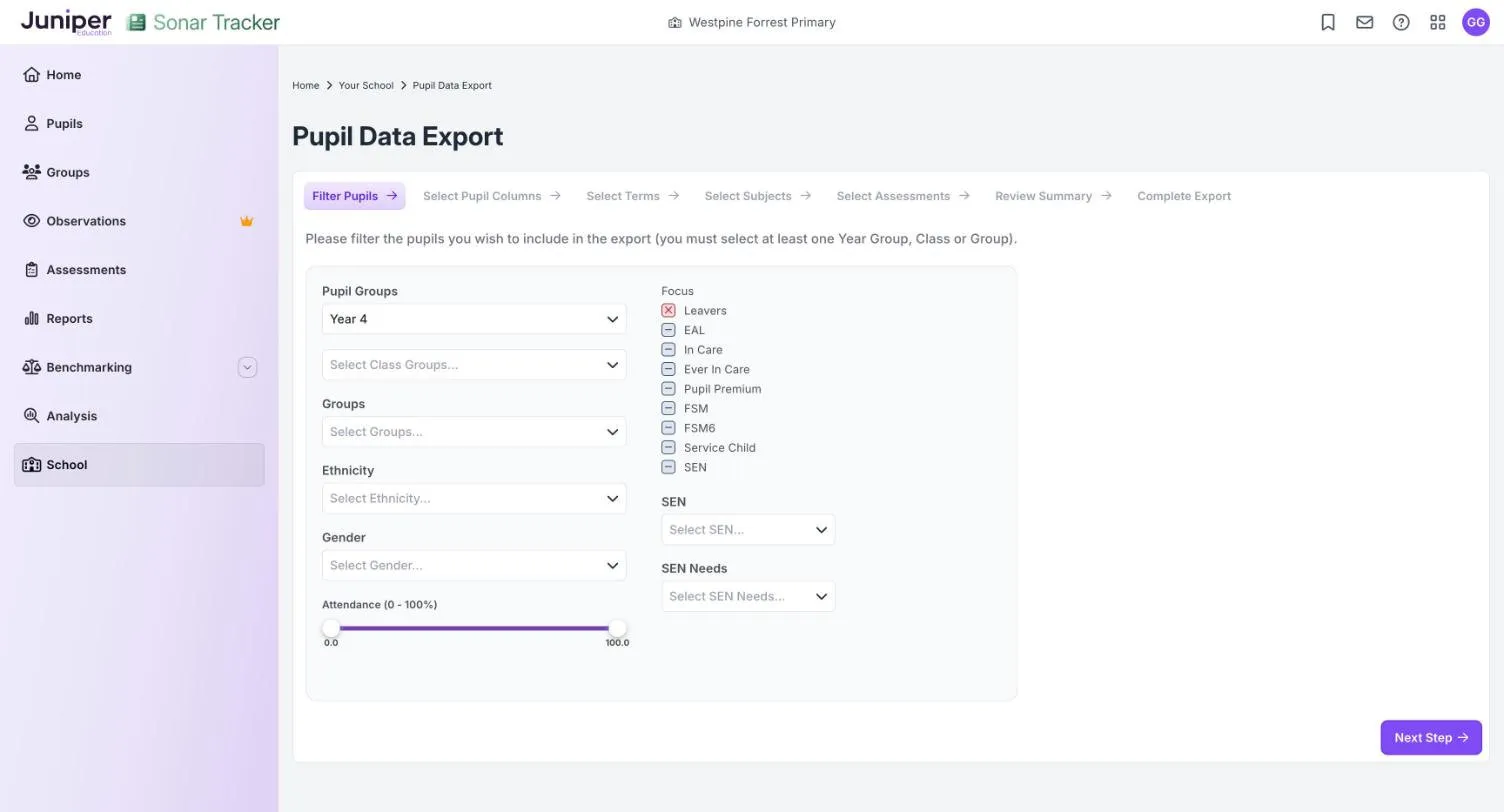
- On Select Pupil Columns, untick any pupil details you do not need, then select Next Step. Every column, such as Pupil Premium and SEN, starts ticked.
- On Select Terms, choose up to 7 terms from this or earlier academic years, then select Next Step.
- On Select Subjects, choose EYFS areas, primary subjects or both, then select Next Step.
- On Select Assessments, choose one or more of Projection, Statutory, Summative, Summative Target and Test Score, then select Next Step.
- On Review Summary, check your choices. Select Previous Step to go back and change anything.
- Select Queue export.
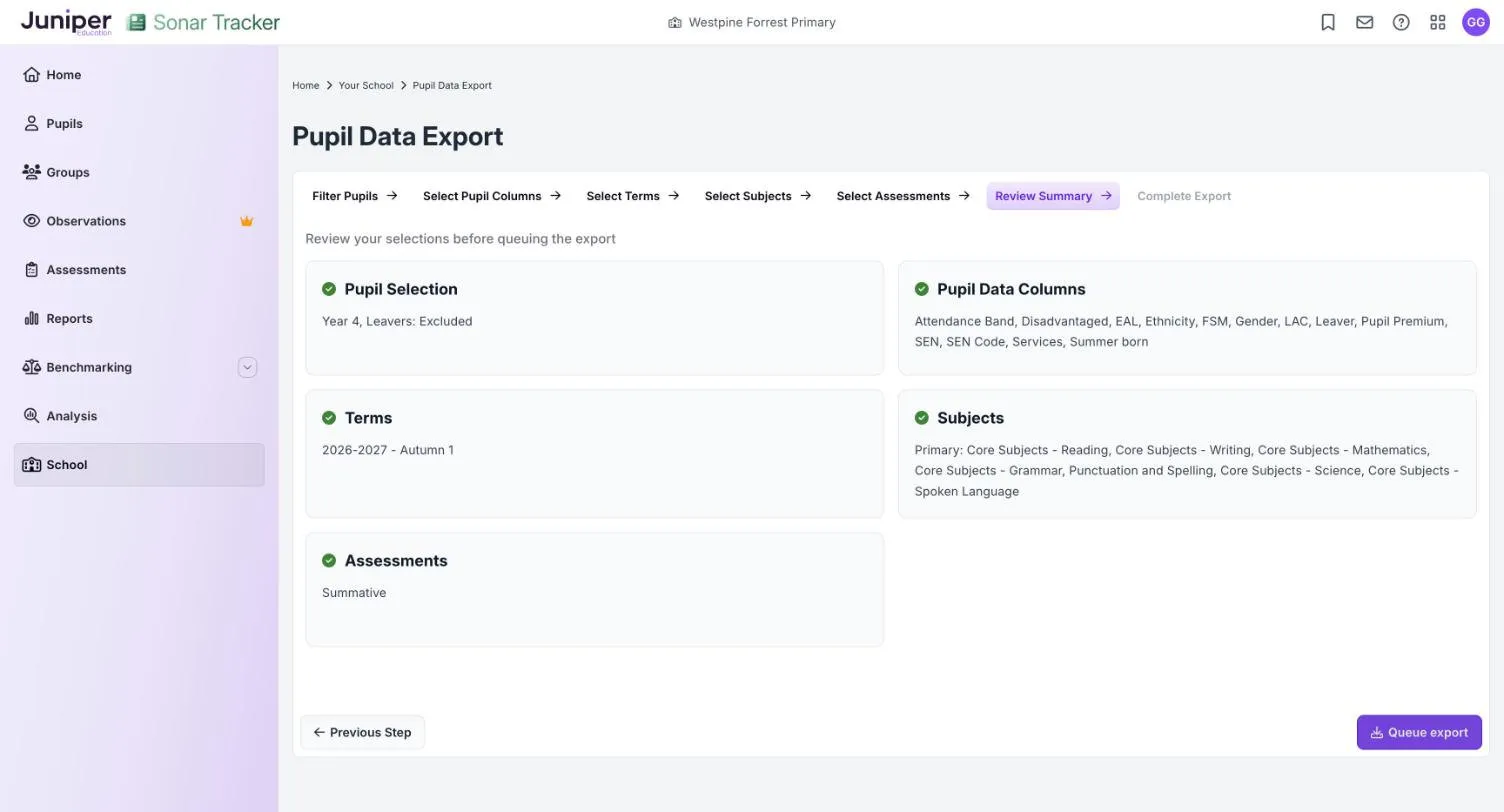
The last step, Complete Export, confirms that the export is queued. Do not run the same export again while you wait.
Download the file
Section titled “Download the file”The file is usually ready within a few minutes. A message then arrives in your Inbox, the envelope icon in the top bar, with a link to the CSV file. The link works for 14 days.
Keep exported data safe
Section titled “Keep exported data safe”An export contains personal data about pupils, which can include sensitive details such as SEN. Data protection law, including the UK General Data Protection Regulation (UK GDPR), makes your school responsible for keeping the file safe. To do that:
- include only the pupils and columns you need
- save the file only where your school’s data protection policy allows, such as a secure school drive, and not on a personal device
- share it only with people who need it, using your school’s secure methods
- remove pupil names before you share figures with people who do not need to know which pupil is which
- delete the file and any copies, including email attachments and downloads, when you have finished
Your school’s data protection officer can advise. The DfE’s guidance Data protection in schools (GOV.UK) sets out what schools are responsible for.
Copy a report into Excel
Section titled “Copy a report into Excel”You can copy the tables from some reports straight into Excel. This is useful for Subject Overview, Summative Progress Analysis (ARE), Target Analysis and End of Key Stage 2 Outcomes. Only the text copies, not charts or formulas.
- Drag across the report’s table to select it, stopping short of the end of the last cell. Selecting all of the last cell can spoil the formatting when you paste.
- Use the right mouse button on the selection and choose Copy.
- Open a blank Excel workbook and press Ctrl+A (Cmd+A on a Mac) to select the whole sheet.
- On the Home tab, change the number format from General to Text.
- Select cell A1 with the right mouse button, then choose Match Destination Formatting from the paste options.
- Type in anything that was left out of the last cell.
Some newer pages have an Export as CSV button instead, such as Pupil Overview in Analysis.
If something goes wrong
Section titled “If something goes wrong”Nothing happens when you select Pupil Data Export Wizard. Select it again.
Next Step stays unavailable. Most steps need at least one choice. On Filter Pupils, choose a year group, class or group.
No message has arrived. Large exports take longer. Check your Inbox later instead of running the export again. If nothing arrives that day, contact Juniper Education support.
The link has expired. Run the export again to get a new link.
Some pupils are missing. Leavers are left out unless you change Leavers under Focus. See Include leavers.
There is no formative data. Exports do not include formative assessment. Use the formative reports instead.
There is no Exports card. Your role may not include exports, so ask your Account Owner. Sonar Lite does not include the School page.