


 Sisra Analytics
Teacher assessment
Enter EYFS summative judgements
An EYFS summative judgement records where a child is in one aspect of learning at an assessment point, such as autumn 1. Nursery and reception staff enter these judgements on the EYFS Summative Assessment (New) page. The EYFS reports and EYFS benchmarking use them.
For years 1 to 6, see Enter primary summative judgements, which works in the same way.
Before you start
Section titled “Before you start”You need:
- an edit role, such as Full Edit or Partial Edit
- to know which assessment point your school is recording, and the date judgements are due
Partial Edit and Minimal Edit can change judgements in the current academic year only, and read-only roles cannot change anything (Users and roles).
Agree as a team what each judgement means for nursery and reception children at each point in the year (Judgements, bands and age-related expectations).
Open your class
Section titled “Open your class”- Go to Assessments.
- In the Teacher Assessments card, select EYFS Summative Assessment (New).
- In the Select Pupils box, choose a year group from the Year Group list, such as Reception, or your class from the Class list.
- Select Open Assessment.
Choose a year group or a class, not both: a year group with a class from another year returns No Records Found.
The page opens at the current assessment point and shows the prime areas. The line above the grid confirms what you are looking at.
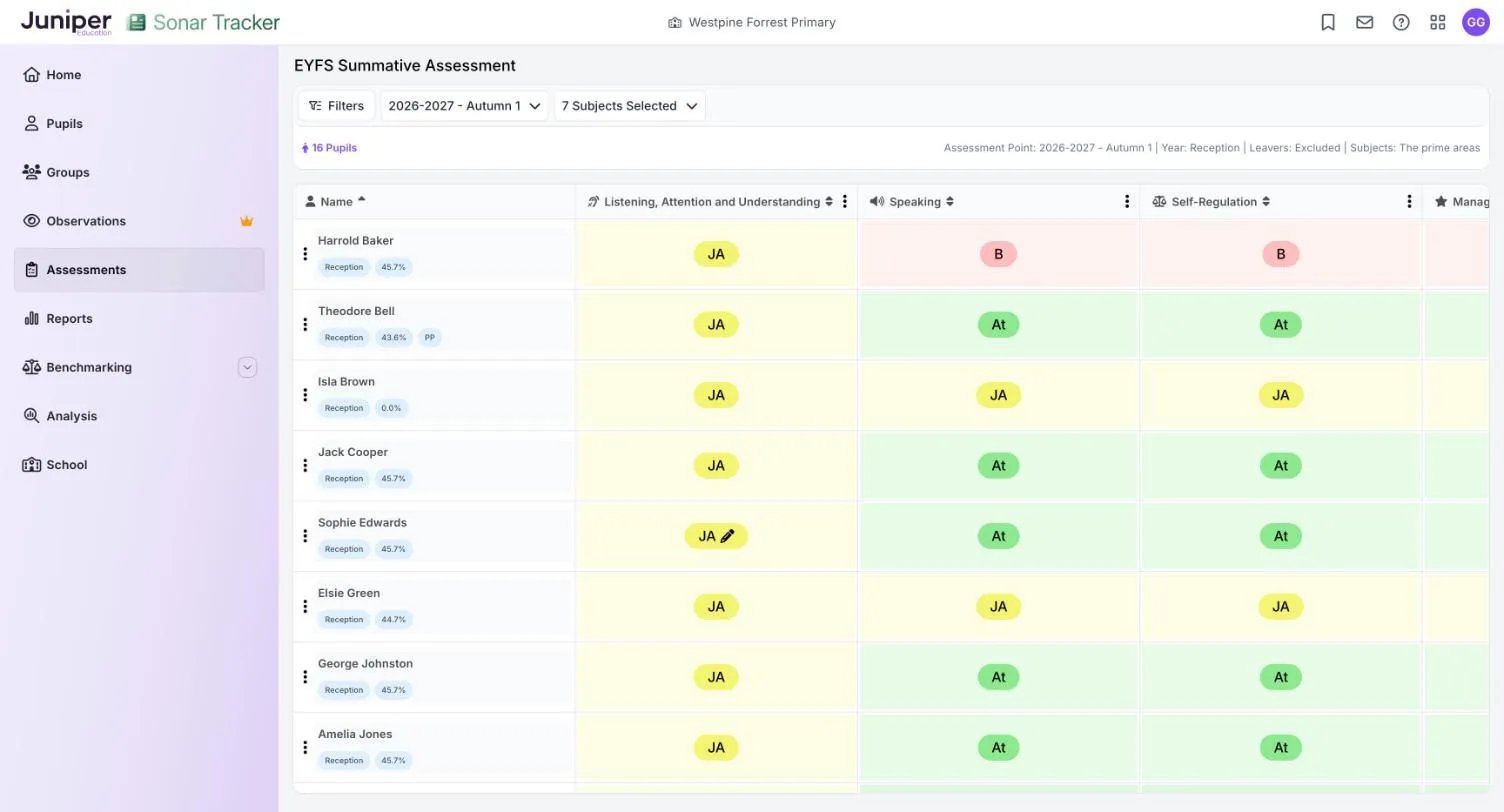
Under each child’s name are their year group, their attendance percentage and any flags from your management information system (MIS), such as PP (pupil premium).
Choose the aspects you see
Section titled “Choose the aspects you see”The page lists the 17 aspects that match the 17 early learning goals (ELGs), in two groups:
| Group | Aspects |
|---|---|
| The prime areas | Listening, Attention and Understanding; Speaking; Self-Regulation; Managing Self; Building Relationships; Gross Motor Skills; Fine Motor Skills |
| The specific areas | Comprehension; Word Reading; Writing; Number; Numerical Patterns; Past and Present; People Culture and Communities; The Natural World; Creating with Materials; Being Imaginative and Expressive |
To change the aspects on screen:
- Select the subjects list, which shows something like 7 Subjects Selected.
- Tick The prime areas or The specific areas to select every aspect in that group, or open a group and tick single aspects.
You can show up to 10 aspects at once, so look at the prime and specific areas separately.
Enter a judgement
Section titled “Enter a judgement”- Select the child’s cell under the aspect.
- Choose Below, Just At, Securely At or Above.
Sonar saves the judgement straight away and shows an Assessment Saved message. To remove a judgement, select the cell and choose Clear Result.
Codes and colours match the primary page: B Below (pink), JA Just At (yellow), At Securely At (light green) and A Above (green). Your school can rename the judgements, but their meanings stay the same.
For earlier judgements, targets and other evidence, select a cell and then Triangulate (Check other evidence before you decide).
The three dots next to each aspect and each child’s name open Bulk Fill and Copy Data From Previous Term. They work as on the primary page: see Fill a column or row in one go.
Children working in a lower band
Section titled “Children working in a lower band”The judgement list offers the codes for the child’s own year group. For a child working at an earlier stage, select View All Codes and choose the code from the band that fits. The lowest is Engagement Model Band, which has one code (EM). Then come Pre-Entry Band, Entry 1 Band, Entry 2 Band, Nursery 1 Band, Nursery 2 Band and Reception Band.
Codes from a band below the child’s own show in red, and reports count them as Significantly Below. For example, a reception child working at the level expected of a 3 or 4-year-old gets a code from Nursery 2 Band.
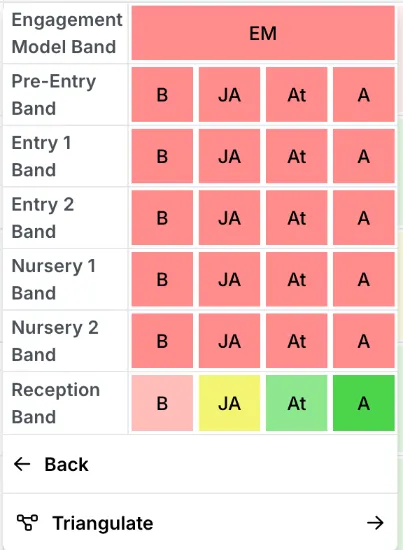
Use Engagement Model Band only for children your school assesses through the engagement model. Assess pupils working below their year group explains how reports treat children in lower bands.
Children working within the 0 to 3 band
Section titled “Children working within the 0 to 3 band”Development Matters, the DfE’s non-statutory curriculum guidance, has three broad bands: birth to 3, 3 and 4-year-olds, and children in reception. Sonar has more EYFS bands, so record each judgement in the one that best matches where the child is working. The observation checkpoints in Development Matters can help:
| Sonar band | Age the child reaches this school year | Development Matters band | Checkpoints that can help |
|---|---|---|---|
| Reception | 5 | Children in reception | None |
| Nursery 2 | 4 | 3 and 4-year-olds | 4 years |
| Nursery 1 | 3 | Birth to 3 | 2 to 3 years |
| Entry 2 | 2 | Birth to 3 | 18 months and 2 years |
| Entry 1 | 1 | Birth to 3 | 6, 7, 12 and 15 months |
Checkpoints help you notice a child who may need extra support. They are not targets. Development Matters is on GOV.UK.
Record a start of year baseline
Section titled “Record a start of year baseline”- Open your class on EYFS Summative Assessment (New).
- Select the assessment point list, which shows something like 2026-2027 - Autumn 1.
- Under the current academic year, choose Start of Year Baseline.
- Enter a judgement for each child and aspect.
Once autumn 1 has started, the page opens at autumn 1, and the baseline stays in the list.
Sonar does not store the statutory reception baseline assessment (RBA). Schools never receive the scores: the DfE uses them only as the starting point for a school-level progress measure at the end of KS2.
Summative judgements and the EYFS profile
Section titled “Summative judgements and the EYFS profile”Summative judgements are your school’s own, made through the year against your EYFS curriculum. The EYFS profile is the statutory assessment at the end of reception. Each of the 17 ELGs is recorded as 1 (emerging) or 2 (expected). A is only for a child exempted on religious or philosophical grounds, and a child who cannot be fully assessed is recorded as emerging. Enter profile results on Early Years Foundation Stage Profile (EYFSP), in the Statutory Assessments card: EYFS profile explains how.
In summer 2, complete the reception summative judgements too. They feed the progress reports and can be copied into year 1. The EYFS Good Level of Development Tracking report uses them to show which children are on track for a good level of development (GLD). See EYFS reports.
Copy reception judgements into year 1
Section titled “Copy reception judgements into year 1”At the start of year 1, you can copy each child’s reception summer 2 judgements onto the primary page as a starting point. Five aspects carry over, each to one subject:
| Reception aspect | Year 1 subject |
|---|---|
| Word Reading | Reading |
| Writing | Writing |
| Number | Mathematics |
| The Natural World | Science |
| Speaking | Spoken Language |
Other subjects start empty.
Before you copy, check that:
- the children have moved into year 1 in Sonar
- they have reception summer 2 judgements in these aspects
- your school’s EYFS and primary summative codes use the same code model
If the code models differ, you cannot copy. Enter the year 1 judgements by hand instead, then copy forward from them in later terms. If you are not sure, ask Juniper Education support before you start.
To copy the judgements:
- Go to Assessments and select Primary Summative Assessment (New).
- Choose Year 1 from the Year Group list, then select Open Assessment.
- Check that the assessment point is the one you want to fill, such as 2026-2027 - Autumn 1.
- Select the three dots next to a subject name, then select Copy Data From Previous Term.
- In Select term to copy from, choose Previous Summer 2.
- Select Copy, check the summary, then select Confirm Copy.
- Repeat steps 4 to 6 for each of the five subjects.
Then review the copied judgements and change any that should differ in year 1. Copy judgements from an earlier point has more on copying.
Record religious education
Section titled “Record religious education”The EYFS page has no aspect for religious education (RE), and you cannot add one. Record RE within People Culture and Communities, the aspect that covers religious and cultural communities.
The older EYFS (2020) page
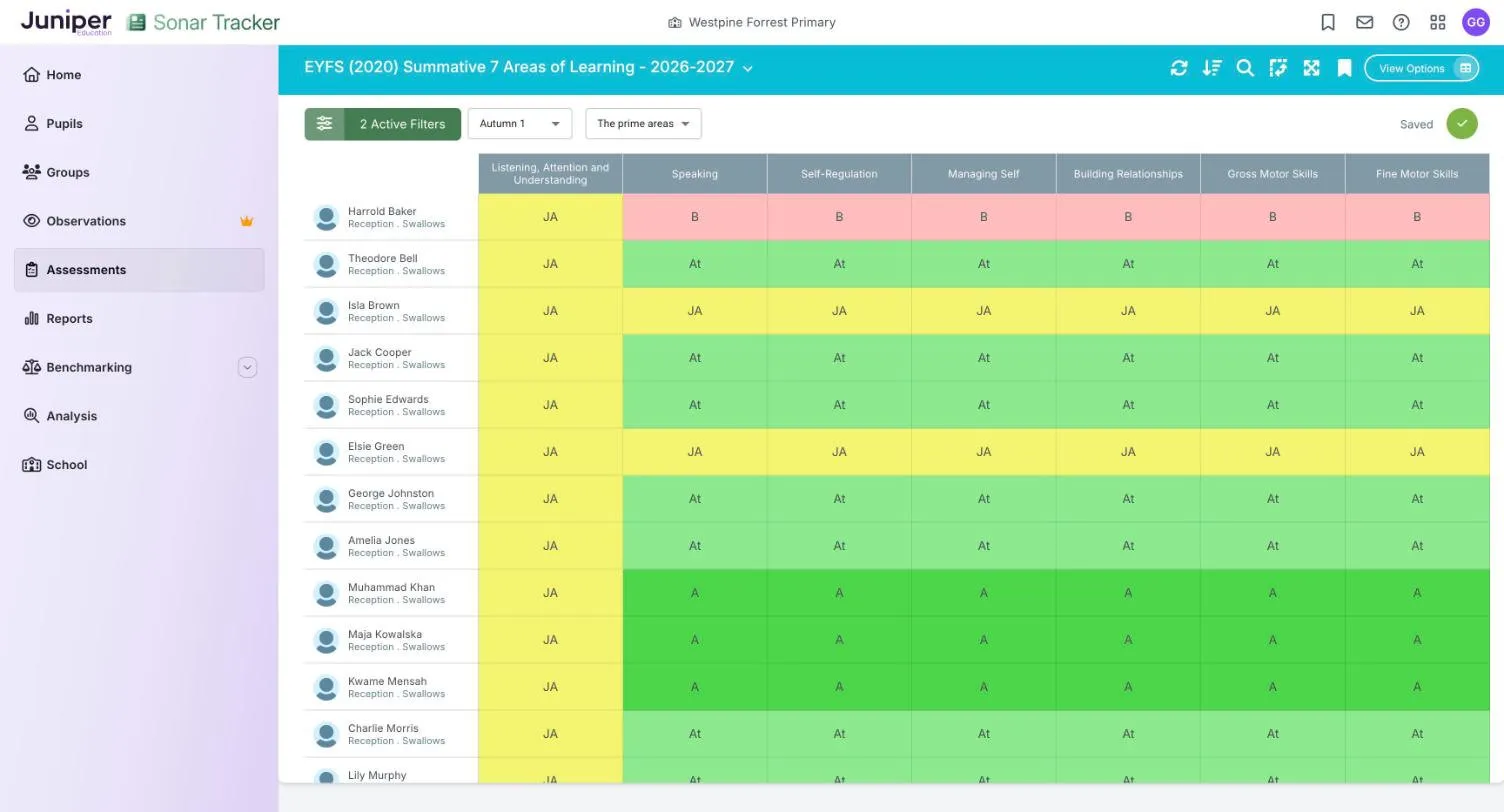
Section titled “The older EYFS (2020) page”EYFS (2020) Summative 7 Areas of Learning is an older page that shows the same judgements as EYFS Summative Assessment (New). A judgement entered on either page appears on both, so nothing colleagues entered on the older page is lost. Use the newer page for new judgements, because it has Triangulate and Copy Data From Previous Term.
On the older page, a cell opens Choose Code, which has Show All Codes in place of View All Codes. A Saved tick confirms each change. The page’s name also appears on Summative Code Labels, where your school renames its EYFS judgements (Assessment settings).
If something goes wrong
Section titled “If something goes wrong”No children appear. Check that you did not choose a year group and a class that do not match. Classes with no pupils still appear in the Class list.
A child is missing. New pupils arrive from your MIS overnight. A nursery child also needs a start date and a unique pupil number (UPN), or a temporary UPN, in your MIS.
Reception judgements will not copy into year 1. Your EYFS and primary code models probably differ. Enter the year 1 judgements by hand.
You cannot change a judgement. Your role may be read-only, or your role may only edit the current academic year. Ask your Account Owner or Account Admin.