


 Sisra Analytics
Pupils and groups
Create and manage groups
A group is a list of pupils you choose, such as a phonics intervention group, a maths set or a club. Once a group exists, you can pick it in the filters on assessment pages, reports and exports to see only those pupils.
Before you start
Section titled “Before you start”You need:
- a role that can create groups (if you cannot see Add a new group, ask your Account Owner or Account Admin)
- the full Sonar Tracker subscription, because on Sonar Lite Groups shows a crown icon and an information page
Classes and custom groups
Section titled “Classes and custom groups”The Groups page lists classes, which come from your management information system (MIS), and custom groups, which staff create in Sonar. You cannot change a class or its pupils in Sonar: rename classes or move pupils in your MIS, and the change reaches Sonar overnight.
Create a group only for something your MIS does not record. For special educational needs (SEN), gender, pupil premium and other characteristics, use filters instead. Filters always use the latest data, but a group only contains the pupils you put in it. A group of boys goes out of date as soon as a new boy joins.
Find a group
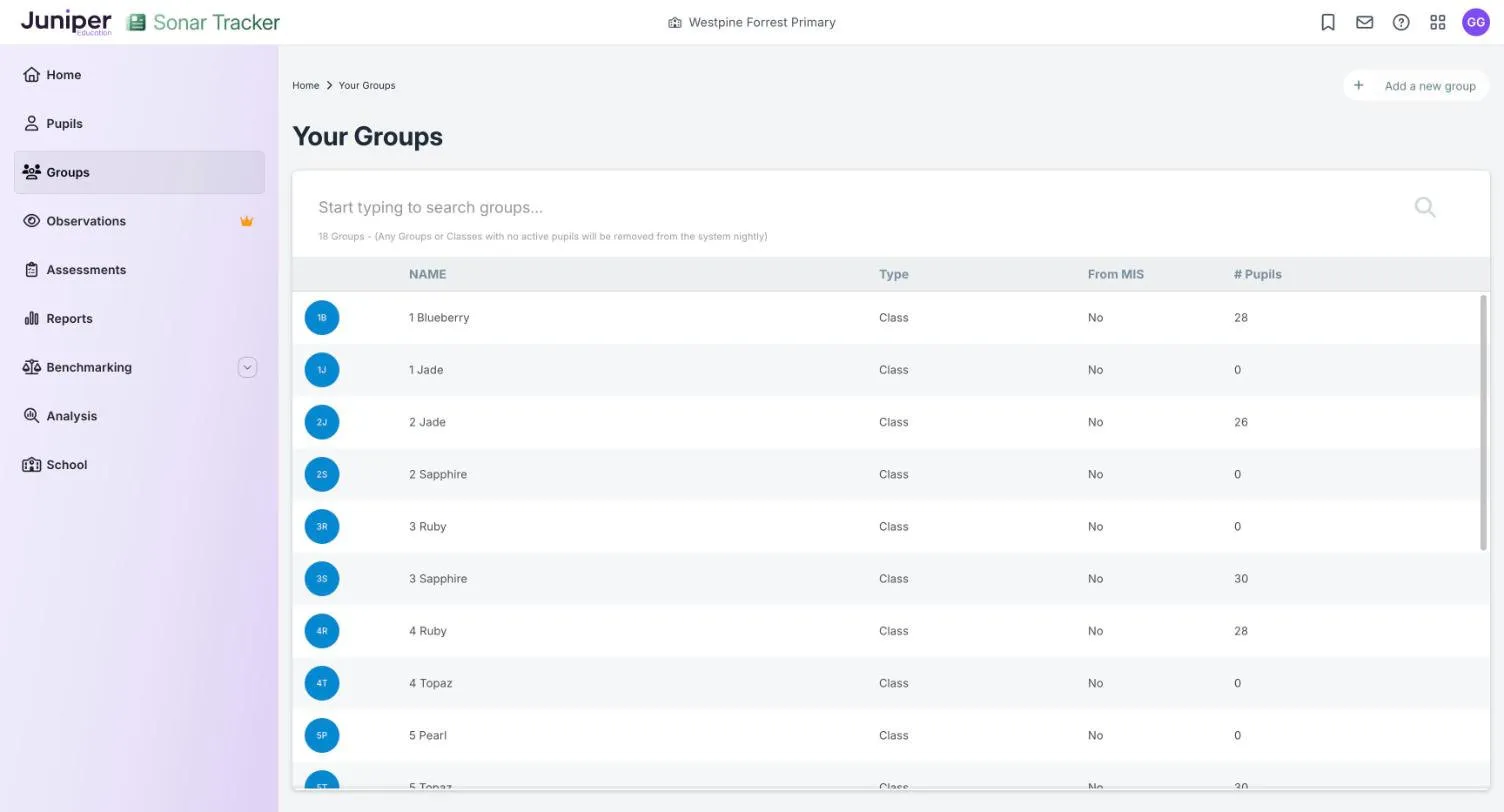
Section titled “Find a group”Go to Groups to open Your Groups. To find a group, enter part of its name in Start typing to search groups….
| Column | What it shows |
|---|---|
| NAME | The group’s name |
| Type | Class for a class from your MIS, or Group for a custom group |
| From MIS | Yes or No. In Portal-linked schools, classes can show No here, so use Type to tell them apart. |
| # Pupils | The number of pupils in the group |
The line above the list gives the number of groups. It also warns: Any Groups or Classes with no active pupils will be removed from the system nightly.
Create a group
Section titled “Create a group”From the Groups page
Section titled “From the Groups page”- Go to Groups and select Add a new group.
- Enter a Group Name.
- Choose Group from the Group Type list.
- Select Create Group.
The new group opens on its GROUP MEMBERS tab, empty and ready for you to add pupils.
From the pupil list
Section titled “From the pupil list”- Go to Pupils and select the narrow grey bar at the start of a pupil’s row to turn on selection.
- Tick the pupils you want in the group.
- Select New Group in the bar at the bottom of the page.
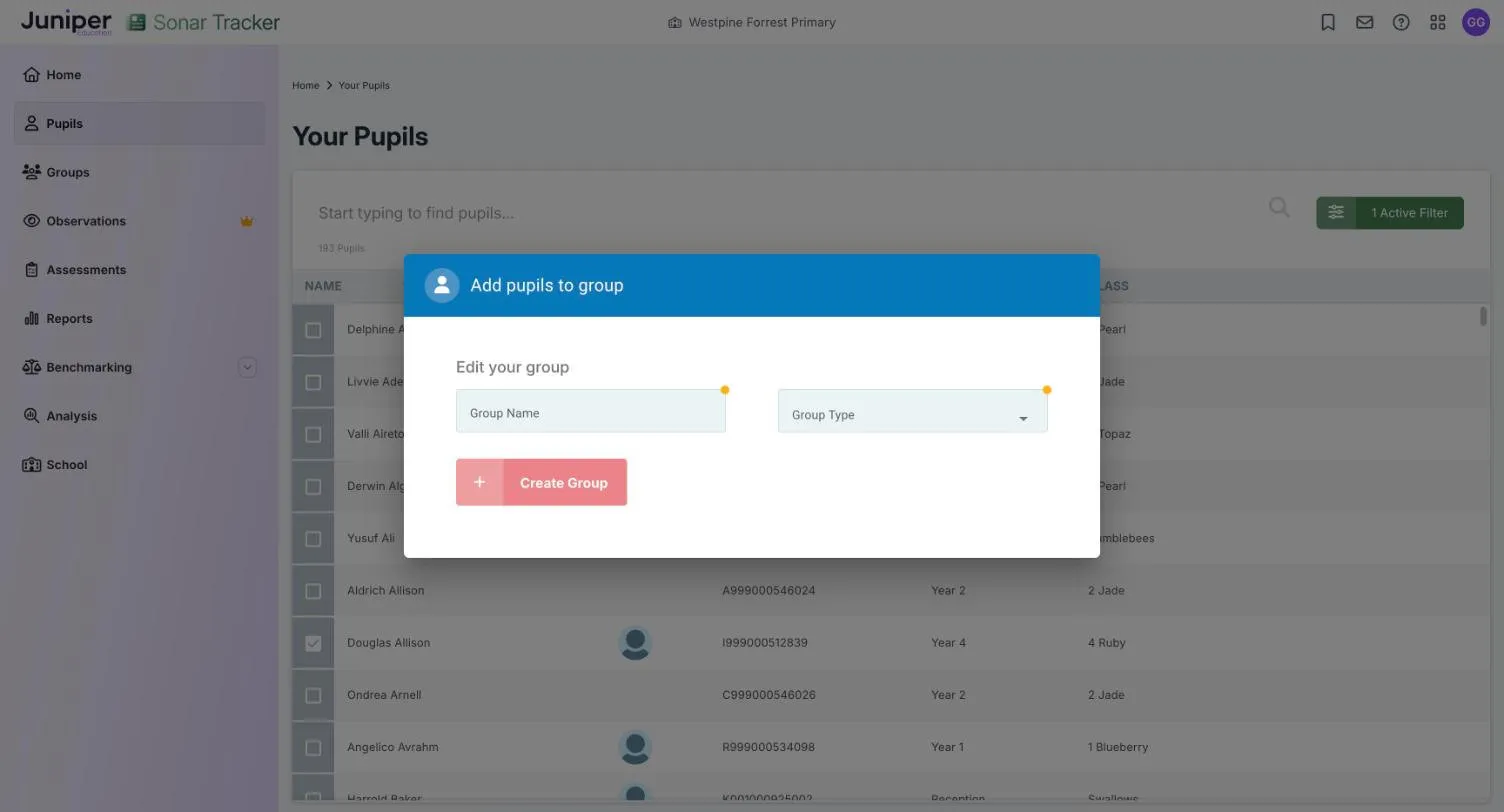
- In Add pupils to group, enter a Group Name.
- Choose Group from the Group Type list.
- Select Create Group. It stays unavailable until both fields are filled in.
- On the new group’s GROUP MEMBERS tab, check Pupils currently in this group. The pupils you selected may not have been added, so add any who are missing.
Add or remove pupils
Section titled “Add or remove pupils”- Go to Groups and select the group.
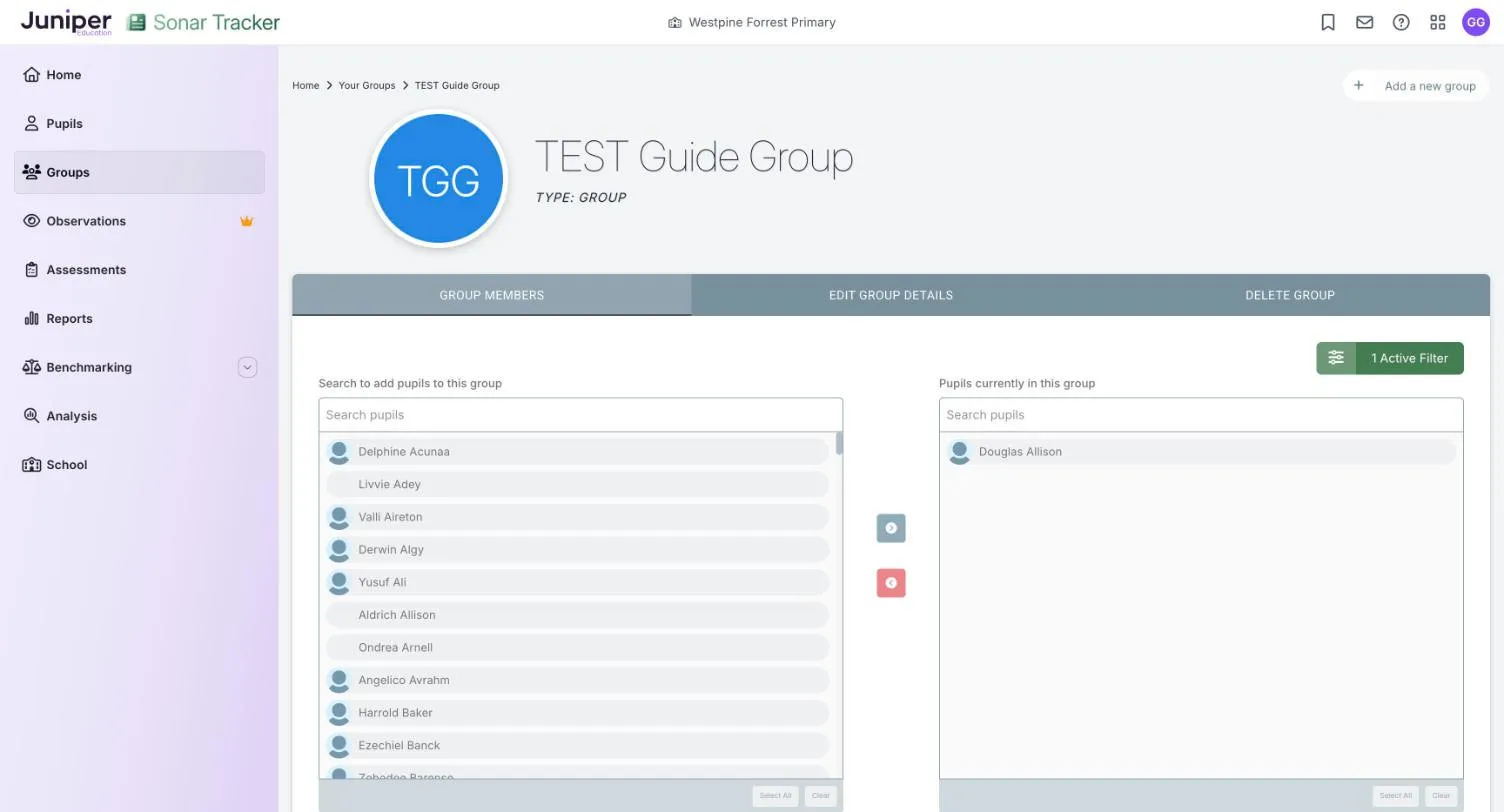
- On the GROUP MEMBERS tab, find the pupil in Search to add pupils to this group. To find them faster, enter part of their name in that list’s Search pupils box.
- Select the pupil. To add several pupils at once, select each of them, or select Select All under the list.
- Select the green arrow button, which points right.
The pupils move into Pupils currently in this group. To remove pupils, select them in that list, then select the red arrow button, which points left. Each change saves straight away.
To narrow the pupils on offer, for example to one class, use the filter button above the lists, which shows 1 Active Filter by default.
Rename a group
Section titled “Rename a group”- Open the group and select the EDIT GROUP DETAILS tab.
- Change the Group Name.
- Select Update Group.
You cannot change the Group Type.
Delete a group
Section titled “Delete a group”- Open the group and select the DELETE GROUP tab.
- Select the link to delete the group.
- When Sonar asks Are you sure you want to delete this group?, enter
delete. - Select Delete Group.
You cannot undo this. Classes come from your MIS, so you cannot delete them in Sonar.
Use a group on assessment pages and reports
Section titled “Use a group on assessment pages and reports”New groups appear in the filters on assessment pages, reports and the Pupil Data Export Wizard.
On newer pages:
- In Select Pupils, choose the year group the group’s pupils are in. If they are in different year groups, tick each one.
- Select Open Assessment or Load Report.
- Select Filters.
- Choose the group in Groups.
- Select Save.
On older pages, select Active Filters, choose the group from Group under Pupil Groups, then select Apply Filters.
For example, to track a year 4 reading intervention group, open a progress report for Year 4 and filter it to the group. Progress reports describes the reports you can use. A bookmark saves the page with its filters, so you can come back to the same view. See Bookmarks.
If something goes wrong
Section titled “If something goes wrong”A group you created has disappeared. Sonar removes groups with no active pupils overnight, including groups whose pupils have all left. Create the group again and add pupils the same day.