


 Sisra Analytics
School settings
Users and roles
Everyone who uses Sonar Tracker needs their own account, and their role decides what they can see and change. In most schools, the Account Owner or an Account Admin invites staff and sets their roles in Juniper Portal.
Before you start
Section titled “Before you start”You need the Account Owner or Account Admin role.
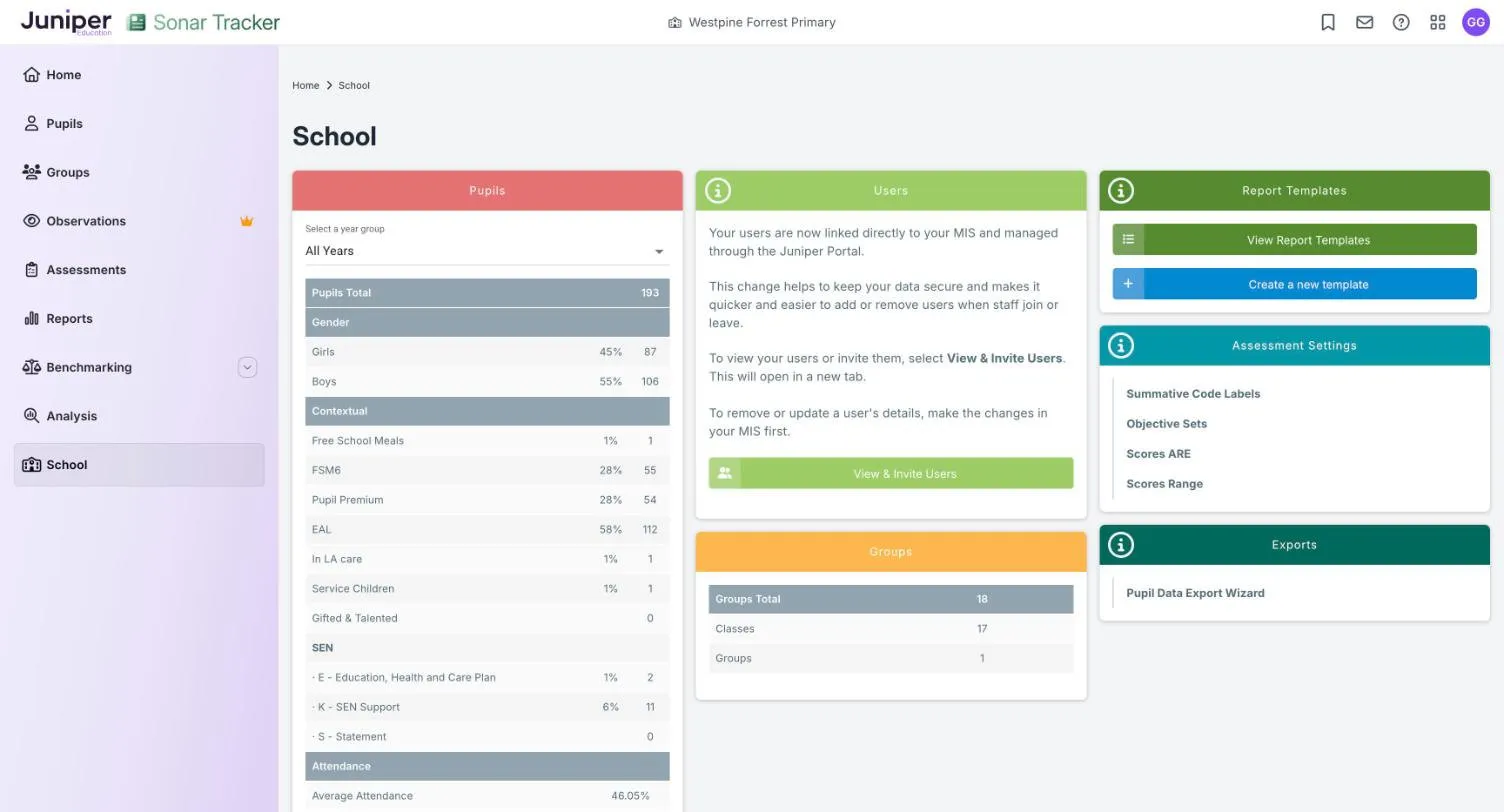
You also need to know your school’s set-up. Go to School and look at the Users card:
- if it says users are managed through the Juniper Portal and offers View & Invite Users, your school is Portal-linked
- if it offers Add a new user, your school manages users in Sonar (see Manage users in stand-alone schools)
| Role | Typical use | What it allows |
|---|---|---|
| Account Owner | Headteacher, or whoever is responsible for the account | Everything, including school settings |
| Account Admin | Assessment lead, data manager | Everything an Account Owner does day to day, including assessment settings and report templates |
| Full Edit | Senior leaders, assessment co-ordinators | Enter and edit data, including previous academic years |
| Partial Edit | Class teachers | Enter and edit data in the current academic year only |
| Minimal Edit | Teaching staff who need limited access | The same as Partial Edit: current academic year only |
| Full Read-only, Partial Read-only | Staff who look at data but do not enter it | View only, with pupil names |
| Minimal Read-only | Governors, visitors | View only, with pupil names anonymised |
All the edit roles can enter statutory results. Juniper Education recommends Partial Edit for class teachers.
Older help articles use earlier names for the roles:
| Earlier name | Current name |
|---|---|
| Tracker Owner | Account Owner |
| Admin | Account Admin |
| Write | Full Edit |
| Limited Write | Partial Edit or Minimal Edit |
| Read Only | Full Read-only or Partial Read-only |
| Anonymised | Minimal Read-only |
To check whether a role can do something not listed here, contact Juniper support.
Invite staff
Section titled “Invite staff”Portal-linked schools invite staff through Juniper Portal. You can only invite staff who are in your management information system (MIS) with their work email address. New staff reach Portal overnight after they are added to the MIS.
- On the School page, select View & Invite Users in the Users card. Portal opens in a new tab. You can also go straight to
portal.juniper.education. - Select User Invitations, then Staff.
- Select Send Invitations.
- In Invite Users, choose Sonar Tracker as the Product.
- Choose a role in Select User Role.
- In Select Users, select each member of staff you want to invite. The list only shows staff who do not use Sonar yet.
- Select Send Invitations.
Staff who are new to Juniper get an email with a link to accept, and have 14 days to use it. Staff who already use another Juniper product get an email saying that Sonar will appear the next time they sign in.
You can invite several people at once if they need the same role. Each Juniper product has its own invitation, because a person’s role can differ between products. Sonar users get Portal and Intelligence access automatically.
Change a role
Section titled “Change a role”- In Portal, select User Invitations, then Staff.
- Select Edit Roles.
- In Edit Role, choose Sonar Tracker as the Product.
- Choose the new role.
- Select the member of staff in Select Users.
- Select Save.
Allow a few minutes for the change to reach Sonar.
To change a member of staff’s name or email address, change it in your MIS. Portal and Sonar pick up the change overnight.
Remove access
Section titled “Remove access”- In Portal, select User Invitations, then Staff.
- Find the member of staff and select the three dots next to their Sonar Tracker role.
- Select Remove Role.
- Select Revoke to confirm.
This removes Sonar only. The person keeps access to any other Juniper products. If you remove someone by mistake, invite them again.
Governors
Section titled “Governors”Give each governor their own account with the Minimal Read-only role. They can then see all pupil data, but pupil names are anonymised.
Portal can only invite people who are in your MIS. If a governor is not in your MIS, contact Juniper support.
Get started as a senior leader or governor suggests reports to use with governors.
One email, several schools
Section titled “One email, several schools”A member of staff can have accounts at several schools under one email address, with a different role at each. Each school invites them through its own Portal, so they must be in each school’s MIS with that address. They switch schools from the account menu: see Sign in and switch schools. Trust staff who work across schools can use Sonar Multi-School instead.
Manage users in stand-alone schools
Section titled “Manage users in stand-alone schools”Use these steps only if your Users card offers Add a new user.
Add a user
Section titled “Add a user”- Go to School.
- In the Users card, select Add a new user.
- Complete the form. Fields with an orange dot are required.
- Choose the role in User Type.
- Select Create User, then Back to Users.
The new user gets an email with a link to set their password.
Edit a user
Section titled “Edit a user”- Go to School and select Users in the Users card.
- Select the pencil icon next to the user.
- Make your changes, then select Update User.
Delete a user
Section titled “Delete a user”- Go to School and select Users in the Users card.
- Select the delete icon next to the user.
- When Sonar asks Are you sure you want to delete this user?, enter
deleteand select OK.
You cannot undo this. To give the person access again, add them as a new user.
If something goes wrong
Section titled “If something goes wrong”Someone’s account is locked. An Account Owner or Account Admin can usually fix this in Portal by changing the person’s Sonar role to a lower one, then back again. See Your account has been locked.
A member of staff is missing from Select Users. Check that:
- they are in your MIS with a work email address
- they were added at least a day ago, as new staff reach Portal overnight
- they do not already have a Sonar role
- your school has no Wonde permission requests waiting (see Wonde permissions)
A teacher cannot change last year’s judgements. Partial Edit and Minimal Edit can only edit the current academic year. Someone with Full Edit or above can make the change.
You see a 403 error after selecting View & Invite Users. Open Portal in its own browser tab instead. Troubleshooting has other fixes.