


 Sisra Analytics
School settings
Assessment settings
Assessment settings control the labels teachers see for summative judgements, the objectives for formative assessment, and how Sonar Tracker checks and bands test scores. You find them on the School page, in the Assessment Settings card.
Before you start
Section titled “Before you start”You need the Account Owner or Account Admin role.
Objective sets and score settings are kept for each academic year. Sonar copies your settings into the new year when it rolls over. See The new academic year.
The School page
Section titled “The School page”Besides Assessment Settings, the School page has cards for Pupils, Users, Groups, Report Templates and Exports. The Pupils card counts pupils by gender, contextual group and special educational needs (SEN), and gives average attendance. For the other cards, see Users and roles, Create a parent report template and Export pupil data.
Stand-alone schools may also see a Send a file to Sonar card, and Statutory Data Export to MIS in the Exports card. See Import and export statutory data.
Settings Juniper manages
Section titled “Settings Juniper manages”Juniper Education sets these up when your school starts using Sonar, and only Juniper can change them:
- your summative code model, which is the set of judgements teachers choose from
- which assessment points your school uses, such as the start of year baseline and autumn 1
- the subjects on your assessment pages
- optional pages, such as educational ages (Ages)
Contact Juniper support to change any of these.
Rename summative judgements
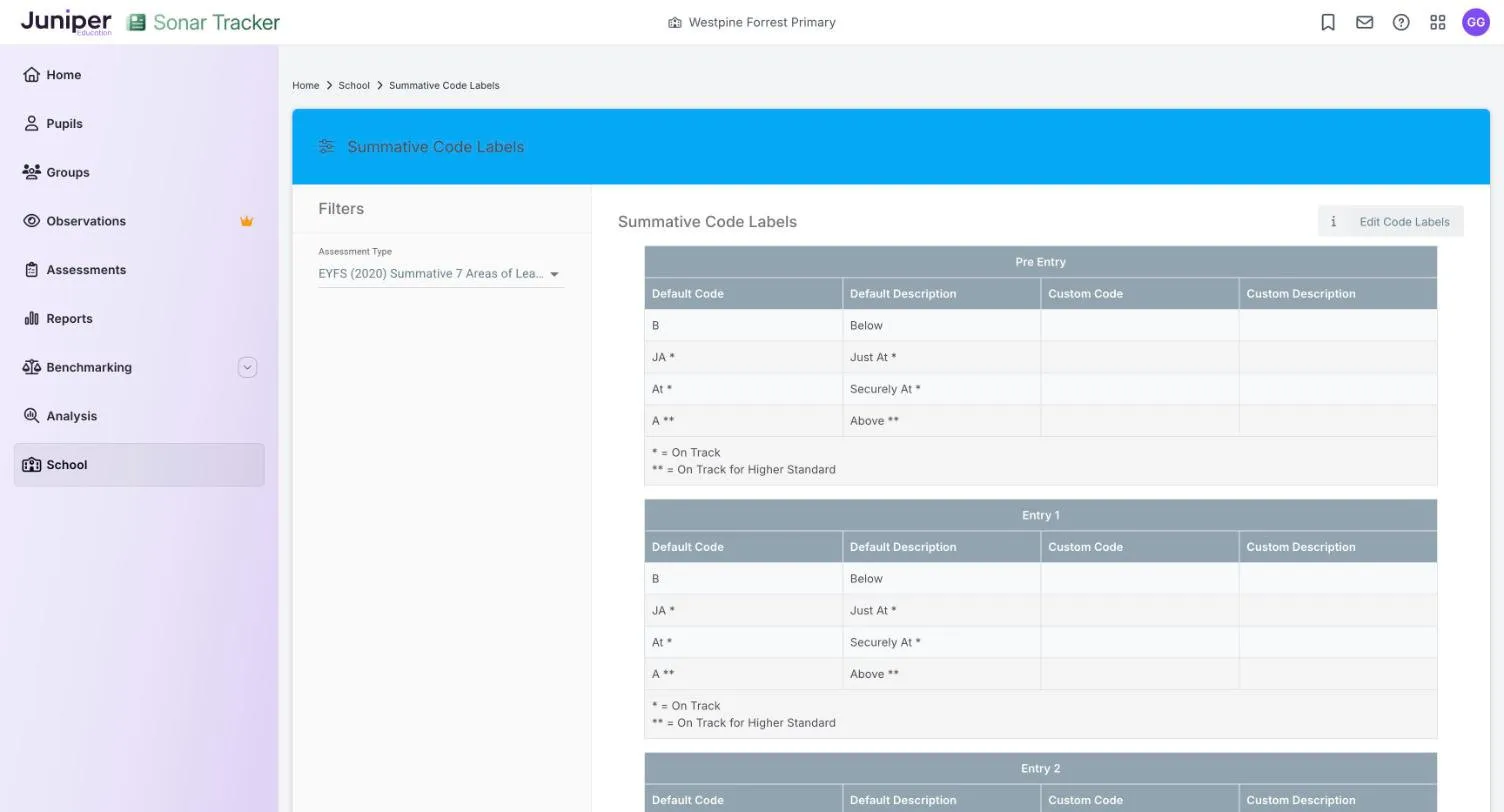
Section titled “Rename summative judgements”Teachers choose summative judgements from your school’s code set. By default these are Below (B), Just At (JA), Securely At (At) and Above (A). On Summative Code Labels, you can give each one your own code and description.
What a new label changes
Section titled “What a new label changes”A new label changes what teachers and reports show. It does not change what the judgement means to Sonar:
- Just At and Securely At always count as on track, shown by one asterisk (*) on the screen
- Above always counts as on track for the higher standard, shown by two asterisks (**)
- Below always counts as not on track
You could rename Just At to At ARE (at age-related expectations), because both mean on track. Renaming it Just Below would mislead teachers, because Sonar would still count those pupils as on track. The fixed meanings are what let Juniper compare schools for benchmarking. To change what a judgement means, contact Juniper support.
Assessment types
Section titled “Assessment types”| Assessment Type | What you can rename |
|---|---|
| EYFS (2020) Summative 7 Areas of Learning | The code and description for each EYFS band, from Pre Entry to Reception |
| Primary Summative | The code and description for each primary band |
| Age Related Expectations | The descriptions that reports use, from Significantly Below to Significantly Above |
Teachers see the summative codes on entry pages, and reports use the Age Related Expectations descriptions. The two lists are separate, so a judgement can read Just At on entry pages and At ARE in reports.
Change the labels
Section titled “Change the labels”- Go to School. In the Assessment Settings card, select Summative Code Labels.
- Choose the Assessment Type.
- Select Edit Code Labels.
- Enter a Custom Code and Custom Description for each judgement you want to rename. Each band has its own table, so repeat this for every band.
- Select Save Settings.
Changes apply straight away, for everyone, though anyone with a page already open may need to reload it.
Choose formative objective sets
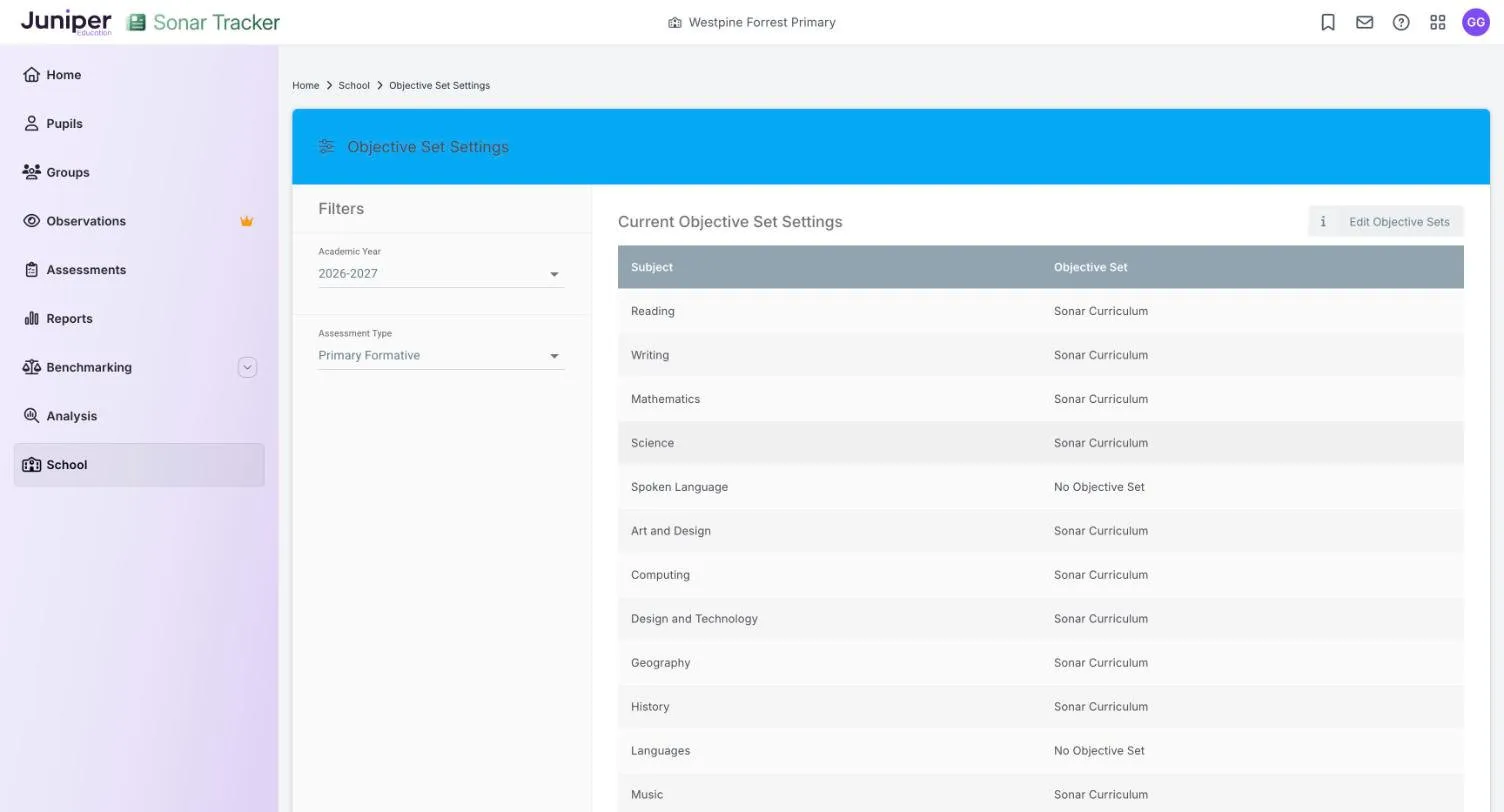
Section titled “Choose formative objective sets”An objective set is the list of objectives teachers assess against on the formative pages. The default set is Sonar Curriculum. A subject showing No Objective Set has no objectives to assess.
- Go to School. In the Assessment Settings card, select Objective Sets.
- Choose the Academic Year and the Assessment Type, such as Primary Formative.
- Select Edit Objective Sets.
- Choose a set for each subject. Set All Subjects to: changes every subject at once.
- Select Update Objective Sets.
You can choose from the sets Juniper has made available to your school.
Use your own objectives
Section titled “Use your own objectives”If none of the sets fits your curriculum, Juniper can load your own objectives as a paid customisation service. You set out your objectives in Juniper’s template, and Juniper checks them and adds them. Contact Juniper support to ask about it.
Set up test score ranges and bands
Section titled “Set up test score ranges and bands”Two settings control scores on the Scores page:
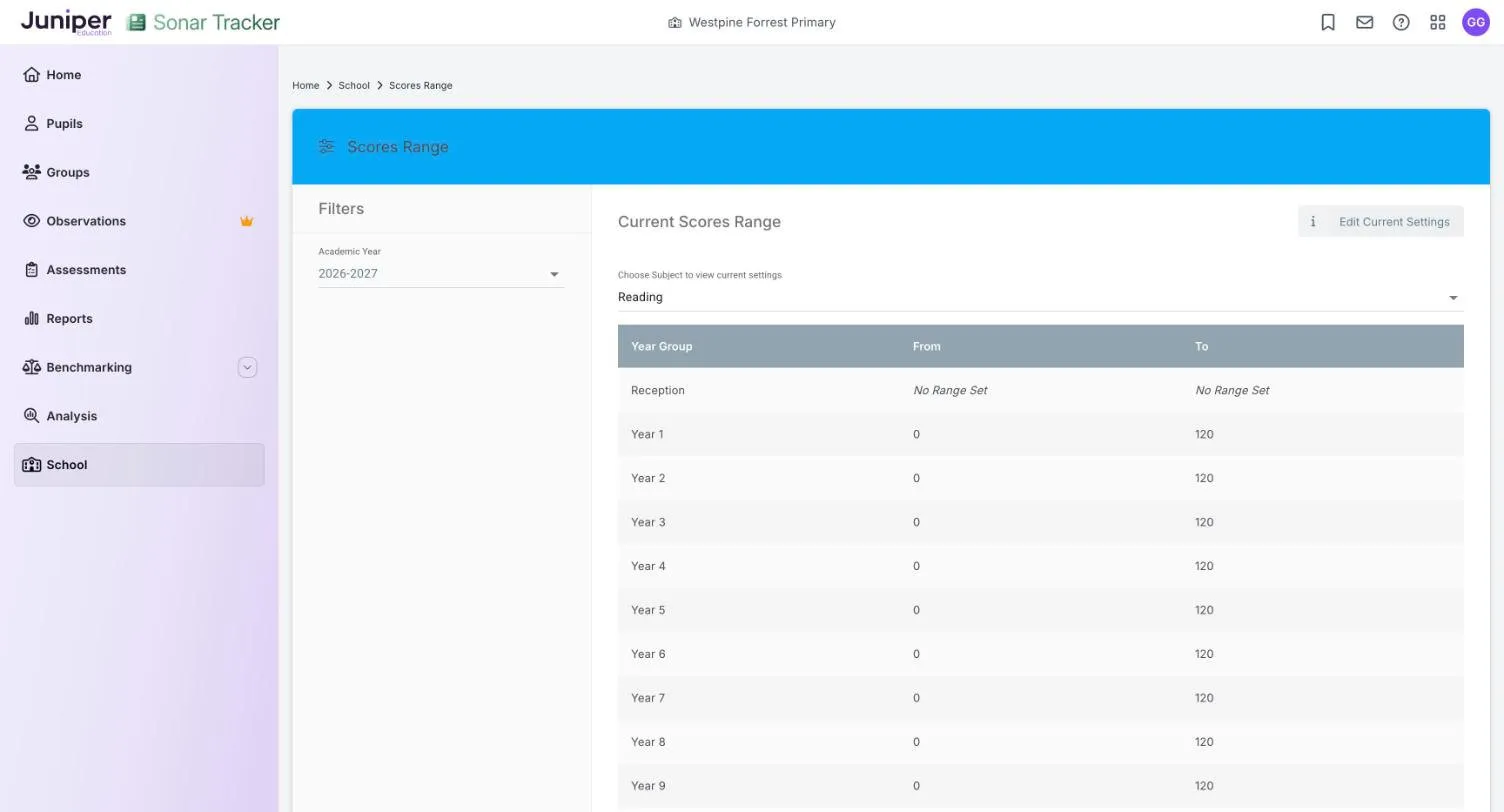
- Scores Range sets the lowest and highest valid score for each subject and year group, so Sonar can check scores as they are entered
- Scores ARE sets which scores count as at age-related expectations (ARE) for each subject, year group and term
Set both before anyone enters scores. Without them, scores have no colour, and reports cannot compare them with age-related expectations.
For example, for a test where 100 is the expected standard, you might set From 100 and To 109 on Scores ARE. Scores of 99 or below then count as below age-related expectations, and scores of 110 or above count as above. Your school decides its own bands.
Set a score range
Section titled “Set a score range”- Go to School. In the Assessment Settings card, select Scores Range.
- Choose the Academic Year.
- Choose the subject in Choose Subject to view current settings.
- Select Edit Current Settings.
- Enter the From and To score for each year group.
- Select Update Scores Range.
Set the age-related expectation bands
Section titled “Set the age-related expectation bands”- Go to School. In the Assessment Settings card, select Scores ARE.
- Choose the Academic Year, Subject and Term.
- Select Edit ARE.
- For each year group, enter the From and To scores that count as at age-related expectations.
- Select Update Scores ARE.
Repeat for each subject and term in which your school uses tests.
If something goes wrong
Section titled “If something goes wrong”Test scores show no colour. Set up Scores ARE for that subject, year group and term, and check Scores Range.
A message says No validation set up for this Subject or Year Group - Please contact support. Set a range for that subject and year group on Scores Range. If the message stays, contact Juniper support.
The Assessment Settings card is missing. Your role cannot change assessment settings. Ask your Account Owner.