


 Sisra Analytics
Getting started
Get started as a class teacher
This tutorial follows a class teacher’s year in Sonar Tracker. Work through the first section in your first week, and come back to the others at each assessment point and in the summer term. Nursery and reception teachers should also read If you teach nursery or reception.
Before you start
Section titled “Before you start”You need:
- a Sonar account, from an invitation sent by your school (see Sign in and switch schools)
- an edit role, usually Partial Edit, which Juniper Education recommends for teachers
- your school’s assessment calendar, showing which assessment points it uses and when judgements are due
Partial Edit lets you enter and change data in the current academic year. To correct an earlier year, ask your assessment lead.
In your first week
Section titled “In your first week”Set your class as your preference
Section titled “Set your class as your preference”A preference opens your class automatically on assessment pages and reports.
- Sign in to Sonar. The Home page opens.
- In the Preferences panel, select Set Preferences.
- Choose your class from the Class list.
- Select Save Preferences.
See where your class finished last year
Section titled “See where your class finished last year”Last year’s summer 2 judgements show where your new class finished the year.
- Go to Assessments.
- In the Teacher Assessments card, select Primary Summative Assessment (New).
- Check that your class is chosen in the Select Pupils box, then select Open Assessment.
- Open the assessment point list, then choose Summer 2 under last year.
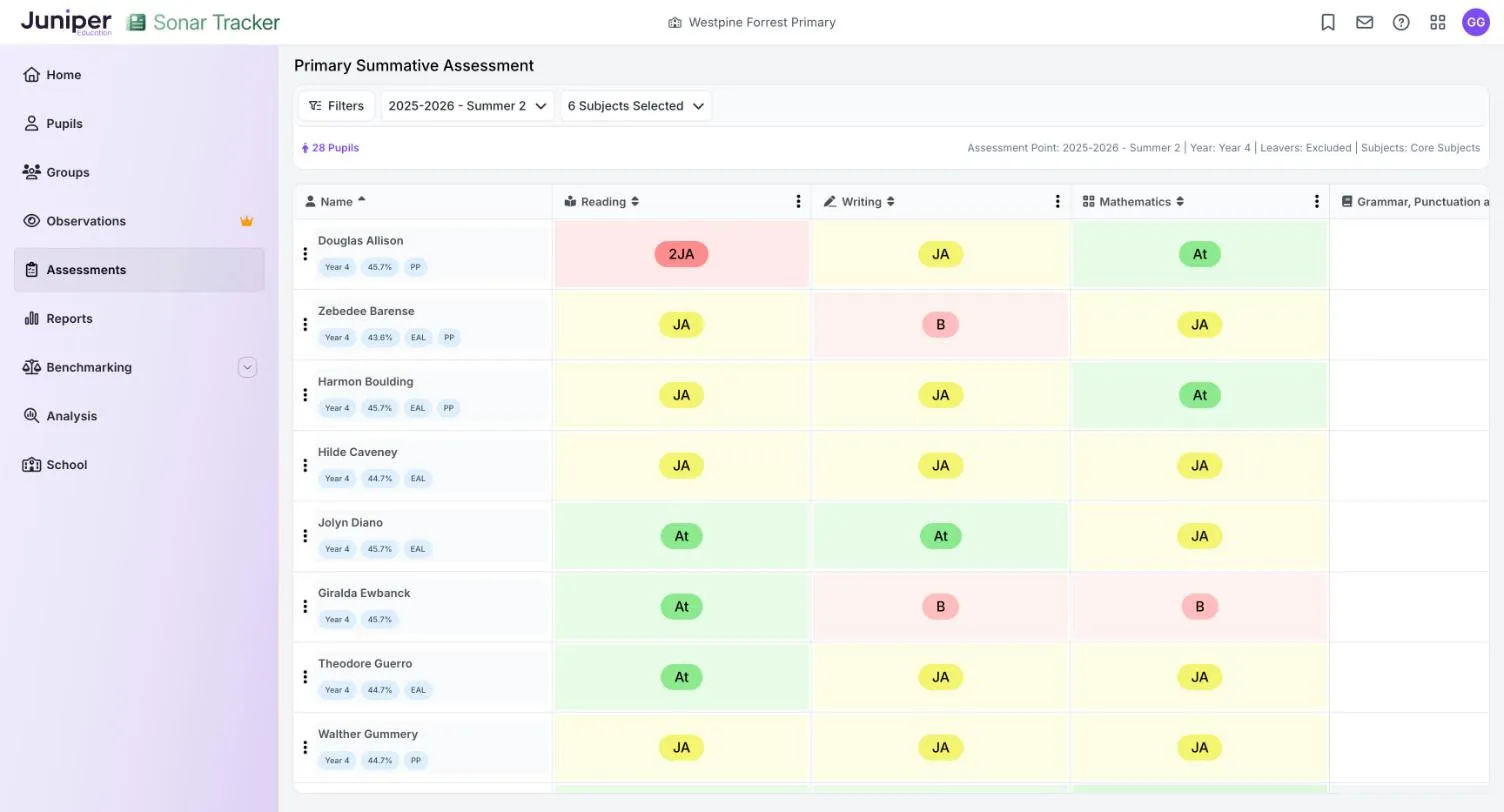
The grid shows your current pupils with last year’s summer 2 judgements. Under each name are the pupil’s year group, attendance percentage and flags such as EAL (English as an additional language) or PP (pupil premium). A red code with a number in front, such as 2JA, was made against an earlier year group’s curriculum.
For more history, the Primary Flight Path report shows each pupil’s results in one subject from reception onwards, including phonics and KS1. See Flight Path.
If a pupil is missing, or a pupil who has left still appears, tell whoever looks after your school’s management information system (MIS). Sonar takes pupils and classes from the MIS, and changes arrive overnight.
At each assessment point
Section titled “At each assessment point”Your school’s calendar says which assessment points to record, such as autumn 2, spring 2 and summer 2. You do not need to fill in points your school is not using.
Enter summative judgements
Section titled “Enter summative judgements”A summative judgement says whether a pupil is on track to meet the expectations for their year group by the end of the year. Base it on what has been taught so far.
- Go to Assessments, then select Primary Summative Assessment (New).
- Check that your class is chosen, then select Open Assessment.
- Check that the assessment point is the one your school is recording, such as 2026-2027 - Autumn 2.
- Select a pupil’s cell under a subject.
- Choose Below, Just At, Securely At or Above.
Each judgement saves straight away, and an Assessment Saved message appears. The grid shows it as a code: B for Below, JA for Just At, At for Securely At and A for Above.
A pupil who keeps the same judgement, such as Just At at autumn 2 and again at spring 2, has made expected progress. Moving up, such as from Just At to Securely At, is more than expected.
Sonar does not carry judgements forward, and reports count an empty cell as No Assessment. To start from the last point’s judgements, copy them forward with Copy Data From Previous Term, then change the ones that have moved. Enter primary summative judgements also covers filling a column in one go.
Record formative assessment if you use it
Section titled “Record formative assessment if you use it”Formative assessment in Sonar records how each pupil is doing against individual curriculum objectives. Your school decides whether to use it, and for which subjects.
- Go to Assessments, then select Primary Formative.
- In the Select Pupils box, choose your class and select Load Assessment.
- In Choose Strands, tick the strands you are teaching, then select Choose Objectives.
You record each pupil against an objective by choosing a colour. The colours have no labels on screen, but Breakdown shows the key. From lowest to highest, they mean Not taught or pupil was absent (grey), Taught (red), Working Towards (yellow), Achieved (green) and Greater Depth (purple).
Record formative assessment explains the two views of the page and how to enter codes.
Check your class in reports
Section titled “Check your class in reports”Go to Reports. Type the report’s name in Search Reports, or choose a goal under What are you trying to achieve?, such as Pupil Progress, then select the report.
Before a pupil progress meeting
Section titled “Before a pupil progress meeting”The Primary Pupil Progress Meeting report shows your class in one subject, sorted into columns by judgement. Each pupil’s card shows their attendance, flags such as EAL, and an arrow showing whether they have progressed or regressed since the start point.
- Go to Reports, then select Primary Pupil Progress Meeting.
- Check that your class is chosen, then select Load Report.
- Choose the start point and the end point, such as 2026-2027 Start of Year Baseline to 2026-2027 Autumn 1.
- Choose the subject.
The report shows how many pupils have no assessment yet, and what percentage of the rest are on track or higher. Select PDF or Print to take a copy to the meeting.
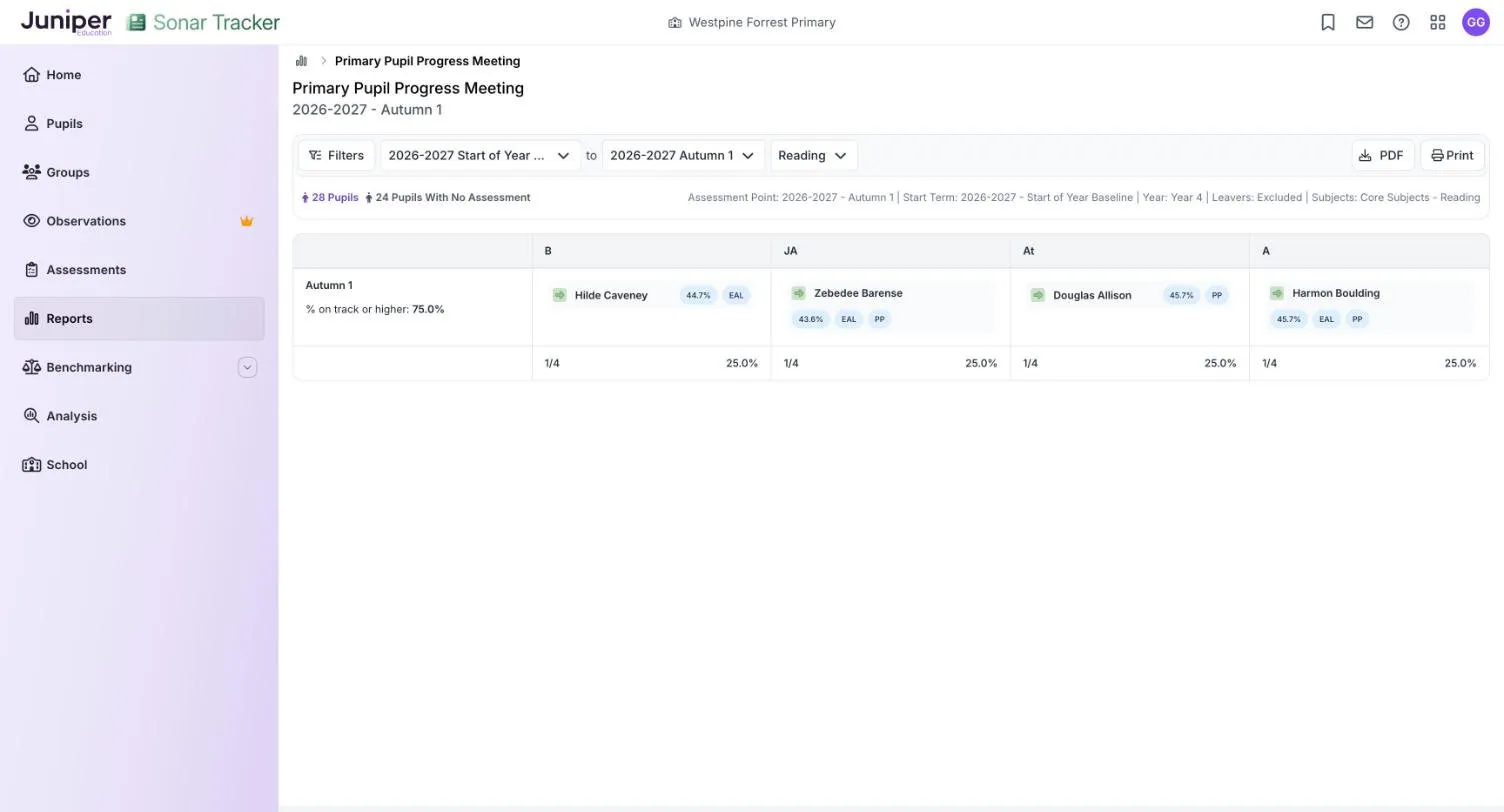
Pupil Progress Meeting explains the report in full.
Other reports for your class
Section titled “Other reports for your class”The Primary Age Related Overview shows the percentage of your class at each judgement in each subject. Use it to see which subjects need attention. See Age Related Overview.
A pupil’s record under Pupils shows their details and groups, but not their assessments. For everything Sonar holds on one pupil, use the Single Pupil Overview report, listed under the Parents Evening goal. See Single Pupil Overview.
In the summer term
Section titled “In the summer term”Next year’s teacher starts from your summer 2 judgements, so complete them before the end of term. Once Sonar moves into the new academic year, Partial Edit can no longer change them.
If you teach reception, year 1, year 2, year 4 or year 6, you might also enter statutory results, such as phonics screening check marks. Ask your assessment lead who does this in your school, and see Statutory assessment in Sonar.
If your school writes parent reports in Sonar, see Create parent reports.
If you teach nursery or reception
Section titled “If you teach nursery or reception”Use EYFS Summative Assessment (New) for summative judgements and EYFS Formative for formative assessment. They work like the primary pages, with aspects such as Speaking and Self-Regulation in place of subjects. Enter EYFS summative judgements explains the differences.
The EYFS Good Level of Development Tracking report shows your class against the goals needed for a good level of development (GLD). See Good Level of Development Tracking.
If your school has the Observations module, see Record an observation. Recording observations usually needs the Full Edit, Account Admin or Account Owner role, so check with your assessment lead.