


 Sisra Analytics
Teacher assessment
Enter primary summative judgements
A summative judgement records where a pupil is in a subject at one assessment point, such as autumn 1. Teachers in years 1 to 6 enter these judgements on the Primary Summative Assessment (New) page. Reports, dashboards and benchmarking all use them.
For nursery and reception, see Enter EYFS summative judgements.
Before you start
Section titled “Before you start”You need:
- an edit role, such as Full Edit or Partial Edit
- to know which assessment point your school is recording, and the date judgements are due
Partial Edit and Minimal Edit can change judgements in the current academic year only. Read-only roles can open the page but cannot change anything. Users and roles explains each role.
Agree as a staff what each judgement means at each point in the year before anyone enters data. Judgements, bands and age-related expectations explains the four judgements.
Open your class
Section titled “Open your class”- Go to Assessments.
- In the Teacher Assessments card, select Primary Summative Assessment (New).
- In the Select Pupils box, choose your year group from the Year Group list, or your class from the Class list.
- Select Open Assessment.
Choose either a year group or a class, not both. The Class list shows every class in the school. A year group combined with a class from another year returns no pupils and the message No Records Found.
The page opens at the current assessment point. The line above the grid confirms what you are looking at. For example: “Assessment Point: 2026-2027 - Autumn 1 | Year: Year 4 | Leavers: Excluded | Subjects: Core Subjects”.
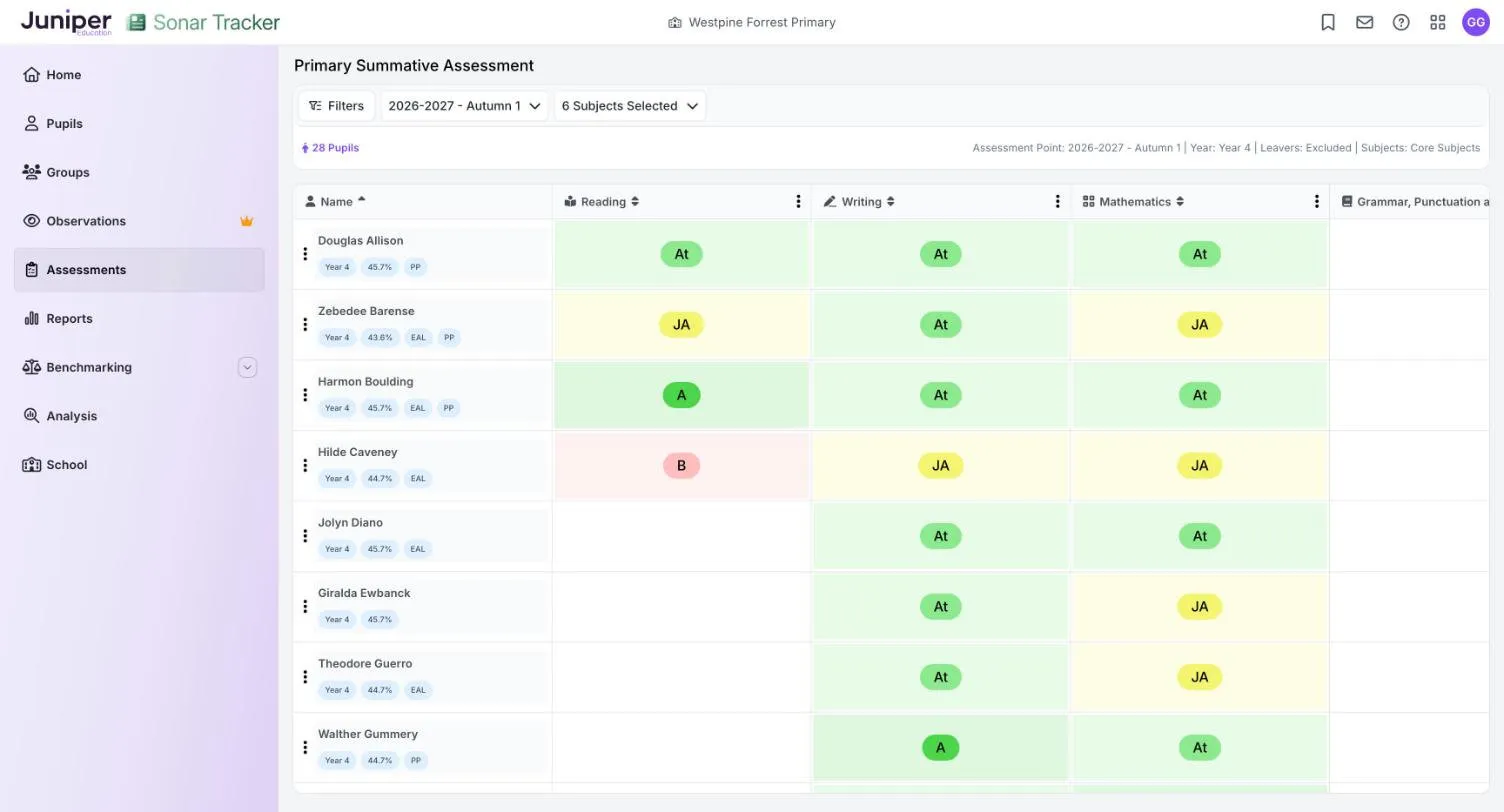
Under each pupil’s name are their year group and attendance percentage. You’ll also see any flags from your management information system (MIS), such as EAL (English as an additional language) or PP (pupil premium).
To save choosing your class every time, set a preferred year group or class on the Home page. See Set your preferences.
Enter a judgement
Section titled “Enter a judgement”- Select the pupil’s cell under the subject.
- Choose Below, Just At, Securely At or Above.
Sonar saves the judgement straight away and shows an Assessment Saved message. There is no save button.
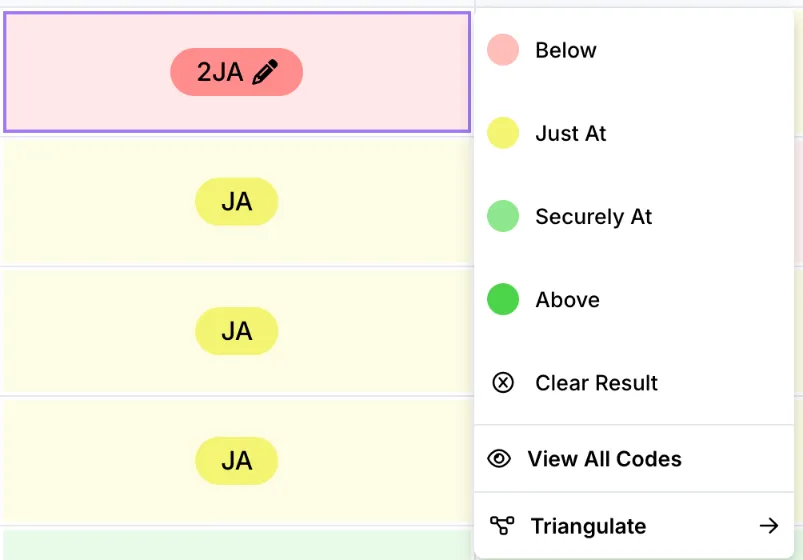
To remove a judgement, select the cell and choose Clear Result.
The grid shows each judgement as a short code on a coloured background:
| Code | Judgement | Colour |
|---|---|---|
| B | Below | B pink |
| JA | Just At | JA yellow |
| At | Securely At | At light green |
| A | Above | A green |
Your school can rename these judgements, so your screen may show different words. The meaning stays the same. See Assessment settings.
Check other evidence before you decide
Section titled “Check other evidence before you decide”Triangulate shows what else Sonar holds for the pupil in that subject, next to the judgement list. Select a cell, then select Triangulate.
| Panel section | What it shows |
|---|---|
| Formative | The share of objectives assessed as below, at or above the expected standard |
| Test | The pupil’s latest test score, if your school records tests |
| Target | The pupil’s current target, if one is set |
| Statutory | Earlier statutory results, such as early learning goals, the phonics check and key stage 1 teacher assessment |
| Last Summative | The most recent earlier judgement |
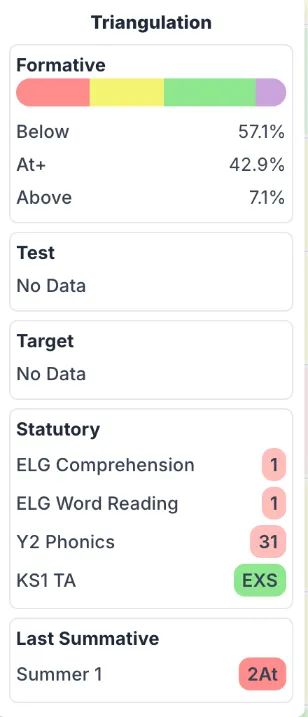
The panel is there to inform your judgement, not to make it. A pupil can achieve most objectives taught so far and still be judged Just At if their work is not yet secure.
Pupils working above or below their year group
Section titled “Pupils working above or below their year group”The judgement list offers the codes for the pupil’s own year group. For a pupil working on another year group’s curriculum, select View All Codes and choose the code from the right band. For example, a year 4 pupil working on the year 2 curriculum gets a code from Band 2.
A number in front of the code shows that the judgement comes from another band, such as 2JA. Codes from a lower band show in red and codes from a higher band show in purple. Reports count these pupils as Significantly Below or Significantly Above.
Assess pupils working below their year group covers pupils with SEND and pupils working within the engagement model.
Choose which subjects you see
Section titled “Choose which subjects you see”The page opens with the core subjects. To change them:
- Select the subjects list, which shows something like 6 Subjects Selected.
- Tick the subjects you want. Ticking Core Subjects, Foundation Subjects or Other Curriculum Subjects selects every subject in that group.
The grid updates as you tick. You can show up to 10 subjects at once.
Fill a column or row in one go
Section titled “Fill a column or row in one go”Bulk Fill gives every pupil in a subject the same judgement, or gives one pupil the same judgement in every subject on screen. It is quickest when most of a class share a judgement and you then change the exceptions.
- Select the three dots next to the subject name (for a column) or next to the pupil’s name (for a row).
- Select Bulk Fill, then choose the judgement.
- Read the summary, then select Confirm Bulk Fill.
Copy judgements from an earlier point
Section titled “Copy judgements from an earlier point”Copy Data From Previous Term fills cells with judgements from an earlier assessment point. You can then change the ones that have moved.
- Select the three dots next to the subject name or the pupil’s name.
- Select Copy Data From Previous Term.
- In Select term to copy from, choose the assessment point to copy.
- Select Copy, check the summary, then select Confirm Copy.
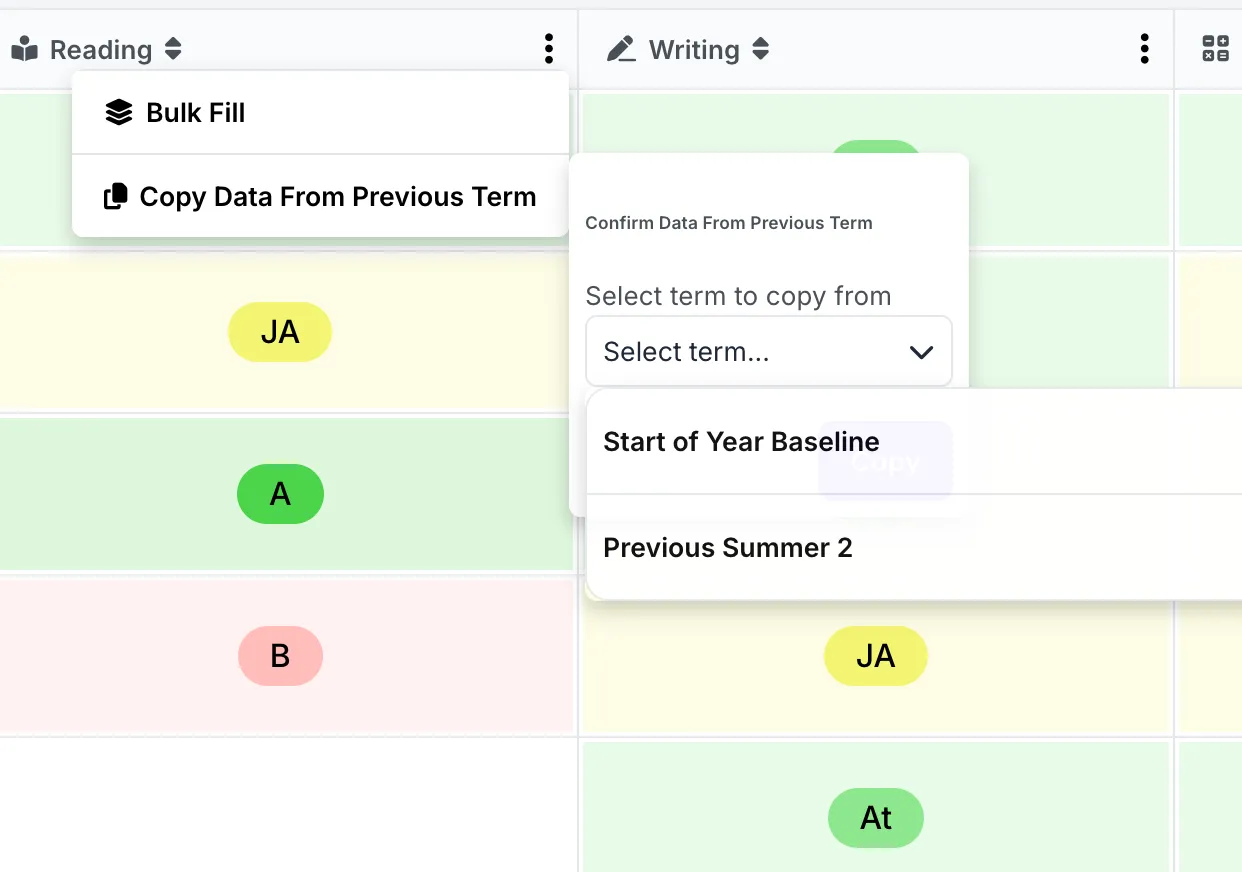
The list only offers points that make sense. At autumn 1 these are Start of Year Baseline and Previous Summer 2. Later in the year it adds each completed half term. When you copy last year’s summer 2, a year 3 judgement such as Just At becomes the same judgement for the pupil in year 4.
Sonar does not carry judgements forward on its own. A cell stays empty until someone enters or copies a judgement, and reports count an empty cell as No Assessment.
Look at an earlier assessment point
Section titled “Look at an earlier assessment point”Choose a different point from the assessment point list, which shows something like 2026-2027 - Autumn 1. Each academic year opens to show its assessment points, latest first. The current year lists only the points reached so far.
The Year Group you chose always means the pupils’ current year group. For example, Year 4 at 2025-2026 - Summer 2 shows this year’s year 4 pupils with the judgements they were given in year 3.
If something goes wrong
Section titled “If something goes wrong”No pupils appear. Check that you did not choose a year group and a class that do not match. Classes with no pupils still appear in the Class list.
A pupil is missing. New pupils arrive from your MIS overnight. Pupils marked as leavers are hidden unless you change the Leavers filter. See Filter pupils.
You cannot change a judgement. Your role may be read-only, or your role may only edit the current academic year. Ask your Account Owner or Account Admin.
A judgement does not save. If you see Error Saving Assessment, check your internet connection, reload the page and enter the judgement again.