


 Sisra Analytics
Parent reports
Create a parent report template
A parent report template decides what Sonar Tracker puts in each pupil’s report. It sets the words parents see for each judgement, the attitude to learning grades and which subjects appear. Set up your templates before teachers create parent reports.
Before you start
Section titled “Before you start”You need:
- a role that can manage report templates, such as Account Owner or Account Admin
- your school’s agreed wording for each judgement and each attitude to learning grade
- to know which subjects each year group reports on, and in how much detail
One template can cover several year groups in the same phase. Make separate templates where year groups need different subjects or a different kind of attitude to learning grade.
Start a new template
Section titled “Start a new template”- Go to School.
- In the Report Templates card, select Create a new template.
To see your existing templates first, select View Report Templates. You can start a template from that page with Create New Template.
Name the template and choose a phase
Section titled “Name the template and choose a phase”- In Template Name, enter a name that includes the phase, year groups and year, such as
Primary Years 1 to 6 Summer 2027. - In Which report phase?, choose EYFS or Primary.
Leave out apostrophes and other special characters. Sonar removes them, so St Mary's becomes St Marys.
Choosing a phase opens the rest of the form: Attainment Grades, Attitude to Learning Grades and Subjects.
Set the attainment labels
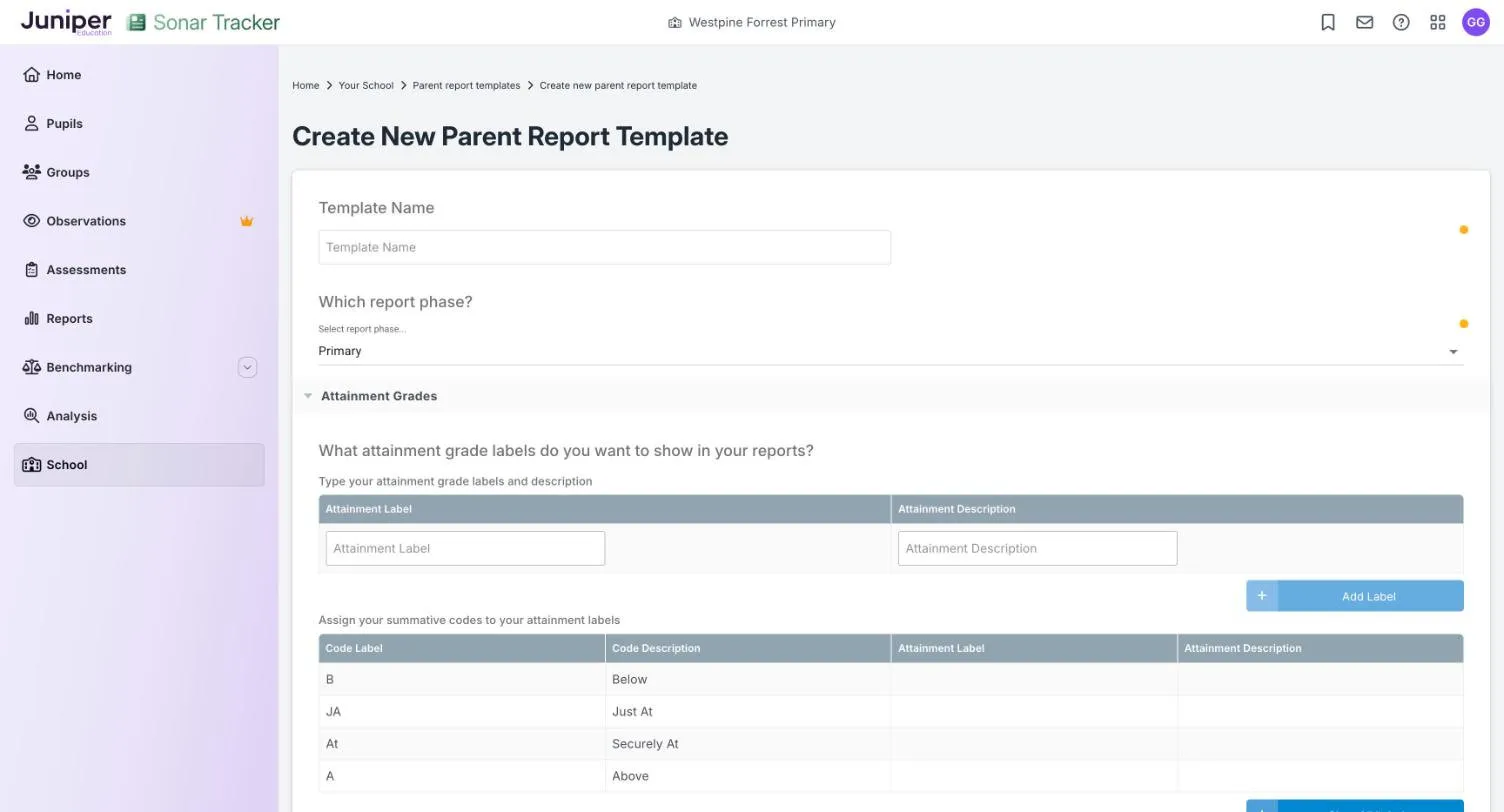
Section titled “Set the attainment labels”Attainment labels are the words parents see in place of Sonar’s judgement codes. Each label has a short description, and the report includes a key to them.
- In Attainment Grades, under Type your attainment grade labels and description, enter an Attainment Label and an Attainment Description.
- Select Add Label, then enter the next label and description.
- Repeat until you’ve added every label you need.
- Under Assign your summative codes to your attainment labels, choose the attainment label for each code.
You cannot have more labels than codes. One label can cover more than one code, so Just At and Securely At can share a label. To start again, select Clear All Labels.
Write labels parents understand
Section titled “Write labels parents understand”Parents read these labels without the training your staff have had. When you write them:
- use words, not Sonar’s codes: parents will not know what JA (Just At) or At (Securely At) means
- describe where the pupil is in what has been taught so far, which is what Sonar’s judgements record
- keep greater depth out of labels, because it means something specific in KS2 writing
- use the same labels in every year group, so parents see the same words each year
For example:
| Sonar judgement | Attainment label | Attainment description |
|---|---|---|
| Below | Working towards | Working towards the standard expected for their age in what has been taught so far |
| Just At and Securely At | Expected | Working at the standard expected for their age in what has been taught so far |
| Above | Above expected | Working above the standard expected for their age in what has been taught so far |
Judgements, bands and age-related expectations explains what each judgement means.
Set the attitude to learning grades
Section titled “Set the attitude to learning grades”Attitude to learning grades sit beside each subject’s attainment label. Sonar does not record them, so teachers add them in Word.
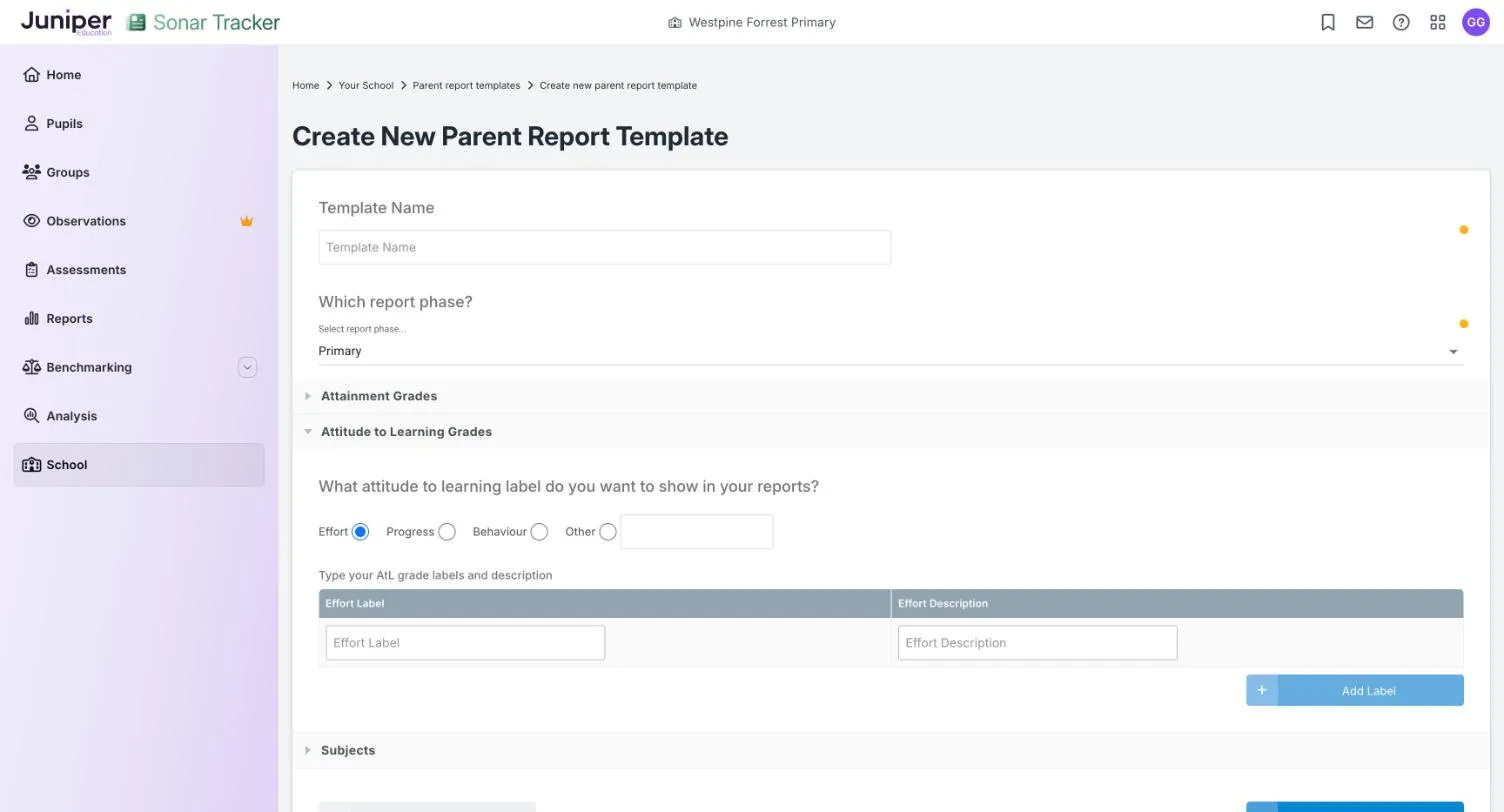
- In Attitude to Learning Grades, choose what the grades describe: Effort (the default), Progress, Behaviour or Other.
- If you chose Other, type the heading parents will see in the box beside it.
- Enter a label and a description for the first grade. The column headings follow your choice, such as Effort Label and Effort Description.
- Select Add Label, then enter the next grade.
- After the last grade, select Add Label once more.
The last step leaves an empty row at the bottom of the list. Leave it there: without it, your last grade may not save.
Choose the subjects
Section titled “Choose the subjects”Primary templates
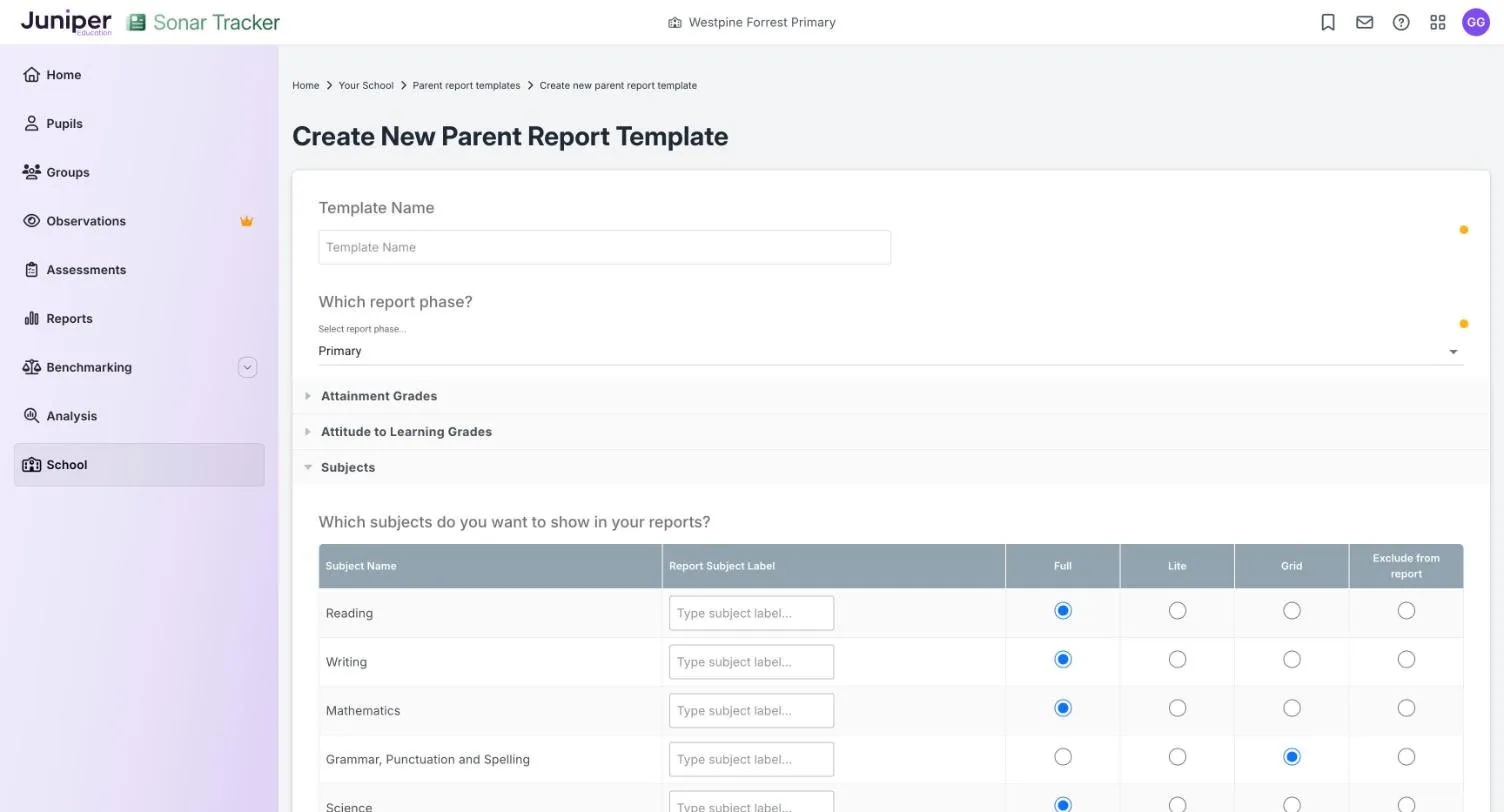
Section titled “Primary templates”Under Which subjects do you want to show in your reports?, choose an option for each subject:
| Option | What the report shows for the subject |
|---|---|
| Full | Attainment label, attitude to learning grade, comment box and targets |
| Lite | Attainment label, attitude to learning grade and comment box |
| Grid | Attainment label and attitude to learning grade |
| Exclude from report | Nothing: the subject does not appear |
Reading, writing, maths and science start as Full, and the other subjects as Grid. To show a subject under a different name, enter it in Report Subject Label. If you leave this blank, Sonar uses the subject’s usual name.
Targets come from formative assessment recorded in Sonar. If your school does not record formative assessment in Sonar, choose Lite rather than Full, because there will be no targets to suggest. How Sonar suggests targets explains the rules.
EYFS templates
Section titled “EYFS templates”Sonar includes every goal in an EYFS report automatically. Choose Full to give each goal attainment, attitude to learning, comment and target boxes. Choose Grid for attainment and attitude to learning boxes only.
Save and preview the template
Section titled “Save and preview the template”- Select Save new template.
- Go to School, then select View Report Templates.
- Select Preview Template for your template.
Sonar downloads a Word document named after the template, ending in Preview.docx. Open it in desktop Word to check the layout.
If you leave the template page before saving, Sonar warns that your changes will be discarded.
Edit or delete a template
Section titled “Edit or delete a template”Go to School, then select View Report Templates. The list shows each template’s phase and when it was last updated.
To change a template, select View Template, make your changes and save them. To delete one, select Delete Template. Sonar confirms with Template deleted.
Reports that teachers have already downloaded do not change, because Sonar does not keep copies of reports.
If something goes wrong
Section titled “If something goes wrong”There’s no Report Templates card on the School page. Your role may not include report templates. Ask your Account Owner.
Your last attitude to learning grade was not saved. Add it again, then select Add Label once more before you save.
The preview layout looks wrong. Open it in desktop Word. Word in a web browser can show the layout differently.