


 Sisra Analytics
Statutory assessment
Statutory assessment in Sonar
Sonar Tracker holds your pupils’ results from the statutory primary assessments and from the optional end of key stage 1 assessments. Each assessment has its own page under Assessments, and all five pages work in the same way. The results feed the Statutory Dashboard and several reports.
What Sonar holds
Section titled “What Sonar holds”| Assessment | Year group | What you enter | Page in Sonar |
|---|---|---|---|
| EYFS profile | Reception | 1, 2 or A for each of the 17 early learning goals | Early Years Foundation Stage Profile (EYFSP) |
| Phonics screening check | Year 1, with retakes in year 2 | A mark out of 40 and an outcome | Phonics Screening Check |
| Key stage 1 (optional) | Year 2 | Test marks, teacher assessment and test outcomes | End of Key Stage One (optional) |
| Multiplication tables check | Year 4 | A score out of 25, or a code | Multiplication Tables Check |
| Key stage 2 | Year 6 | Test marks, teacher assessment and test outcomes | End of Key Stage Two |
KS1 tests and teacher assessment have been optional since the 2023 to 2024 academic year. Sonar keeps the page for schools that still use them.
The statutory reception baseline assessment (RBA) is not in Sonar, because schools never receive the scores. To record where each child starts, enter a teacher’s Start of Year Baseline judgement on the EYFS summative page instead.
Who can enter results
Section titled “Who can enter results”Anyone with an edit role can enter and change statutory results: Account Owner, Account Admin, Full Edit, Partial Edit and Minimal Edit. Read-only roles can see the results but cannot change them. Users and roles explains each role.
Sonar Lite schools can enter results on all five pages and see them on the Statutory Dashboard. The reports need the full Sonar Tracker subscription.
How the entry pages work
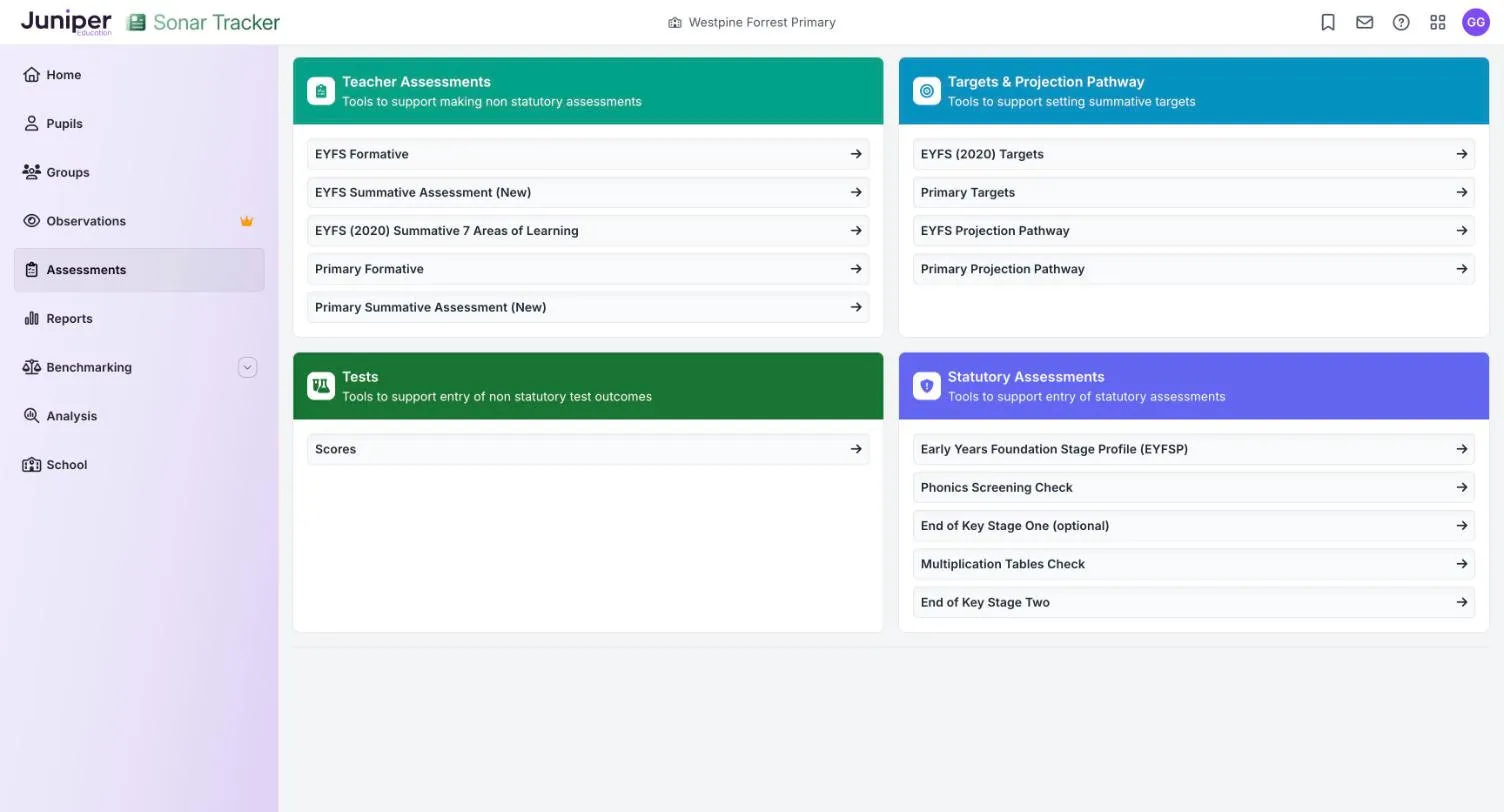
Section titled “How the entry pages work”The five pages are in the Statutory Assessments card on the Assessments page. Each grid is read-only until you start an editing session. To start one, open the page for a year group, select Edit Assessment, choose an Assessment Date and select Start Editing. Each assessment’s own page gives the full steps.
Each result saves as soon as you enter it, and a short message confirms it. There is no save button. While you are editing, the Edit Assessment button reads Change Assessment Date, and the line above the grid starts with the date you chose.
Choose the assessment date
Section titled “Choose the assessment date”Sonar stores a date with every statutory result. Use the date pupils took the test or check, or the date you completed the teacher assessment. The date must be in the academic year the result belongs to, even if you correct the result later.
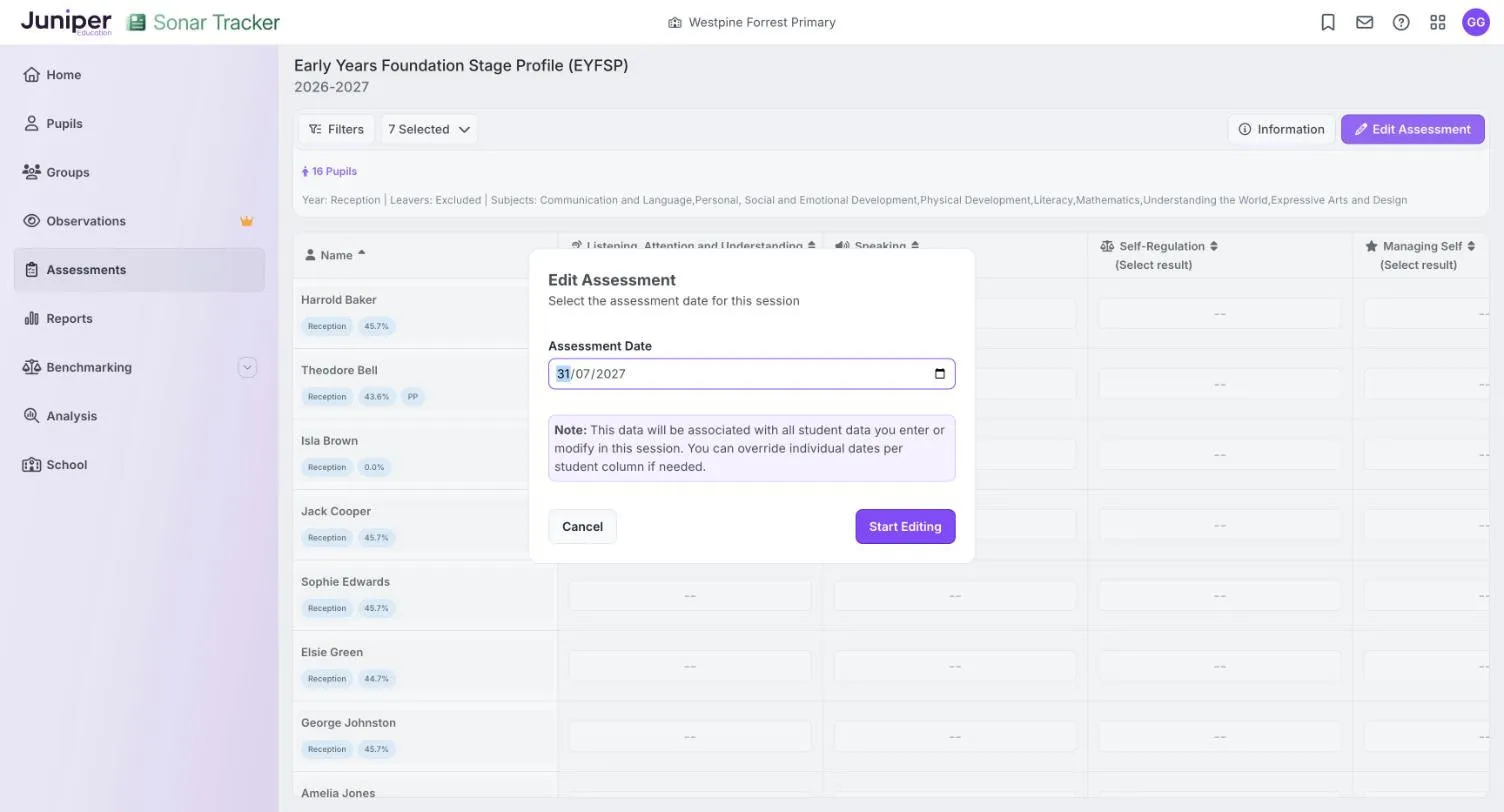
The date applies to every result you enter until you change it with Change Assessment Date.
If Sonar cannot accept the date, it does not save the result. Instead it shows an error such as Error: Result date 2027-07-31 is not valid, with a red label under the cell. Select Change Assessment Date, choose the correct date and enter the result again.
Check what each code means
Section titled “Check what each code means”Select Information to see the codes the page accepts and what each one means. The text under each column name shows what you can enter, such as (0 - 40) for a mark or (Select result) for a code. If you enter something the column does not accept, Sonar shows a red error and does not save it.
Fill or copy a column
Section titled “Fill or copy a column”Some columns have a menu next to the column name, which can include Bulk Fill and Copy Data From Previous Term. Fill a column or row in one go explains how these work on the summative pages. Check every pupil’s result after you use either of them.
How results reach reports and dashboards
Section titled “How results reach reports and dashboards”Results you enter or import appear in:
- the Statutory Dashboard in Analysis, with headline figures for each assessment
- the End of Reception, End of Key Stage 1 and End of Key Stage 2 Outcomes reports
- the Primary Flight Path report, which shows each pupil’s statutory results next to their summative judgements
- the Assessment Conversion Matrix, which can compare statutory results with later judgements
- the Triangulate panel on the summative entry pages, and the prior attainment columns on Primary Projection Pathway
The Statutory Dashboard refreshes overnight, so a result you enter today appears there tomorrow. The date next to Last updated shows when it last refreshed.
Portal-linked and stand-alone schools
Section titled “Portal-linked and stand-alone schools”Most schools are Portal-linked: staff sign in through Juniper Portal, and pupil data comes from the school’s management information system (MIS) through Portal. Some schools use the original stand-alone set-up. The two move statutory results in and out of Sonar differently, using common transfer files (CTFs), the DfE’s file format for pupil data.
| Task | Portal-linked schools | Stand-alone schools |
|---|---|---|
| Enter or correct results | In Sonar | In Sonar, or in your MIS followed by a CTF import |
| Import a CTF | In Juniper MIS | In Sonar, with Send a file to Sonar on the School page |
| Get results into your MIS | Automatic: Sonar passes them to Juniper MIS | In Sonar, with Statutory Data Export to MIS on the School page |
| Data returns and pupil transfers | A CTF from Juniper MIS | A CTF from your own MIS |
| Statutory reports for parents | From Juniper MIS, sent through Comms Hub | From your own MIS |
Sonar never sends results to the Standards and Testing Agency (STA) or your local authority. Returns always go from your MIS.
To check which set-up you have, go to School and look at the Users card. In a Portal-linked school, it says users are managed through Juniper Portal and offers View & Invite Users. If you are not sure, ask your Account Owner. Import and export statutory data covers both set-ups step by step.