


 Sonar Tracker
Users and access
Post announcements
Announcements appear on the HOME page, which every member of staff sees in Sisra Analytics. Juniper Education posts announcements about Sisra, and your school can post its own, for example to tell staff which reports are ready.
Before you start
Section titled “Before you start”You need an authority group with Create Announcement, such as Admin. Without it, Create Announcement does not appear on HOME. Authority groups and permissions explains how to give the action to a custom group.
Post an announcement
Section titled “Post an announcement”- Select HOME.
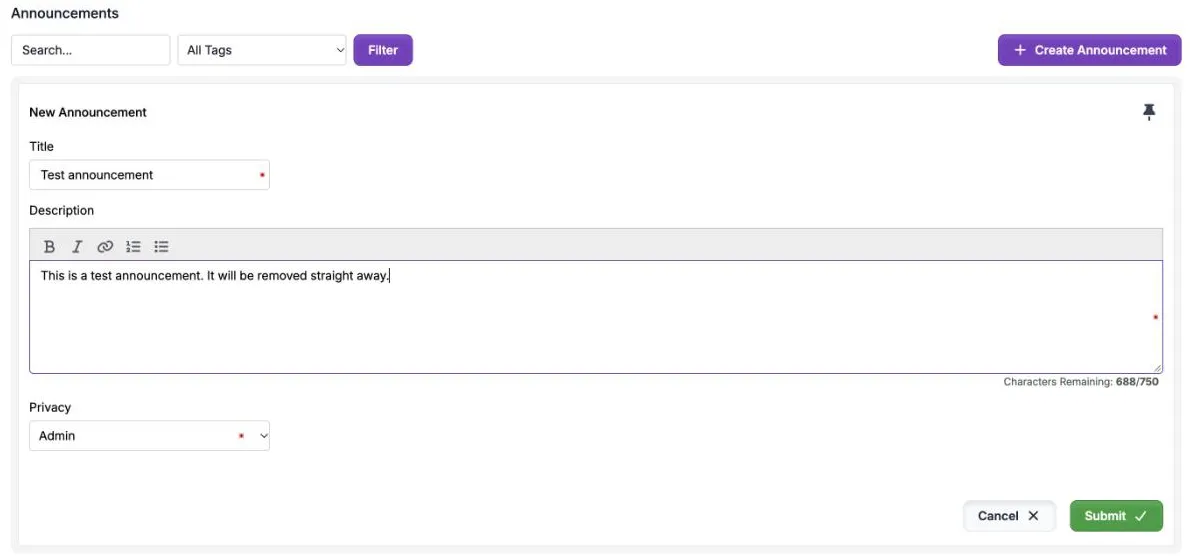
- Select Create Announcement. A form headed New Announcement opens above the list.
- Enter a Title of up to 50 characters.
- Enter the Description. Below the box, Characters Remaining: counts down from 750.
- Choose who can see it in Privacy. See Choose who sees it.
- To pin it to the top of the list, select Pin Announcement, the pin icon at the top of the form.
- Select Submit.
HOME reloads with the message “Message successfully created”, and your announcement appears in the list. Sisra tags it School Announcement. You cannot add other tags.
The buttons above the description add bold, italics, a link, a numbered list or a bulleted list.

Choose who sees it
Section titled “Choose who sees it”| Privacy | Who sees the announcement |
|---|---|
| Everybody (the default) | Everyone at your school who signs in to Sisra |
| Admin | Only staff whose authority group has Access Data Section, such as Admin. The card shows Privacy: Admin |
Everyone at your school can read an Everybody announcement, so keep pupils’ and students’ personal details out of it.
Pin an announcement
Section titled “Pin an announcement”A pinned announcement stays at the top of the list, above newer ones, and shows Pinned. Your school can pin one announcement at a time. If you pin a new one, Sisra unpins the old one.
To pin or unpin an announcement you have already posted, edit it and select Pin Announcement in the form.
Edit or remove an announcement
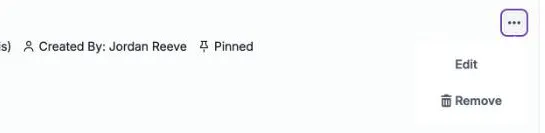
Section titled “Edit or remove an announcement”Your school’s announcements have a … button for staff with Create Announcement. Juniper’s announcements do not.
- Select … on the announcement.
- Select Edit or Remove.
Edit opens the same form in place of the announcement, still headed New Announcement. Make your changes and select Submit. The card then shows when it was edited, and by whom if someone else posted it.
Remove asks “Are you sure you wish to delete this announcement?”. Confirm, and Sisra shows “Message successfully deleted”. You cannot undo this.
USERS > Admin History records each announcement posted, edited or removed, under the area Message. See Administration History.
If something goes wrong
Section titled “If something goes wrong”Create Announcement is missing. Your authority group does not have Create Announcement. Ask a Sisra administrator.
Some staff cannot see an announcement. Check its Privacy. An Admin announcement shows only to staff with Access Data Section.
The description will not take more text. Descriptions can be up to 750 characters, including spaces. Shorten the text, or link to a document instead.