


 Sonar Tracker
Help
Get support and training
Sisra Analytics has two places to get help: Help at the top right of every page, and the Resource Centre at the bottom right. Sisra administrators can also chat with Juniper Education’s support team, depending on the school’s support tier. If you are not an administrator, ask your school’s Sisra administrator first.
Find an answer
Section titled “Find an answer”Select the question-mark icon, Help, at the top right of any page. It opens the Sisra Analytics section of Juniper’s help centre in a new tab. You can also go straight to help.junipereducation.org.
In Sisra Multi-School, the ? icon at the top right opens the help centre in the same way.
Use the Resource Centre
Section titled “Use the Resource Centre”Select Resource Centre at the bottom right of any page. A panel opens with six items.
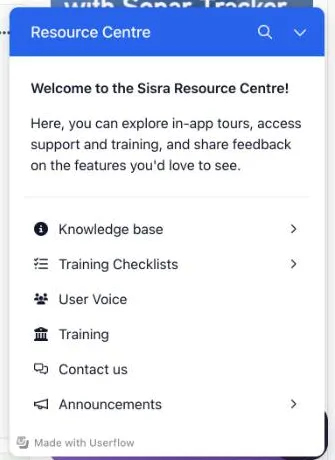
| Item | What it holds |
|---|---|
| Knowledge base | A search box and Suggested articles |
| Training Checklists | KS3/4 Onboarding Checklist, KS5 Onboarding Checklist, KS4 Results Day Preparation Checklist and KS5 Results Day Preparation Checklist |
| User Voice | Juniper’s ideas portal, where you can suggest features and vote on them. It opens outside Sisra |
| Training | Juniper’s training and events. It opens outside Sisra |
| Contact us | Live chat with the support team, for administrators |
| Announcements | Juniper’s news about Sisra |
Work through the results day checklist in the weeks before each results day. See KS4 results day and KS5 results day.
Contact the support team
Section titled “Contact the support team”Chat with support
Section titled “Chat with support”Live chat is for Sisra administrators. Juniper’s getting-started guides say it comes with the Priority and Complete support tiers, and that schools on the On Demand tier email instead. It runs from 9am to 5pm (UK time), Monday to Friday. Outside those hours you can leave a message, and the team replies by email.
- Select Resource Centre, then Contact us.
- Choose Ask a question to type a question for the chatbot, or Contact an agent to chat with a person.
- For Contact an agent, enter your Full name and the email address your account is registered to.
- Select Send, then Sisra Analytics (or Dashboard).
If live chat does not load, ask your IT team to allow *.zopim.com through the school’s firewall.
In Multi-School, Juniper Admins see a support widget at the bottom right of every page. It offers the same choices. Live chat there is for trusts on the Priority and Complete tiers; on the On Demand tier, you leave a message.
Email the support team
Section titled “Email the support team”For Sisra Analytics, email sisrasupport@junipereducation.org. For Sisra Multi-School, email assessmentdashboard.support@junipereducation.org. You can also select Submit a request in the help centre.
Replies take longer at busy times, such as results days and the start of the school year in September.
Say what you need in a request
Section titled “Say what you need in a request”Include these details:
- your school, and for Multi-School the trust and the school concerned
- the key stage and cohort, such as KS3/4 26/27
- the data set or assessment collection, and the page you were on, such as Grades > Publish Grades
- what you did, what you expected, and the exact words of any message
- when it happened
Support staff can sign in to your school’s Sisra to look at a problem. Each visit is recorded, with when and why, under USERS in GDPR > Access History.
Check for known problems
Section titled “Check for known problems”Juniper posts incidents and fixes on two pages in the help centre: Sisra Analytics: Status Updates and Sisra Multi-School: Status Updates.
In Sisra, you can filter Juniper’s announcements on HOME by tag, such as Downtime, Release or Results Day. Choose the tag in the tag list, then select Filter.
Book training
Section titled “Book training”Book training, events and webinars at the Juniper Training Centre, or email training@junipereducation.org. The HOME page also has a training banner with FIND OUT MORE & BOOK.
Courses named in Juniper’s getting-started guides include KS3/4 Admin Training (Self Learning) and KS5 Admin Training (Self Learning), which use recorded videos. After the Sisra Analytics Best Practice Masterclass, a consultant reviews your set-up.
For trusts, the Sisra MAT Dashboard Consultancy Session is a 30-minute online session on your own Multi-School reports. In the Training Centre, select Book Individual School Training, then Sisra MAT Dashboard Consultancy Session.
The help centre also holds recorded webinars for administrators. Topics include mid-year transfers, the tracker and flight paths, and baseline test data.
Contracts and data protection
Section titled “Contracts and data protection”For questions about your agreement, such as fees or renewal dates, email Juniper’s Customer Success team at retention@junipereducation.org. You can also book a free health check meeting with a Customer Success Manager, lasting 15 to 30 minutes on Microsoft Teams.
As at October 2025, Juniper’s contract guidance says an agreement renews automatically for the same length of term. It does not renew if Juniper receives written notice at least 90 days before the renewal date. The Terms and Conditions and Privacy Policy and Data Security links are in the footer of every Sisra page.
Juniper publishes a data protection impact assessment (DPIA) for Sisra Analytics in the help centre, at Sisra Analytics Data Protection Impact Assessment (DPIA). The same section holds a DPIA for Pupil Progress, which is a different product, so give your data protection officer the Sisra Analytics one.
Under the DfE’s data protection guidance (July 2026), schools must complete a DPIA when processing personal data is likely to result in a high risk. Access History, under USERS, records each time Juniper staff signed in to your school’s Sisra, and why.
If something goes wrong
Section titled “If something goes wrong”You cannot see live chat. Live chat is for Sisra administrators, on the Priority and Complete support tiers. Email the support team instead, or ask your school’s Sisra administrator. If you are an administrator on one of those tiers, ask IT to allow *.zopim.com.
You have not had a reply. Results days and September are the busiest times. If your problem stops results day work, say so at the start of your message.