


 Sonar Tracker
Publishing
Generate the tracker and flight paths
The tracker and flight paths are built from grades you have already published for a KS3/4 cohort in Sisra Analytics. The tracker puts up to six published data sets or assessment collections side by side. Flight paths plot each pupil’s grades, term by term, against the expected grades in their Expected Attainment Pathway (EAP). KS5 has neither.
Before you start
Section titled “Before you start”You need:
- an authority group with Access Data Section, such as Admin
- the data sets and assessment collections you want to include, already published (see Publish data to the reports)
- for flight paths, EAPs with expected grades for the terms you include
A flight path shows the expectations your school set in its EAPs. It is not a forecast. The DfE’s 2018 workload report, ‘Making data work’, said flight paths for pupils with similar starting points “are not valid”. Good practice with school data sets out the evidence.
Generate the tracker
Section titled “Generate the tracker”- Open the cohort in DATA, as in Open a cohort in DATA.
- Select Grades, then Publish Grades, then the Generate Tracker tab.
- Choose a Tracker Status:, and enter a Tracker Note: if you want one.
- In the list of data sets available for inclusion, select a number under Tracker Slots for each data set or collection you want. Slot 1 is the earliest and slot 6 the latest.
- Select Generate.
Each choice appears in Slot 1 to Slot 6 above the list. To take one out, select the red cross in its slot.
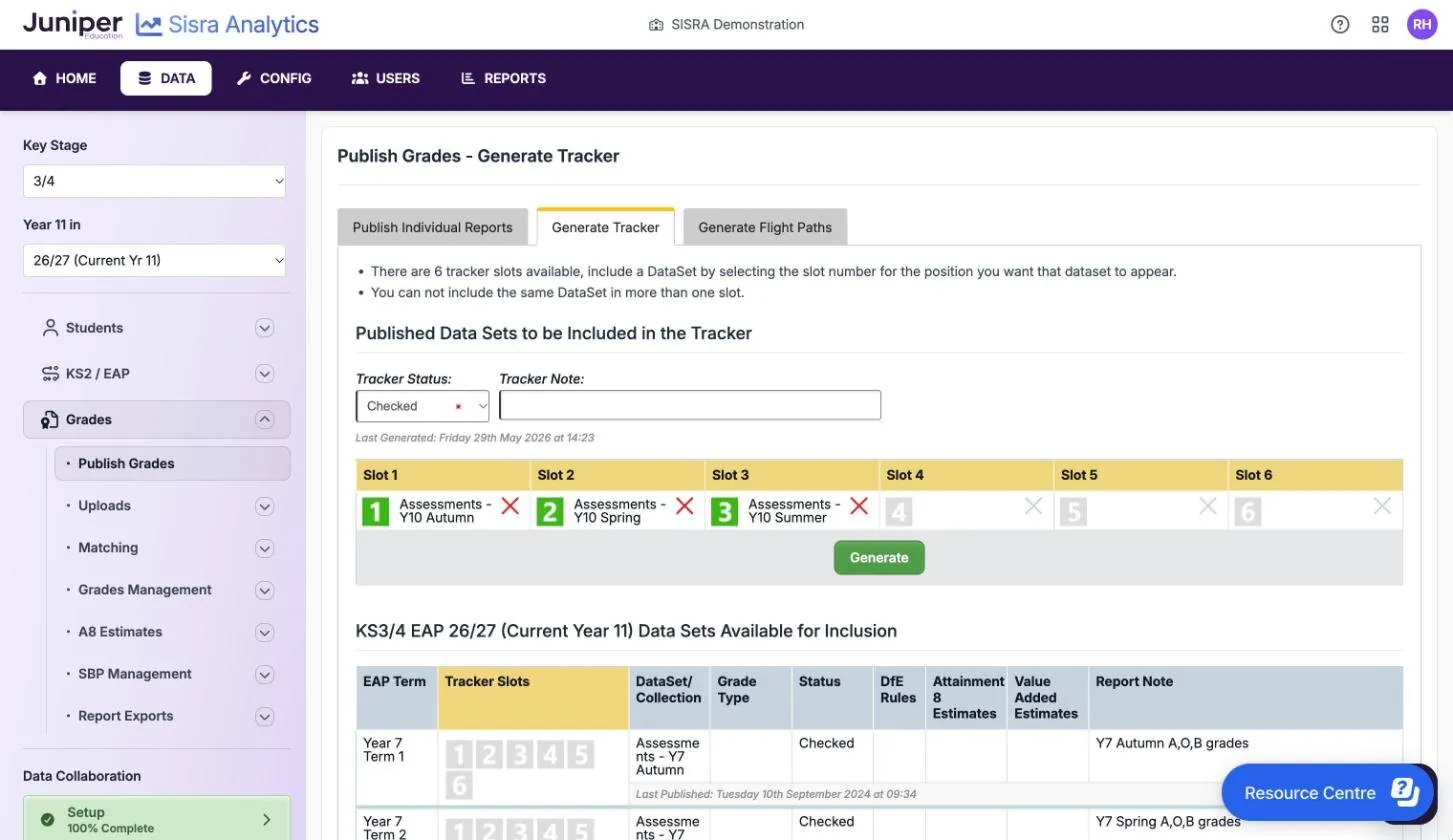
Sisra adds the tracker to the publishing queue, as it does a publish. When it has finished, the tracker appears in the cohort’s Tracker folder on the reports home. Tracker reports explains what staff see.
Fill the slots in order
Section titled “Fill the slots in order”Sisra checks the slots when you select Generate:
| Message | What to do |
|---|---|
| “You must select at least 2 items for a tracker. Please try again.” | Choose at least two data sets or collections. |
| “Trackers must start from Slot 1” | Put the earliest one in slot 1. |
| “There must not be any gaps in the tracker.” | Fill the slots in order, with no empty slot between two filled ones. |
| “The tracker note must be 150 characters or fewer in length” | Shorten the note. |
You cannot put the same data set in two slots. If Sisra says the selected tracker points are no longer valid, someone republished or deleted one of them while the page was open. Reload the tab and choose the slots again.
Set the tracker’s status and note
Section titled “Set the tracker’s status and note”Tracker Status: offers Checked, Unchecked and Locked, which work as they do for a report. See How report status works. If any data set in the tracker is Locked, the tracker is locked too. Unless the tracker’s own status is Locked, the reports home then shows Locked by Dataset.
The note, up to 150 characters, shows with the tracker on the reports home. To change the status or note later without generating the tracker again, use the tracker’s pencil on the reports home. See Change a report’s status or note.
Keep the tracker up to date
Section titled “Keep the tracker up to date”When you republish a data set or collection that is in the tracker, Sisra updates the tracker in the same publish. At the busiest times of a results period, Juniper can turn off tracker and flight path generation. The Results Day Information box on the publish pages says when it is off. Generate the tracker again when:
- you want different data sets in it, such as the next assessment collection, or Exams after results day
- the reports home shows Generation Required next to the tracker, for example after a data set in it was deleted
- you republished a data set in it while tracker generation was turned off
Generate flight paths
Section titled “Generate flight paths”- Open the cohort in DATA.
- Select Grades, then Publish Grades, then the Generate Flight Paths tab.
- For each year and term, choose one published collection or data set, such as Y7 Autumn (Assessments). Each list offers only reports published for that term. Leave a term empty if you have nothing for it.
- Select Generate.
- In KS3/4 Flight Path Generation, choose the starting points and the default chart, as described in the next two sections.
- Select Generate again.
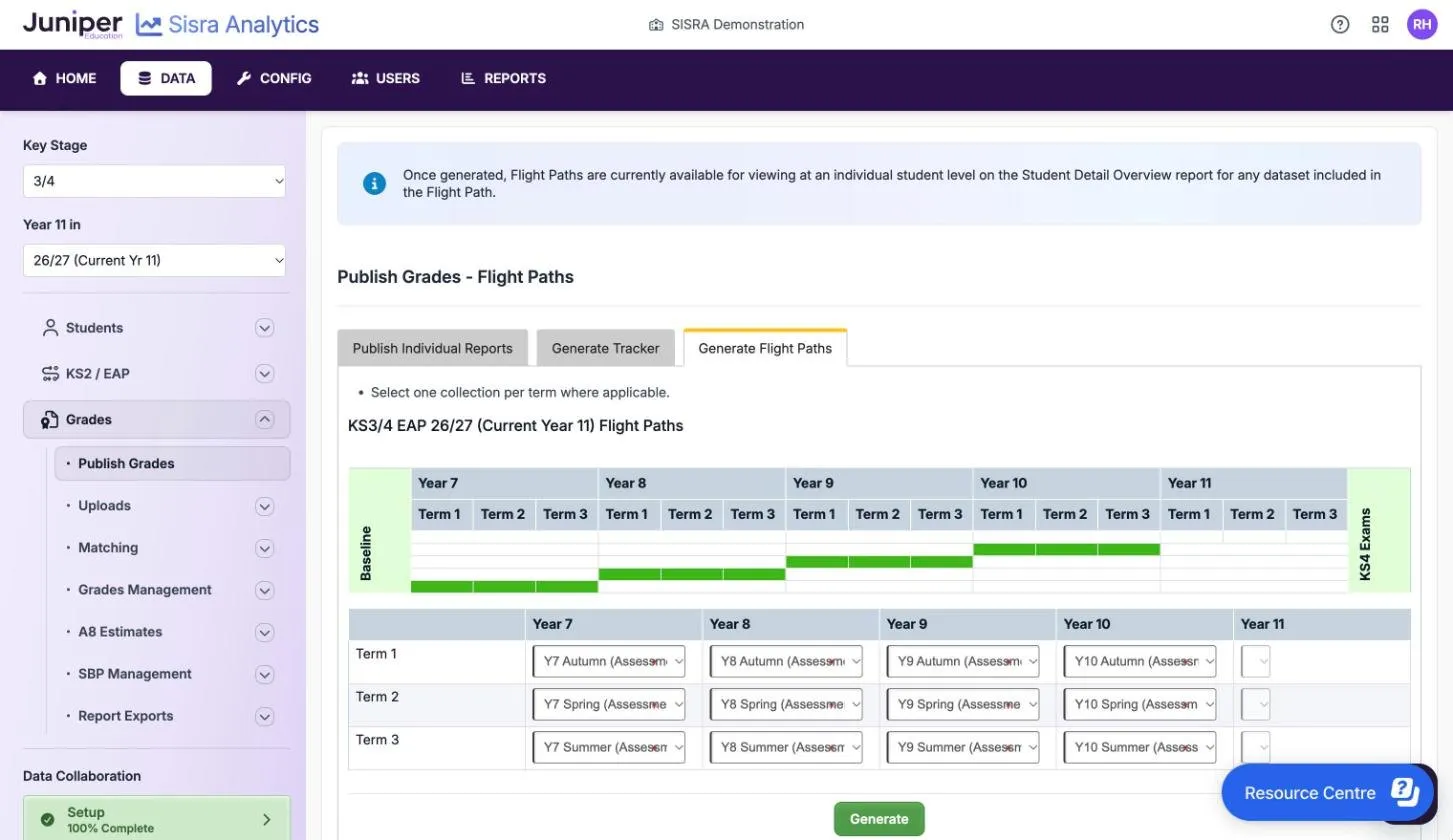
You need at least one collection. Otherwise Sisra says “One or more collections are required for flight path generation”. Generating joins the publishing queue, and replaces the cohort’s earlier flight paths. When you later republish a data set that is in the flight paths, Sisra updates them in the same publish.
Choose the starting points
Section titled “Choose the starting points”| Option | Where each pupil’s line starts |
|---|---|
| Display Official KS2 Core as my Flight Path starting points | Their KS2 results: English reading for English, maths for maths, and the average of the two for every other qualification |
| Display the Baseline specified in the EAP | The baseline that each qualification’s EAP uses, such as a target grade |
The choice changes only where the line starts. It does not change the grades the EAP expects.
Choose the default chart
Section titled “Choose the default chart”The default chart is the one staff see first.
| Option | The expected line | Suits schools that |
|---|---|---|
| Line of Best Fit | Runs straight from the pupil’s first expected grade to their final one, such as a grade 4 in KS4 Exams | Use different grade methods in KS3 and KS4 |
| Plotted Expectation | Passes through every expected grade in the EAP, so it can rise and fall from term to term | Use the same grade method from year 7 to year 11 |
Both charts place each grade by its position in the grade method, not by its points. So two grades worth the same points can sit one above the other.
Where flight paths appear
Section titled “Where flight paths appear”Staff see flight paths one pupil at a time, in the Overview of the Student Detail report, for any data set included in them. They need the View Student Report permission. If one of the included data sets is closed to them, such as a Locked report, the chart does not show. Instead they see a message that starts “You do not have permission to view this Flight Path”. Student Detail reports explains the chart.
Delete flight paths
Section titled “Delete flight paths”At the foot of the tab, Previously Generated Flight Paths shows when the flight paths were last generated, and with which settings. To remove them, select Delete. Sisra shows “Flight paths successfully deleted.”
If something goes wrong
Section titled “If something goes wrong”A term’s list is empty. Nothing is published for that term. Publish the collection first, and check that its Term is right.
The reports home shows Generation Required. A data set in the tracker has changed in a way Sisra cannot follow, such as being deleted. Generate the tracker again.
Staff cannot open the tracker. One of its data sets is Locked, or the tracker’s own status is. Change the status if staff should see it.
KS3 grades are missing from a KS4 qualification’s flight path or tracker. Set a Predecessor for the KS4 qualification on the Matching page, such as science for each separate science. See Match qualifications in KS3/4.
The expected line is missing for some terms. The pupil’s EAP has no expected grades for those terms, or the pupil has no baseline in it. See Set up EAPs for KS3/4.