


 Sonar Tracker
Grades
Warning icons
Sisra Analytics checks grades and baselines as you upload and change them, and marks problems with warning icons. Each page with icons has a key, at the top right, that names them. This page lists every icon in Grades Management, Baseline Management and the KS5 core baselines list.
Where the icons appear
Section titled “Where the icons appear”| Page | Where to find it | Where the icons show |
|---|---|---|
| Manage Datasets (Grades Management) | Grades, then Grades Management | Under the qualification’s Grades Count, or under a judgement count for AtL warnings |
| Baseline Management, KS3/4 | KS2 / EAP, then Baselines | Against the baseline subject |
| Baseline Management, KS5 | KS4 / EAP, then EAP / Baselines | Against the baseline qualification |
| Core Baselines, KS5 | KS4 / EAP, then Core Baselines | Beside the student’s value |
Hover over an icon to see how many grades or people it affects. Select the qualification’s Grades Count, or the baseline’s Grade Count, to see who they are.
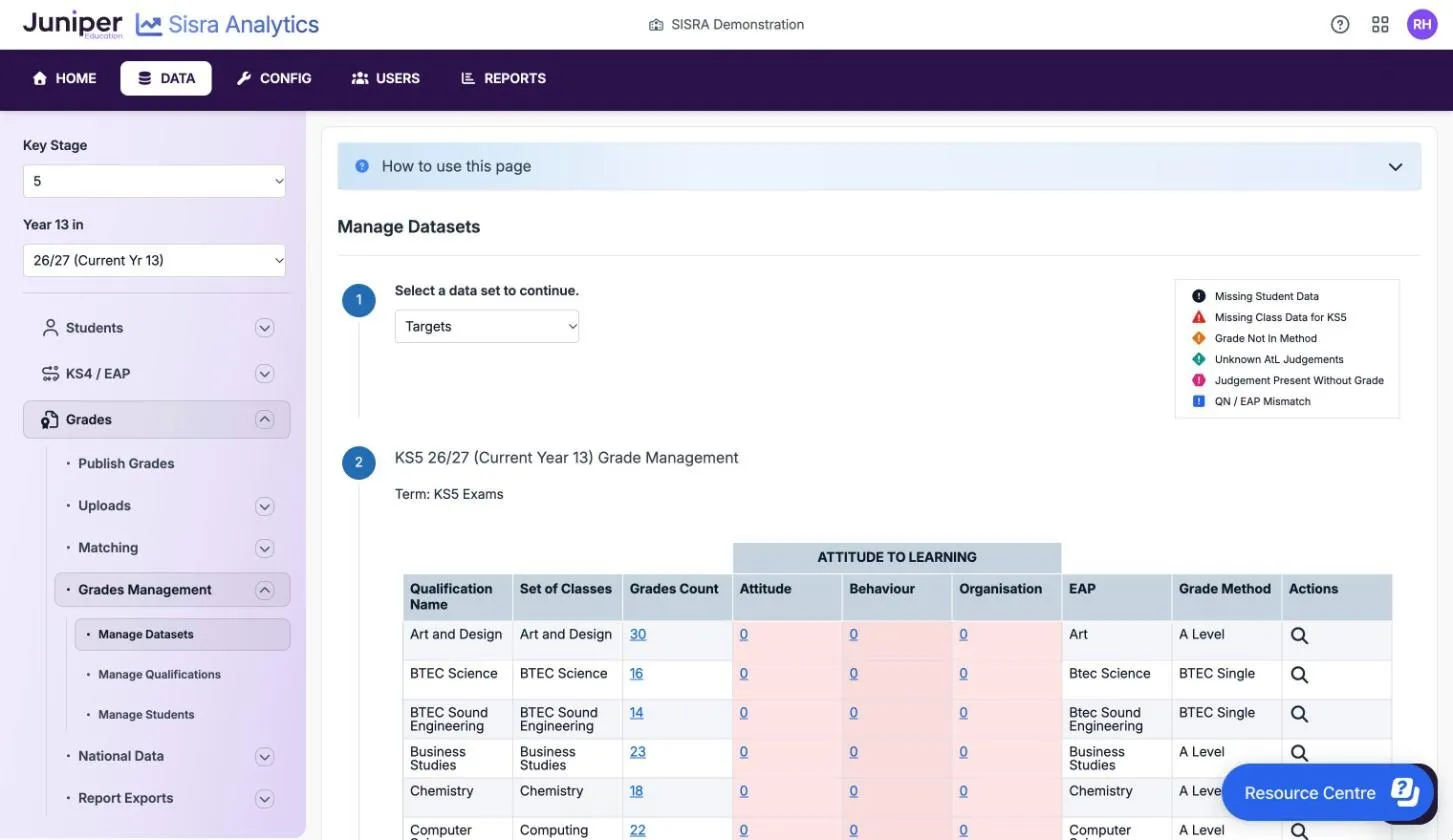
The icons
Section titled “The icons”Each icon’s look is described as the key on screen shows it.
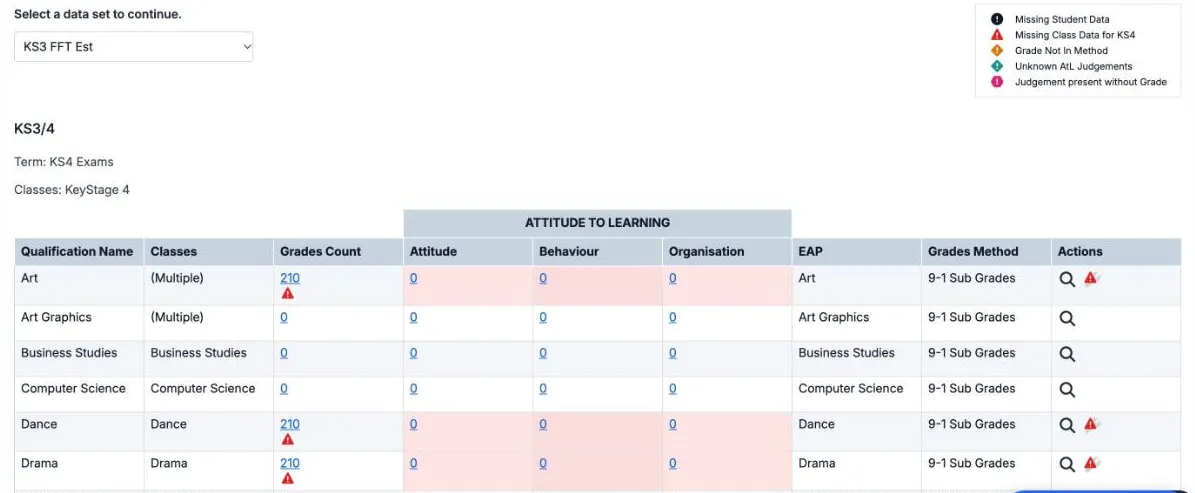
| Warning | Where | Look | What it means | How to fix it | Stops publishing |
|---|---|---|---|---|---|
| Missing Student Data | Grades Management, KS3/4 and KS5 | Black circle | A grade belongs to a Student ID that is not in the cohort’s student data | Correct the ID, import or create the pupil or student, or delete the grade. See Fix missing student data. | Yes, for any data set |
| Missing Class Data for KS3, Missing Class Data for KS4, Missing Class Data for KS5 | Grades Management | Red triangle | Someone with a grade is in no class in the qualification’s set of classes for that key stage. Reports show them as Not in Class. | Assign the qualification to a set of classes, add the class, or create the missing class information. See Fix missing class data. | No |
| Grade Not In Method | Grades Management | Orange diamond | A grade is not in the grade method the qualification’s Expected Attainment Pathway (EAP) sets for the data set’s term. The grade gets 0 points. | Choose the right EAP on the Matching page, correct the EAP’s grade method, add the grade to the method, or correct the grade | KS5: yes. KS3/4: the Exams data set. Fix it before you publish any other data set. |
| Subgrades Not Valid In This Dataset (KS3/4), Sub Grades Not Valid In This Data Set (KS5) | Grades Management, Exams only | Light blue diamond | An exam result has a subgrade, such as 6+ or A-. Exam results are whole grades. | Remove the + or -: use Edit Grades for a few grades, or correct the file and upload it again | Yes |
| Unknown AtL Judgements | Grades Management | Teal diamond | An Attitude to Learning (AtL) judgement matches no judgement in its category. Reports count it as Unknown Judgement, outside the averages. | Correct the judgement, add it to the category in CONFIG, or delete it | No |
| Judgement present without Grade (KS3/4), Judgement Present Without Grade (KS5) | Grades Management | Pink hexagon | Someone has an AtL judgement in a qualification where they have no grade. The judgement does not show in the reports. | Add the grade, or delete the judgement | No |
| QN / EAP Mismatch | Grades Management, KS5 | Blue square | A qualification’s EAP has a grade method with a different grade structure from the one its qualification number (QN) needs | Fix it on the Matching List. See Fix a QN/EAP mismatch. | Yes: student data, KS4 / EAP and every data set in the cohort |
| Missing Student Data | Baseline Management, KS3/4 | Black circle | A baseline belongs to a Student ID that is not in the cohort. Sisra ignores it in the reports. | Correct the ID, create the pupil with Create Missing Student, or delete the baseline | No, except on a core subject: then as for Core Nomination Incorrect |
| Grade Not In Method | Baseline Management, KS3/4 | Orange diamond | A baseline does not fit its subject’s grade type or grade method, such as 0 for Scaled Scores | Correct the subject’s Grade Type, or the values | No, except on a core subject: then as for Core Nomination Incorrect |
| Core Nomination Incorrect | Baseline Management, KS3/4, schools in England, cohorts up to 25/26 | Red triangle | The Core column does not hold the KS2 subjects the DfE uses for the cohort. Hover over the icon to see what Sisra expects. | Nominate English Reading and Maths as core, and no other subject. For 24/25 and 25/26 with no KS2 scores, ignore it. | Not KS2 / EAP. For cohorts up to 23/24, it stops the Exams data set. |
| Core Nomination Incorrect Grade Type | Baseline Management, KS3/4, schools in England | Purple triangle | A core subject has the wrong grade type for the cohort. The expected type shows under it. | Set the expected Grade Type, usually Scaled Scores | As for Core Nomination Incorrect |
| Missing Student Data, Grade Not In Method | Baseline Management, KS5 | Black circle, orange diamond | As at KS3/4, for EAP baselines. Sisra leaves the students affected out of on track analysis. | As at KS3/4 | No |
| Invalid Core Baseline | Core Baselines, KS5 | Orange diamond | A core baseline is not valid: an average point score (APS) outside 0 to 11, or challenge points that are not valid for the cohort | Correct the value with the pencil, or export, correct and import again | Not KS4 / EAP. When you publish grades with headlines, the Invalid Core Baselines check is a warning that stops only the Exams data set. |
The KS5 Exams data set adds Sub Grades Not Valid In This Data Set to the key, making seven icons.
How warnings affect publishing
Section titled “How warnings affect publishing”When you publish grades, Sisra runs a health check on the data set. At KS3/4, grades with missing student data stop any data set publishing. Other issues on the Health tab stop only the Exams data set, and other data sets publish with warnings. At KS5, a Health Check Failed result stops any data set publishing.
A warning that does not stop publishing still changes the figures. For example, a grade with Grade Not In Method counts as invalid, and someone with Missing Class Data appears in no class. Clear every icon you can before you publish. Read the health check explains the publishing checks.