


 Sonar Tracker
Grades
Upload grades
Grades reach Sisra Analytics as files that you export from your MIS, or another system, and upload into a data set or an assessment collection. Sisra has no live link to any MIS. Each data set or collection becomes one report when you publish it. This page covers KS3/4 and KS5, which work the same way unless it says otherwise.
Before you start
Section titled “Before you start”You need:
- an authority group with Access Data Section, such as Admin
- the cohort’s student data imported, using the same Student IDs as the grades file
- at least one Expected Attainment Pathway (EAP) for the cohort, so that you can match the qualifications afterwards
You do not need the Sisra Excel Add-In: files go straight from the MIS into Sisra, and you map the columns as you upload. Import student data and Set up EAPs for KS3/4 cover the first steps.
Choose where the grades go
Section titled “Choose where the grades go”Each cohort has an Exams data set, six other standalone data sets and an Assessments area. You cannot add more data sets, but you can rename all except Exams and TAGs / CAGs in CONFIG.
| Where | What it holds | Term and grade type |
|---|---|---|
| Exams | Official exam results only, including banked results from earlier years. Not mocks or internal exams. | Fixed: KS4 Exams or KS5 Exams, and the grade type Exams |
| The six other standalone data sets, such as Targets or Mocks | One full set of grades: one grade for each pupil or student in each qualification | You choose them for each data set |
| Assessments | Assessment collections, one for each data drop | You choose them for each collection |
Use assessment collections for grades you collect several times a year, such as working-at grades or predictions. You can create as many as you like and publish up to two for each term. That makes up to 30 assessment reports for a KS3/4 cohort (5 years × 3 terms × 2) and 12 for KS5 (2 years × 3 terms × 2).
Several files in one data set or collection make one report. If two files hold grades for the same qualification, KS3/4 headline measures count the one with the earliest date, and KS5 counts the best grade. To report a newer set of mocks, delete the old file or put the new set somewhere else. Data sets, assessment collections and grade types explains the choices.
Prepare the file
Section titled “Prepare the file”A grades file needs four things for every grade: the Student ID, the pupil’s or student’s name, the qualification and the grade. Save it as .csv, .xlsx, .xls or .xml.
| Layout | What it looks like | Upload type |
|---|---|---|
| Broadsheet | One row per pupil or student, with a column for each qualification | Broadsheet |
| Grade list | One row per grade, with every grade in one column | Grade List |
The qualification names in the file become the names on the Matching page and in every report. Use plain, general names, such as Art, English Language or BTEC Music. Keep the same names from file to file and year to year, so that grades join the right qualification and trends line up. At KS5, leave out qualification numbers (QNs) and data drop labels (Art, not Art Y13 AP1), start level 2 qualifications with L2, and name AS and A level separately, such as Art AS and Art A2.
Check the file against these limits before you upload:
| Item | KS3/4 | KS5 |
|---|---|---|
| Student ID | 20 characters | 20 characters |
| Student name | 60 characters | 60 characters |
| Qualification name | 80 characters | 60 characters |
| Grade | 15 characters | 12 characters |
| Qualifications in a cohort | 140 | 140 in one upload |
| Pupils or students in a cohort | 650 | 650, or 2,500 if Juniper has raised the limit |
Sisra cuts grades with more than one decimal place to one. It trims spaces, and removes commas inside cells of .xlsx, .xls and .xml files. In a .csv file, a comma inside a cell stops the upload. Delete anything below or to the right of the data, including hidden rows and columns, and make sure no two columns share a heading.
Create an assessment collection
Section titled “Create an assessment collection”- Open the cohort in DATA and select Grades, then Uploads, then Assessments.
- Select Create Assessment Collection.
- Fill in the Create Collection form, using the next table.
- Select Create.
| Field | What to enter |
|---|---|
| Collection Name: | The report’s name, with the year and data drop, such as Y11 Autumn |
| Grade Type: | What the grades are, such as Predicted, or Attainment for working-at grades |
| Date (dd/mm/yyyy): | When you collected the grades. Today’s date is filled in. |
| Term: | The year and term the grades relate to, such as Year 11 Term 1 |
| Description: | Optional |
The collection with the latest date is the current one, shown under Current Assessment Collection. Older ones are under Historical Assessment Collection(s).
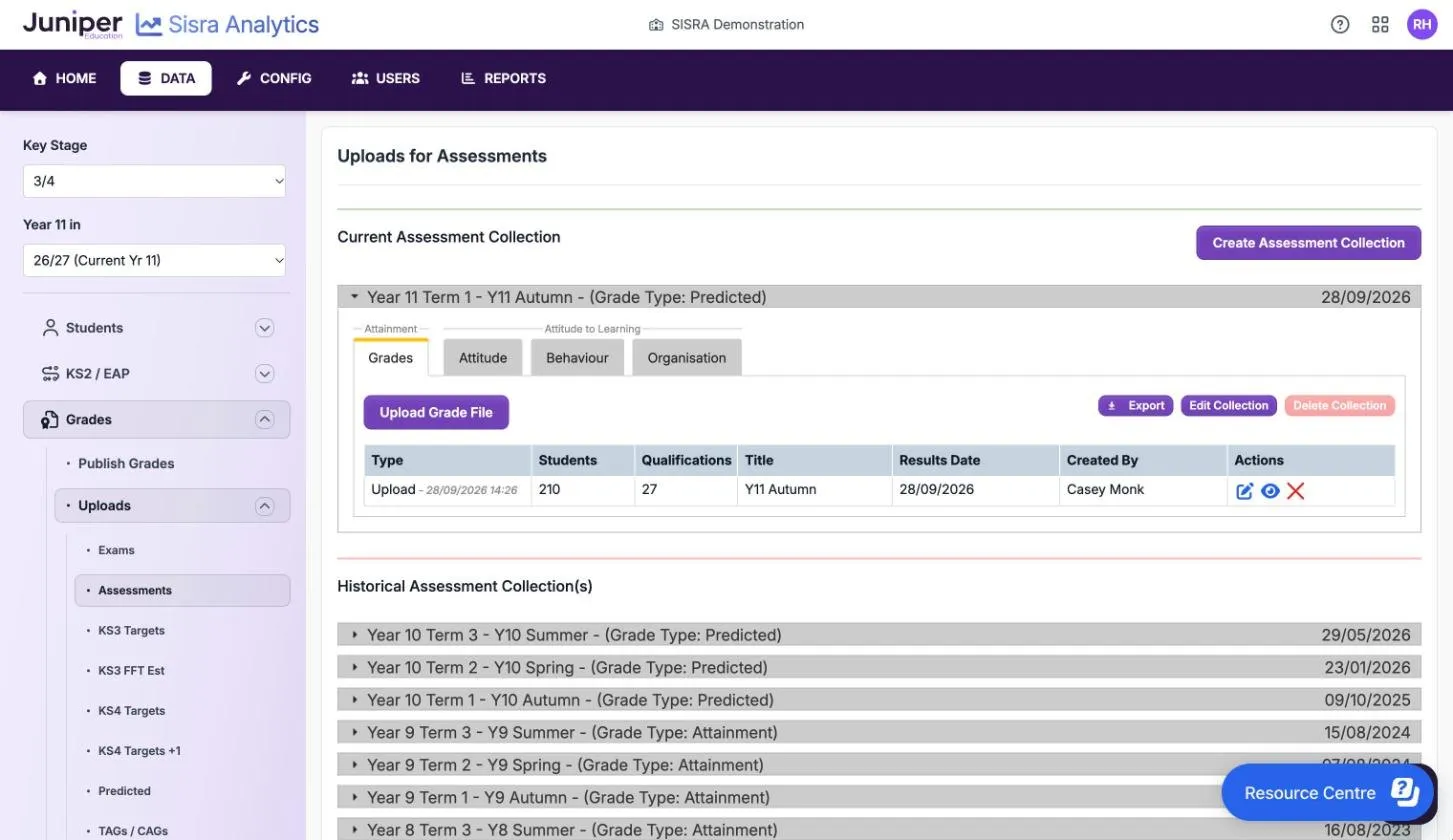
The term decides the expected grades used for on track analysis and the grade method each qualification uses, through its EAP. It also decides where the report sits on the reports home page. At KS3/4, it decides whether the report uses pupils’ KS3 or KS4 classes.
The grade types are Predicted, Attainment, Targets (End of Key Stage), Targets (End of Year), Mocks and Not Listed (excluded from MAT reporting). The grade type also decides whether the data reaches your trust’s Sisra Multi-School reports: Not Listed (excluded from MAT reporting) keeps it out.
To change a collection’s name, grade type, date, term or description later, select Edit Collection, save, then republish the collection. Delete Collection works only on a collection with no grades or AtL judgements in it.
Set a data set’s term and grade type
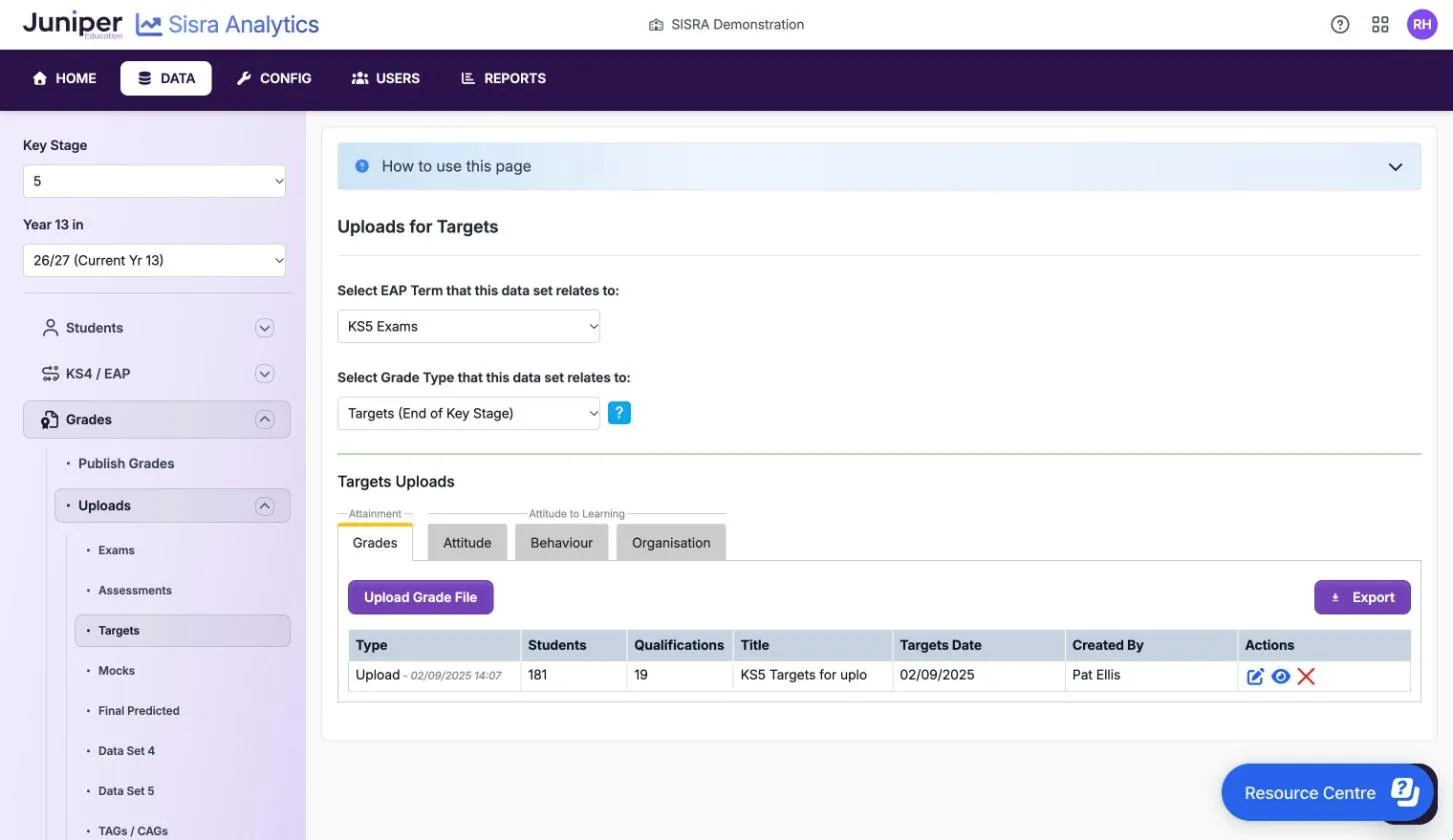
Section titled “Set a data set’s term and grade type”Each standalone data set apart from Exams has its own term and grade type. Set them before you upload: Upload Grade File is greyed out until you choose the term.
- Select Grades, then Uploads, then the data set.
- In Select EAP Term that this data set relates to:, choose the term, such as KS4 Exams for end of key stage targets.
- In Select Grade Type that this data set relates to:, choose the grade type.
Upload the file
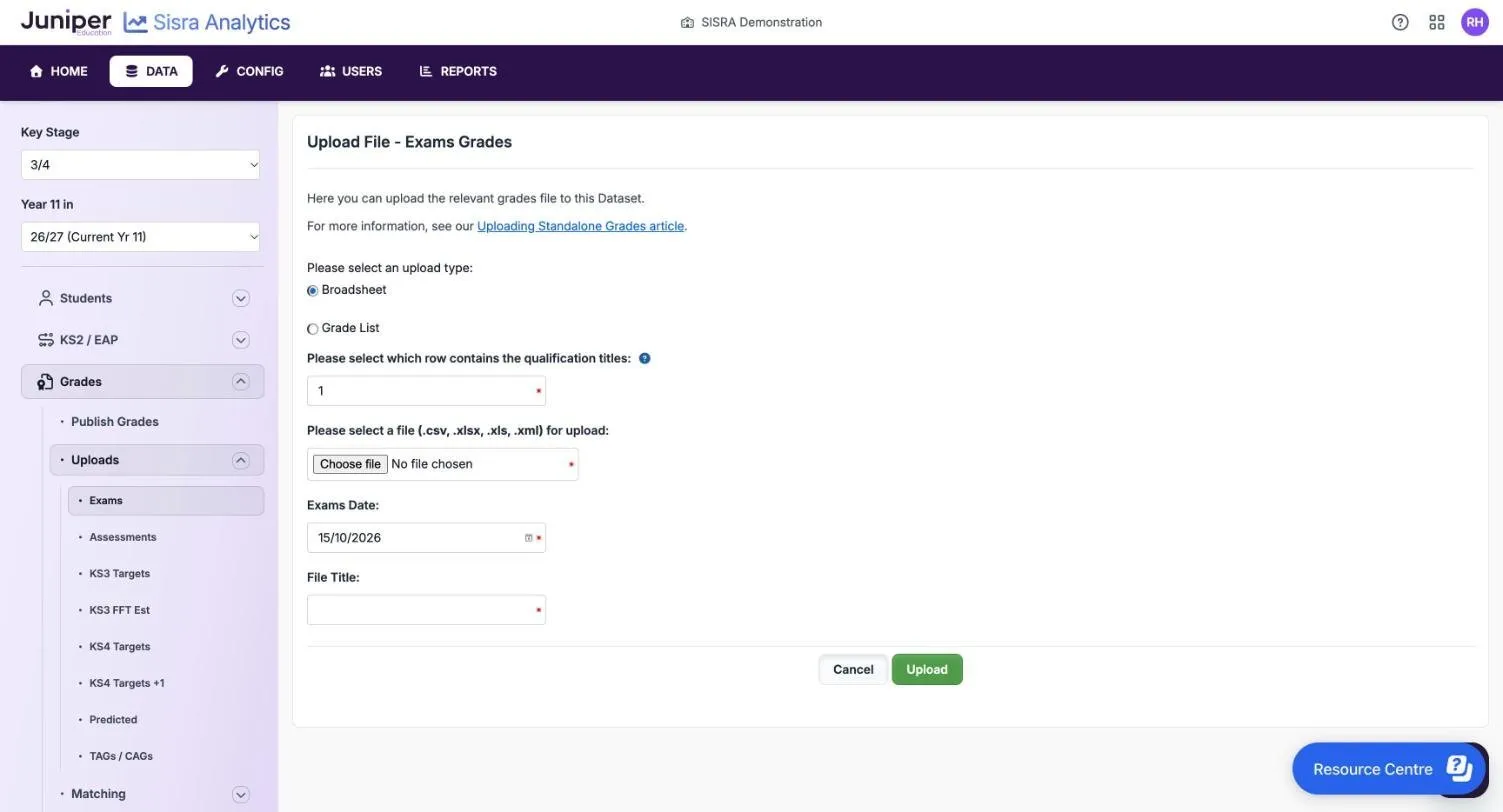
Section titled “Upload the file”- Select Grades, then Uploads, then the data set or Assessments. For a collection, open it.
- Select Upload Grade File. For a collection, check that Collection: shows the right one.
- In Please select an upload type:, choose Broadsheet or Grade List.
- For a broadsheet, enter the row that holds the qualification names in Please select which row contains the qualification titles:. Do not count blank rows at the top: Sisra removes them.
- Choose the file.
- Enter the date: Assessments Date: for a collection, or the data set’s date, such as Exams Date:.
- Enter a File Title: of 2 to 20 characters. It shows only in DATA.
- Select Upload.
At KS3/4, the date decides which grade counts as the first entry. See Record exam dates for first entry.
Map the columns
Section titled “Map the columns”On Column Mapping - Grade Data:
- Check that Student ID and Student Name are mapped to the right columns.
- If forenames and surnames are in separate columns, tick Student forename/surname in separate columns, then choose Surname first or Forename first.
- For a broadsheet, choose the first and last qualification columns. For a grade list, choose the qualification column and the grade column.
- Continue to the file health check.
Read the file health check
Section titled “Read the file health check”Sisra checks the file before it saves anything. Errors stop the upload; warnings let you carry on. Check that the counts in Upload Summary match what you expect, even when Sisra finds no problems.
| Button | What it does |
|---|---|
| Cancel the upload | Abandons the upload, so you can fix the file and start again |
| Back to mapping | Returns to the column mapping |
| Continue with the upload | Uploads the file, accepting any warnings |
| Continue with the upload and truncate any values | Shown instead of Continue with the upload when values are too long. Uploads the file and cuts them. |
File health check messages explains each message and what to do.
Confirm qualification names
Section titled “Confirm qualification names”If the file uses qualification names that the cohort does not have yet, Confirm Upload Qualification Names opens. It keeps naming consistent across the cohort. Names that match an existing qualification exactly merge without asking.
For each name in the list, choose either New, to create a qualification, or the existing qualification it belongs to. Then select Complete the upload.
| Name in the file | Choose | Result |
|---|---|---|
| English Lang | English Language | The grades join English Language |
| Mathematics | Maths | The grades join Maths |
| MFL Polish | New | A new qualification appears on the Matching page |
Every new qualification needs matching and a set of classes before you publish. At KS5, choose New when you upload A2 grades for the first time for a year 13 cohort, to keep them apart from the AS grades. If new names would take the cohort past 140 qualifications, Sisra says “The qualification limit has been exceeded (currently set to 140)”. Merge some names into existing qualifications instead.
Upload AtL judgements
Section titled “Upload AtL judgements”Attitude to Learning (AtL) judgements attach to a pupil’s or student’s grade in a qualification. Upload the grades file first, into the same data set or collection.
- Open the data set or collection and select the AtL category’s tab under Attitude to Learning, such as Attitude.
- Select the import button, which is named after the category, such as Import Attitude Judgements File.
- Choose the upload type and the file, then continue.
- Map Student ID, Student Name, and the qualification and judgement columns.
- Read the file health check.
- On Attitude to Learning / Qualification Pairing, pair each qualification in the file with a qualification that has grades, or choose Do Not Include.
- Check Attitude to Learning - Import Summary and complete the import.
Upload one file for each category. Each pupil or student can have one judgement per qualification in a data set or collection, and a file’s judgements replace any already there. Sisra matches a judgement by its short form or its text. To change a few judgements, use Grades Management: see Edit AtL judgements. Set up Attitude to Learning covers the categories.
Add grades you left out
Section titled “Add grades you left out”To add grades missed from an upload, upload a file of the missing grades only, into the same data set or collection. Both files publish as one report. For a few grades, use Add Grade in Grades Management instead. See Check and correct grades.
If you upload the whole file again instead, delete the first file afterwards, so that each grade is in the data set once.
Replace a file
Section titled “Replace a file”To refresh a set of grades, such as new targets:
- Upload the new file into the same data set or collection.
- Select the red cross next to the old file in Actions, and confirm.
- Republish the data set or collection.
Upload the new file first. If you delete the old file first, any qualification whose only grades were in it disappears from the Matching page, with its set-up. Deleting a file cannot be undone. To keep the old grades as well, upload the new file into a spare data set or a new collection.
Record exam dates for first entry
Section titled “Record exam dates for first entry”At KS3/4, a pupil’s first entry in a qualification counts in school measures, and the date of a file or a grade decides which entry is first. The rules are in the DfE’s Key stage 4 discounting and early entry guidance (2026) (GOV.UK, updated 5 October 2026). It says: “The date of the first (or only) examination for a qualification is taken as the entry date.”
- Upload banked results as they arrive, each file with its own Exams Date:, such as year 10 summer results, then November resits.
- If you upload a season’s results later, split the file by exam season.
- Where pupils take different pathways, or qualifications that discount each other, in one season, give each the date of its own exam. Examples are GCSE combined science alongside the separate sciences, and GCSE dance alongside a BTEC in dance. Use separate files, or one file and then change dates in Grades Management.
At KS5, the best grade counts, so dates matter less.
Record resits and remarks
Section titled “Record resits and remarks”The DfE treats remarks and resits differently, so Sisra does too.
| Event | What to do |
|---|---|
| Remark | Replace the grade. In Grades Management, select Manage Students, the pupil or student and Exams, then Edit Grades. Enter the new grade and save. |
| Resit | Add a second grade with the resit’s date. In Manage Students, choose the pupil or student and Exams, select Add Grade, then choose the qualification and enter the date and grade. |
Republish the Exams data set afterwards. When there are two grades in one qualification:
| Key stage | School measures | Pupil or student level |
|---|---|---|
| KS3/4 | The grade with the earliest date (first entry) | The best grade |
| KS5 | The best grade | The best grade |
If something goes wrong
Section titled “If something goes wrong”Upload Grade File is greyed out. Choose the data set’s term first.
Delete Collection is greyed out. The collection still holds grades or AtL judgements. Delete its files and judgements first. If judgements remain with no grades, upload any grades file so that the AtL tabs open. Select Delete Judgements in each tab, then delete the grades file.
A report still shows the old grades. Two files hold grades for the same qualification. Delete the old file and republish.
Sisra opens a half-finished upload. At KS5, if you leave an upload part-way through, Sisra takes you back to that step the next time you open the data set’s uploads.