


 Sonar Tracker
Grades
Match qualifications in KS3/4
Every qualification in a KS3/4 cohort appears once on the Qualification Matching page, whichever data sets hold its grades. There you choose its Expected Attainment Pathway (EAP), which sets its grade method. You also link it to its DfE qualification number (QN), which tells Sisra Analytics how it counts in headline measures. Match every included qualification before you publish grades.
Before you start
Section titled “Before you start”You need:
- an authority group with Access Data Section, such as Admin
- at least one EAP for the cohort. Without one, “You cannot access the matching page unless you have at least 1 EAP.”
- at least one grades file uploaded, which creates the qualifications
- any faculties you want to use, set up in CONFIG
Set up EAPs for KS3/4 and Upload grades cover the first steps.
Read the Matching page
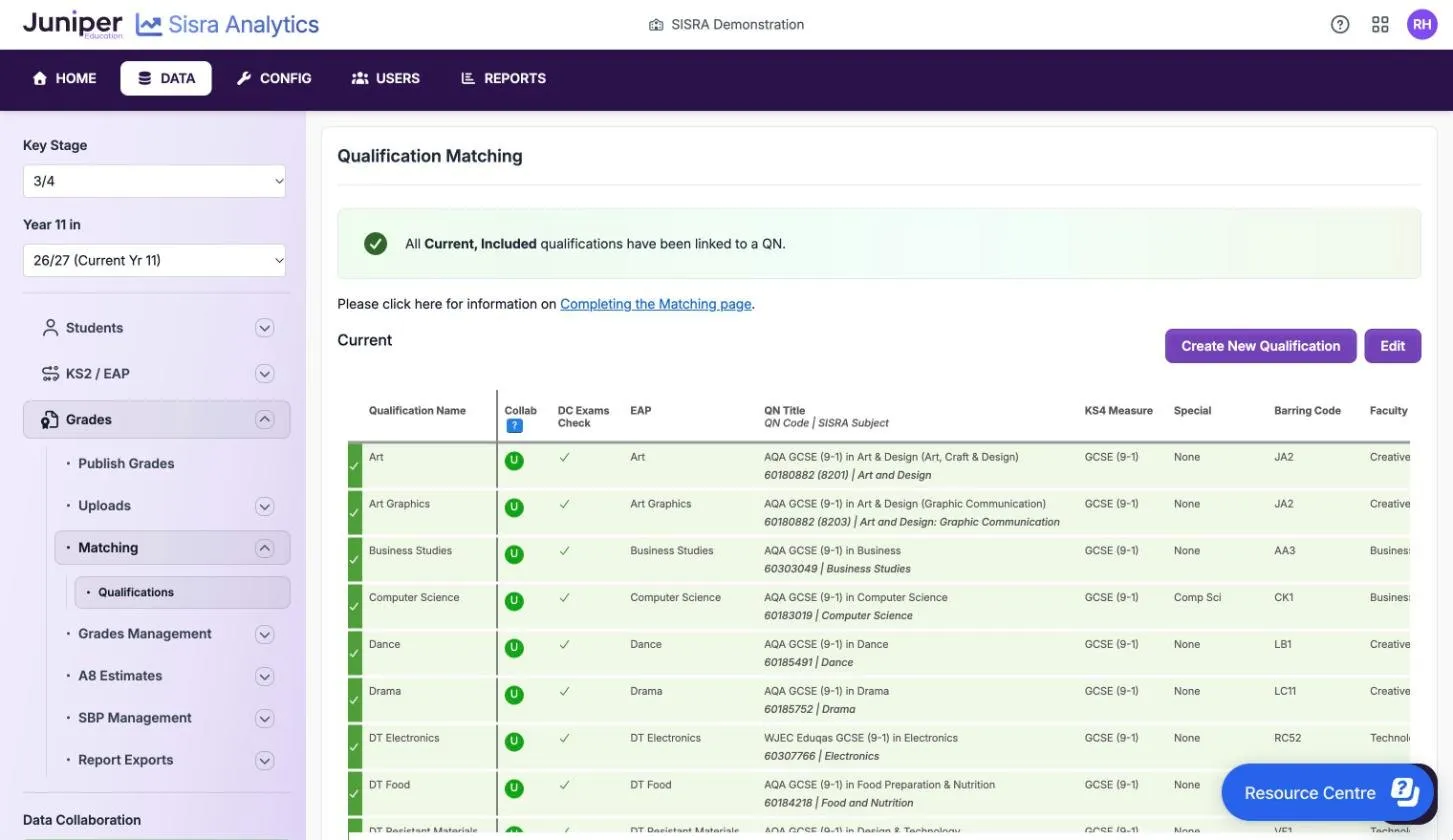
Section titled “Read the Matching page”Open the cohort in DATA, then select Grades, Matching and Qualifications. Qualifications that pupils take now are under Current, and older ones under Historical. When every current, included qualification has a QN, a green banner says so.
Each row has a coloured left edge. Green with a tick means the qualification is fully matched. A newly created qualification starts grey.
| Column | What it shows |
|---|---|
| Qualification Name | The name from the grades file, which every report uses |
| Collab | Whether the qualification counts in Sisra Data Collaboration: U, C or X. See Read the Data Collaboration status. |
| DC Exams Check | A tick when the grade method matches the official points for the QN, or a magnifying glass when it may not |
| EAP | The EAP, which sets the grade method in each term |
| QN Title | The title of the linked QN, with the QN code and Sisra subject under it |
| KS4 Measure | How the qualification counts, such as GCSE (9-1) or Non-GCSE |
| Special | Its role in the Attainment 8 and English Baccalaureate (EBacc) measures, such as English Lang or Comp Sci |
| Barring Code | Its discount code. Qualifications with the same code discount each other. |
| Faculty | The faculty it is grouped under in the reports |
| Predecessor | An earlier qualification whose grades fill gaps in its flight paths and tracker |
Match qualifications
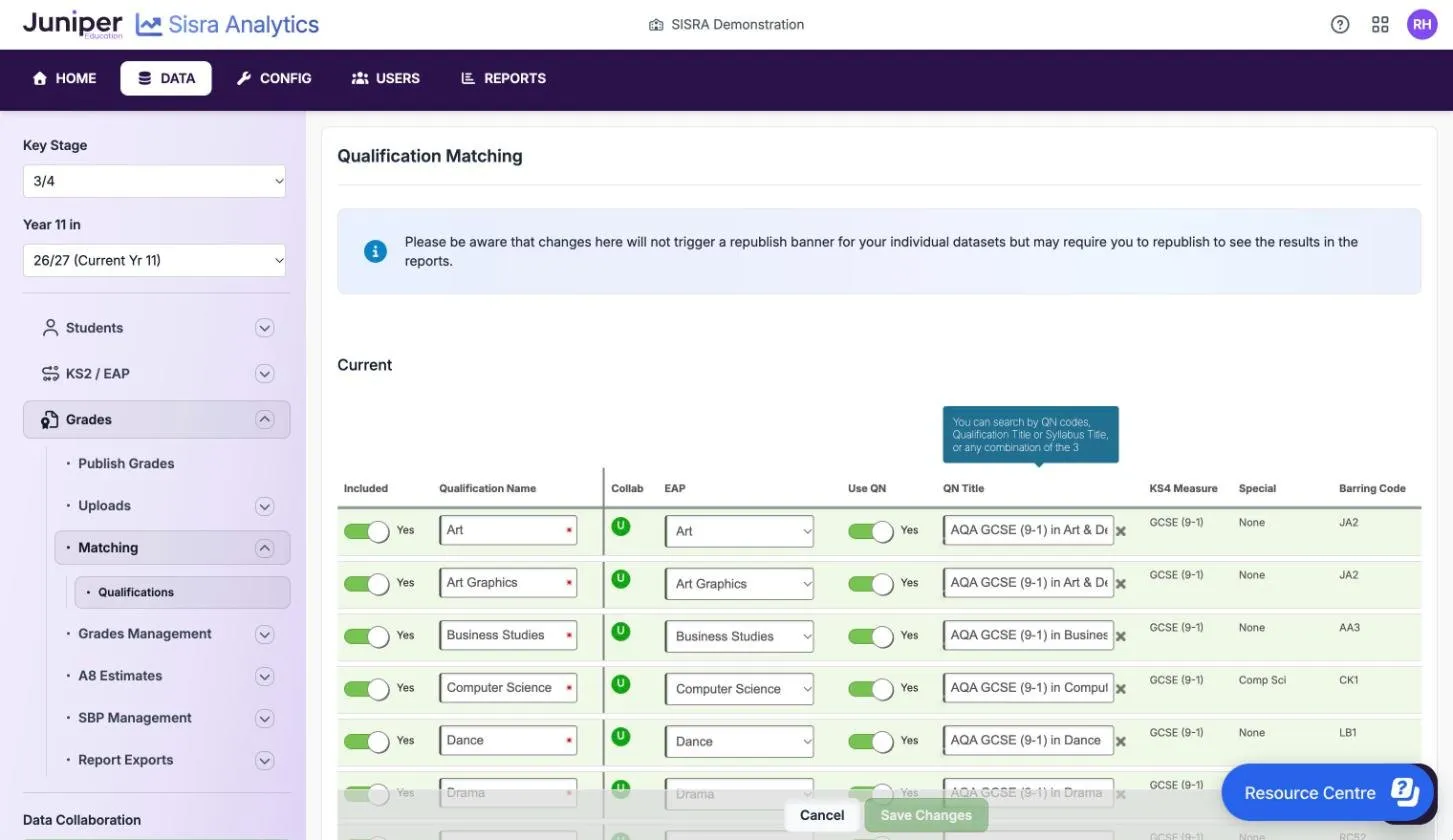
Section titled “Match qualifications”- Select Edit.
- For each qualification, set Included to Yes, or to No to leave it out of every report.
- Choose its EAP.
- Set Use QN to Yes, type part of the QN code, qualification title or syllabus title in QN Title, and choose the qualification from the list.
- Choose a Faculty and a Predecessor if you use them.
- Set Current to No for a qualification pupils no longer take.
- Select Save Changes.
- Republish every grades data set and assessment collection in the cohort.
When you choose a QN, Sisra fills in KS4 Measure, Special and Barring Code. An excluded qualification needs no more matching. Edit mode warns that changes here “will not trigger a republish banner for your individual datasets”, so republish without waiting for a prompt.
A historical qualification still appears in reports if Included is Yes. Setting Current to No also takes it out of Data Collaboration.
Find a qualification’s QN
Section titled “Find a qualification’s QN”The QN is on the exam board’s specification and in the DfE’s key stage 4 qualifications and discount codes list (GOV.UK). Use the list for the year the pupils finish KS4. A qualification counts in headline measures only if it is on that year’s list.
If the qualification is on the list but Sisra does not find it, contact Juniper support. If it is not on the list, match it as unapproved: see Match unapproved and level 2 qualifications.
Set the measure, special and barring code by hand
Section titled “Set the measure, special and barring code by hand”For a qualification with no QN, set Use QN to No and fill in the three columns yourself.
| KS4 Measure | Use it for |
|---|---|
| GCSE (9-1) | GCSEs graded 9 to 1 |
| Non-GCSE | Approved qualifications that are not GCSEs, such as BTEC Tech Awards and Cambridge Nationals |
| AS Level | AS levels taken in KS4 |
| L3 Asset Lang, L3 FSMQ | Level 3 Asset Languages and Free Standing Mathematics Qualifications |
| Unapproved | Qualifications that do not count in school performance measures |
| N/A | Qualifications outside these measures, such as KS3 subjects |
| GCSE (A*-G) | Older GCSEs graded A* to G, for past cohorts |
The Special column marks the qualifications that fill particular Attainment 8 and EBacc slots. The most used are English Lang, English Lit, Maths, Science (combined science), Bio/Chem/Phys, Comp Sci, Language and Humanity (history, ancient history and geography). Leave it as None for everything else, including religious studies. A wrong or missing special changes the Attainment 8 and EBacc figures, and the publishing health check does not find it.
Give qualifications that discount each other the same Barring Code. Use the DfE’s discount codes from the same list, or your own codes.
Match unapproved and level 2 qualifications
Section titled “Match unapproved and level 2 qualifications”An unapproved qualification still appears in qualification and class reports, but not in headline figures.
- Select Edit.
- In QN Title, type
Unapprovedand choose the option for the kind of qualification, such as Unapproved Religious Studies for a short course in religious studies. - Choose an EAP. Every included qualification needs one, even an unapproved one.
- Select Save Changes, then republish the grades.
Level 2 Further Maths is not on the DfE’s list, so a search for its QN finds nothing. Search QN Title for Unapproved Maths and choose Unapproved Maths Qualification.
Use the DC Exams Check
Section titled “Use the DC Exams Check”For each qualification with a QN, the DC Exams Check compares your grade method with the official grades, points and entries for that QN. Sisra checks the method the EAP uses for KS4 Exams. A magnifying glass means it found a difference, which does not always mean you must change anything.
- Select the magnifying glass in DC Exams Check.
- Compare the two tables for each grade method. Your method’s grades, points and entries are on the left, and the official values on the right.
- A green tick means they match. Where there is no tick, fix the grade method or the EAP, using the next table.
| One EAP for every qualification affected? | A suitable grade method in CONFIG? | What to do |
|---|---|---|
| Yes | Yes | Edit the EAP to use that method |
| Yes | No | Create a grade method, then edit the EAP to use it |
| No | Yes | Edit each EAP to use that method |
| No | No | Create a grade method, then edit each EAP to use it |
The check compares points and entries, not names, so Dist for Distinction is fine. A grade with 0 entries does not appear in your table, so it looks missing: a U should have 1 entry. Extra grades that are not official, such as W, do no harm if you never upload them to Exams.
Different qualifications can give the same grade different points. The level 1 pass is worth 1.75 points in a BTEC First Award but 1.25 in a BTEC Tech Award. A school with both needs two grade methods and two EAPs.
Read the Data Collaboration status
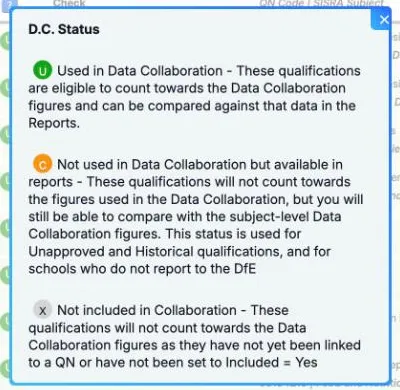
Section titled “Read the Data Collaboration status”If your school takes part in Sisra Data Collaboration, the Collab column shows each qualification’s status. Select ? in the column heading for the key.
| Status | What it means |
|---|---|
| U (green) | “Used in Data Collaboration”: the qualification counts towards the collaboration figures and can be compared with them in the reports |
| C (orange) | “Not used in Data Collaboration but available in reports”: it does not count towards the figures, but you can compare it with subject-level figures. This applies to unapproved and historical qualifications, and to schools that do not report to the DfE. |
| X (grey) | “Not included in Collaboration”: it does not count, because it has no QN or Included is not Yes |
Every current qualification needs a QN before you can publish with Data Collaboration. Take part in Sisra Data Collaboration covers the rest of the set-up.
Create a qualification
Section titled “Create a qualification”You do not need to create a qualification before uploading its grades: an upload with a new name creates it. Create one by hand when you will enter a few grades yourself, such as for a qualification taken off site.
- Select Create New Qualification.
- Enter a general Qualification Name:, such as
Arabic. - Select Create.
The new qualification starts grey. Match it, assign it to a set of classes, then add its grades in Grades Management. Manage classes and assign qualifications covers classes.
Rename a qualification
Section titled “Rename a qualification”- Select Edit.
- Type the new name in Qualification Name.
- Select Save Changes, then republish every grades data set.
Keep names the same from year to year, so that the qualification trends reports line up.
If something goes wrong
Section titled “If something goes wrong”Matching is greyed out in the menu. The cohort has no grades or no EAP yet, or data is publishing. Hover over it to see why.
Save Changes does nothing. An ad blocker or content filter, such as uBlock Origin, can stop the save. Try a private browser window, and ask your IT team to allow Sisra.
“Sorry, you have exceeded the maximum number of qualifications allowed for this cohort”. A KS3/4 cohort can have up to 140 qualifications. Merge duplicates, or delete qualifications you created by mistake.
The reports have not changed. Changes on this page reach the reports only when you republish the grades.