


 Sonar Tracker
Sisra Multi-School
Get school data into Multi-School
Sisra Multi-School shows a school’s data only after the school publishes it in Sisra Analytics, and only if the publish passes Multi-School’s checks. Most of the work is in each school’s Sisra. This page lists what each school needs to do, how to add a school, and how a Juniper Admin then shows the data to staff.
Before you start
Section titled “Before you start”You need:
- for the Sisra steps, an authority group with Access Data Section at each school, such as Admin
- for the Multi-School steps, the Juniper Admin role
- each school’s cohort set up as normal: student data, baselines, Expected Attainment Pathways (EAPs) and matching
If you cannot open DATA at a school, send this page to that school’s Sisra administrator. Get started as a Sisra administrator covers the normal set-up.
Check what each school needs in Sisra
Section titled “Check what each school needs in Sisra”Sisra sends a school’s grades to Multi-School when the school publishes them, if all of these are true.
| Requirement | Where in Sisra | Key stage |
|---|---|---|
| Key filters mapped for the cohort: Disadvantaged, Gender and SEN | Students > Key Filter Mapping | KS3/4 and KS5 |
| Every current, included qualification linked to its QN (qualification number) | Grades > Matching > Qualifications | KS3/4 and KS5 |
| KS2 core subjects nominated. The checks on a grades publish test this only for cohorts up to 23/24. Publish KS2 / EAP still checks the core subjects for later cohorts, and from 26/27 Progress 8 needs them | KS2 / EAP > Baselines > Baseline Management | KS3/4 |
| A grade type other than Not Listed (excluded from MAT reporting) | Grades > Uploads | KS3/4 and KS5 |
| A term of Year 10 Term 1 or later | Grades > Uploads | KS3/4 |
| A cohort of 21/22 or later | The cohort list, such as 26/27 (Current Yr 11) | KS3/4 and KS5 |
| Grades published with headlines | Grades > Publish Grades | KS3/4 and KS5 |
| The school linked to your trust, and at KS5 a trust subscription to KS5 reports | Set up by Juniper Education | KS3/4 and KS5 |
Map key filters
Section titled “Map key filters”Key filter mapping matches each school’s own filter values to Sisra’s standard values. It makes Gender, Disadvantaged and SEN mean the same in every school, so the trust’s filters work. For SEN, for example, every school maps its values to E - EHC plan, K - SEN Support and N - None, plus S - Statement at KS5.
- In DATA, choose the key stage and the cohort.
- Select Students, then Key Filter Mapping.
- Map Disadvantaged, Gender and SEN in turn, as Map key filters describes.
- Publish student data, then republish the cohort’s grades.
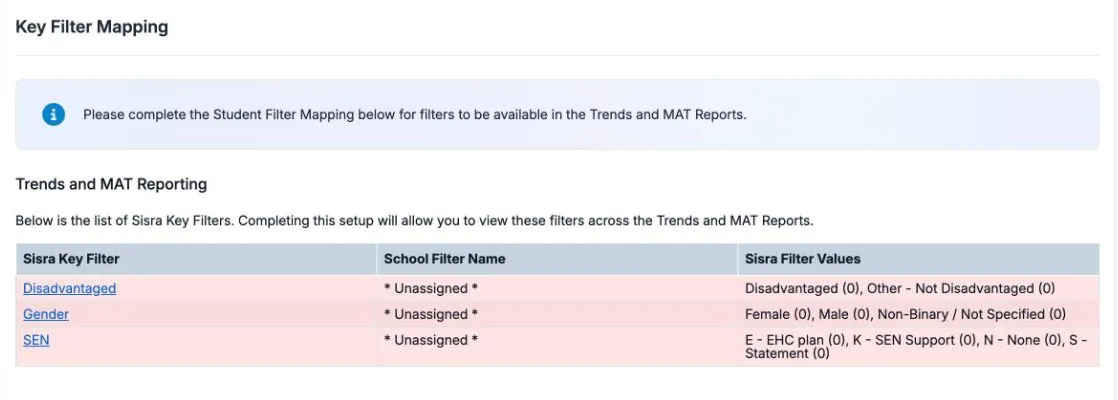
Mapping can show as incomplete again after you import new filter values, edit a pupil’s or student’s values, or change a status. Check the page before each publish for the trust.
Link every qualification to its QN
Section titled “Link every qualification to its QN”Every qualification that is current and included on the Matching page needs its QN. At KS3/4, a green banner then reads “All Current, Included qualifications have been linked to a QN”. At KS5, every included row on the Matching List is green.
A wrong QN changes the figures too. For example, a chemistry GCSE with the wrong QN does not count towards the biology, chemistry and physics pathway in Attainment 8. See Match qualifications in KS3/4 and Match qualifications in KS5.
Check the Data Collaboration panel at KS3/4
Section titled “Check the Data Collaboration panel at KS3/4”At KS3/4, the Data Collaboration panel at the bottom of the DATA menu checks most of these settings at once. It does so only if the school has opted in to Sisra Data Collaboration. Otherwise the panel shows Action Required, and you check each setting on its own page.
Juniper advises that Setup and Publish both show 100% Complete before a school publishes for the trust. Setup covers Key Filter Mapping, Core Subject Setup and Qualification Matching. Publish covers publishing student data and KS2 / EAP data.
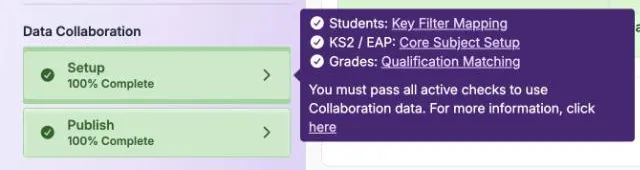
The 24/25 and 25/26 cohorts have no KS2 results, so they do not need Core Subject Setup. They still need key filter mapping and matching.
Set a grade type for each data set and collection
Section titled “Set a grade type for each data set and collection”Multi-School groups each school’s data by term and grade type. So the grade type decides which data collection a school’s grades join. Choose the type that describes the grades.
| Grade type | Use it for |
|---|---|
| Predicted | The grades pupils or students are predicted to achieve, based on their work so far |
| Attainment | Working-at grades: the standard reached so far |
| Targets (End of Key Stage) | Targets for the end of KS4 or KS5 |
| Targets (End of Year) | Targets for the end of the school year |
| Mocks | Mock exam results |
| Exams | Exam results. The Exams data set always has this type |
| Not Listed (excluded from MAT reporting) | Grades that fit none of the other types. They stay out of Multi-School |
Set the grade type of a data set
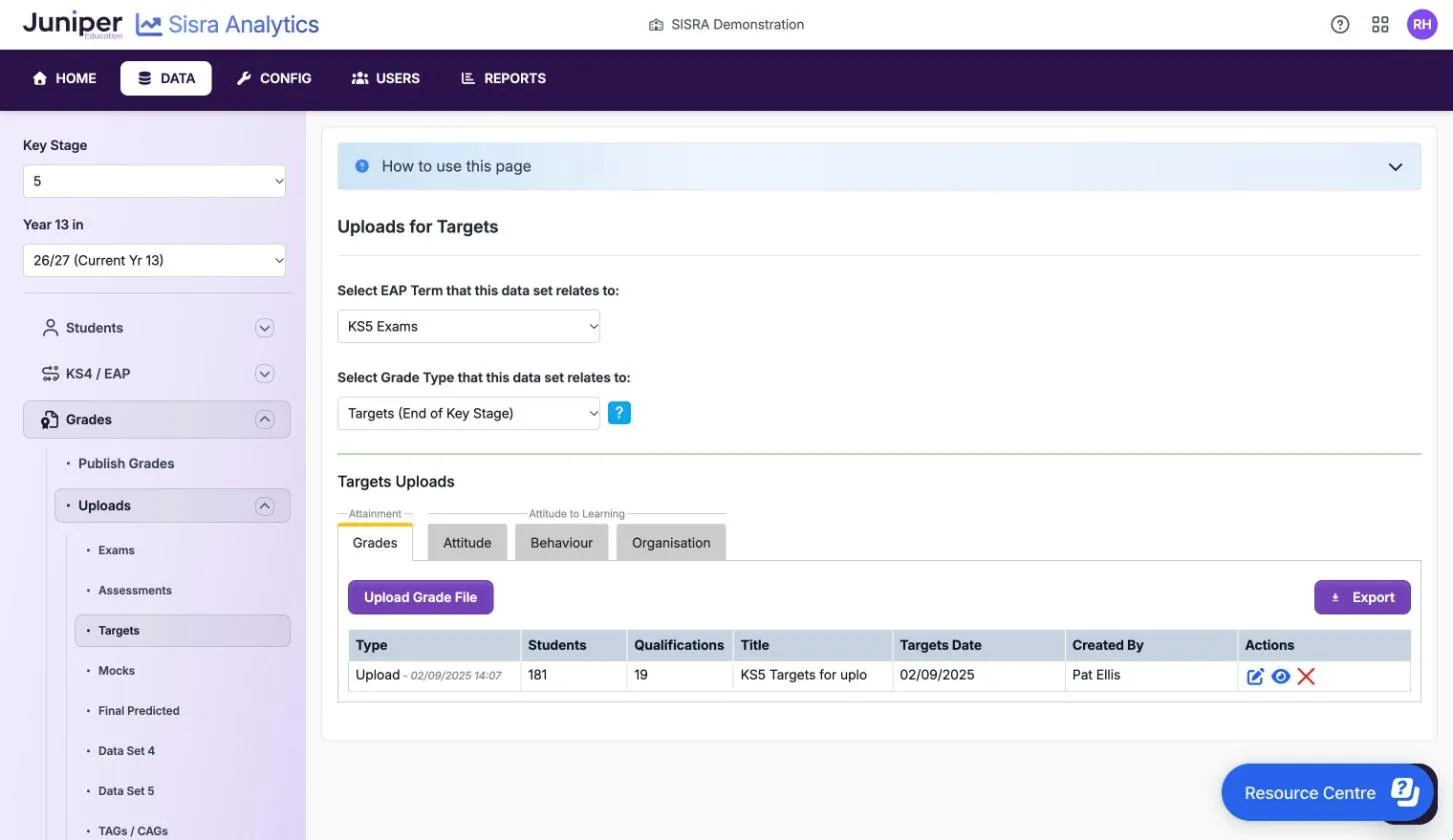
Section titled “Set the grade type of a data set”Each standalone data set, such as Targets or Mocks, has one term and one grade type.
- In DATA, choose the key stage and the cohort.
- Select Grades, then Uploads, then the data set.
- Choose the grade type in Select Grade Type that this data set relates to:.
Sisra saves the choice as soon as you make it. Check the term in Select EAP Term that this data set relates to: at the same time.
Set the grade type of an assessment collection
Section titled “Set the grade type of an assessment collection”- Select Grades, then Uploads, then Assessments.
- Open the collection and select Edit Collection.
- Choose the Grade Type, then select Save.
Each collection’s bar shows its term and grade type, such as “Year 11 Term 1 - Y11 Autumn - (Grade Type: Predicted)”. Create Collection asks for a Grade Type: too, so you can set it when you create a collection.
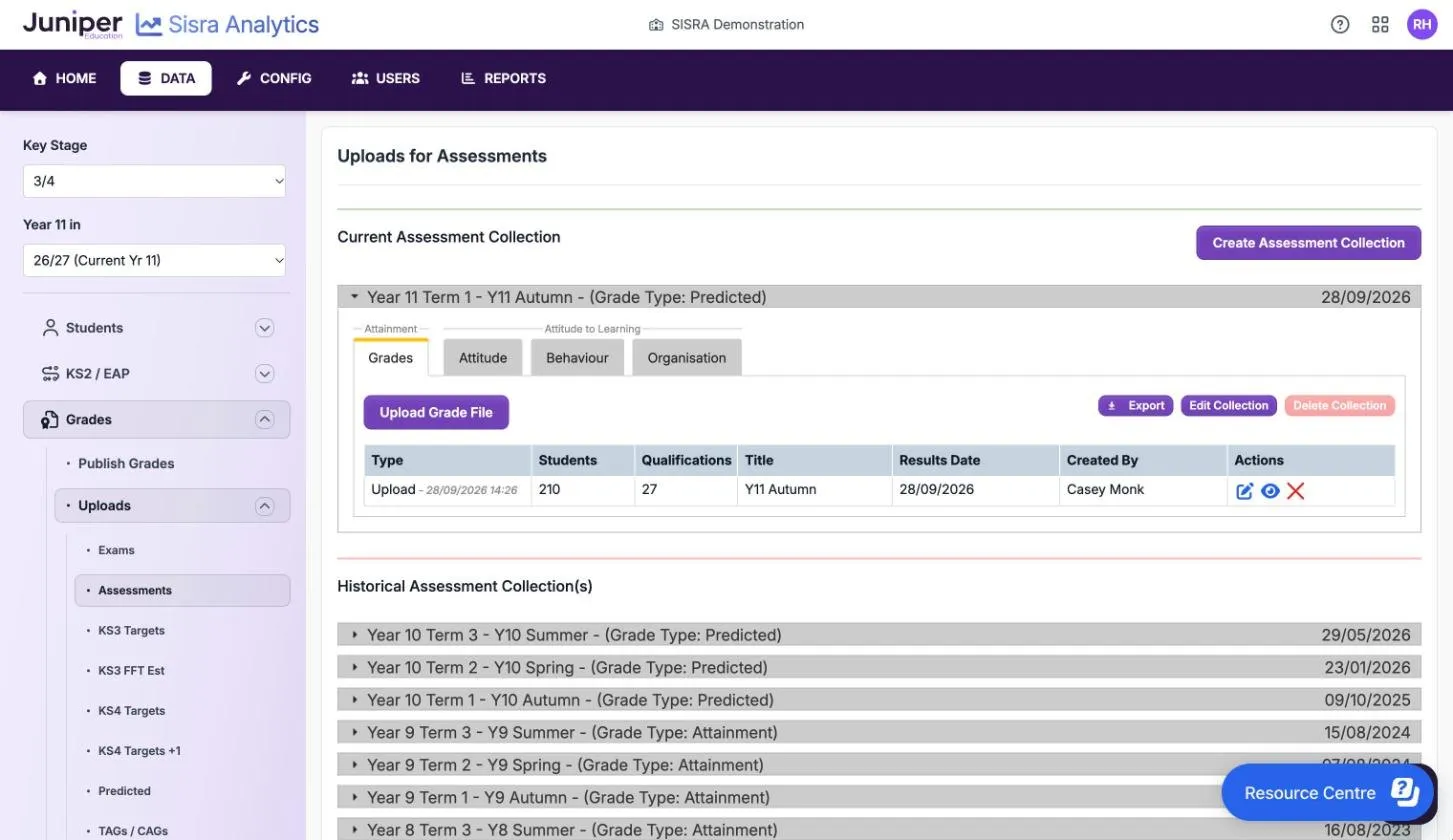
After you change a grade type, republish the data set or collection.
Publish with headlines
Section titled “Publish with headlines”Multi-School takes only data published with headline measures.
- Select Grades, then Publish Grades.
- Select Publish for the data set or collection.
- Turn on Headlines. At KS5 the switch is Produce DfE-based Headlines figures.
- At KS3/4, choose the DfE Rules from: year and the A8 Estimates: and VA Estimates: the trust has agreed.
- Select Publish.
Agree the estimates and the Data Collaboration year across the trust, so every school in a data collection uses the same ones. As at 12 October 2026, Juniper advises the 2024 official Attainment 8 (A8) and value added (VA) estimates and 2024 Collab for the 26/27 cohort onwards. Publish data to the reports explains each option.
On Publish Grades, a data set that passed the checks shows an icon titled “This data passed MAT validation checks”. The icon appears only for schools linked to a trust.
Read the KS5 MAT check
Section titled “Read the KS5 MAT check”At KS5, the publish dialog has a MAT Contribution section. It shows MAT Contribution Check Passed if the data will reach Multi-School, and MAT Contribution Check Not Passed if it will not. Select View Details to see why.
| What View Details says | What to do |
|---|---|
| “Key Filter Mapping has not been completed for this cohort” | Map the key filters, publish student data, then publish again |
| The grade type is not set, or is Not Listed | Set a grade type, then publish again |
| “Your school does not have access to MAT Reporting” | Ask Juniper to link the school to your trust |
| The data set is being published without headlines | Turn on Produce DfE-based Headlines figures |
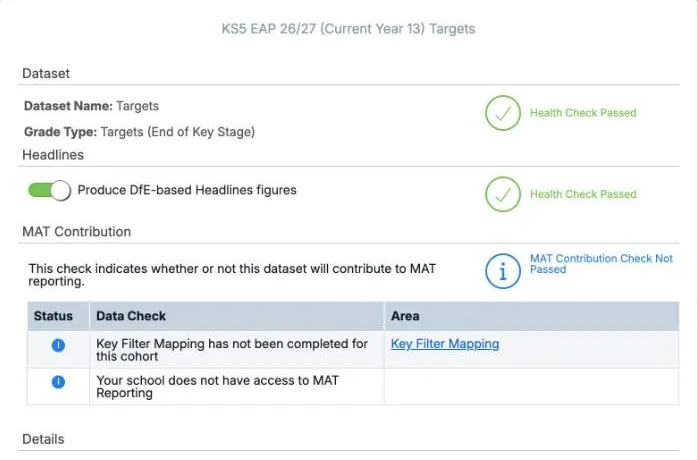
You can still publish when the check does not pass. The data then appears in the school’s own reports but not in Multi-School.
Add a school to Multi-School
Section titled “Add a school to Multi-School”- Contact Juniper before the school starts publishing for the trust. Juniper’s onboarding team links the school to your trust.
- In Multi-School, select Settings, then School Joining Dates, and check the school’s Joining Date.
- Ask the school’s Sisra administrator to work through Check what each school needs in Sisra.
- Ask them to publish, or republish, each data set and collection the trust wants.
- In Data Collection Management, check that the school now contributes.
Anything the school published before it was linked does not reach Multi-School until it is published again. To change a joining date, select the box under Joining Date, or the calendar icon next to it. KS4 figures use these dates when you apply DfE weighting.
Choose which data collections staff see
Section titled “Choose which data collections staff see”Each new data collection starts with Display in Reports set to No, so staff do not see partial data while schools are still publishing. A Juniper Admin turns each one on when it is complete.
- Select Settings, then Data Collection Management.
- Choose the Key Stage and Year Group.
- Check Schools Contributing for each data collection.
- When every school that should contribute is there, set Display in Reports to Yes.
- Mark one collection as the Default for the year group, such as the current term’s.
Staff land on the default collection when they open the reports or switch year group. A default collection is always displayed: its Display in Reports setting stays at Yes while it is the default. Each year group has its own settings.
Check the options each school published with
Section titled “Check the options each school published with”Select a data collection’s name to see which schools contribute to it. For each school, the page lists its own name for the data set or collection and the options it was published with. They include the DfE rules year, A8 Estimates and Data Collaboration at KS4, or Value Added Data Year at KS5.
If one school used different estimates from the others, ask it to republish. Mixed estimates make the trust’s Progress 8 or value added hard to interpret.
Why data can be missing
Section titled “Why data can be missing”Sisra sends a school’s data when the school publishes grades. If the data is not in Multi-School once publishing has finished, check this table.
| What you see | Likely cause | What to do |
|---|---|---|
| A data collection is not in the report’s list | Its Display in Reports setting is No | Set it to Yes in Data Collection Management |
| A school is missing from Schools Contributing | Its publish failed a check: no headlines, no grade type or Not Listed, key filters not mapped, or a qualification without a QN | Fix the setting in Sisra and republish |
| A school’s data is in a different data collection | It published with a different term or grade type | Correct the term or grade type and republish |
| A school’s figures are out of date | Multi-School keeps only the latest publish for each cohort, term and grade type. A later publish with the same term and grade type replaced the one you wanted | Republish the data set or collection you want, so it is the latest |
| A school fails the checks although its key filters were mapped | New filter values, edited values or a status change made the mapping incomplete again | Map the new values, publish student data, then republish the grades |
| Data for years 7 to 9 is missing | Multi-School takes KS4 data only from Year 10 Term 1 onwards | Nothing: Multi-School has no KS3 reports |
| An older leavers cohort is missing | Multi-School takes cohorts from 21/22 onwards, at both key stages | Nothing: earlier cohorts cannot be added |
| The KS5 check says “Your school does not have access to MAT Reporting” | The school is not linked to the trust, or the trust has no KS5 reports | Contact Juniper |
| The KS5 check says the MAT subscription information is unavailable | Sisra could not reach Multi-School to check | You can still publish, but Sisra treats the check as not passed, so that publish does not reach Multi-School. Publish again later, then check Schools Contributing |
| Progress 8 or the Subject Progress Index (SPI) is blank for 24/25 or 25/26 | These cohorts have no KS2 results | See Progress 8 for cohorts without KS2 results |
| A KS5 school shows no value added | Its value added national data is not set up | The school follows Set up KS5 value added |