


 Sonar Tracker
Publishing
Export published data
Sisra Analytics can export the grades in any published report as a CSV (comma-separated values) file. Use it to check figures or to work on the grades in a spreadsheet. Administrators export from Report Exports in DATA. Staff who can open student-level reports can download most of the same broadsheets from the reports home.
Before you start
Section titled “Before you start”You need:
- an authority group with Access Data Section for Report Exports and Export Students
- View Student Report or Access Data Section for Broadsheet Exports on the reports home
- the data set or collection published, because Sisra exports only published grades
Export a published data set
Section titled “Export a published data set”- Open the cohort in DATA, as in Open a cohort in DATA.
- Select Grades, then Report Exports, then Report Exports.
- In Select a data set to continue., choose the data set. For Assessments, choose the collection as well: the label becomes Select a data set and collection to continue.
- Select Export next to the export you need.
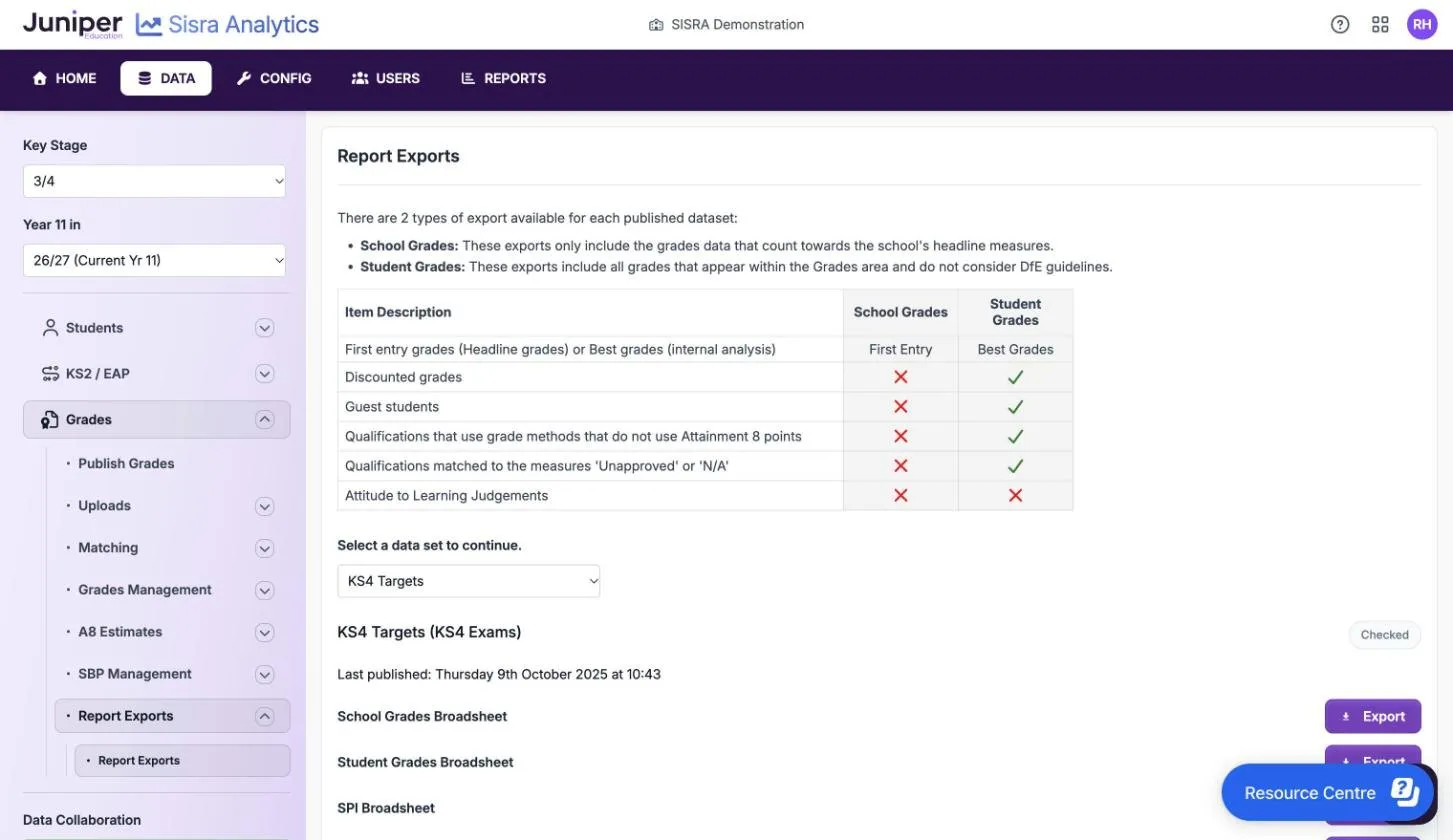
The page shows the data set’s status and when it was last published, so you can check you have the latest version. Each broadsheet has a row for each pupil or student and a column for each qualification.
School grades or student grades
Section titled “School grades or student grades”KS3/4 has two broadsheets of grades. School Grades Broadsheet holds only the grades that count towards the school’s headline measures. Student Grades Broadsheet holds every grade that appears in the Grades area, and ignores the DfE’s rules.
| What is included | School Grades | Student Grades |
|---|---|---|
| Where a pupil has two grades in a qualification | The first entry, as headline measures use | The best grade, for internal analysis |
| Discounted grades | No | Yes |
| Guest pupils | No | Yes |
| Qualifications whose grade method has no Attainment 8 points | No | Yes |
| Qualifications matched to the measures ‘Unapproved’ or ‘N/A’ | No | Yes |
| Attitude to Learning (AtL) judgements | No | No |
Use School Grades Broadsheet to see the grades behind a headline figure. Use Student Grades Broadsheet to see the grades staff see in the Grades area.
The exports for each key stage
Section titled “The exports for each key stage”| Export | Key stage | What it holds | When you can export it |
|---|---|---|---|
| School Grades Broadsheet | KS3/4 | Grades that count towards headline measures | The data set uses Attainment 8 points and was published with Headlines on and a DfE Rules from: year |
| Student Grades Broadsheet | KS3/4 and KS5 | Every grade in the Grades area | Always |
| SPI Broadsheet | KS3/4 | Each pupil’s Subject Progress Index (SPI) in each qualification | The data set was published with Sisra Data Collaboration data |
| Student Points Broadsheet | KS3/4 and KS5 | The points for each grade | Always |
| Student Value Added Broadsheet | KS5 | Each student’s value added (VA) score in each qualification | The data set includes value added |
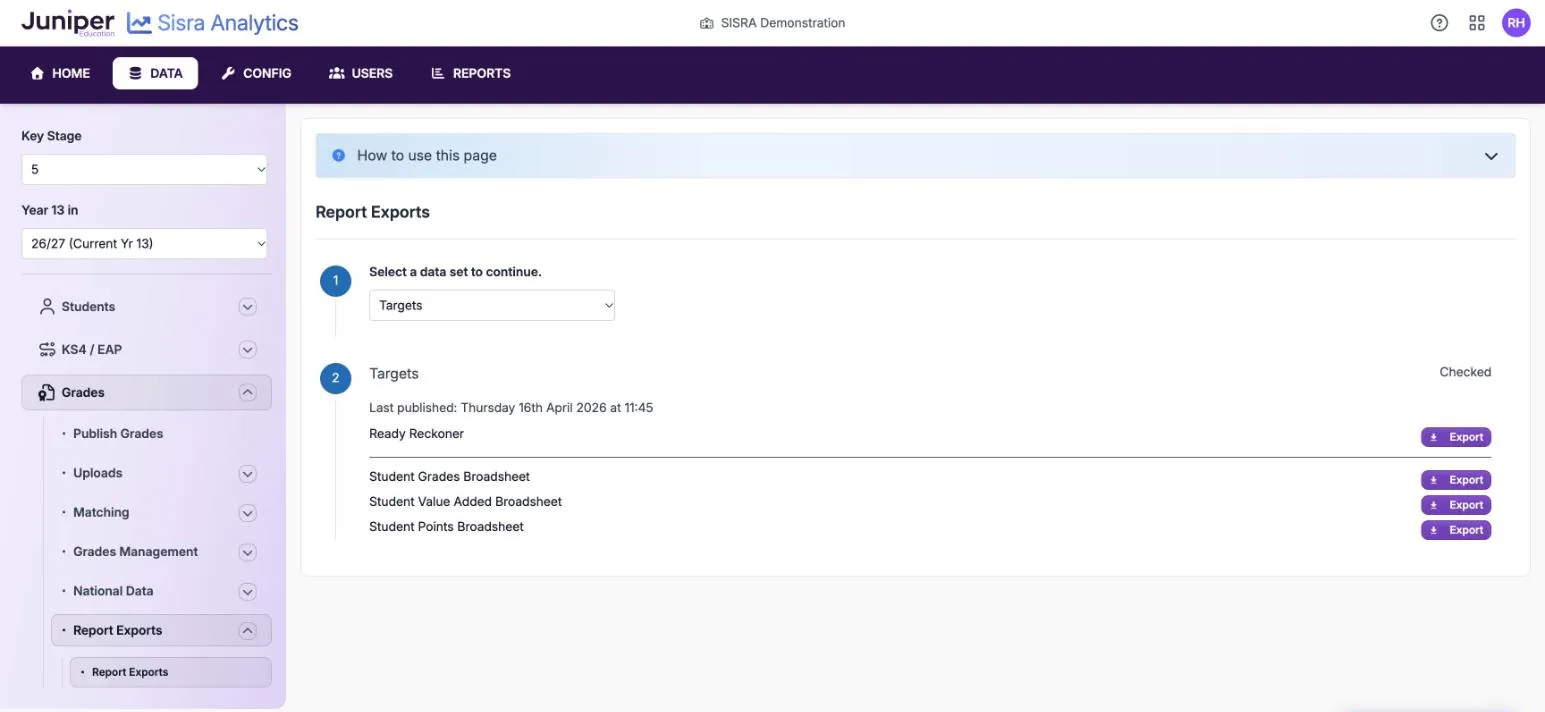
| Ready Reckoner | KS5 | Grades set out for the DfE’s value added ready reckoner | See the next section |
The KS5 ready reckoner
Section titled “The KS5 ready reckoner”Ready Reckoner exports the grades in a published KS5 report in the layout of the DfE’s value added ready reckoner. Use it to check Sisra’s value added figures with the DfE’s tool. It includes only grades that can count in value added, so it leaves out:
- unapproved and discounted grades
- qualifications with no value added subject on the Value Added national data page
- students without core baselines
Set up KS5 value added explains national data and core baselines.
Export from the reports home
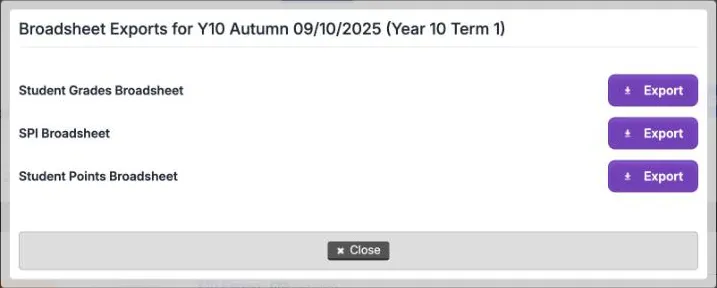
Section titled “Export from the reports home”On REPORTS, Broadsheet Exports opens the same broadsheets for a report, except School Grades Broadsheet and Ready Reckoner, which are only in DATA. In KS3/4 it is on each report’s row, and in KS5 it is under REPORT DETAILS.
In KS3/4, administrators also have the Export Discounting Spreadsheet icon under Admin Actions. It exports every grade in the report, whether it counts in the headline measures, and the grade that discounted it, if any.
Export from inside a report
Section titled “Export from inside a report”Staff can also export what they see in a report:
- in KS3/4 reports, Export To Excel saves the report as an Excel file, with its publishing details and the options chosen
- in KS5 reports, Export does the same
- charts have Download Image, and Key Characteristics has Export
- the Headline Trends report has Export Table Data and Export All Headlines, and the Qualification Trends report has Export Table Data
Report tools and options and KS5 report tools and options explain each one.
Export a cohort’s student data
Section titled “Export a cohort’s student data”- Open the cohort in DATA.
- Select Students, then Cohort, then Export Students.
- In KS3/4, choose All Classes, Only KS3 Classes or Only KS4 Classes. In KS5, select KS5 Student Data.
The CSV file lists the pupils or students with their classes and filter values. It is a quick way to find, for example, the pupils with a blank value in a filter.

Other exports in DATA
Section titled “Other exports in DATA”| What | Where |
|---|---|
| Every grade uploaded to a data set or collection, including grades added by hand | Export on the data set’s page in Grades > Uploads. The file adds File Title and Results Date columns |
| Baselines | Export on the baseline uploads page. In KS5, Export Grade List and Export Broadsheet on Core Baselines List |
| An Expected Attainment Pathway (EAP) | Export EAP on the EAP’s page. You can edit the file and bring it back with Import EAP |
If something goes wrong
Section titled “If something goes wrong”An Export button is greyed out. Hover over it to see why:
| Message | What it means |
|---|---|
| “These report grades are currently being published. Please try again shortly.” | The data set is in the publishing queue. Wait for it to finish. |
| “These report grades have not published successfully. Please contact SISRA Support for assistance.” | The last publish failed. Publish again, and contact support if it fails a second time. |
| “Due to an upgrade these report grades cannot be viewed until they have been re-published.” | Publish the data set again. |
| “These report grades have been locked and cannot be viewed with your current access level.” | The report is Locked, and your authority group does not have View Locked Reports. |
| “These report grades have been locked by SISRA to be compliant with the Exam date Embargo”, with the window’s dates | The results embargo is in force. See How the results embargo works. |
| “Only available for data sets using A8 points and published with DfE Rules.” | Publish the data set with Headlines on to export school grades. |
| “Only available for data sets published with DC data.” | Publish the data set with Data Collaboration on to export SPI. |
| “This report does not include any Value Added data.” | Set up KS5 value added, then publish the data set again. |
A data set is not in the list. Report Exports lists only published data sets. Publish it first.