


 Sonar Tracker
Results and the school year
Start a new academic year
Sisra Analytics has no roll over button. Each August it moves every cohort’s label on a year, and each cohort keeps all its data. Then you bring each cohort up to date: new student data, baselines for new arrivals, new assessment collections and a fresh publish.
What changes by itself in August
Section titled “What changes by itself in August”After the results days, Sisra moves every cohort’s label on by a year. A cohort’s name, the year it reaches year 11 or year 13, stays the same. In 2026, Juniper Education announced the change on the HOME page on 25 August 2026. When the labels move on:
- 26/27 (Current Yr 10) becomes 26/27 (Current Yr 11), and 26/27 (Current Yr 12) becomes 26/27 (Current Yr 13)
- cohorts that have finished year 11 or year 13 become leavers, such as 25/26 (Leavers)
- the new year 7 and year 12 cohorts appear in DATA, such as 30/31 (Current Yr 7) in 2026 to 2027
Nothing is deleted. Student data, baselines, grades and published reports stay with each cohort. Classes, filters and statuses stay as they were until you import new student data. A new cohort appears in REPORTS once you publish a data set or assessment collection for it.
Before you start
Section titled “Before you start”You need:
- an authority group with Access Data Section, such as Admin
- a new student data file from your MIS for each cohort, with classes and filters
- the key stage boundary checked, as in the next section
Check the key stage boundary
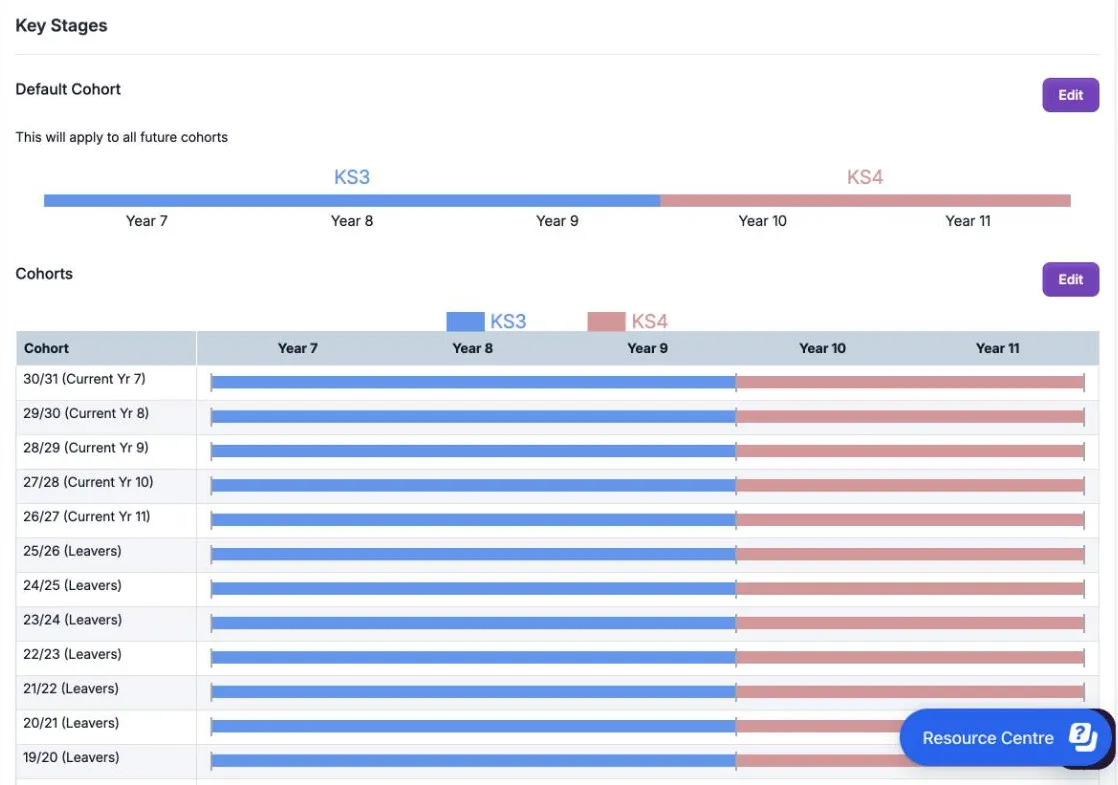
Section titled “Check the key stage boundary”Sisra keeps KS3 and KS4 classes apart. The boundary decides whether imported classes are KS3 or KS4 classes, and which classes each term’s reports use. By default, KS3 is years 7 to 9 and KS4 is years 10 and 11.
If a cohort starts KS4 courses in year 9:
- Select CONFIG, then Settings, then Key Stages.
- Select Edit next to Cohorts, set where KS3 ends for that cohort, and select Save. To change every future cohort, use Edit next to Default Cohort instead.
- Publish the cohort’s student data again.
Bring each KS3/4 cohort up to date
Section titled “Bring each KS3/4 cohort up to date”- Import the cohort’s new student data: select Students, then Import, then Student Data. Choose 3 or 4 for the classes in the file, choose the file and select Import.
- Under Import Options, set Update Classes: and Update Filters: to Yes, and tick Update Statuses:. Then complete the import. See Import student data.
- Add KS2 baselines for pupils who have joined: by hand for a few, or by uploading a file. See Upload KS2 baselines.
- If your Expected Attainment Pathways (EAPs) hold expected grades, add EAP baselines for pupils who have joined. Create EAPs for any new qualification that needs its own. See Set up EAPs for KS3/4.
- Create an assessment collection for each set of grades you collect this year, with the right Term, such as Year 8 Term 1.
- To replace grades in a data set, such as new targets, upload the new file first. Then delete the old file with its red cross.
- Match any new qualifications, and assign them to sets of classes.
- Clear any warnings in Grades Management.
- Publish student data, then KS2 / EAP, then grades. If you use the tracker and flight paths, generate them again.
Do not upload earlier years’ grades again: they stay with the cohort. A collection’s Term decides which expected grades it is compared with. In KS3/4 it also decides the grade method each qualification uses, and whether KS3 or KS4 classes apply.
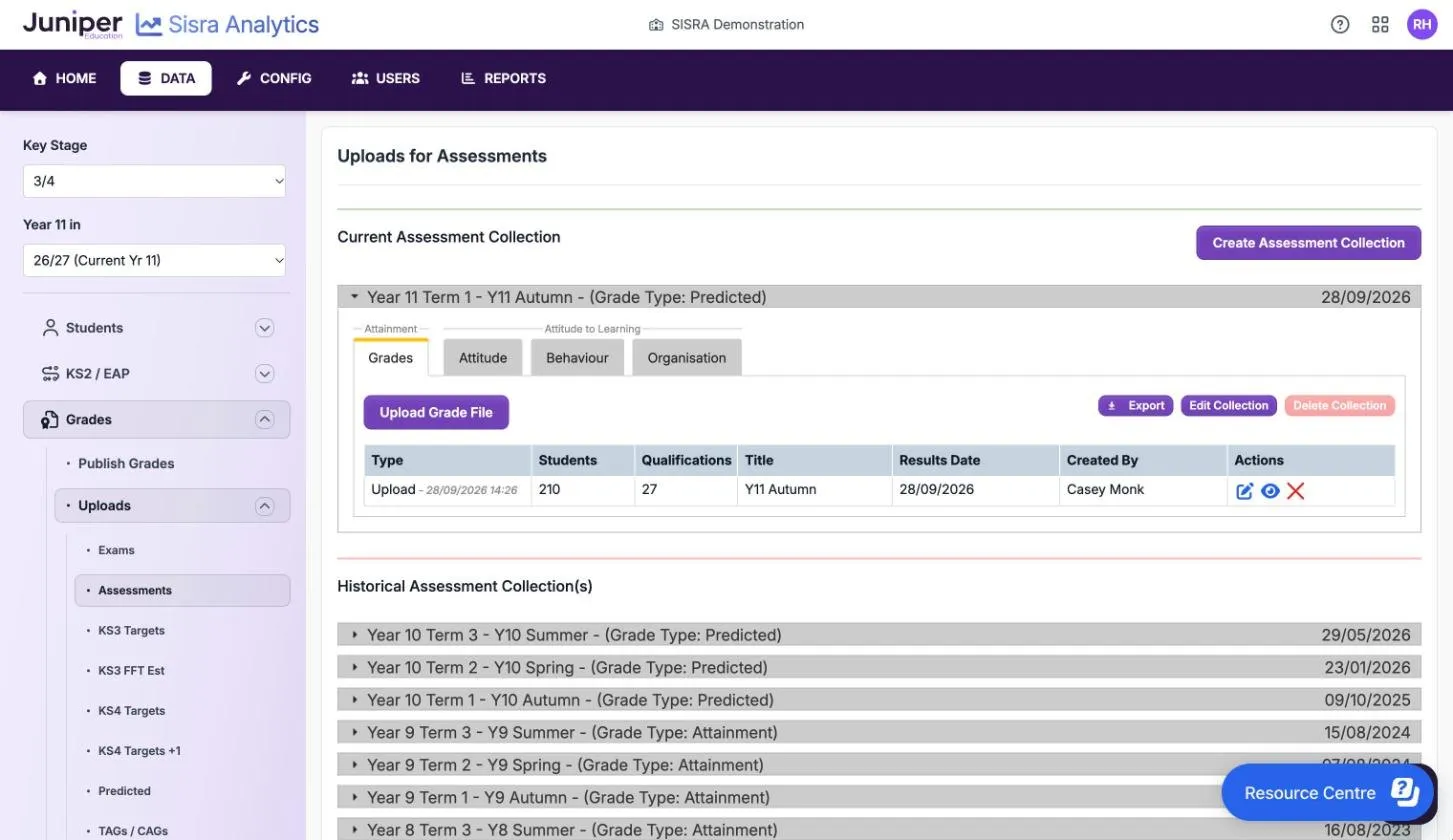
Upload grades explains collections, and Generate the tracker and flight paths covers both.
Move year 9 into KS4
Section titled “Move year 9 into KS4”When a cohort starts KS4 courses, usually in year 10:
- Import its student data with 4 chosen for the classes, so its new classes are KS4 classes.
- When you upload its first KS4 grades, Confirm Upload Qualification Names lists the names Sisra has not seen. Merge each continuing subject into its KS3 qualification. Set each new one to New, such as biology, chemistry and physics where they replace science.
- Create EAPs for the new KS4 qualifications if they need them. You can copy EAPs from another KS4 cohort that uses the same grade methods.
- On the Matching page, select Edit. Set each KS3 subject you no longer collect to No under Current. It moves to the Historical section and leaves Sisra Data Collaboration, but stays in the reports.
- Choose a Predecessor for each KS4 qualification that follows a KS3 one, such as science for each separate science. The tracker and flight paths then show the KS3 grades for the earlier years.
- Select Save Changes, then publish.
Match qualifications in KS3/4 explains Current and Predecessor.
Set up the new year 7 cohort
Section titled “Set up the new year 7 cohort”The new year 7 cohort is already in the Year 11 in list, such as 30/31 (Current Yr 7) in 2026 to 2027. Your student data profile, grade methods and key stages apply to it already, so start with its student data:
- Import its student data, choosing 3 for the classes.
- Upload its KS2 results for English reading and maths, from the DfE’s Get Information about Pupils (GIAP) service, and nominate them as Core.
- Create its EAPs, or copy them from another cohort.
- Upload its first grades or assessment collections.
- Match its qualifications, assign them to classes and clear any warnings.
- Publish student data, then KS2 / EAP, then grades.
Get started as a Sisra administrator covers each step for a new cohort.
Bring each KS5 cohort up to date
Section titled “Bring each KS5 cohort up to date”The new year 12 cohort
Section titled “The new year 12 cohort”- Import its student data, choosing Year 12 in Please select the year that the student data relates to:. On the first import for each year, Update Statuses: is locked to Yes.
- Import each student’s KS4 core baselines. See Set up KS5 baselines and EAPs.
- Upload EAP baselines and create EAPs, at least one for each grade method.
- Upload its first grades, match its qualifications, assign them to classes and clear any warnings.
- Publish student data, then KS4 / EAP, then grades.
Year 13
Section titled “Year 13”- Import the cohort’s year 13 student data, choosing Year 13. Set Update Classes:, Update Filters: and Update Statuses: to Yes.
- Add KS4 core baselines for students who have joined. Use the pencil on Core Baselines List for a few, or Import Core Baselines for many.
- Add EAP baselines for students who have joined, and EAPs for any new grade method.
- Create the year’s assessment collections, such as Y13 Autumn with the term Year 13 Term 1.
- Replace targets and other data sets: upload the new file, then delete the old one.
- Match any new qualifications, assign them to classes and clear any warnings in Grades Management.
- Select Grades, then National Data, then Value Added, and choose the latest year with Edit VA Data.
- Publish student data, then KS4 / EAP, then grades.
Checklists
Section titled “Checklists”Before the labels move on
Section titled “Before the labels move on”In July and August, check that:
- each leaving cohort’s Exams data set is published, with Data Collaboration data if your school takes part
- staff who have left no longer have access in Juniper Portal, and new staff have the right role (Give staff access to Sisra)
- the key stage boundary is right for each cohort (Check the key stage boundary)
- your school has agreed which grades it will collect this year, and when
After the labels move on
Section titled “After the labels move on”In September, for each cohort, you need to:
- import new student data with every update option set to Yes
- add KS2 baselines in KS3/4, or KS4 core baselines in KS5, for new pupils and students
- add EAP baselines and any new EAPs
- create the year’s first assessment collections, and replace targets
- match new qualifications, assign them to classes and clear any warnings
- choose the latest value added national data in KS5
- publish student data, then KS2 / EAP or KS4 / EAP, then grades
- generate the tracker and flight paths again in KS3/4
If something goes wrong
Section titled “If something goes wrong”Pupils and students who have left are still on roll. The import had Update Statuses: set to No. Import the file again with it set to Yes.
Pupils’ classes are in the wrong key stage. Check the key stage boundary, then import the file again, choosing 3 or 4 to match the classes in it.
Old grades still show in a report. The old and new files are both in the data set, so a pupil or student can have two grades in one qualification. Delete the old file, then publish the data set again.
A new cohort is missing from REPORTS. No data set or assessment collection has been published for it yet.
A leavers’ year is missing from the trends reports. Check that its Exams data set was published, and for Headline Trends, with Headlines on. The trends cover only the six most recent cohorts. They also leave out a Locked or embargoed data set for staff who cannot open it. See Which results they include.