


 Sonar Tracker
Grades
Match qualifications in KS5
Every qualification in a KS5 cohort appears once on the Matching List, whichever data sets hold its grades. There you link it to its DfE qualification number (QN), which tells Sisra Analytics its performance cohort, size and discount code. You also choose its Expected Attainment Pathway (EAP), which sets its grade method. Every included qualification must be matched, and its row green, before you can publish grades.
Before you start
Section titled “Before you start”You need:
- an authority group with Access Data Section, such as Admin
- at least one EAP for each grade method the cohort uses
- at least one grades file uploaded, which creates the qualifications
- any faculties you want to use, set up in CONFIG
Set up KS5 baselines and EAPs and Upload grades cover the first steps.
Read the Matching List
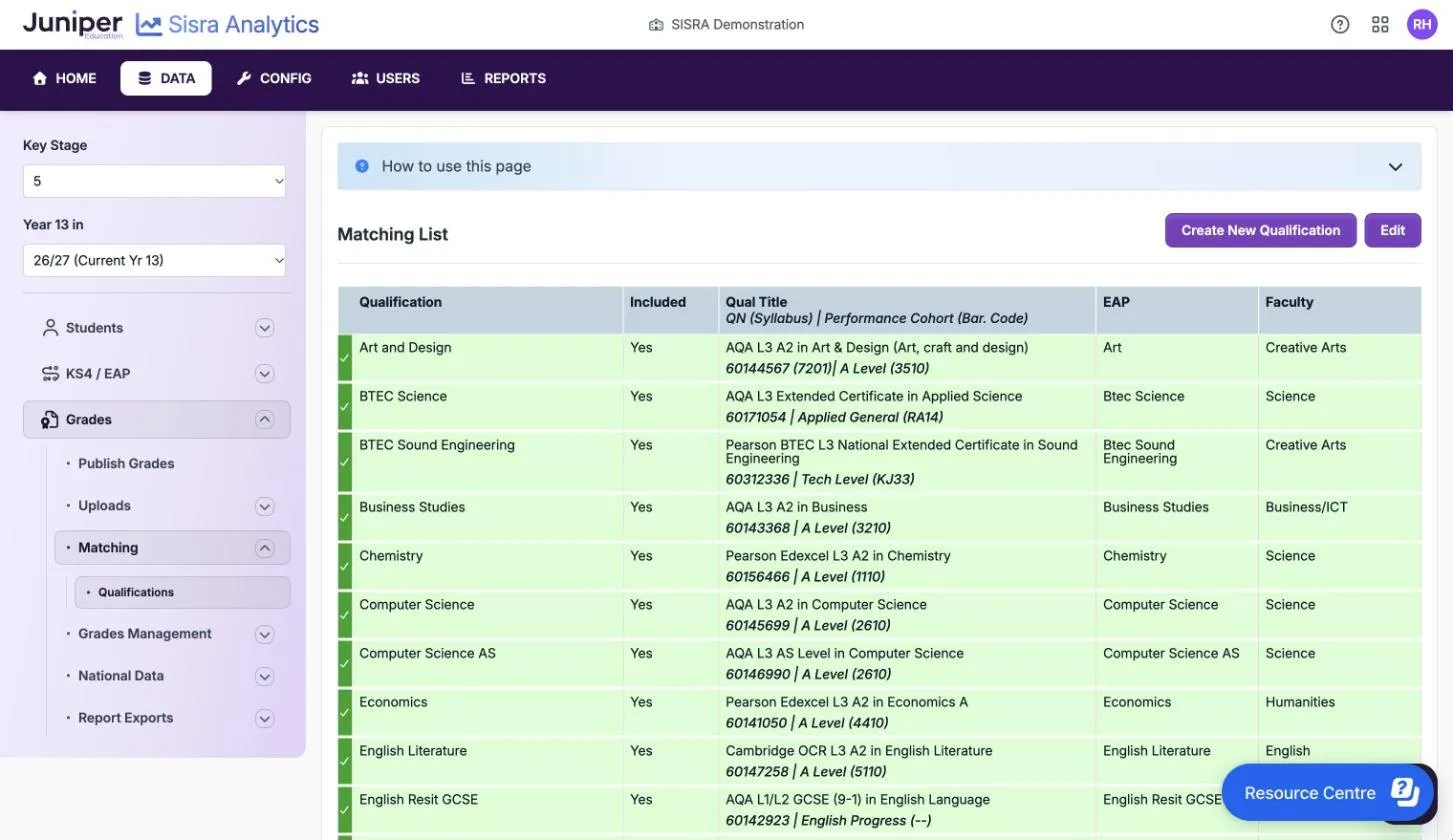
Section titled “Read the Matching List”Open the KS5 cohort in DATA, then select Grades, Matching and Qualifications.
| Column | What it shows |
|---|---|
| Qualification | The name from the grades file, which every report uses |
| Included | Yes if the qualification appears in the reports |
| Qual Title | The linked qualification’s title. Under it are the QN and syllabus, the performance cohort and the discount code, such as “60144567 (7201) | A Level (3510)”. |
| EAP | The EAP, which sets the grade method |
| Faculty | The faculty it is grouped under in the reports |
The colour of each row tells you where it stands:
| Row colour | What it means |
|---|---|
| Green | Matched to an EAP with the right grade structure for its QN |
| Amber | Matching is not complete: the row has no Qual Title or no EAP, so you cannot publish |
| Grey | Excluded: Included is No |
| Red | A QN/EAP mismatch: the EAP’s grade method does not fit the qualification |
Match qualifications
Section titled “Match qualifications”- Select Edit.
- For each qualification, set Included to Yes, or to No to leave it out of every report.
- In Qual Title, type the QN code, qualification name, syllabus title or performance cohort, or a mix of these, and choose the qualification.
- Choose its EAP.
- Choose a Faculty if you use them.
- Select Save Changes.
- Republish every grades data set and assessment collection in the cohort.
Choosing a Qual Title fills in the performance cohort, size and discount code. After you save, any row that is not green needs attention. A magnifying glass next to a qualification’s name gives the details.
Set Included to Yes for every official qualification. Exclude only qualifications that students were not officially entered for.
Fix a QN/EAP mismatch
Section titled “Fix a QN/EAP mismatch”A red row means the qualification’s EAP uses a grade method with a different grade structure from the one its QN needs. Until you fix it, Grades Management shows QN / EAP Mismatch. You cannot publish student data, KS4 / EAP or any data set in the cohort, or edit the Value Added page.
- Check the Qual Title. If it is the wrong qualification, choose the right one and save.
- Select the magnifying glass next to the qualification’s name. It compares the Grade Method Structure in use with the Expected Method Structure.
- Look for an EAP with the expected structure: select KS4 / EAP, EAP / Baselines, then EAP. If one exists, go to step 6.
- If none exists, look in CONFIG for a KS5 grade method with that structure, and create one if you need to.
- Create an EAP that uses the method, or select Edit EAP on an existing EAP and change its method.
- On the Matching List, choose the EAP for the qualification and select Save Changes.
- Publish KS4 / EAP, then the grades.
Before you edit an EAP in step 5, check that no other qualification uses it, because every qualification on an EAP shares its grade method. Selecting Create KS5 Grade Method starts a new method straight away, so open it only when you are ready to set one up. Create grade methods covers the steps.
Match unapproved qualifications
Section titled “Match unapproved qualifications”A qualification is unapproved if it is not on the DfE’s list of qualifications for the 16 to 19 performance measures in the year you report on. It still appears in qualification and class analysis, but not in headline figures such as value added. If it is on the list but Sisra does not find it, contact Juniper support.
- Select Edit.
- In Qual Title, type
Unapprovedand choose the option that fits, from the next table. - Choose an EAP. Every included qualification needs one, even an unapproved one.
- Choose a Faculty if you use them, and select Save Changes.
- Republish the grades.
| Qual Title | Use it for | Where it shows in the reports |
|---|---|---|
| Unapproved A Level Qualification, Unapproved Academic Qualification, Unapproved Applied General Qualification, Unapproved Tech Level Qualification | Graded level 3 qualifications | The Level 3 performance level, and the matching qualification type filter |
| Unapproved L3 Qualification | Other graded level 3 qualifications | The Level 3 performance level, but not the qualification type filter |
| Unapproved Graded Tech Cert Qualification | Graded level 1 and 2 technical certificates | The Tech Cert performance level |
| Unapproved Pass/Fail Tech Cert Qualification | Level 2 qualifications graded pass or fail | The Tech Cert performance level |
| Unapproved GCSE/Other Qualification | Entry level, level 1 or level 2 qualifications | The GCSE / Other performance level |
| Unapproved L3 Qualification (No Points) and the matching Tech Cert and GCSE/Other options | Any qualification you want kept out of points-based analysis | Grade reports only, not average points |
Use a “(No Points)” option when the DfE has never set points for a qualification. An unapproved qualification gets no value added unless you link it on the Value Added page: see Set up KS5 value added.
Match level 2 qualifications
Section titled “Match level 2 qualifications”You can match level 2 qualifications at KS5 as you do level 3 ones, such as GCSE English and maths resits or level 2 BTECs.
- Make sure the cohort has a level 2 grade method in CONFIG, such as GCSE (9-1), and an EAP that uses it.
- Upload the grades with names that start with
L2, so they are easy to tell apart. - Match each one to its QN, as in Match qualifications, and choose the level 2 EAP.
Upload official level 2 results and resits into Exams. GCSE English and maths resits, with students’ prior English and maths baselines, give the English and maths progress measures.
Create a qualification
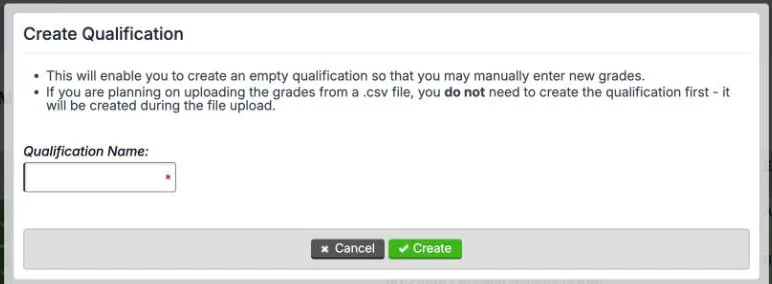
Section titled “Create a qualification”You do not need to create a qualification before uploading its grades: an upload with a new name creates it. Create one by hand when you will enter a few grades yourself.
- Select Create New Qualification.
- Enter a general Qualification Name:, such as
Further Maths. - Select Create.
The new row is amber until you choose its Qual Title and EAP. Assign it to a set of classes, then add its grades in Grades Management.
Rename a qualification
Section titled “Rename a qualification”- Select Edit.
- Type the new name in Qualification.
- Select Save Changes, then republish every grades data set.
Keep names the same from year to year, so that the qualification trends reports line up.
If something goes wrong
Section titled “If something goes wrong”Matching is greyed out in the menu. The cohort has no grades or no EAP yet, or data is publishing. Hover over it to see why.
A row stays amber. It has no Qual Title or no EAP. Select Edit and choose both.
Save Changes does nothing. An ad blocker or content filter can stop the save. Try a private browser window, and ask your IT team to allow Sisra.
The reports have not changed. Changes on this page reach the reports only when you republish the grades.