


 Sonar Tracker
Students
Manage classes and assign qualifications
Sisra Analytics builds classes from your student data. The Subject column gives each set of classes, such as English, and the Class column each teaching group, such as 11EEn1. To see grades by class, assign each qualification to the sets of classes that teach it.
Before you start
Section titled “Before you start”You need:
- an authority group with Access Data Section, such as Admin
- the cohort’s student data imported, and grades uploaded for at least one data set
Authority groups and permissions explains Access Data Section.
Sisra is driven by grades. A pupil or student appears in a qualification or class in the reports only if they have a grade in that qualification. At KS3/4, Sisra keeps KS3 and KS4 classes apart, and a report uses one or the other depending on the term of its data.
Assign qualifications to sets of classes
Section titled “Assign qualifications to sets of classes”- Open the cohort in DATA, then select Students, then Classes, then Assign Quals.
- Next to a set of classes, select the green plus (Add qualification assignment). If the set has qualifications already, select the pencil (Edit qualification assignment).
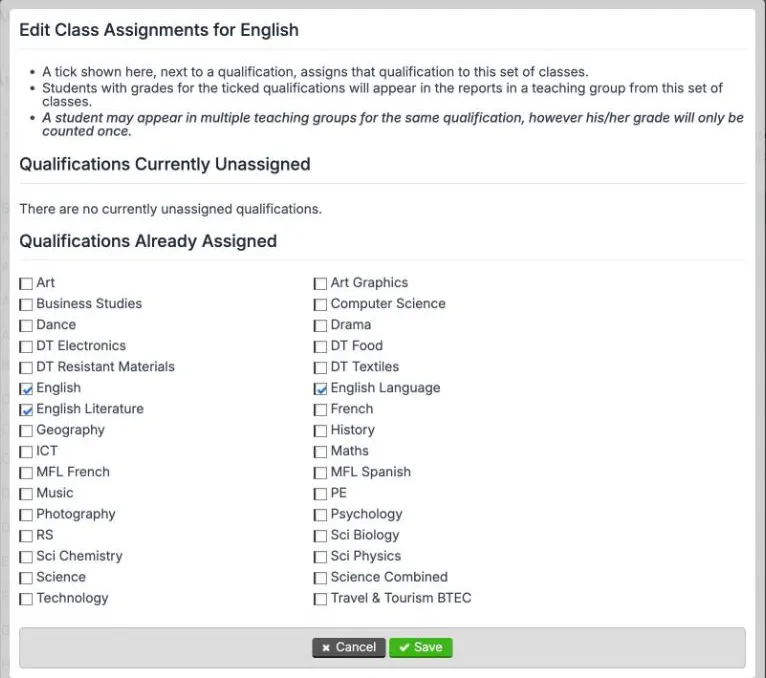
- In Edit Class Assignments for, followed by the set’s name, tick each qualification the set teaches.
- Select Save.
- Repeat for each set of classes, then publish student data.
Qualifications Currently Unassigned lists the qualifications not yet assigned to any set of classes. Qualifications Already Assigned lists the rest.
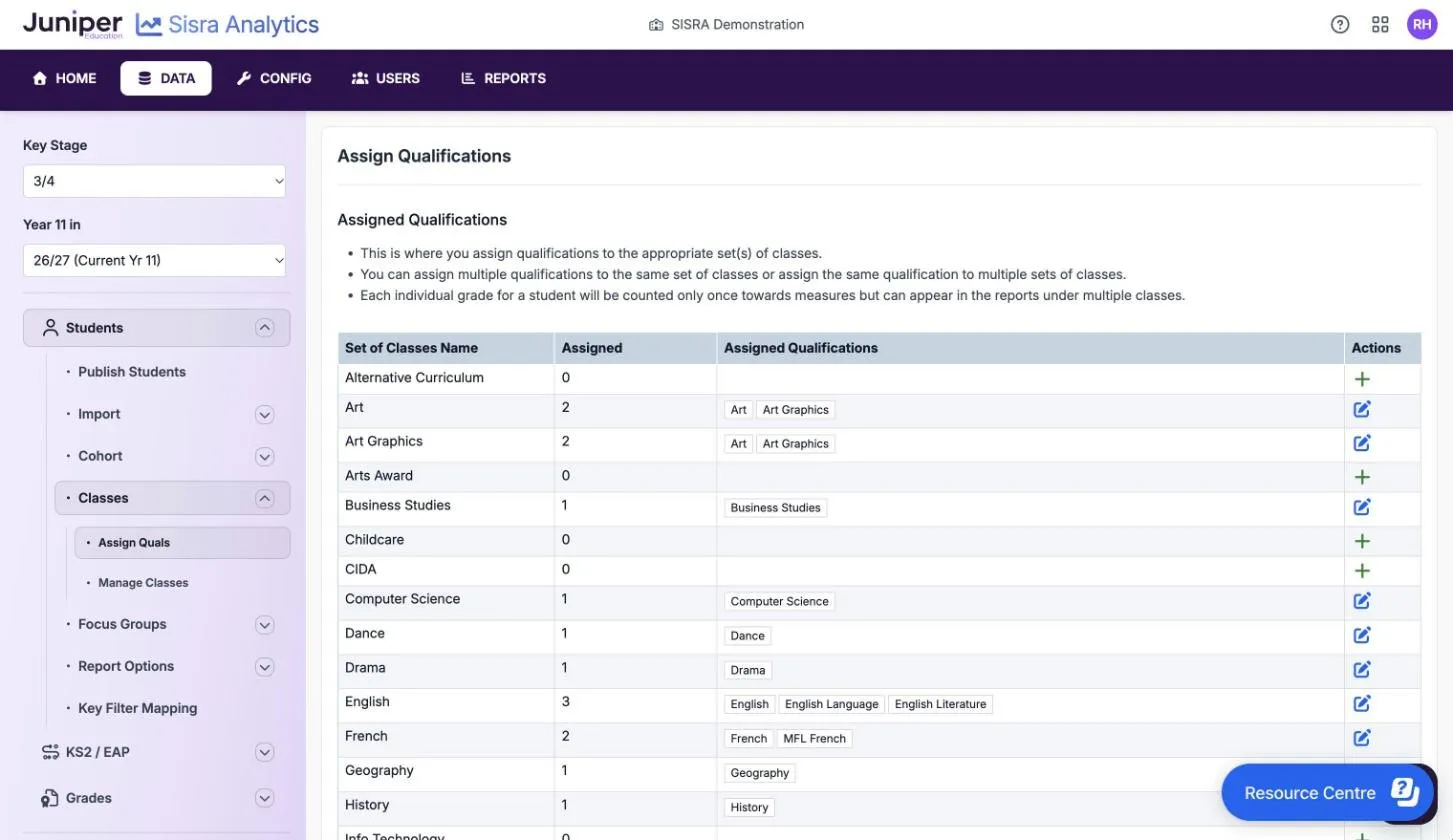
One set can teach several qualifications: the demo school’s English set teaches English, English Language and English Literature. One qualification can also belong to several sets, such as French in a French set and an off-site set. The page notes: “Each individual grade for a student will be counted only once towards measures but can appear in the reports under multiple classes.”
A qualification with no set of classes shows its grades as Not in Class. Grades Management flags it with a warning such as Missing Class Data for KS4.
Manage sets of classes and classes
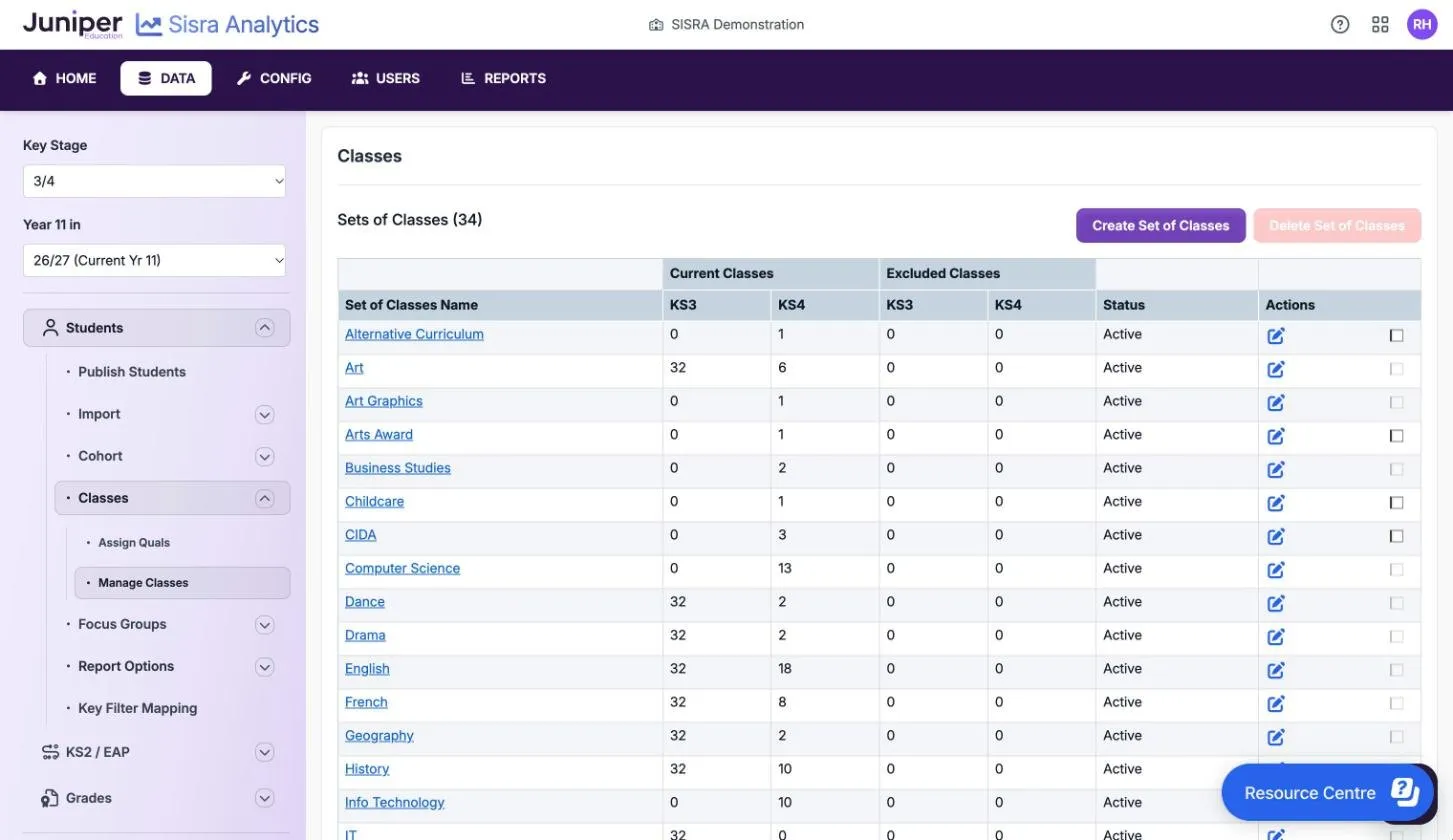
Section titled “Manage sets of classes and classes”Select Students, then Classes, then Manage Classes. Sets of Classes gives the number of sets. At KS3/4, each set shows its current and excluded classes for KS3 and KS4. At KS5, it shows the set’s number of classes.
- Create Set of Classes adds a set. Enter a Set of Classes Name and select Create. Set names do not appear in the reports.
- The pencil in Actions renames a set.
- To delete a set, tick it, then select Delete Set of Classes. The tick box is greyed out while a qualification is assigned to the set.
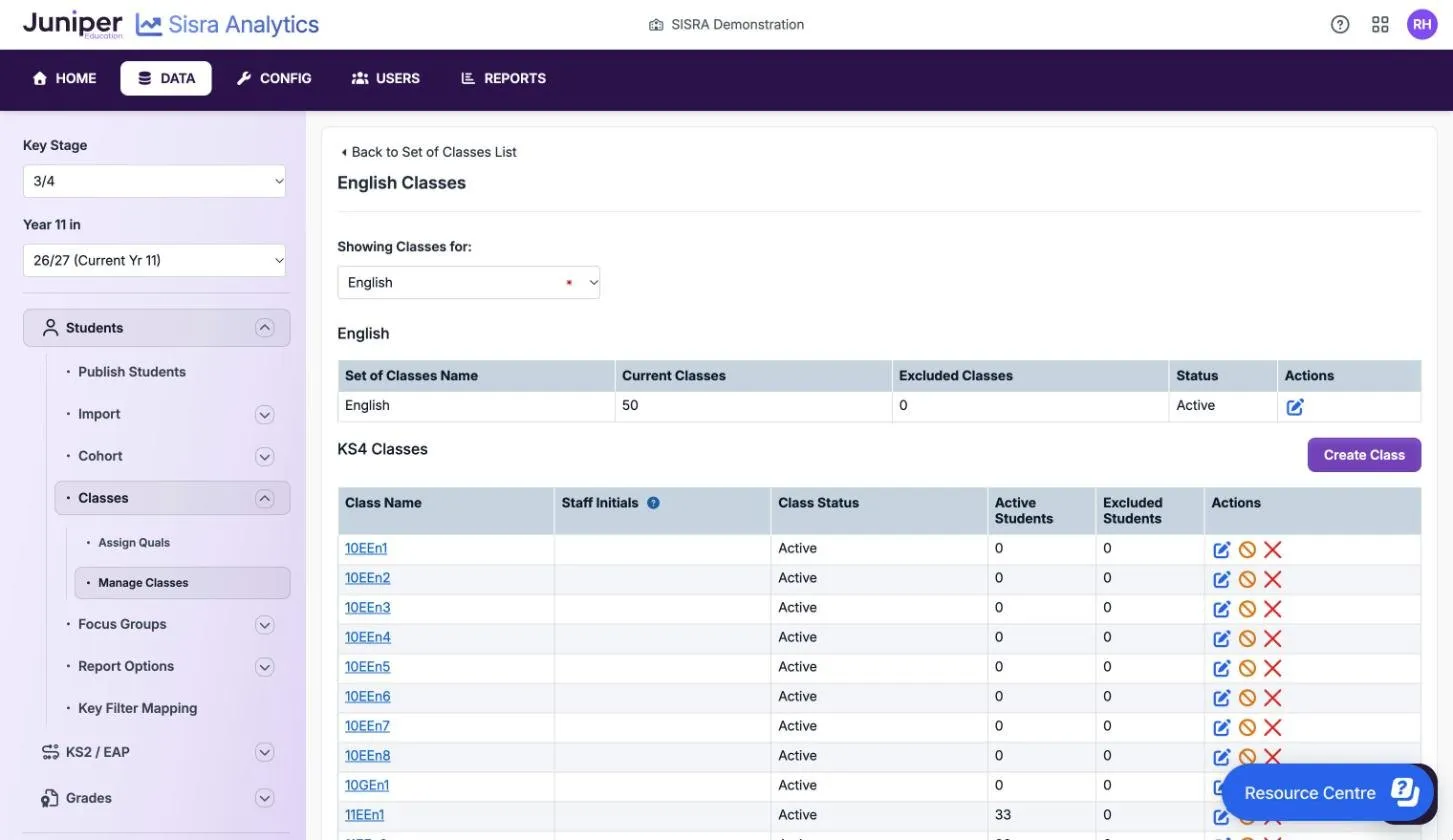
- Select a set’s name to see its classes, with each class’s Staff Initials, Class Status, Active Students and Excluded Students.
- Create Class adds a class to the set. Enter a Class Name and select Create, then add pupils or students. Class names appear in the reports.
- Select a class’s name to see its members. Add Student to Class adds someone, and Move Class moves them to another class.
Exclude a class or one person
Section titled “Exclude a class or one person”Excluding keeps the data but takes a class, or one person’s place in a class, out of the class analysis.
- To exclude a whole class, select the orange exclude icon next to it. Sisra asks: “This will completely exclude this class from the reports. Are you sure you wish to continue?” The class’s grades still count in the qualification, under Not in Class.
- To exclude one person from one class, select the amber stop icon in Classes on their Student Detail page. Use it only when they show in the wrong class in the reports.
Excluded Classes and Excluded Students count what you have excluded. Publish student data afterwards.
Add staff initials to classes
Section titled “Add staff initials to classes”- Add a column to your student data file with each class teacher’s initials, up to 5 characters, with no commas. For a class with two teachers, add a row for each teacher.
- Import the file. On Column Mapping - Student Data, tick Include Staff Initials and choose the column.
- Set Update Classes and Staff Initials: and Update Filters: to Yes, then complete the import.
- Publish student data.
The initials show in Manage Classes and in the Classes section of Student Detail. To correct or delete initials, see Correct staff initials. Import student data explains the import.
Fix classes after an import
Section titled “Fix classes after an import”First publish student data, because the reports use the last published classes. If the classes are still wrong, find the cause here.
| What you see | Cause | Fix |
|---|---|---|
| Some qualifications have no classes, or old ones | The set names in the file’s Subject column changed, such as French and German instead of Languages | In Assign Quals, take the qualification off the old set and assign it to the new ones. Publish student data |
| Most classes are out of date | Set names are spelt differently from the last file, such as Ar and Art | Correct the file and import it again. Delete the duplicate sets in Manage Classes, then publish student data |
| Most classes are out of date | Update Classes: was No at import | Import the file again with Update Classes: set to Yes |
| The other key stage’s classes changed (KS3/4) | The wrong key stage was chosen at import | Import again with the right key stage. Then import the other key stage’s last file with Update Classes: set to Yes and the other two options No |
Last file imported: on the import page shows which key stage’s classes the last file held. Grades Management can also create missing class data for you: see Check and correct grades.
If something goes wrong
Section titled “If something goes wrong”There is no plus or pencil next to the sets of classes. The cohort has no grades yet, so upload grades first. If it has grades, reload the page by pressing Ctrl and F5.
You cannot tick a set to delete it. A qualification is assigned to the set. Take the qualification off it in Assign Quals first.
Pupils or students show as Not in Class. The qualification has no set of classes, the person has no class in its sets, or they are excluded from their class.
A pupil appears under two classes for one qualification. This is expected when the qualification belongs to two sets. Their grade still counts once.