


 Sonar Tracker
Set up your school
Set up Attitude to Learning
Attitude to Learning (AtL) puts pastoral judgements, such as effort or behaviour, alongside grades in Sisra Analytics. Each key stage can have up to three AtL categories, each with up to 10 judgements. You set them up in CONFIG, then upload teachers’ judgements with each data set or assessment collection.
Before you start
Section titled “Before you start”You need:
- an authority group with Access Data Section, such as Admin
- to have agreed with pastoral leaders which categories to record, and what each judgement means
Authority groups and permissions explains Access Data Section.
AtL is optional. Each judgement belongs to a grade: Sisra imports it against a pupil’s or student’s grade in one qualification, in one data set or assessment collection. So do not set up effort or homework as qualifications.
Look at your categories
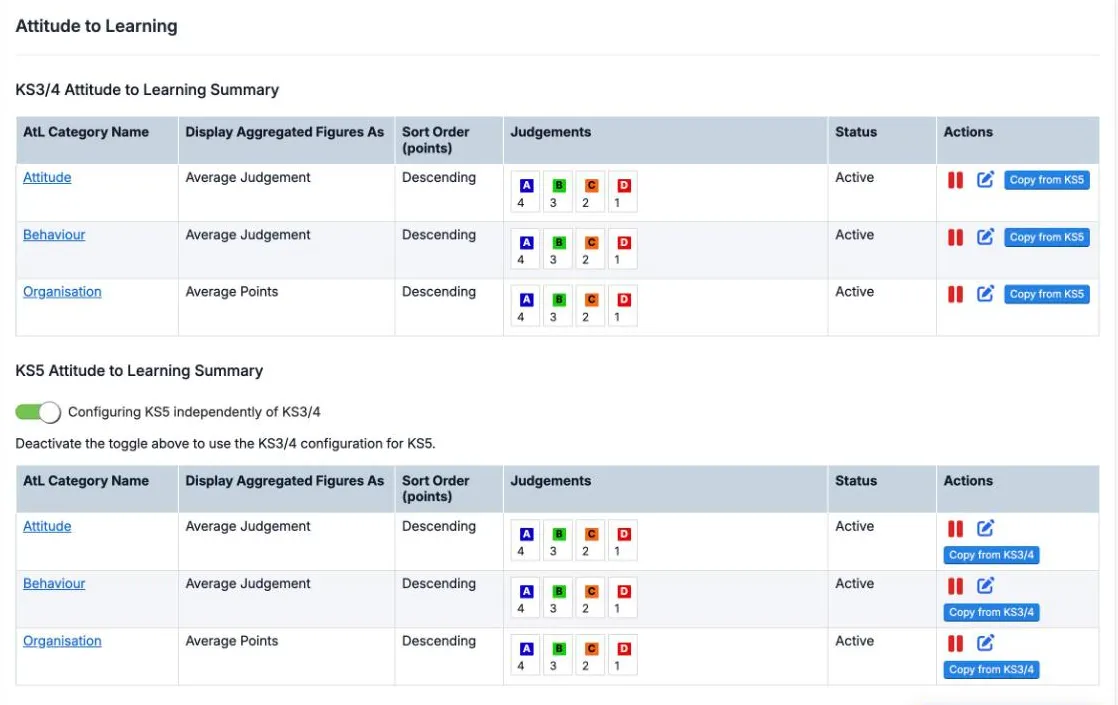
Section titled “Look at your categories”Select CONFIG, then Attitude to Learning, then Attitude to Learning. The page has a KS3/4 Attitude to Learning Summary and a KS5 Attitude to Learning Summary.
| Column | What it shows |
|---|---|
| AtL Category Name | The category’s name. Select it to open the category’s detail page |
| Display Aggregated Figures As | How the reports show a group’s judgements |
| Sort Order (points) | Whether higher or lower points are better |
| Judgements | Each judgement, in its colour, with its points |
| Status | Active, or deactivated |
| Actions | Deactivate, rename and copy |
In the demo school, both key stages have Attitude, Behaviour and Organisation. Each has judgements A, B, C and D, worth 4, 3, 2 and 1.
Configure a category
Section titled “Configure a category”Each key stage has three category slots. A slot you have not set up offers Configure. Nothing is saved until you select Save at the end.
- Next to an empty slot, select Configure.
- Enter the category’s name, such as
Homework, in up to 15 characters. The name shows when you upload judgements. - Choose how the reports show the category, under Aggregated Figures Displayed As. The next table explains the choices.
- Choose the sort order: Descending if higher points are better, as for homework, or Ascending if lower points are better, as for behaviour points. Hidden categories have no sort order.
- Select Next.
- Enter up to 10 judgements, each with the fields in the second table.
- Check the preview, then select Save.
| Aggregated Figures Displayed As | What the reports show for a group | Suits |
|---|---|---|
| Average Points | The mean of the judgements’ points | Homework |
| Average Judgement | The mean points, shown as the nearest judgement in its colour | Behaviour |
| Total Points | The sum of the points | Interventions, each worth 1 point |
| Hidden | No points or averages. Judgements rank in the order you enter them | Judgements with no natural score |
| Field | Limit | Example |
|---|---|---|
| Judgement | Up to 2 characters | A or Ex |
| Judgement Text | Up to 15 characters. The reports show it in filters and tooltips | Excellent |
| Points | From -100 to 100, with up to 2 decimal places. Not needed for Hidden | 4 |
| Colour | Optional, from a colour wheel. The reports show it |
Upload files can hold either the judgement or its judgement text. The sort order decides how the reports sort the category, and which way comparisons are coloured.
With Average Judgement, each judgement covers the points halfway to its neighbours. In the demo school, Behaviour has A to D worth 4 to 1, so B covers averages from 2.5 to 3.5. Five pupils with A, A, B, B and C average (4 + 4 + 3 + 3 + 2) ÷ 5 = 3.2 points, so the group shows B. Two judgements in an Average Judgement category cannot have the same points.
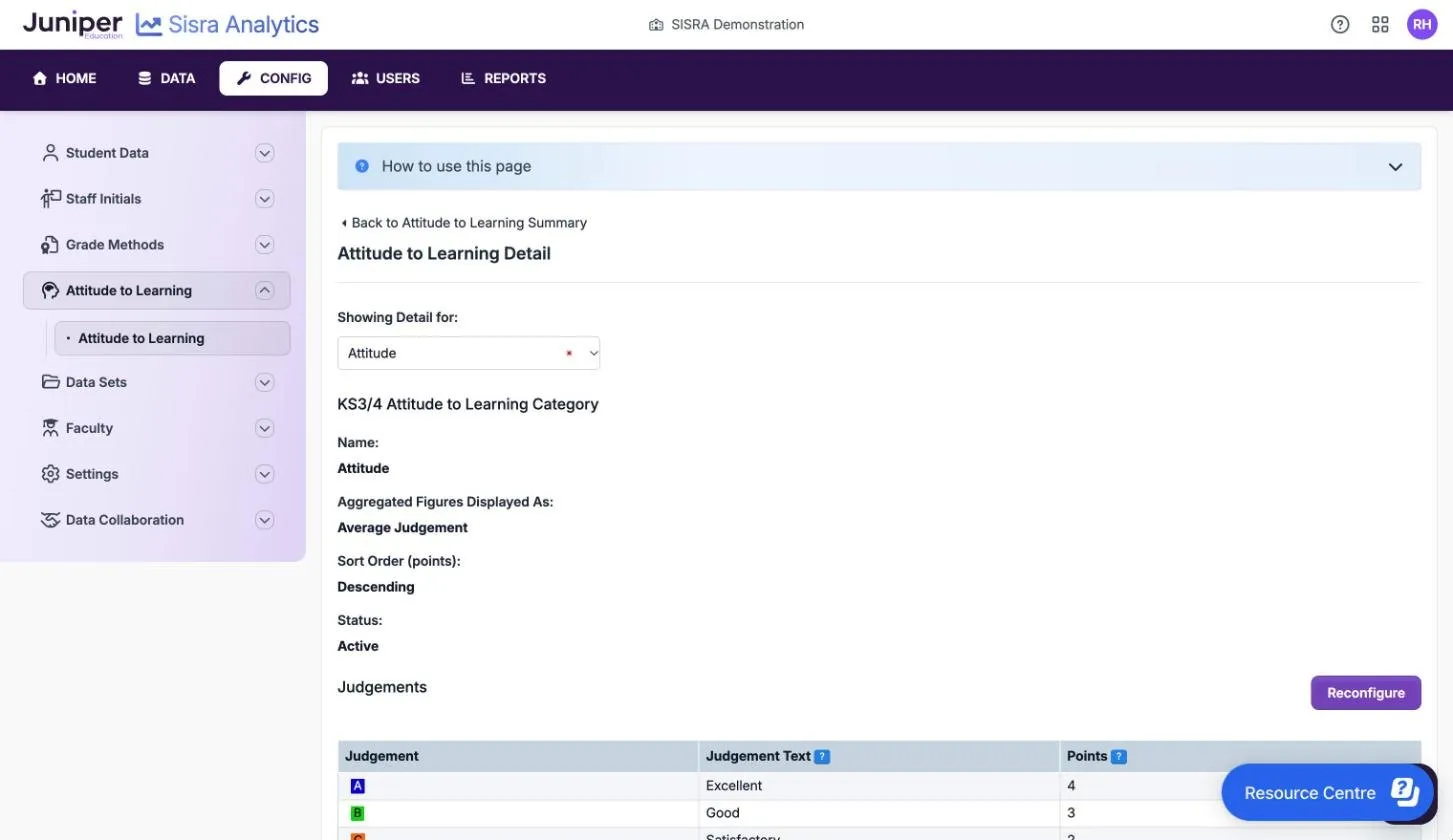
When you save, Attitude to Learning Detail opens with the category’s settings and judgements.
Change, rename or deactivate a category
Section titled “Change, rename or deactivate a category”- To rename a category, select the pencil in Actions.
- To change its judgements, display or sort order, select its name, then Reconfigure.
- To stop new judgements going into a category, select the red pause icon, then Continue. Judgements already published stay in the reports.
- To make a deactivated category active again, with the same settings, select the green play icon.
- To rank the judgements of a Hidden category, use Reorder and the arrows, then select Save.
Sisra works out AtL figures when it publishes grades. After changing a category, republish the data sets and assessment collections that hold its judgements.
Set up KS5
Section titled “Set up KS5”KS5 can have its own categories or use the KS3/4 ones.
- While Configuring KS5 independently of KS3/4 is on (green), KS5 has its own three categories. Changing them does not affect KS3/4.
- To use the KS3/4 categories for KS5, turn the toggle off, then select Confirm. It turns red and reads “Using KS3/4 configuration for KS5”.
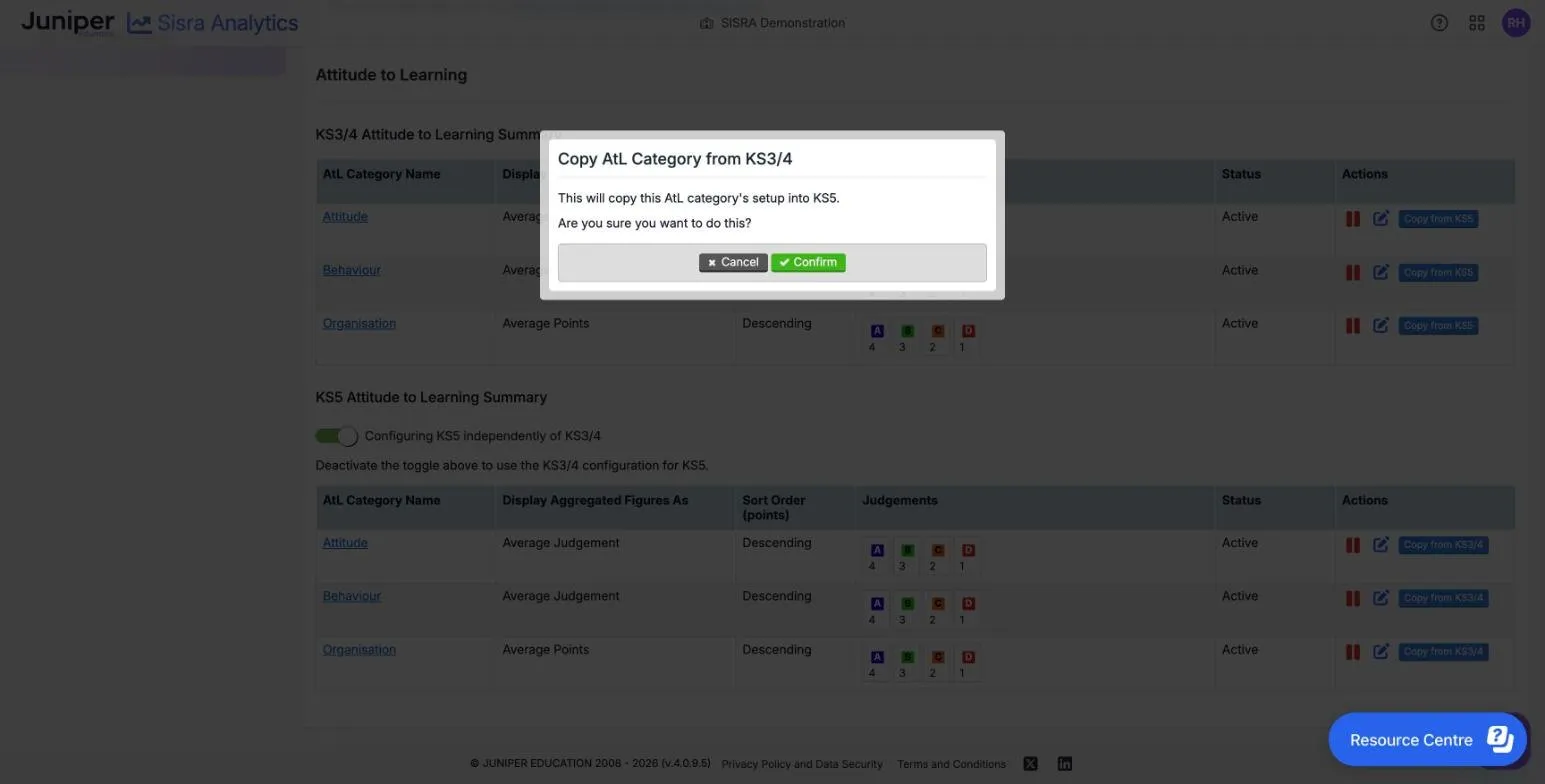
- To copy a KS3/4 category’s set-up into the KS5 category in the same position, select Copy from KS3/4 on the KS5 category, then Confirm.
- Copy from KS5, on a KS3/4 category, copies the other way. It shows only while KS5 has its own categories.
Upload judgements
Section titled “Upload judgements”Upload judgements after the grades they belong to. On each data set’s or assessment collection’s upload page, every active category has its own tab beside Grades, such as Attitude, Behaviour and Organisation. You upload one file per category, with one judgement for each pupil or student and qualification. Upload grades gives the steps.
See AtL in the reports
Section titled “See AtL in the reports”The reports show each judgement, or the category’s figure for a group, faculty, qualification, class, pupil or student. See Basics, EBacc, value added and AtL reports and Grade Analysis and AtL reports.
A value that matches no judgement shows as an unknown judgement, and Grades Management flags it as Unknown AtL Judgements. A judgement for someone with no grade in that qualification does not appear. At KS3/4, Grades Management says: “You have students with judgements but no associated grades. As such, these judgements will not appear in the reports unless a grade is added for these students.”
If something goes wrong
Section titled “If something goes wrong”A category has no tab on the upload page. The category is deactivated. Select the green play icon to make it active.
Judgements show as unknown. The file’s values match neither a judgement nor a judgement text. Correct the file, or add the judgement with Reconfigure.
Judgements are missing from the reports. The person has no grade for that qualification in the data set, or the data set has not been published since you uploaded them.
Sisra will not save two judgements with the same points. In an Average Judgement category, each judgement needs its own points.
CONFIG is locked. Sisra locks CONFIG while any cohort has data in the publishing queue. Wait for publishing to finish.