


 Sonar Tracker
KS3/4 reports
Open the KS3/4 reports
Each data set or assessment collection your school publishes in Sisra Analytics becomes a report on the REPORTS home page. This page shows how to find a cohort’s reports, open one at the level you need, and check how and when it was published. Report tools and options explains what you can do once a report is open.
Before you start
Section titled “Before you start”You need:
- an authority group with View EAP KS3/4 Reports
- View Headline Report to open Whole Cohort, View Qualification Report for Qualifications, and View Student Report for Students
- at least one report published for the cohort
By default the Admin and User groups have all of these. Authority groups and permissions explains each action. REPORTS is greyed out until your school publishes its first report.
Choose a cohort
Section titled “Choose a cohort”- Select REPORTS.
- Select the KS 3/4 tab.
- Select the cohort’s tab, such as 26/27 (Yr 11).
- For an older leavers cohort, select Leavers on the right, then the cohort, such as 24/25 (Leavers).
Sisra opens on the key stage and cohort you chose last time. Cohorts are named by the academic year in which they finish year 11. In the 2026 to 2027 academic year, 26/27 (Yr 11) is the current year 11. The most recent leavers have their own tab, 25/26 (Leavers). The demo school’s Leavers menu goes back to 16/17 (Leavers).
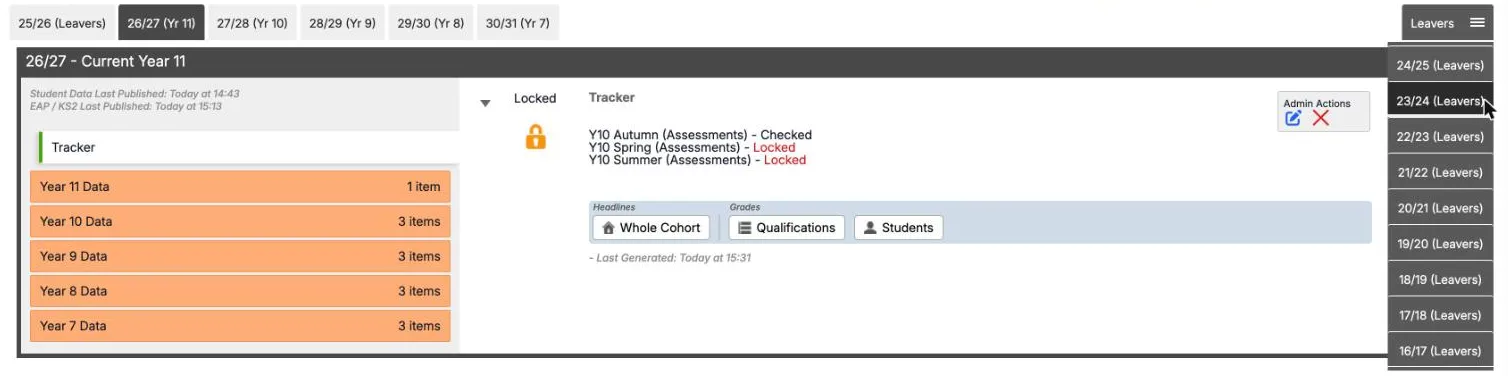
The cohort’s panel opens with its name, such as 26/27 - Current Year 11, and two dates:
- Student Data Last Published: when its pupils, classes and filters were last published
- EAP / KS2 Last Published: when its baselines and Expected Attainment Pathways (EAPs) were last published
Every report for the cohort uses the latest published student data, whenever its grades were published. So a filter shows each pupil’s value now, even in a year 7 report. Which student data a report uses explains this.
Find a data set or assessment collection
Section titled “Find a data set or assessment collection”Folders down the left of the panel hold the cohort’s reports:
- Tracker, if an administrator has generated a tracker for the cohort
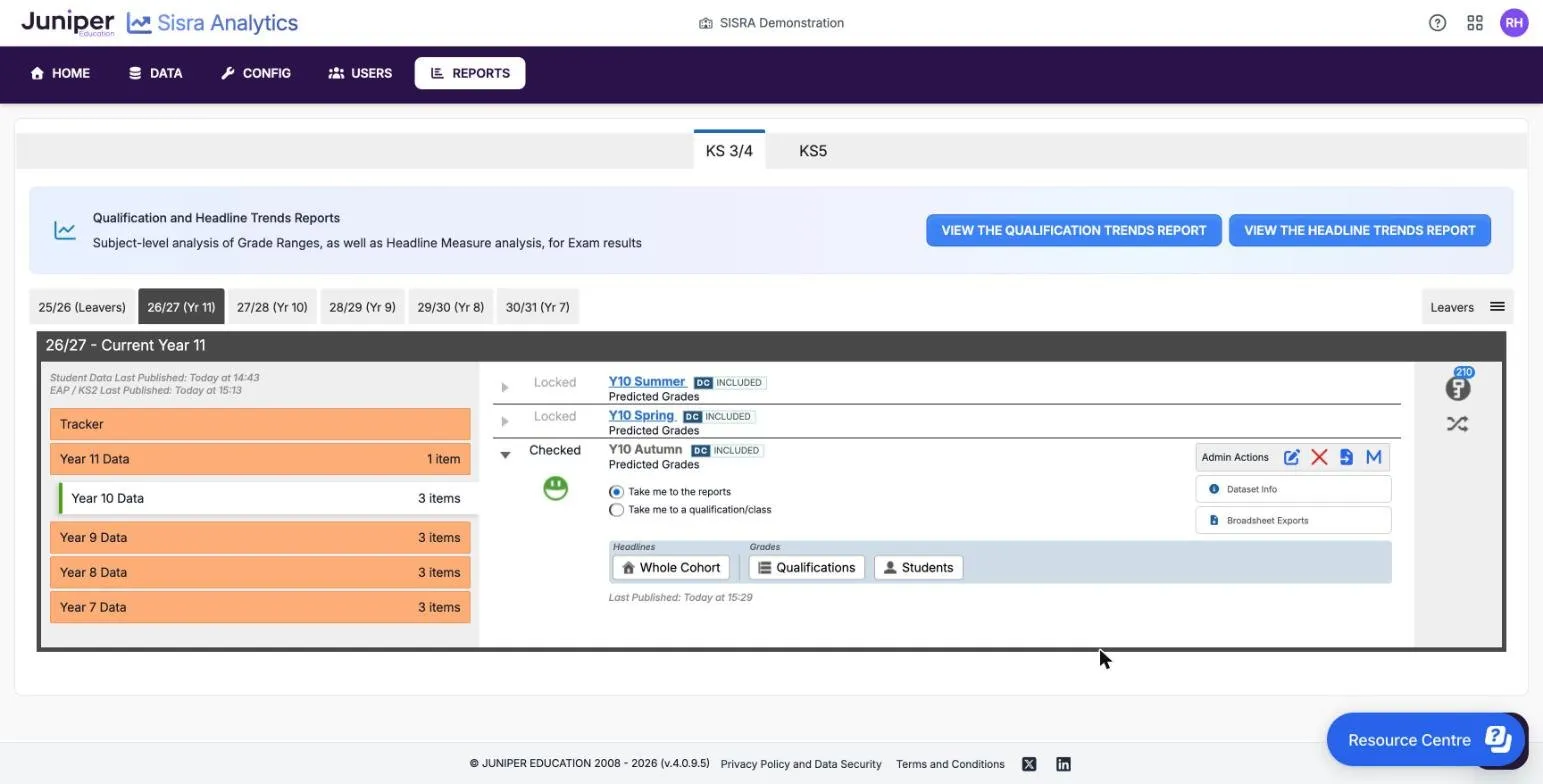
- Year 11 Data down to Year 7 Data, each with the number of reports in it, such as 3 items
Select a folder to list its reports. The open folder turns white with a green bar. Current cohorts’ folders are orange, and leavers’ folders pink.
Each report is a published data set, such as Exams or KS4 Targets, or an assessment collection, such as Y10 Autumn. An assessment collection is what many schools call a data drop. A report sits in the folder for the year of its term. Data sets for the KS4 exams, such as KS4 Targets, sit in Year 11 Data, even for a younger cohort.
| Part of the row | What it shows |
|---|---|
| Status | Checked, Unchecked or Locked. See Check a report’s status |
| Name | The data set or collection, such as Y10 Summer |
| DC INCLUDED | The report was published with Sisra Data Collaboration figures |
| Note | The note your administrator added when publishing, such as “Predicted Grades” |
In the demo school’s 26/27 cohort, Year 10 Data holds three collections of predicted grades: Y10 Autumn, Y10 Spring and Y10 Summer. Data sets, assessment collections and grade types explains the difference between data sets and collections.
Open a report
Section titled “Open a report”- Select the arrow beside the report to expand it.
- Check that Take me to the reports is selected. It is the default, unless you last went straight to a qualification or class.
- Select a level: Whole Cohort under Headlines, or Qualifications or Students under Grades.
| Button | Opens, unless your school has changed it | Shows |
|---|---|---|
| Whole Cohort | Headlines Summary | The cohort’s headline measures, such as Attainment 8, Progress 8 and English and maths |
| Qualifications | Grades Overview, at Qualifications level | The grades in each qualification |
| Students | Grades Totals, at Students level | Each pupil’s grades, averages and on track figures |
Your school’s administrator chooses the report each button opens: see Report Home Page Settings. Once a report is open, move to other reports with the area bar.
Go straight to a qualification or class
Section titled “Go straight to a qualification or class”- Expand the report.
- Select Take me to a qualification/class.
- Choose the Qualification, such as English Language.
- Choose a Class, such as 11EEn1, or leave it blank for the whole qualification.
- Select Go!.
The Grade List opens, with each pupil’s grade, expected grade and residual. Grade List explains the columns.
Take me to a qualification/class appears only if your authority group has View Student Report. Sisra remembers your choice for the cohort. Next time you expand a report, the same qualification and class are ready, if the report has that qualification.

There are no My Classes links at KS3/4. They are on the KS5 reports home, where each person can save links to up to five classes in a cohort. See Open the KS5 reports. At KS3/4, choose your class each time. To come back to a view after looking at other reports, use Pin This Report.
Check a report’s status
Section titled “Check a report’s status”The status before a report’s name tells you how far to rely on its figures, and who can open it. Your administrator sets it when publishing and can change it at any time.
| Status | Who can open the report | What Sisra says about it |
|---|---|---|
| Checked | Everyone who can open the KS3/4 reports | The data “has been finalised and verified” |
| Unchecked | Everyone who can open the KS3/4 reports | The data “has not yet been finalised and may be subject to change” |
| Locked | Only authority groups with View Locked Reports, which by default means Admin | “Only users with access to Locked reports can view this report” |
When you expand a report, a Checked one shows a green smiley face and a Locked one an orange padlock.
Exam results published during the results day embargo open only for authority groups with View Embargo Reports. Until the embargo ends, others see that the report “has been locked down to satisfy the DfE’s embargo rules”. Report status and the results embargo explains both.
See how a report was published
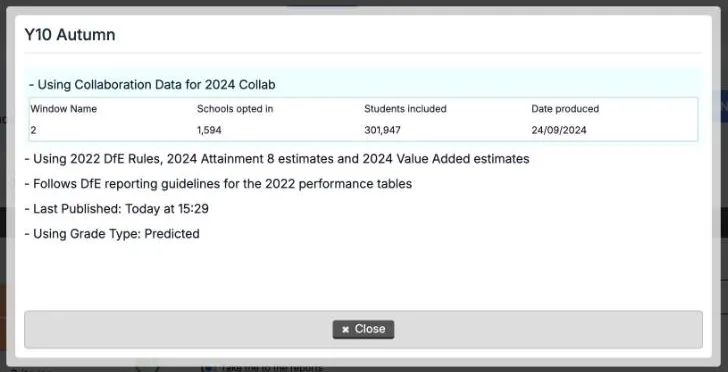
Section titled “See how a report was published”Select Dataset Info beside an expanded report. It shows:
- the Sisra Data Collaboration event used, with its Window Name, Schools opted in, Students included and Date produced
- the DfE rules year, and the Attainment 8 and value added estimates
- when the report was last published
- the grade type, such as Predicted
The demo school’s Y10 Autumn collection uses the 2024 collaboration, window 2: 1,594 schools and 301,947 pupils, produced on 24 September 2024. It follows the 2022 DfE rules and uses the DfE’s 2024 Attainment 8 and value added estimates. So its Progress 8 compares year 10 predictions with estimates made from 2024’s results. What returns for 2026 to 2027 explains Juniper Education’s advice on estimates for this cohort.
Inside a report, the i icon on the Dataset tab shows the same details.
See who is in the cohort
Section titled “See who is in the cohort”The key icon on the right of the panel shows the number of pupils in the cohort. Select it to open Key Characteristics: the number and percentage of pupils with each filter value. The demo school’s 26/27 cohort has 210 pupils On Roll and none as Guest. Of the 210, 49 (23%) are disadvantaged.
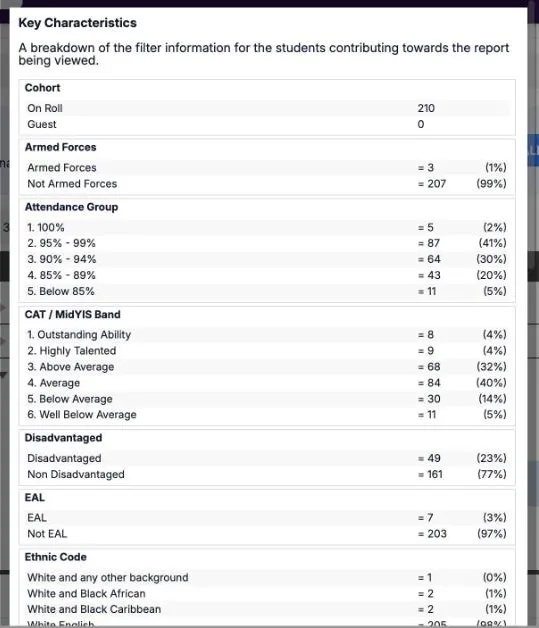
Inside a report, Key Characteristics describes only the pupils in the report, after any filters, and has an Export button.
Open the tracker
Section titled “Open the tracker”The tracker puts up to six of the cohort’s data sets or collections side by side. If an administrator has generated one, it is in the Tracker folder at the top of the list.
- Select Tracker.
- Select a level: Whole Cohort under Headlines, or Qualifications or Students under Grades.
The tracker’s row lists the data sets in it, each with its status, and when the tracker was Last Generated. A tracker of KS3 collections offers only the Grades buttons. Tracker reports explains how to read it.

Open the trends reports
Section titled “Open the trends reports”The Qualification and Headline Trends Reports banner sits at the top of the KS 3/4 tab, above the cohort tabs. It shows only if your authority group has View Qualification Report.
- VIEW THE HEADLINE TRENDS REPORT opens KS3/4 Headline Trends, which sets each year’s headline measures from exam results side by side.
- VIEW THE QUALIFICATION TRENDS REPORT opens KS3/4 Qualification Trends, which does the same for one qualification’s grades.
The trends use only Exams data sets. In the demo school they cover five years of results, from 21/22 to 25/26. Headline Trends and Qualification Trends explains both reports.
Tools for administrators
Section titled “Tools for administrators”Staff with Access Data Section also see Admin Actions beside each expanded report.
| Control | What it does |
|---|---|
| Pencil (Edit Details) | Changes the report’s status and note without republishing. For a collection published with projections, it also sets the SBP Status: |
| Red cross (Delete Report) | Removes the report from the reports home, after you confirm with Yes, Delete it! |
| File icon (Export Discounting Spreadsheet) | Exports every grade in the report, and the grade that discounted it, if any |
| M | Opens a read-only copy of the Qualification Matching page as it was when the report was published |
| Shuffle icon, on the right of the panel | Opens Re-order Datasets, to change the order of the reports in the open folder |
Broadsheet Exports, below Dataset Info, exports the report’s grades as spreadsheets. It needs View Student Report or Access Data Section. Export published data describes each export, and Change a report’s status or note gives the steps for the pencil.
If something goes wrong
Section titled “If something goes wrong”REPORTS is greyed out. Your school has not published a report yet, or your authority group has neither View EAP KS3/4 Reports nor View EAP KS5 Reports.
The page says “No reports are available for your access level.” Your authority group has none of the level actions. Ask your Sisra administrator.
A level button or report area is missing or greyed out. Your authority group cannot open that level, or the data set cannot show it, such as headline figures for a KS3 collection.
A cohort has no tab. Nothing has been published for it yet.
A report says it is “currently being published”. Your administrator is publishing it. Try again shortly, as the message says.
An Exams report will not open around results day. The results embargo is in force. In 2026 it ran from 12:01am on Wednesday 19 August to 8am on Thursday 20 August, GCSE results day: see How the results embargo works.
Figures look different from yesterday. Check Last Published and the status, then the report’s tabs. Sisra keeps your filters and options for up to 48 hours: see Options that stay set.
Sisra says “Unknown report settings were specified”. Report settings expire after 48 hours, so an old link to a report no longer works. Open the report again from the reports home.