


 Sonar Tracker
Publishing
Report status and the results embargo
Every published report in Sisra Analytics has a status that decides who can open it. You can change a report’s status and note at any time without republishing. Each August, Sisra also holds back newly published exam results from most staff until results day.
Before you start
Section titled “Before you start”You need:
- an authority group with Access Data Section, such as Admin, to change or delete a report
- an authority group with Access Users Section to create an authority group
- the Account Owner or Account Admin role in Juniper Portal to give staff a different role
Authority groups and permissions explains each permission.
How report status works
Section titled “How report status works”You choose a status when you publish a data set or collection. Unchecked, Checked and Incomplete reports open for everyone who can see reports. Locked reports open only for authority groups with View Locked Reports, which by default means Admin. Report statuses lists the message staff see with each one.
Incomplete exists only in KS5, and Sisra offers it only to members of the built-in Admin group. The KS3/4 tracker has a status of its own, and so do Sisra Basic Projections (SBP) reports.
The results embargo comes before any status. During the embargo window, staff without View Embargo Reports cannot open an embargoed report, whatever its status. See How the results embargo works.
Change a report’s status or note
Section titled “Change a report’s status or note”You do not need to republish to change a status or note, which saves time on results days, when publishing queues are long. The change applies straight away, and Admin History in USERS records it.
In KS3/4
Section titled “In KS3/4”- Select REPORTS, then KS 3/4.
- Select the cohort’s tab, such as 26/27 (Yr 11), or choose a cohort from Leavers.
- Open the report’s folder, such as Year 11 Data, and expand the report’s row, such as Exams. Under Admin Actions, select the pencil (Edit Details).
- Choose the Report Status: and change the Report Note: if you need to. A data set published with SBP also has an SBP Status:.
- Select Save.
Sisra shows “The report has been successfully edited.” The tracker has its own pencil, which offers Status: and Tracker Note:.
In KS5
Section titled “In KS5”- Select REPORTS, then KS5.
- Choose the cohort under CURRENT COHORTS or LEAVERS.
- In DATA SET, choose the report, such as Exams.
- Under REPORT DETAILS, select Edit Details.
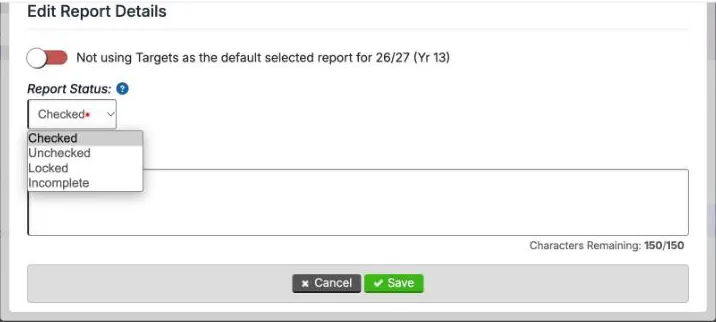
- In Edit Report Details, choose the Report Status: and change the Report Note: if you need to. The switch at the top makes this report the default report for the cohort.
- Select Save.
Delete a report
Section titled “Delete a report”Deleting a report removes it from REPORTS for everyone. The grades stay in DATA, so you can publish the data set again to bring the report back.
In KS3/4, select the cross (Delete Report) under Admin Actions, then Yes, Delete it!. In KS5, select Delete Report under REPORT DETAILS, then Delete.
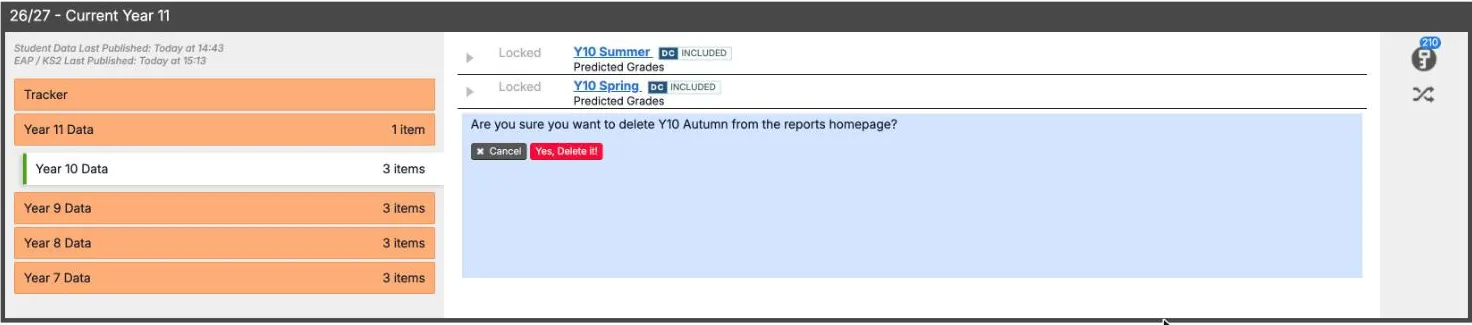
If the report was in the cohort’s tracker, Sisra takes it out of the tracker and marks the tracker Generation Required. Generate the tracker again to fill the gap.
How the results embargo works
Section titled “How the results embargo works”Schools receive exam results the day before pupils and students do. Until pupils and students have them, results are confidential to the head of centre, exams staff and senior teaching staff. The Joint Council for Qualifications (JCQ) set this rule in its notice to centres for the June 2026 series. The embargo stops other staff opening new results in Sisra during that time.
Juniper Education sets an embargo window for each cohort’s Exams data set every year. Schools cannot change the windows. A report is embargoed only while both of these are true:
- it was published inside the window
- the time now is inside the window
An Exams report published before the window opens stays open to staff, such as a report of early-entry results published in July. Once you republish it inside the window, it is embargoed. Changing its status during the window does not lift the embargo.
When the window closes, the report’s own status applies. Checked, Unchecked and Incomplete reports open to everyone who can see reports. Locked reports stay closed to anyone without View Locked Reports.
During the window, staff without access see “This report has been locked down to satisfy the DfE’s embargo rules. Only users with the appropriate authority will be able to access this report; access to Embargo reports is managed by your SISRA admin”. The trends reports leave out embargoed results for these staff too. The help centre says that in Sisra Multi-School, only trust staff with Results Day Embargo Exemption can see trust reports during the embargo.
The 2026 embargo windows
Section titled “The 2026 embargo windows”| Results | Cohorts embargoed | Window |
|---|---|---|
| KS5 | 25/26 (Current Yr 13) and 26/27 (Current Yr 12) | 12:01am on Wednesday 12 August 2026 to 8am on Thursday 13 August 2026 |
| KS4 | 25/26 (Current Yr 11) and 26/27 (Current Yr 10) | 12:01am on Wednesday 19 August 2026 to 8am on Thursday 20 August 2026 |
The windows change every year. Juniper publishes each year’s windows in its help centre before the results period. In 2026, the HOME announcement “KS5 & KS4 Results Days - Important Information” of 7 July 2026 also gave them. It was marked Privacy: Admin, so only staff with Access Data Section could see it.
Results day announcements carry the Results Day tag. During the results period, the publish pages in DATA also list the dates in a Results Day Information box.
Let more staff see embargoed reports
Section titled “Let more staff see embargoed reports”Only the Admin group has View Embargo Reports by default, and you cannot edit the Admin or User groups. To let other staff open results during the window, such as your head of sixth form, create a group with that permission. Then give it to them in Juniper Portal. Give it only to staff the JCQ rules allow to see results before they are released.
Create an embargo group
Section titled “Create an embargo group”- Select USERS, then Groups, then Group List.
- Select Create Group.
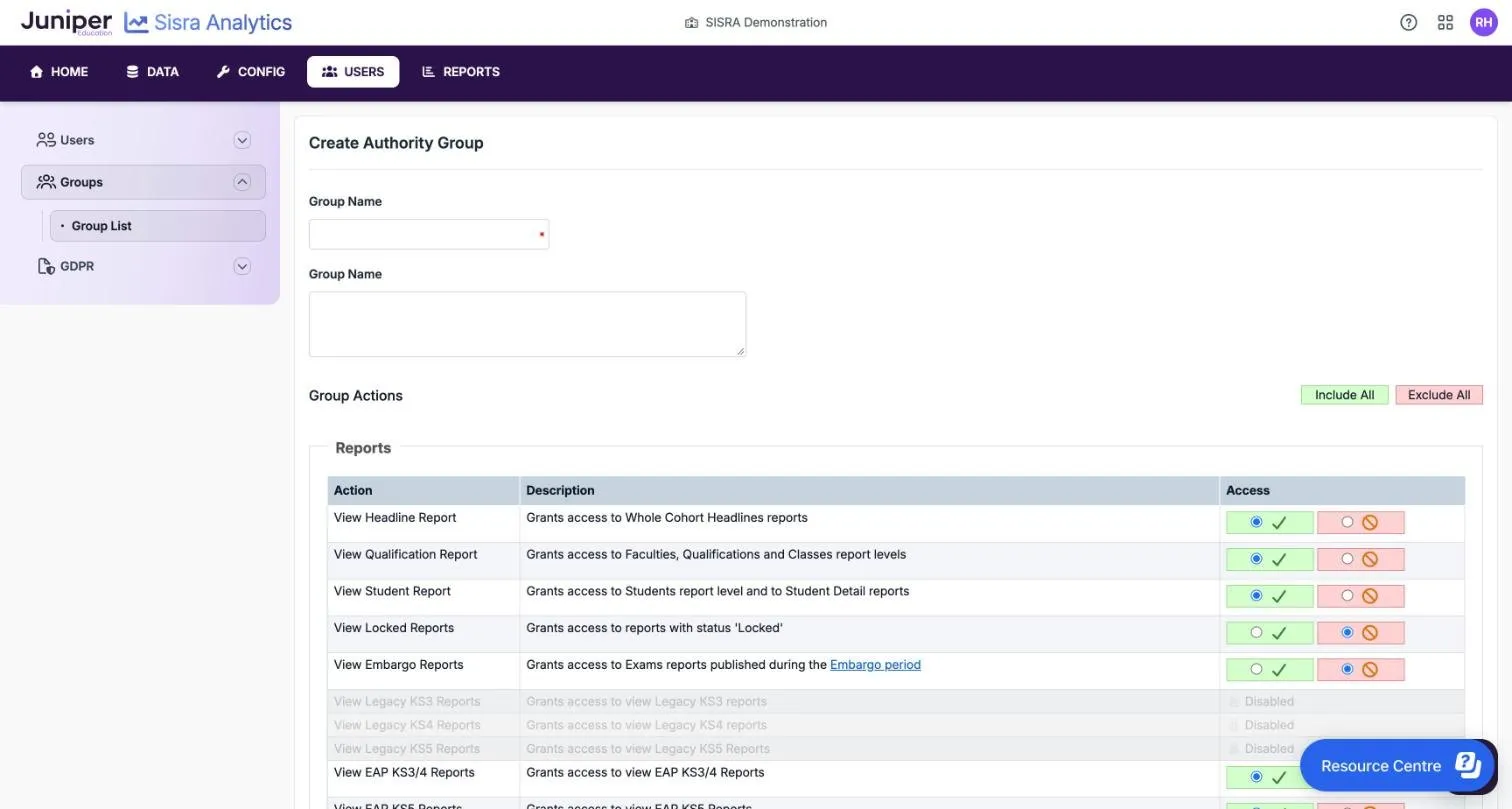
- In the first Group Name box, enter a name, such as Embargo. The second box, also labelled Group Name, holds a description.
- Under Group Actions, select the green tick next to View Embargo Reports.
- If you might keep results Locked after the window, also select the green tick next to View Locked Reports.
- Check the other actions. A new group starts with the five report actions it needs to open the KS3/4 and KS5 reports, and nothing else.
- Select Create Group.
Give staff the group
Section titled “Give staff the group”Sisra copies each custom group to Juniper Portal as a role for Sisra Analytics. To give the role to staff:
- In Juniper Portal, select User Invitations, then Staff, then Edit Roles.
- In Edit Role, choose Sisra Analytics as the Product.
- In Select User Role, choose the new group.
- In Select Users, choose the staff, then select Save.
Each person gets the group’s permissions the next time they sign in to Sisra. Give staff access to Sisra explains roles in Juniper Portal.
Keep results hidden after the embargo
Section titled “Keep results hidden after the embargo”To keep results from staff after the window closes, for example until a staff briefing, make the Exams report Locked:
- Publish Exams with Report Status: set to Locked, or change its status as in Change a report’s status or note.
- Check that each group that should still see the results has both View Embargo Reports and View Locked Reports. During the window, a locked report needs both.
- When staff can see the results, change the status to Checked or Unchecked.
Sisra has no setting to release a locked report at a set time, so change the status yourself when you are ready.
If something goes wrong
Section titled “If something goes wrong”Staff cannot open the Exams report on results morning. The report stays embargoed until the window closes, which was 8am in 2026. After that, check whether the report is Locked.
Staff can open new results during the window. The report was published before the window opened. Republish it, or change its status to Locked.
A senior leader cannot see embargoed results. Their authority group needs View Embargo Reports, and View Locked Reports as well if the report is Locked. A role changed in Juniper Portal takes effect at their next sign-in.
Incomplete is not in the status list. Only members of the built-in Admin group are offered it, and only in KS5.
There is no pencil, Edit Details or Delete Report. Changing and deleting reports needs Access Data Section.