


 Sonar Tracker
Set up your school
Take part in Sisra Data Collaboration
Sisra Data Collaboration pools anonymised exam results from schools that use Sisra Analytics and opt in. You can then compare your figures with theirs before the DfE publishes national data. You opt each KS3/4 cohort in to its year’s event and pass three set-up checks. Then you publish the cohort’s Exams data set with Data Collaboration on.
About Sisra Data Collaboration explains the figures it adds to the reports.
Before you start
Section titled “Before you start”You need:
- an authority group with Access Data Section, such as Admin
- the cohort’s student data imported, including a filter for disadvantaged pupils
- the cohort’s Expected Attainment Pathways (EAPs) set up
- a QN (qualification number) for every current qualification, from your exams officer
Only KS3/4 cohorts take part: there is no KS5 collaboration. Sisra collects results only from schools in English local authorities. A school that does not report to the DfE can opt in to use the figures, but its own data is not collected.
Opt a cohort in
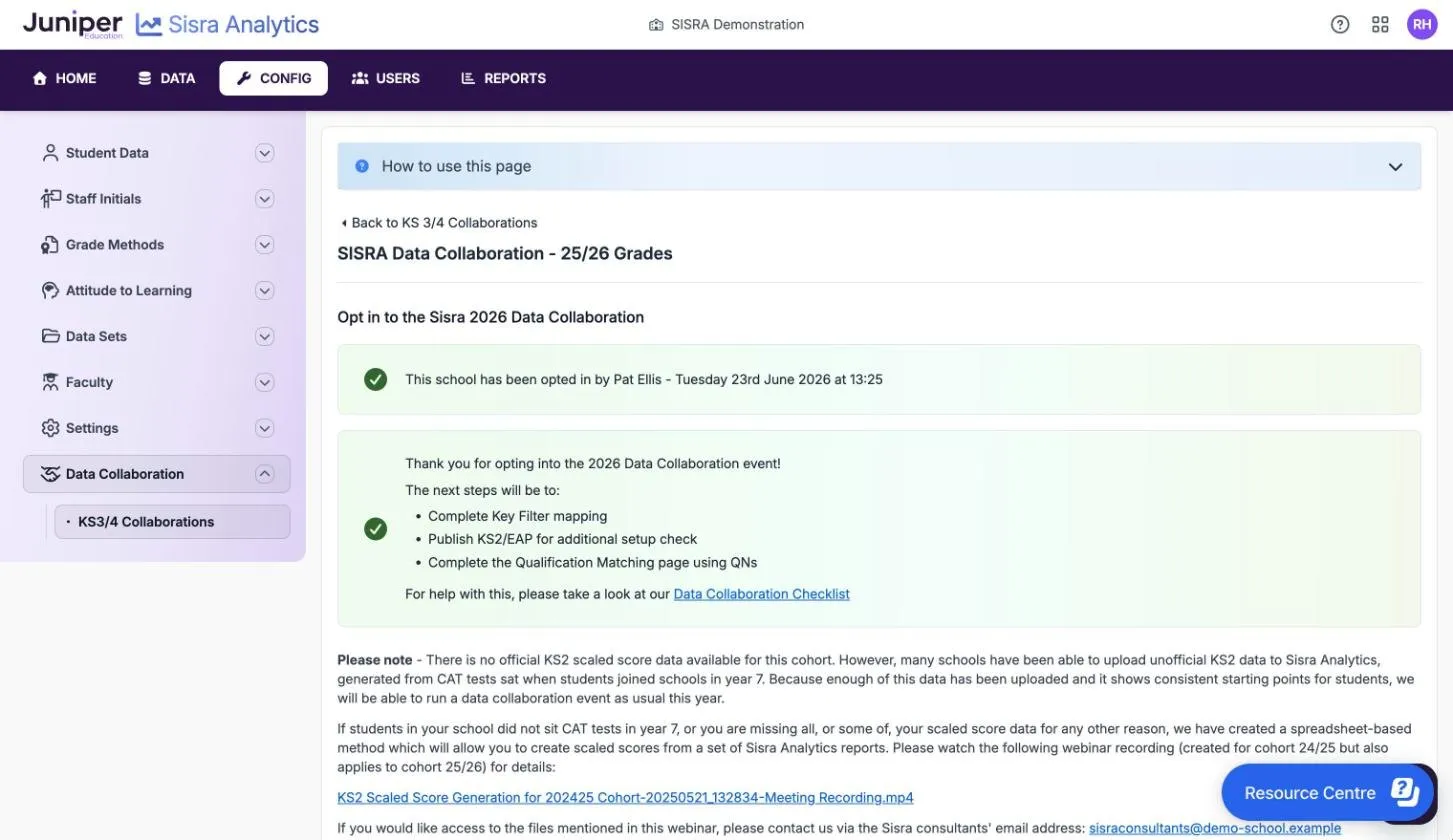
Section titled “Opt a cohort in”Each event is named after its results year and covers that year’s year 11. The 2026 event was for the 25/26 cohort. When an event opens, Sisra shows a prompt on HOME, such as “2026 Data Collaboration opt-in now available”. Opt the cohort in before its results day.
- Select CONFIG, then Data Collaboration, then KS3/4 Collaborations.
- Under Current Cohorts, select Exams next to the cohort.
- Read the page. It explains how the data is used, under headings such as GDPR (UK), Purpose, Automatic Opt-out and Data Integrity.
- Tick the box at the foot of the page, then select Submit.
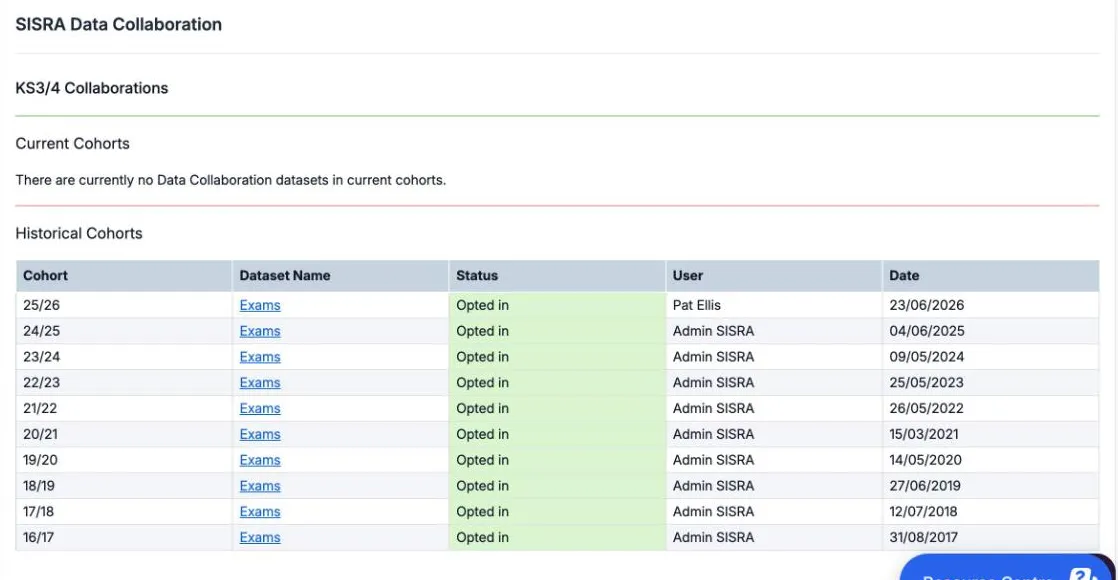
Sisra shows “This school has been successfully opted in.” The page then names who opted the school in and when, and lists the next steps. Once the cohort has left, it appears under Historical Cohorts with its Status, such as Opted in.
The page lists what Sisra collects:
- the cohort’s Gender, Disadvantaged and SEN filter values
- KS2 scaled scores in English reading and maths
- the grades and headline figures in the Exams data set
Each pupil’s data goes with a random number, not their name or your school’s details. Pupils with the status Left School or Guest are not included.
Pass the set-up checks
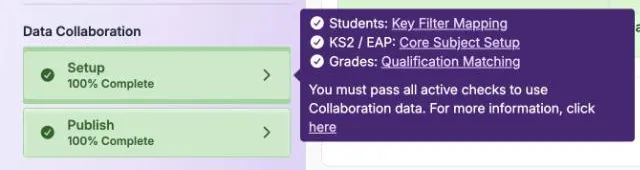
Section titled “Pass the set-up checks”The Data Collaboration panel at the foot of the DATA menu shows two bars for the cohort, Setup and Publish, each with a percentage. Select the arrow on a bar to see its checks. “You must pass all active checks to use Collaboration data.”
| Check | Where to fix it | What it needs |
|---|---|---|
| Students: Key Filter Mapping | Students, then Key Filter Mapping | Disadvantaged, Gender and SEN mapped to your own filters |
| KS2 / EAP: Core Subject Setup | KS2 / EAP, then Baselines, then Baseline Management | KS2 English reading and maths scaled scores nominated as Core |
| Grades: Qualification Matching | Grades, then Matching, then Qualifications | Every current, included qualification linked to its QN |
Publish checks that you have published student data and KS2 / EAP data since the set-up. Its pop-up shows lines such as “Students: Successfully published”.
Map the key filters
Section titled “Map the key filters”Map Disadvantaged, Gender and SEN for the cohort, then publish student data. Until you do, publishing student data warns “Filter mapping is currently incomplete”. Map key filters gives the steps.
Nominate the KS2 core subjects
Section titled “Nominate the KS2 core subjects”- Select KS2 / EAP, then Baselines, then Baseline Management.
- Select Edit, nominate the English reading and maths scaled scores in Core, then save.
- Select Publish KS2 / EAP. Fix anything the health check reports, then select Publish.
Upload KS2 baselines explains baselines and core subjects. The 24/25 and 25/26 cohorts can skip this check if they have no KS2 baselines: see Take part without KS2 results.
Match qualifications with QNs
Section titled “Match qualifications with QNs”- Select Grades, then Matching, then Qualifications, then Edit.
- For each current qualification, set Use QN to Yes. Search QN Title by QN code or title, then select the qualification.
- Select Save Changes.
When every current, included qualification has a QN, a green banner says so.
For a qualification with no QN, search QN Title for its unapproved option, such as Unapproved Religious Studies.
Check the DC Exams Check column too. A magnifying glass flags a grade method whose points or entries may not match the official ones. It does not always mean the method is wrong. Match qualifications in KS3/4 explains both columns.
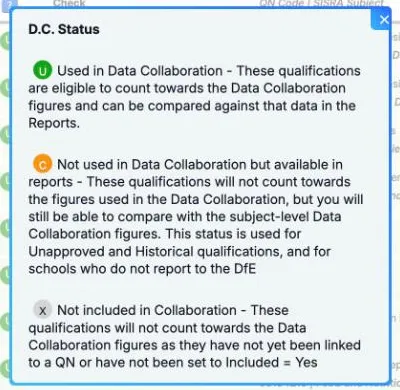
The Collab column shows a code for each qualification:
| Code | Meaning |
|---|---|
| U | Used in Data Collaboration. The qualification counts towards the figures, and you can compare it with them in the reports |
| C | Not used in Data Collaboration but available in reports. It does not count, but you can compare it with the subject-level figures. Used for unapproved and historical qualifications, and in schools that do not report to the DfE |
| X | Not included in Collaboration. The qualification has no QN, or Included is not Yes |
Publish exam results with Data Collaboration
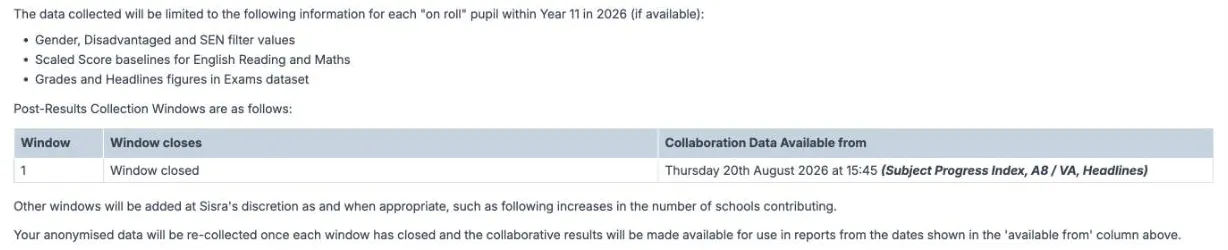
Section titled “Publish exam results with Data Collaboration”Sisra collects your results only from an Exams publish made after the results arrive and before the collection window closes. The opt-in page lists the windows and when each closes, under Post-Results Collection Windows. Once a window has closed, it shows Window closed instead.
- Upload the cohort’s results to the Exams data set, and clear any warnings in Grades Management.
- Select Grades, then Publish Grades, then Publish on the Exams row.
- Fix any issue on the Health tab. The Exams data set will not publish until every issue is fixed.
- On the Publishing tab, turn on Data Collaboration and choose the event in Collaboration Data:, such as 2026 Collab.
- Choose the A8 Estimates: and VA Estimates:.
- Select Publish.
Choose the publishing options explains the estimates. As at October 2026, Juniper Education advises 2024 Collab and the DfE’s official 2024 estimates for the 26/27 cohort onwards. These cohorts have real KS2 scaled scores.
If Data Collaboration cannot be turned on, a check has not passed or the event is not open. The dialog says which, such as “We have not yet enabled Data Collaboration for this cohort”.
When the collaborative figures are ready, Juniper posts an announcement on HOME. In 2026, they became available at 3:45pm on Thursday 20 August 2026, and the announcement followed at 4pm. Then republish the Exams data set, and any data set you compare with it, with the same Collaboration Data: event.
Take part without KS2 results
Section titled “Take part without KS2 results”The 24/25 and 25/26 cohorts have no KS2 results, because the 2020 and 2021 tests were cancelled. The DfE does not publish Progress 8 for them. The Data Collaboration panel in DATA says that for these cohorts “you do not need to pass the KS2/EAP setup or publish checks”.
These cohorts still need key filter mapping and matching. You can publish them with Data Collaboration for the collaborative headline figures. If you uploaded an unofficial KS2 conversion, such as one from CAT (Cognitive Abilities Test) scores, set up the KS2 core subjects as usual. Sisra then shows Progress 8 and Subject Progress Index (SPI) figures, but they are not the DfE’s Progress 8.
Progress 8 for cohorts without KS2 results explains the options. The 26/27 cohort took KS2 tests in 2022, so it needs the full set-up.
If something goes wrong
Section titled “If something goes wrong”Setup is below 100%. Select the arrow on the Setup bar to see which check has not passed.
Publishing student data warns “Filter mapping is currently incomplete”. Map the cohort’s key filters, then publish student data again.
Key filter mapping shows as incomplete again. New filter values have been imported, or someone’s values or status have changed. Map the new values.
A qualification shows X in the Collab column. Link it to a QN, or set Included to Yes.
“There is no Collaboration Data available which matches your current KS2/EAP setup”. The cohort’s KS2 core subjects or their grade type do not match the event. Check Baseline Management.
DATA says the cohort is locked. The cohort has an item in the publishing queue. Wait for it to finish.