


 Sonar Tracker
Users and access
Give staff access to Sisra
Staff sign in to Sisra Analytics through Juniper Portal, so you give, change and remove their access in Portal. The role you choose there decides each person’s authority group in Sisra, and the group decides what they can see and do. Since August 2026 you cannot add or remove users inside Sisra.
Before you start
Section titled “Before you start”You need:
- an administrator role in Juniper Portal to invite staff
- the Account Owner or Account Admin role in Portal to change roles or remove access
- the member of staff in your school’s management information system (MIS), with their work email address
An account can be Admin in Sisra but hold only Minimal Edit in Portal, which has no User Invitations menu. If Portal will not let you do one of these tasks, ask your school’s Account Owner.
Where staff records come from
Section titled “Where staff records come from”Portal takes staff records from your MIS. How they arrive depends on the MIS your school uses:
- with any MIS other than Juniper MIS, Wonde copies staff records to Juniper Education. The help centre says this happens overnight, so new staff appear the next day
- with Juniper MIS and no Wonde, you add staff in Juniper MIS, and you can invite them straight away
If your school uses Wonde, its Wonde administrator must approve Juniper’s request for access. If new staff never reach Portal, ask your IT team to check for a request waiting in Wonde.
To add a member of staff in Juniper MIS:
- Select Products in the header, then MIS.
- Select Staff, then All Staff.
- Select Create.
- Enter the person’s name and work email address, and set System Status to Current.
- Select Save.
Portal sends the invitation to this email address, so check it before you save. Do not add staff this way if your school uses another MIS: Wonde keeps their records in step with it.
If a member of staff’s home email address is marked as their primary address in your MIS, Portal shows it as their work address. Make the school address the primary one in your MIS.
Choose a role
Section titled “Choose a role”When you invite someone to Sisra, you choose their role in Portal. Sisra puts them in the authority group that matches the role.
| Role in Portal | Authority group in Sisra | What they can do |
|---|---|---|
| User | User | Open HOME and the reports, except Locked reports and results under embargo |
| Admin | Admin | Everything, including DATA, CONFIG, USERS, Locked reports and results under embargo |
Most staff need User. Give Admin to the staff who set up and publish data, such as your data manager and exams officer. Some Juniper help articles call this role Administrator.
Sisra adds each custom authority group to Portal as a role with the same name, so you can choose one of those instead. If a group you need is not in Portal’s list of roles, contact Juniper support. Authority groups and permissions explains what each group allows.
Everyone you invite to Sisra also gets Juniper Portal and Intelligence, another Juniper product.
Invite staff
Section titled “Invite staff”- Open Juniper Portal: select Products in the header, then Portal.
- Select User Invitations, then Staff.
- Select Send Invitations.
- In Invite Users, choose Sisra Analytics as the Product.
- Choose the role in Select User Role.
- In Select Users, select each member of staff you want to invite. The list shows only staff who do not use Sisra yet.
- Select Send Invitations.
Staff who are new to Juniper get an email with a link to register. The link lasts 14 days. Staff who already use another Juniper product get an email saying that Sisra will appear the next time they sign in to Portal.
You can invite several people at once if they need the same role. Send them Sign in and switch schools for their first sign-in.
Resend an expired invitation
Section titled “Resend an expired invitation”- In Portal, select User Invitations, then Staff.
- Find the member of staff. Their User Status shows Invitation expired.
- Select the three dots next to their status, then Invite.
- Select Send.
Only the newest invitation works. Links in earlier emails stop working.
Change a role
Section titled “Change a role”The member of staff must have accepted their invitation first.
- In Portal, select User Invitations, then Staff.
- Select Edit Roles.
- In Edit Role, choose Sisra Analytics as the Product.
- Choose the new role in Select User Role.
- In Select Users, select the member of staff.
- Select Save.
Sisra moves them into the matching authority group when they next sign in, so ask them to sign out and sign in again. USERS > Admin History records the change as an edit “via Portal Sync”, with the old and new group.
Remove access
Section titled “Remove access”Remove Sisra only
Section titled “Remove Sisra only”- In Portal, select User Invitations, then Staff.
- Find the member of staff and select the three dots next to their Sisra Analytics role.
- Select Remove Role.
- Select Remove to confirm.
They keep their other Juniper products. In Sisra their account becomes Blocked, and they cannot sign in to Sisra.
Revoke all access when someone leaves
Section titled “Revoke all access when someone leaves”- In Portal, select User Invitations, then Staff.
- Find the member of staff and select the three dots next to their User Status.
- Select Revoke Access.
- Select Revoke to confirm.
Their User Status becomes Not Registered, and they lose every Juniper product.
Give access back
Section titled “Give access back”To give someone access again, invite them as in Invite staff. After Revoke Access, they also need to register again.
Accounts that your trust manages
Section titled “Accounts that your trust manages”If your trust gave someone access to your school through the trust’s own Juniper Portal, only the trust can change, remove or revoke that access. Your school’s Portal cannot.
Fix an email address that no longer works
Section titled “Fix an email address that no longer works”Juniper sends sign-in codes to the email address on each account. A member of staff who can no longer use that address cannot sign in.
If they know their old Sisra username and password, they can check and change the address themselves. See Check the email address Sisra holds. Otherwise, change it for them as follows.
If your school uses Wonde
Section titled “If your school uses Wonde”- Change the email address in your MIS. The help centre says the change reaches Portal overnight.
- Once it has, invite the member of staff to Sisra at the new address.
- Once they have signed in with the new address, revoke the old account in Portal.
If your school uses Juniper MIS without Wonde
Section titled “If your school uses Juniper MIS without Wonde”- In Portal, note which Juniper products the member of staff has, then revoke their access.
- In Juniper MIS, select Staff, then All Staff, then their name.
- On Personal Details, select Edit, correct the email address and select Save.
- In Portal, invite them again to each product they had.
If neither route works, contact Juniper support.
What USERS shows in Sisra
Section titled “What USERS shows in Sisra”In Sisra, USERS > Users > User List shows only a notice. It reads “User management has moved to Portal, for information on this please see our guidance for managing Sisra Analytics users within Portal”. You cannot add, edit, block or delete users there.
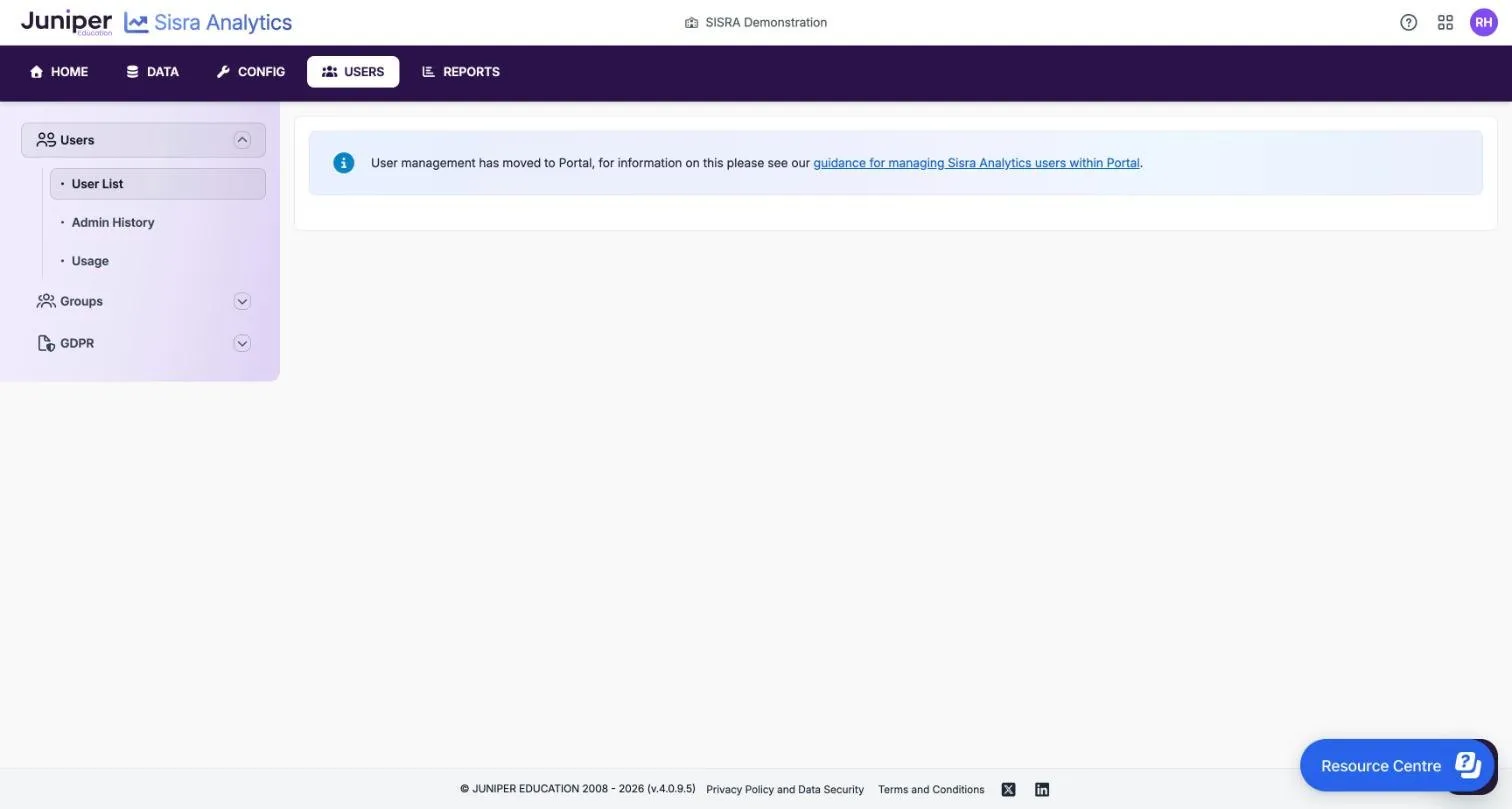
Help articles that tell you to add users in Sisra describe how it worked before August 2026. What’s changed explains the move to Portal.
To see every Sisra account and its authority group, open USERS > Usage. It includes blocked accounts, but does not show which they are. See Usage.
If something goes wrong
Section titled “If something goes wrong”A member of staff is missing from Select Users. Check that:
- they are in your MIS with a work email address
- Wonde has had time to copy them, if your school uses Wonde. The help centre says new staff reach Portal overnight
- they do not already have a Sisra role
- your Wonde administrator has approved Juniper’s request for access
The invitation has expired. Resend it. Invitations last 14 days.
Someone sees “Your account has been blocked”. They no longer have a Sisra role in Portal. If they should have access, invite them again.
Someone has the wrong access. Check their authority group in USERS > Usage, then change their role in Portal.
A name is wrong. Correct it in your MIS. With Wonde, the change reaches Portal after Wonde’s next sync. Changes in Juniper MIS show straight away.