


 Sonar Tracker
Set up your school
Rename data sets and manage faculties
Three CONFIG pages change how Sisra Analytics labels grades, qualifications and classes in DATA and the reports. Data set names apply to every cohort in a key stage. Faculties group qualifications, and staff initials appear next to class names.
Before you start
Section titled “Before you start”You need:
- an authority group with Access Data Section, such as Admin
- to have agreed with senior leaders what each data set will hold, because a name applies to every cohort
Authority groups and permissions explains Access Data Section.
Rename a data set
Section titled “Rename a data set”Each cohort has seven standalone data sets, each holding one full set of grades, such as targets or mock results. Assessments holds the cohort’s assessment collections. You cannot add more data sets. Data sets, assessment collections and grade types explains how they differ.
- Select CONFIG, then Data Sets, then KS3/4 Data Sets or KS5 Data Sets.
- Select Edit.
- In the Display Name column, type the new names, such as
Mocksfor Data Set 2. - Select Save.
- Republish each renamed data set in each cohort.
Sisra shows “Data set(s) successfully updated”. The reports show a new name only after you republish the data set. Display names must differ within a key stage, or Sisra says “This Display Name is already in use for this Key Stage.”
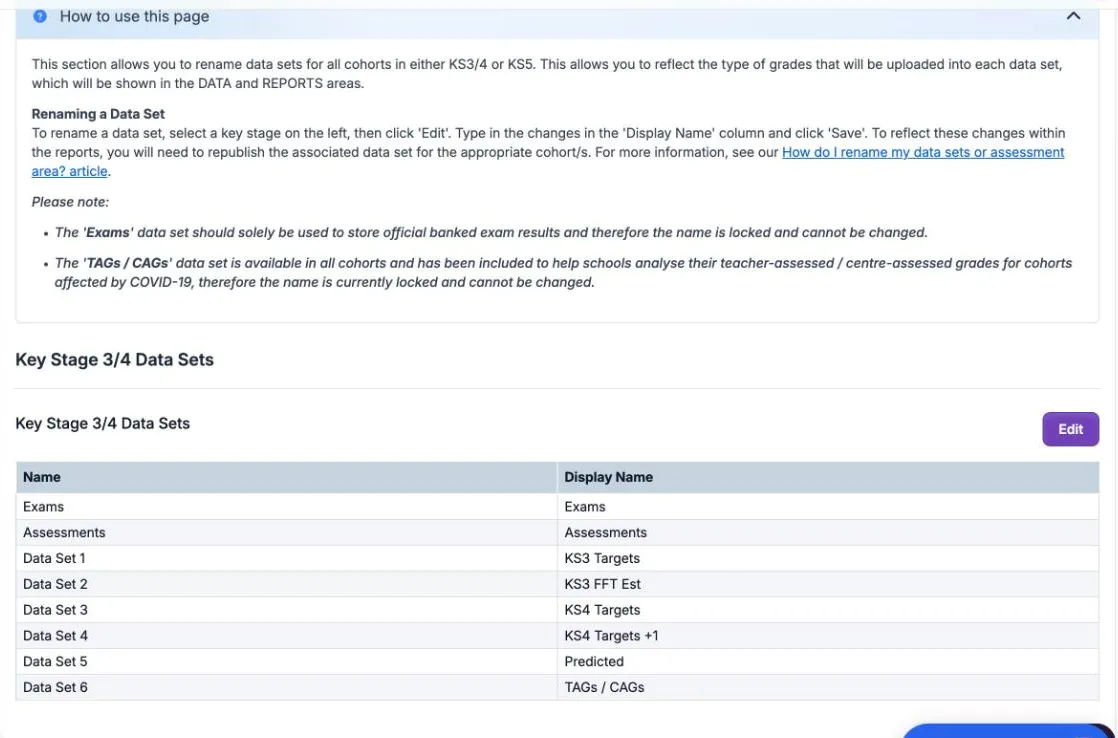
The names are the same for every cohort in a key stage, but KS3/4 and KS5 have separate names. You can rename Assessments too, such as to Working At, if all its collections hold one kind of grade.
Two names are locked:
- Exams, which holds official, banked exam results only
- TAGs / CAGs, added for the centre-assessed grades of 2020 and teacher-assessed grades of 2021
A name does not change what a data set is. Each standalone data set also has a term and a grade type. You set them on its upload page in DATA, except for Exams, whose term and grade type are fixed. See Upload grades.
Create and manage faculties
Section titled “Create and manage faculties”A faculty groups qualifications so that heads of faculty can analyse them together, such as a science faculty of combined science, biology, chemistry and physics. Faculties belong to the whole school. You put each qualification into a faculty on the Matching page, cohort by cohort.
- Select CONFIG, then Faculty.
- Select Create Faculty.
- Enter the Faculty Name: and select Create.
- Open the cohort in DATA. Select Grades, then Matching, then Qualifications.
- Select Edit. In each qualification’s Faculty column, choose its faculty, then select Save Changes.
- Repeat steps 4 and 5 for each cohort, then republish each cohort’s grades.
Faculties then appear as a level in the KS3/4 reports and as a grouping in the KS5 reports.
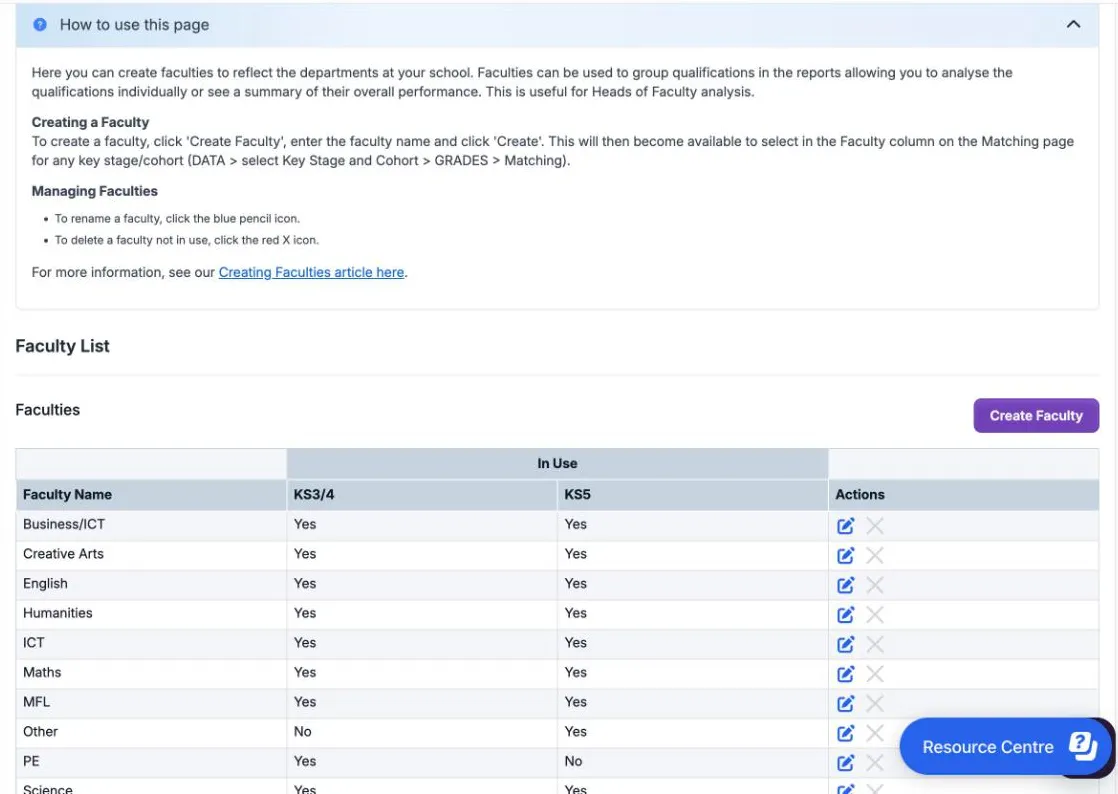
Faculty List shows whether each faculty is In Use at KS3/4 and KS5. The pencil in Actions renames a faculty, and the red cross deletes one that is not in use. Each name must be unique, or Sisra says “This Faculty Name already exists”.
Correct staff initials
Section titled “Correct staff initials”Staff initials come from an optional column in your student data files, and appear next to class names. To add them, import a student data file that includes them: see Add staff initials to classes.
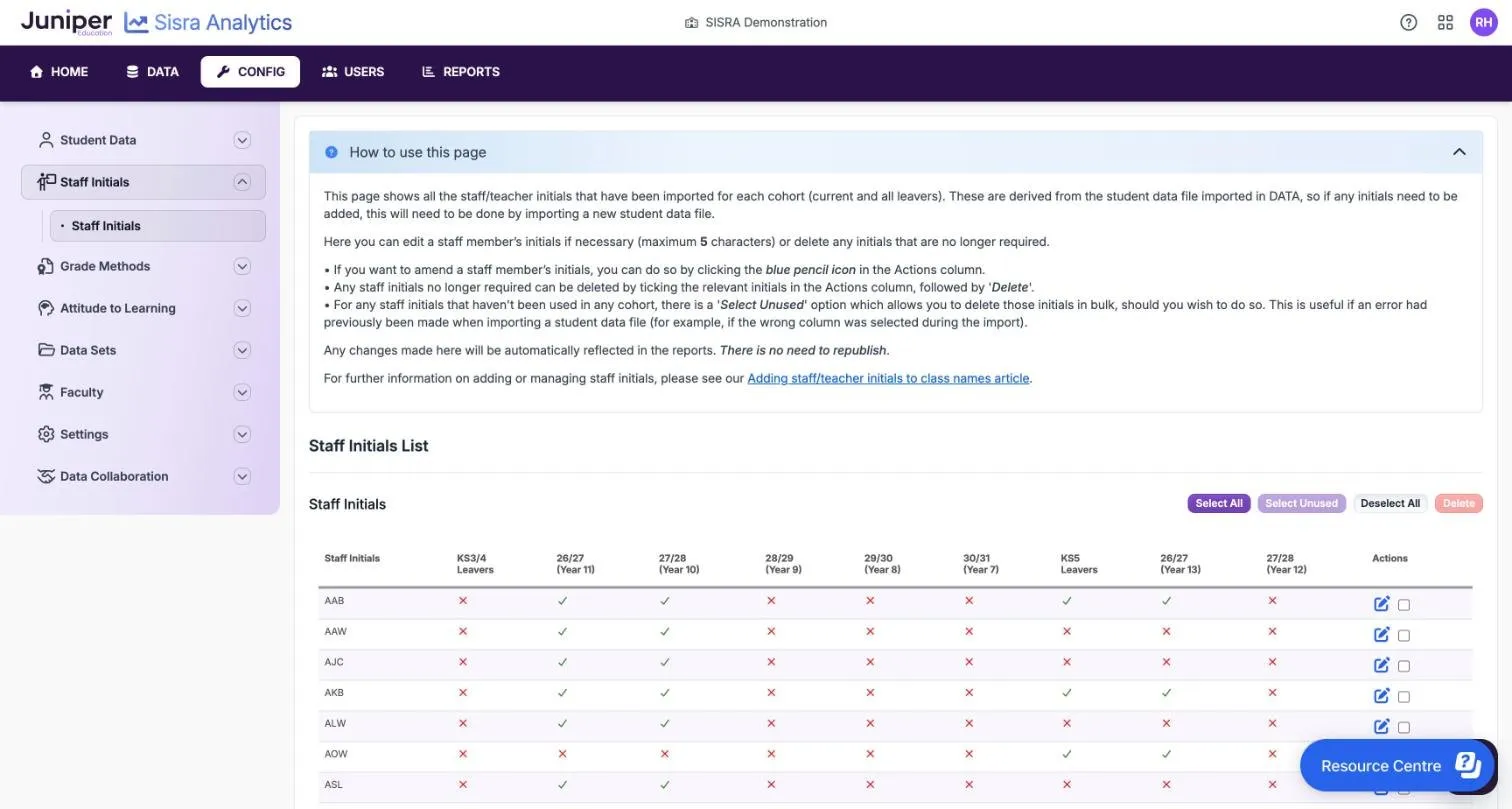
Staff Initials in CONFIG lists every set of initials imported for every cohort. It has a column for each current cohort and one for each key stage’s leavers, with a tick where the initials are used.
To change a teacher’s initials:
- Select CONFIG, then Staff Initials.
- Select the pencil next to the initials.
- Enter the new initials, up to 5 characters, then select Submit.
To delete initials:
- Tick them in Actions. Select Unused ticks every set of initials that no cohort uses.
- Select Delete.
Changes reach the reports straight away, without republishing. Initials must be unique and cannot contain commas. If you enter initials that exist already, Sisra says “These staff initials already exist”.
If something goes wrong
Section titled “If something goes wrong”The reports still show the old data set name. Republish the data set in that cohort.
“This Display Name is already in use for this Key Stage.” Another data set in the key stage has that name. Choose a different one.
A faculty’s cross is greyed out. A qualification in at least one cohort uses the faculty. Move those qualifications to another faculty on the Matching page first.
Initials you do not recognise appear after an import. The wrong column was probably mapped as staff initials. Import the file again with the right column, then use Select Unused and Delete.
CONFIG is locked. Sisra locks CONFIG while any cohort has data in the publishing queue. Wait for publishing to finish.