


 Sonar Tracker
Baselines and EAPs
Upload KS2 baselines
KS2 baselines are each pupil’s key stage 2 test results in English reading and maths. Sisra Analytics uses them as prior attainment for Progress 8, English Baccalaureate (EBacc) value added and the Subject Progress Index (SPI), and to put pupils into KS2 bands. You upload them for each KS3/4 cohort under KS2 / EAP, then nominate them as the core subjects.
The same upload page takes other baselines, such as targets, for Expected Attainment Pathways (EAPs). Set up EAPs for KS3/4 covers those.
Before you start
Section titled “Before you start”You need:
- an authority group with Access Data Section, such as Admin
- the cohort’s student data imported, using the same Student IDs as the baseline file
- each pupil’s KS2 scaled scores for reading and maths
Authority groups and permissions explains Access Data Section. Import student data covers student data.
Find the scores
Section titled “Find the scores”The KS2 tests (often called SATs) award scaled scores from 80 to 120. Get them from the DfE’s Get Information about Pupils (GIAP) service or from the pupils’ primary schools. In a GIAP export, use the columns READSCORE_noSpeccon and MATSCORE_noSpeccon. They hold the scores without special consideration, which is what the DfE uses for Progress 8.
| Cohort (Year 11 in) | KS2 tests | What to upload |
|---|---|---|
| 26/27 (Current Yr 11) and later | 2022 onwards | Scaled scores for reading and maths |
| 25/26 (Leavers) and 24/25 (Leavers) | Cancelled in 2020 and 2021 | Nothing, unless you use your own conversion. See Set up cohorts with no KS2 results. |
| 23/24 (Leavers) back to 20/21 (Leavers) | 2016 to 2019 | Scaled scores for reading and maths |
| 19/20 (Leavers) back to 16/17 (Leavers) | 2012 to 2015 | Fine levels, to 5 decimal places |
Prepare the file
Section titled “Prepare the file”A file needs each pupil’s Student ID and name, and a score for each subject. Upload reading and maths as separate subjects, not as an average: Sisra works out the average itself.
| Layout | What it looks like | Upload type |
|---|---|---|
| Broadsheet | One row per pupil, with a column for each subject | Broadsheet |
| Grade list | One row per pupil and subject, with every score in one column | Grade List |
Name the subjects so nobody can mistake them for EAP baselines, such as KS2 Reading and KS2 Maths rather than Maths. Use the same names in every later file, so that new scores join the existing subjects. Save the file as .csv, .xlsx, .xls or .xml.
Leave out any pupil who has no KS2 result. Do not enter 0: Sisra flags it as Grade Not In Method. Apart from the 24/25 and 25/26 cohorts, never enter a score for a pupil who did not have one. The DfE leaves pupils without a KS2 result out of Progress 8, and an invented score would put them in.
Upload the file
Section titled “Upload the file”- Open the cohort in DATA: choose 3/4 in Key Stage and the cohort in Year 11 in.
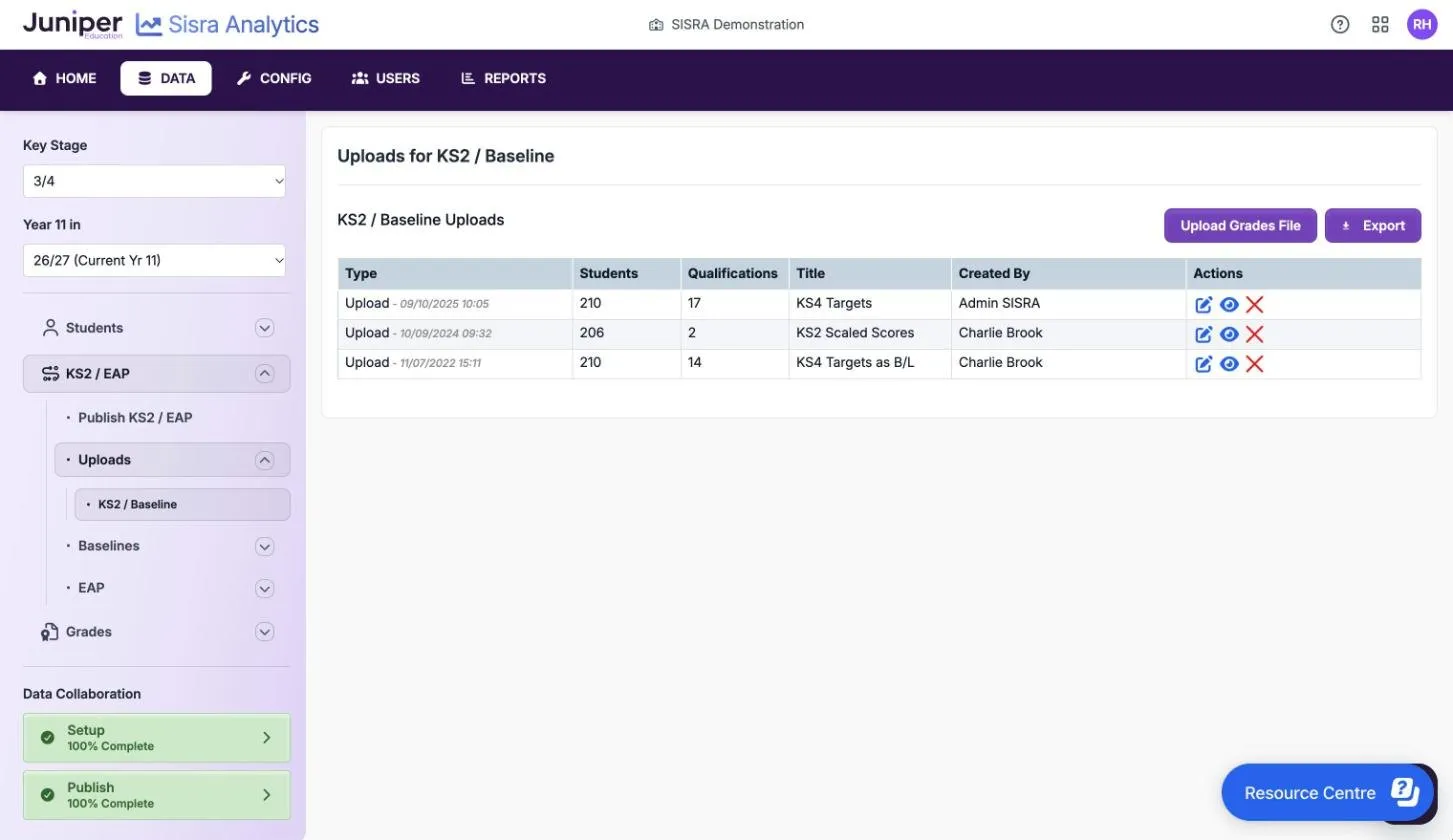
- Select KS2 / EAP, then Uploads, then KS2 / Baseline.
- Select Upload Grades File.
- In Please select an upload type:, choose Broadsheet or Grade List.
- For a broadsheet, enter the row that holds the subject names in Please select which row contains the qualification titles:. This is usually row 1.
- Choose the file and enter a File Title: of 2 to 20 characters, such as
KS2 results 2022. - Select Upload.
- On the column mapping page, check that Student ID and Student Name are mapped. For a broadsheet, choose the first and last subject columns; for a grade list, the subject and score columns. Then continue.
- Read the file health check, then select Continue with the upload. To fix the file first, select Cancel the upload.
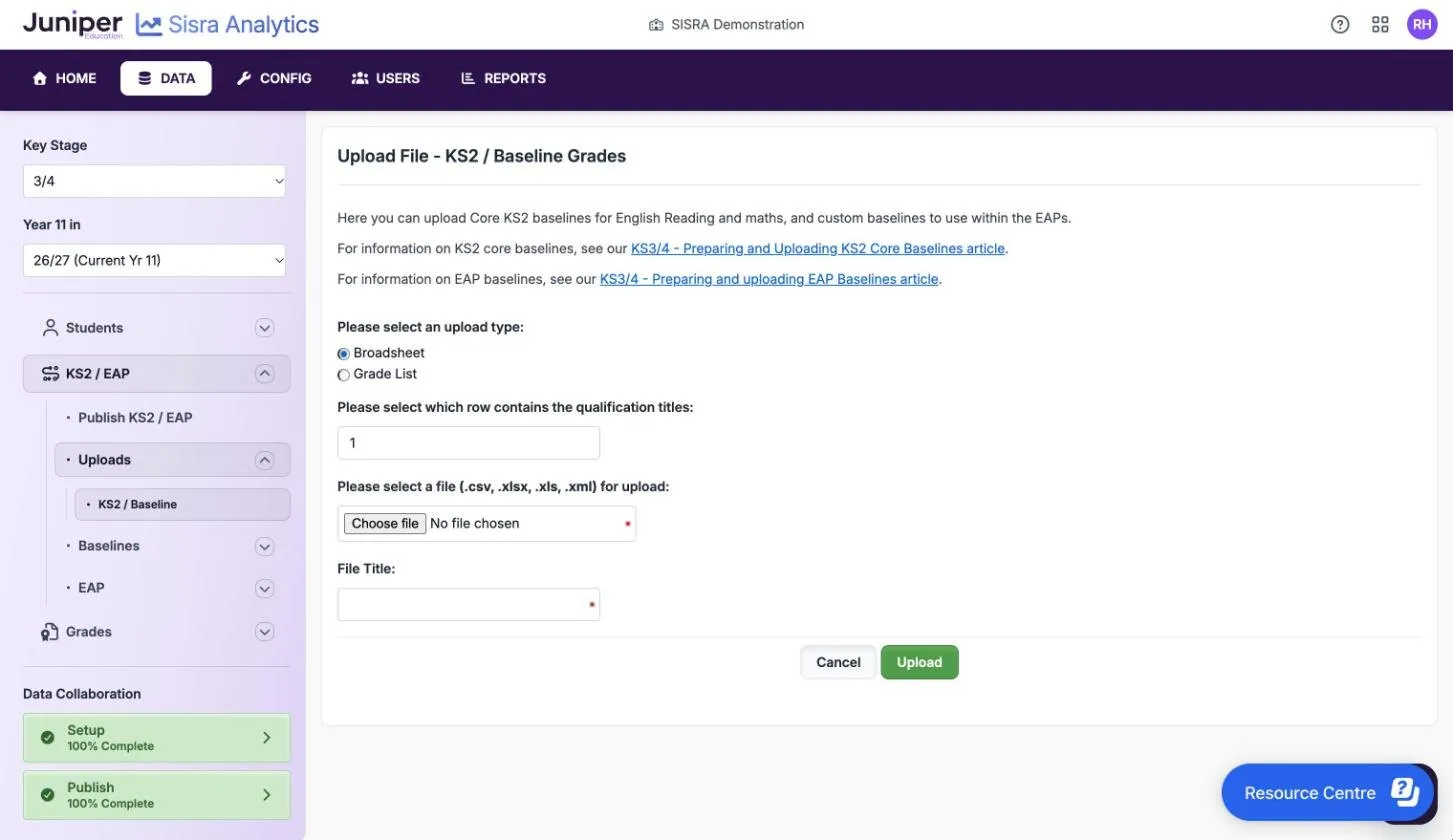
The file title shows only in DATA. File health check messages explains each message. The usual ones are about Student IDs that Sisra does not recognise, and pupils with two scores for one subject.
If the cohort already has baselines and the file uses subject names Sisra has not seen, Confirm Upload Qualification Names opens. Choose New for a new subject, or choose an existing subject to merge the scores into it. Then select Complete the upload. Names that match an existing subject exactly merge without asking.
Nominate the core subjects
Section titled “Nominate the core subjects”Sisra uses only the subjects nominated in the Core column for Progress 8, SPI and KS2 banding. Every other baseline on the page is for EAPs.
- Select KS2 / EAP, then Baselines, then Baseline Management.
- Select Edit.
- For each KS2 subject, set Grade Type to Scaled Scores.
- In the Core column, nominate the reading subject as English Reading and the maths subject as Maths.
- Leave Core empty for every other subject, then save your changes.
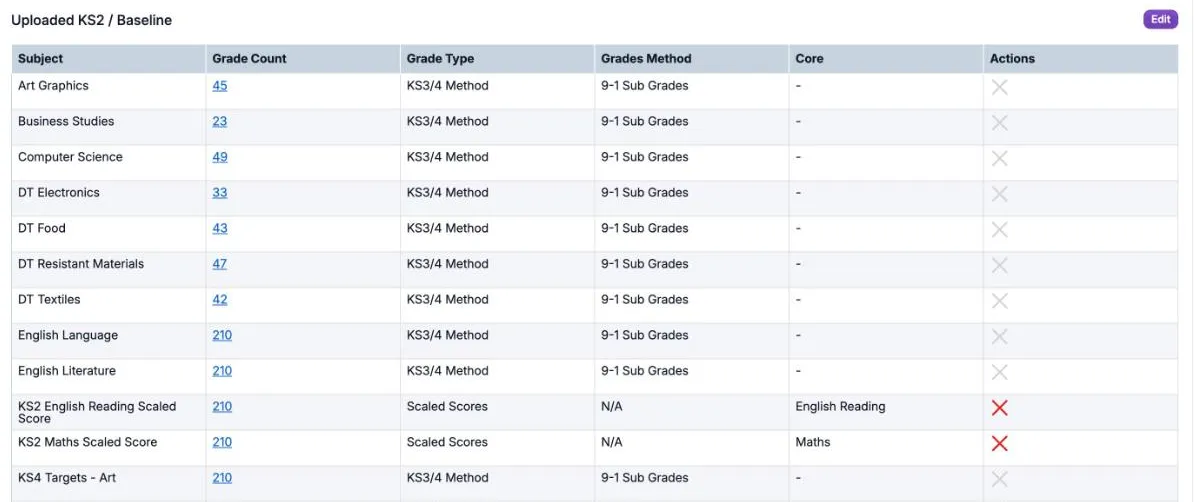
The table shows each subject’s Grade Count, Grade Type, Grades Method and Core nomination. Grades Method applies only to subjects with the grade type KS3/4 Method, such as targets. You cannot delete a subject that an EAP or baseline group uses: its delete icon is greyed out.
Sisra expects these nominations:
| Year 11 in | Core | Grade Type |
|---|---|---|
| 20/21 and later | English Reading (or English) and Maths | Scaled Scores |
| 16/17 to 19/20 | English Reading (or English) and Maths | NC Fine Levels (5dp) |
For the 24/25 and 25/26 cohorts, leave Core empty unless you upload your own conversion.
Check the warnings
Section titled “Check the warnings”The key at the top of Baseline Management names four warnings. They do not stop you publishing KS2 / EAP, but they can make Progress 8 wrong or blank. Warning icons shows how each one looks.
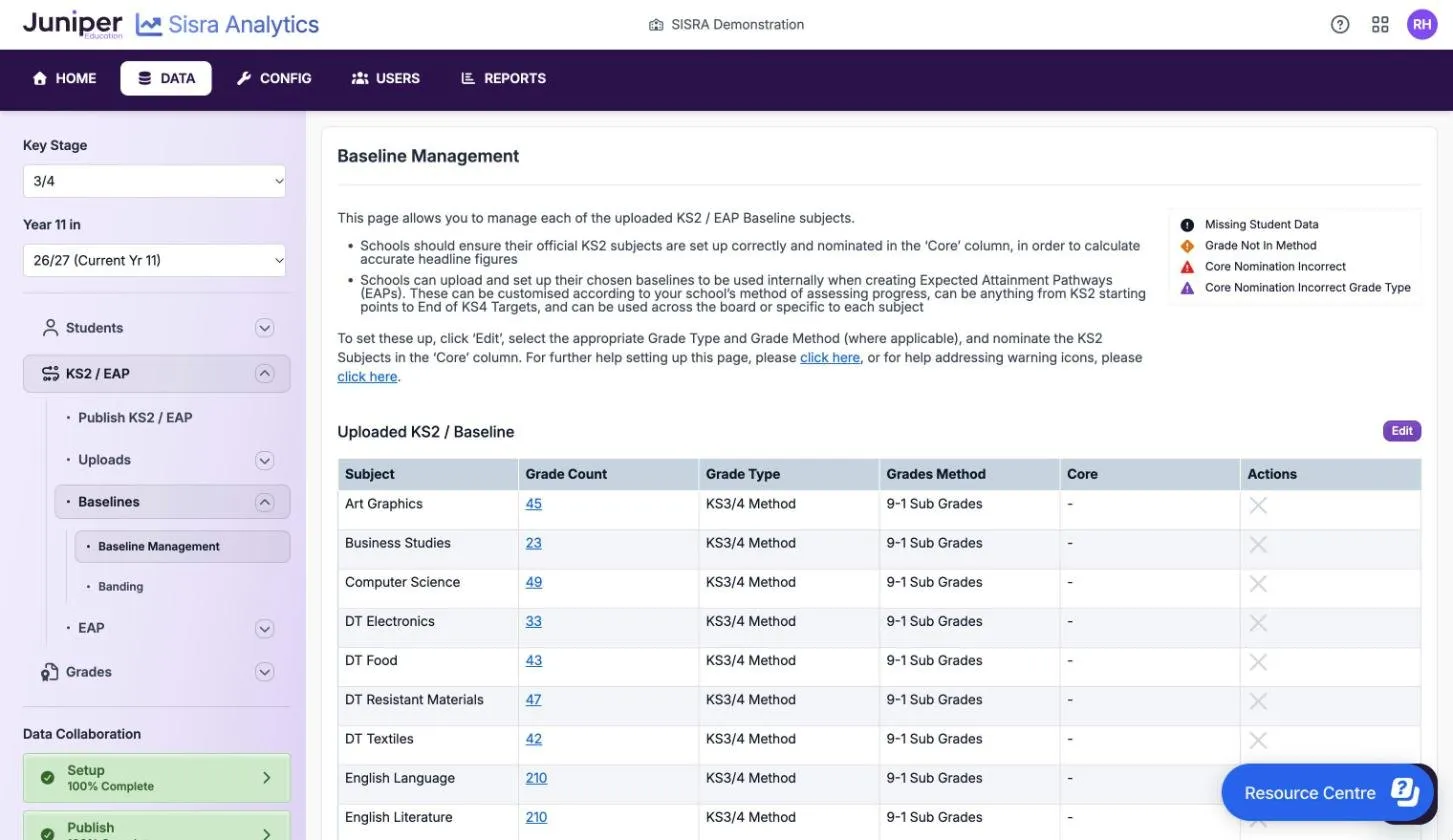
| Warning | What it means | What to do |
|---|---|---|
| Missing Student Data | A score belongs to a Student ID that is not in the cohort. Sisra ignores it in the reports. | Correct the ID in the file or the student data. To add the pupil, select the subject’s Grade Count, then Create Missing Student. To remove the score, tick it there and select Delete Selected. |
| Grade Not In Method | A value does not fit the subject’s Grade Type, such as 0 or 125 for Scaled Scores | Check the Grade Type under Edit. Then correct the values: upload the file again, or select Grade Count, then Edit Grades. |
| Core Nomination Incorrect | The Core column does not hold the subjects the DfE uses for this cohort. Hover over the icon to see what Sisra expects. | Select Edit and nominate only the expected subjects |
| Core Nomination Incorrect Grade Type | A core subject has the wrong grade type for the cohort. The expected type shows under it. | Select Edit and choose the expected Grade Type |
Each grade type accepts these values:
- Scaled Scores: whole numbers from 59 to 120, and the DfE’s letter codes, such as N and B
- NC Fine Levels (5dp): 1.0 to 5.8, with up to 5 decimal places, and letter codes such as N and W
- Number Range: whole numbers from 0 to 300
- KS3/4 Method: the grades in the chosen grade method
Add or change one pupil’s score
Section titled “Add or change one pupil’s score”- In Baseline Management, select the subject’s Grade Count.
- Select Add Grade, choose the Student, enter the score in Grade and select Add. To change a score, select Edit Grades instead.
- Save the change.
- Publish KS2 / EAP, then republish the grades.
Check KS2 banding
Section titled “Check KS2 banding”Sisra puts each pupil into a KS2 band from their core scores. The bands feed the KS2 Banding filter in the reports. To see each pupil’s band, select KS2 / EAP, then Baselines, then Banding. The KS2 Banding table shows Core English, Core Maths and SISRA Banding for every pupil.
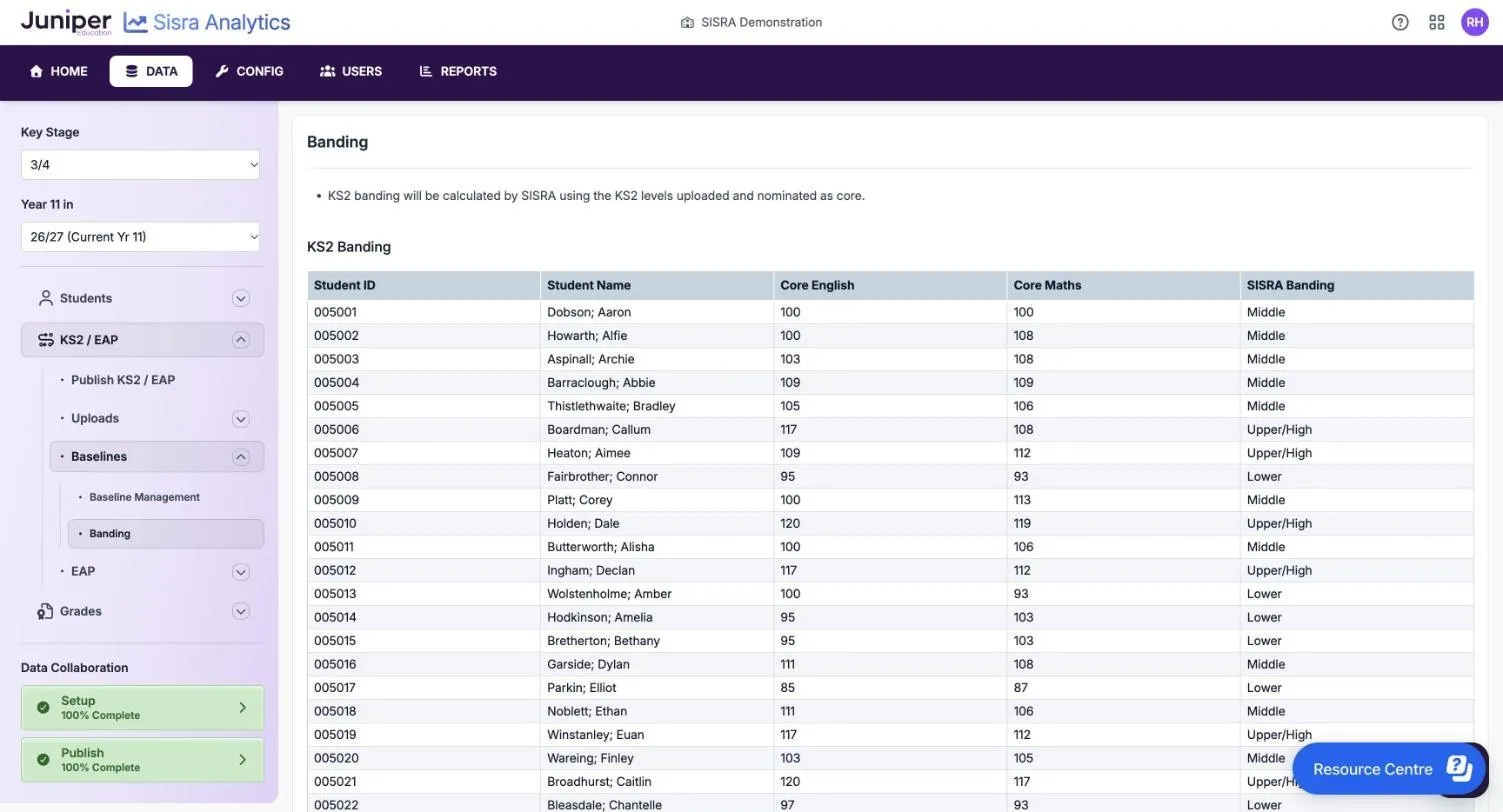
Sisra averages the pupil’s core scores, ignoring any that are not a number above 0. With only one score, the average is that score. It does not round the average. It then compares the average with these thresholds:
| Band | Average of the core scaled scores |
|---|---|
| Upper/High | 110 or more |
| Middle | 100 or more, but below 110 |
| Lower | Above 0, but below 100 |
| n/a | No core score |
These match the DfE’s high, middle and low prior attainment groups. For older cohorts with fine levels, the thresholds are 30 points (level 5) and 24 points (level 4), where points are the fine level multiplied by 6.
| Pupil (fictional) | Reading | Maths | Average | Band |
|---|---|---|---|---|
| Ava Moss | 104 | 98 | 101 | Middle |
| Ben Okafor | 112 | 109 | 110.5 | Upper/High |
| Cara Lund | 99 | 100 | 99.5 | Lower |
| Dev Shah | None | 103 | 103 | Middle |
Cara’s average of 99.5 is not rounded up to 100, so she is in the lower band. Dev has one score, so his average is that score.
The reports use the bands from the last time you published KS2 / EAP. Publish it again after you change any core scores.
Replace a baseline file
Section titled “Replace a baseline file”To correct scores in bulk, or load a better set, upload the new file before you delete the old one.
- Upload the new file as in Upload the file. Include every subject the old file held, even those that have not changed.
- If Confirm Upload Qualification Names opens, merge each subject into the one it replaces.
- In Uploads, select the red cross next to the old file.
- Read the message, then select Delete.
- Publish KS2 / EAP, then republish the grades.
The message in step 4 says whether the deletion is safe. “We identified no baselines which would be affected by the deletion of this upload.” means you can go ahead. If it lists a baseline as “This baseline is currently in use in an EAP”, cancel and upload a file that includes that subject.
While both files are in place, Sisra keeps each pupil’s best score for a subject. Delete the old file before you publish.
Set up cohorts with no KS2 results
Section titled “Set up cohorts with no KS2 results”The 24/25 and 25/26 cohorts were in year 6 in 2020 and 2021, when the KS2 tests were cancelled. The DfE does not publish Progress 8 for these cohorts and says there is no replacement. In Sisra, Progress 8 and SPI stay blank for them, but Attainment 8, EBacc and the English and maths measures work as usual.
You have two choices:
- Upload no KS2 scores and leave Core empty. Baseline Management then shows Core Nomination Incorrect, and publishing KS2 / EAP lists it as a warning. Ignore both. The cohort’s EAPs still need baselines, such as targets.
- Upload your own scaled scores for internal use, converted from other tests such as Cognitive Abilities Test (CAT) scores. Upload reading and maths as two subjects, using whole numbers from 59 to 120. Set Grade Type to Scaled Scores and nominate both as Core.
With converted scores, the Progress 8 and SPI figures in Sisra are your school’s own, not the DfE’s. Say so whenever you share them. Progress 8 for cohorts without KS2 results explains the choices and their limits.
The 26/27 cohort took the KS2 tests in 2022, so it has real scores, and Progress 8 returns for 2026 to 2027 leavers.
Publish the baselines
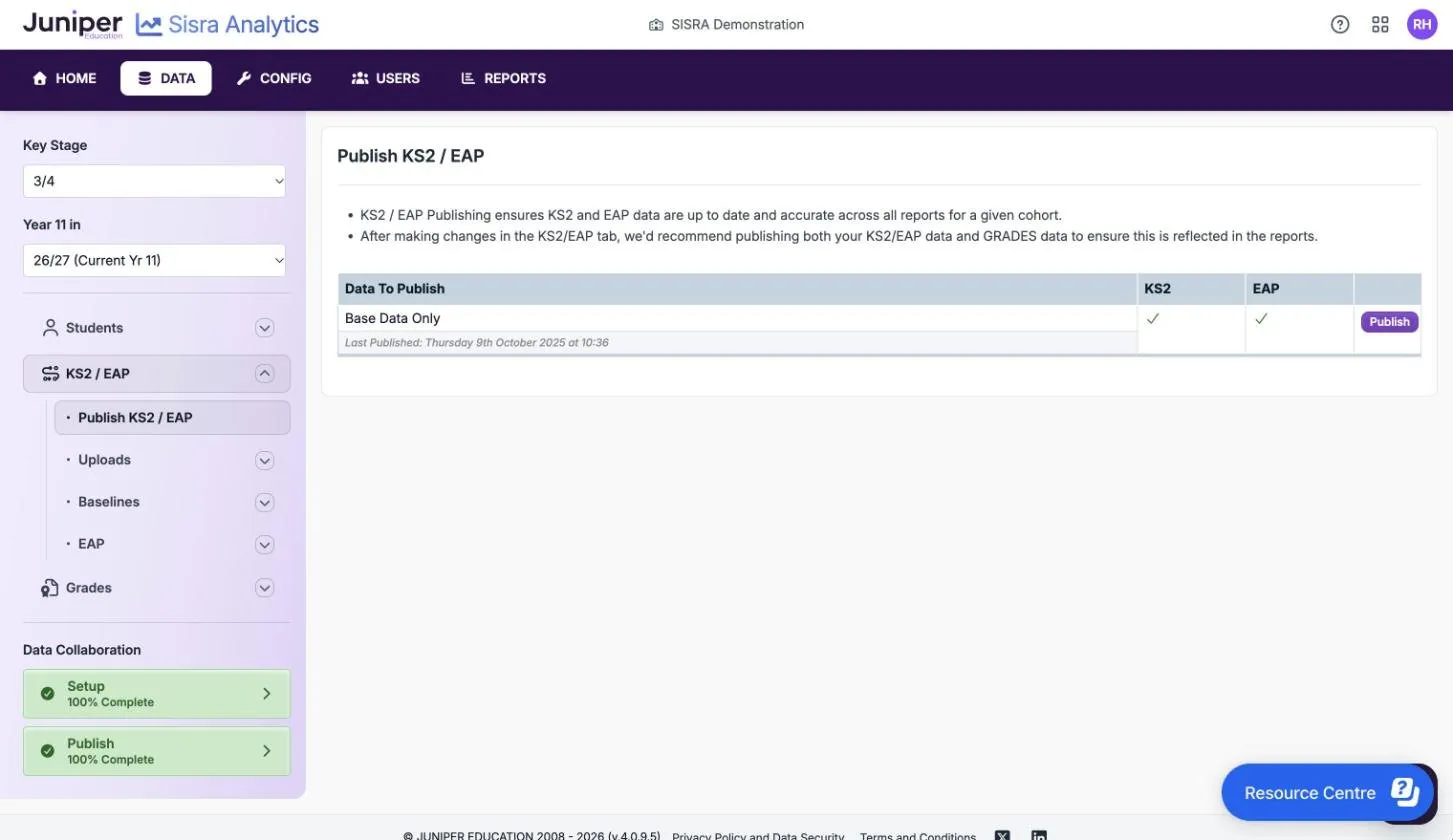
Section titled “Publish the baselines”After you upload or change KS2 baselines, publish KS2 / EAP, then republish every grades data set. Until you do, the reports use the old baselines. Publish data to the reports gives the steps.
If something goes wrong
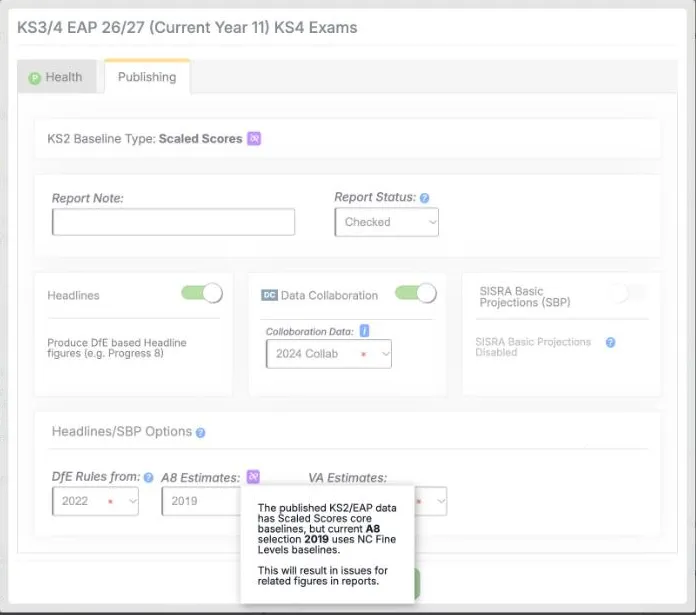
Section titled “If something goes wrong”Progress 8 is blank. Check that reading and maths are nominated as Core, with the grade type Scaled Scores, and that no warning icons show. Then check the estimates you publish grades with. If their baseline type does not match the cohort’s, an icon appears next to them in the publish dialog. Its message says this “will result in issues for related figures in reports”, and Progress 8 is not calculated.
“Cannot edit - subject in use in an EAP or Baseline Group”. You cannot change the grade type of a subject that an EAP uses. See Change a baseline that an EAP uses.
A pupil’s band is n/a. They have no core score above 0. Check the subject’s Grade Count.
A new pupil has joined. Add their scores with Add Grade, or upload a file of their scores alone. Then publish KS2 / EAP and the grades.