


 Sonar Tracker
Results and the school year
Check cohorts against the spring census
The DfE reports each school’s results for the pupils and students it is accountable for. If year 11 or year 13 in Sisra Analytics differs from the DfE’s cohort, your headline figures will not match the DfE’s. Check both cohorts against the spring census each year, and again before results day.
Why the spring census matters
Section titled “Why the spring census matters”Spring census day is usually the third Thursday in January: in 2027 it is Thursday 21 January 2027. The date changes every year, so check Complete the school census: census dates on GOV.UK.
For 16 to 19 measures, the DfE’s technical guidance (September 2026) says it uses the spring census to identify 16 to 19 students in schools. For KS4 measures, the DfE assigns pupils to each school’s cohort. Its June checking exercise is “the only opportunity to check that we have assigned the correct KS4 pupils” (DfE, 2026).
The census also records characteristics such as SEN. Your filters decide every group breakdown in Sisra, so take them from the census as well.
Sisra counts only some statuses in its headline figures. In KS3/4, headline figures count On Roll pupils only. In KS5 they count students with an eligible status and enough entries, as Check KS5 statuses and ages explains.
Statuses in KS3/4
Section titled “Statuses in KS3/4”| Status | In headline figures | In other reports |
|---|---|---|
| On Roll | Yes | Yes |
| Guest | No | Yes, such as qualification and class analysis |
| Left School | No | No |
You set Guest by hand. Pupils with Left School move to the inactive students at the foot of the list, where you can return them to On Roll or Guest.
Bring a cohort in line with the census
Section titled “Bring a cohort in line with the census”Check the cohort
Section titled “Check the cohort”- Open the cohort in DATA, as in Open a cohort in DATA: year 11 in KS3/4, or year 13 in KS5.
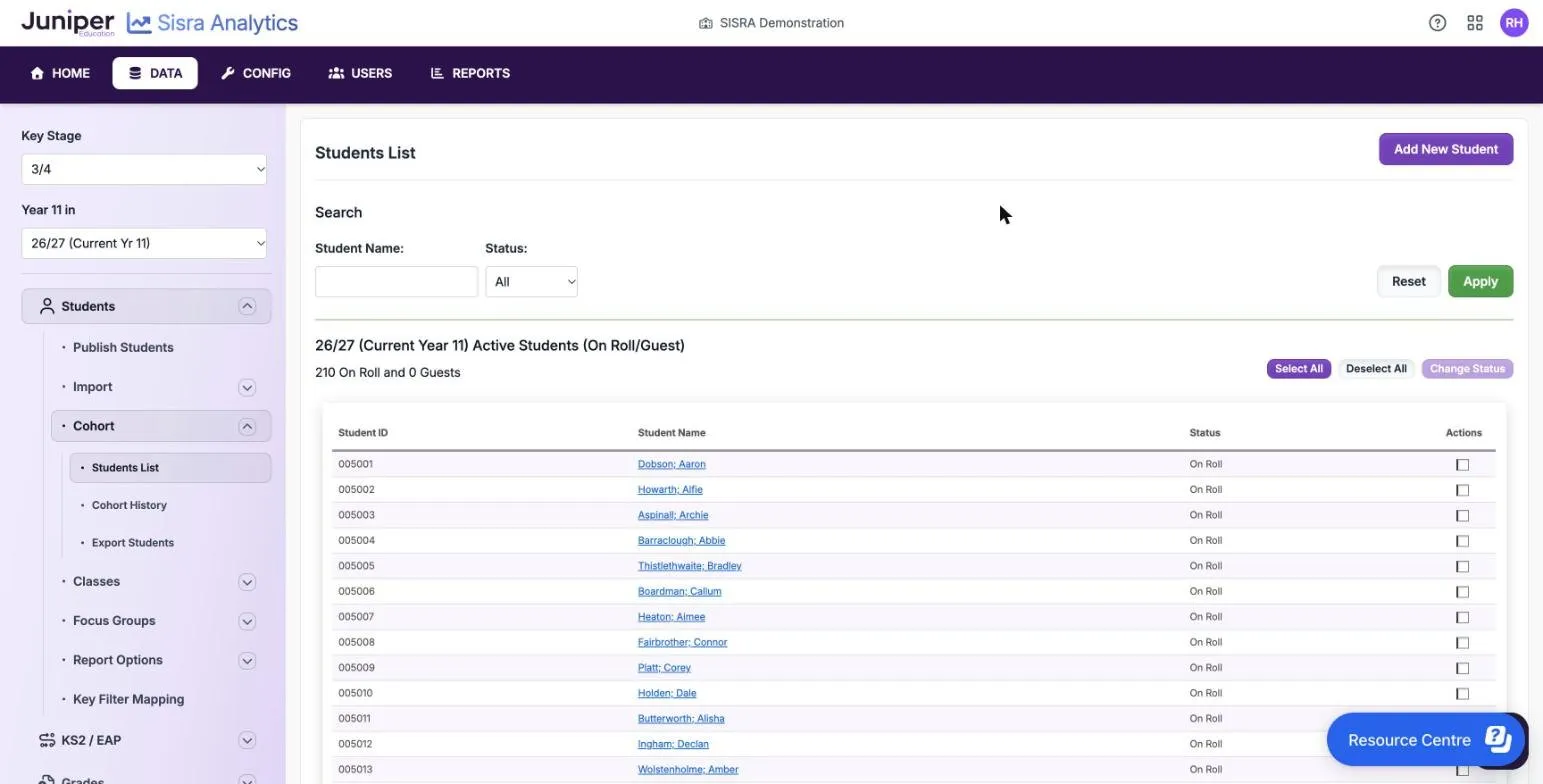
- Select Students, then Cohort, then Students List.
- Compare the number on roll, such as “210 On Roll and 0 Guests”, with your census return. Then check each status.
In KS5, the list has Active Students and Inactive Students tabs, and you can search by Previous Status: or Current Status:.
Change a few by hand
Section titled “Change a few by hand”To change statuses, tick the pupils or students under Actions and select Change Status. Choose the new status, then select Change Status again.
To change a filter, select the name and open Filters. Select Edit Filters, change the values and select Save.
Import a census file
Section titled “Import a census file”For more than a few changes, import a student data file of the cohort as it was on census day. Many MIS can report the pupils on roll on a past date.
- Export the cohort’s student data from your MIS as at census day, with classes and filters.
- In the cohort, select Students, then Import, then Student Data.
- In KS3/4, choose 4 in Please select the keystage that the class information relates to:. In KS5, choose Year 13 in Please select the year that the student data relates to:.
- Choose the file and select Import.
- Check the column mapping, then select Continue with the import.
- Under Import Options, set Update Classes: to No, Update Filters: to Yes and Update Statuses: to Yes. If your file has staff initials, the first option reads Update Classes and Staff Initials:.
- Read the file health check and the summary, then select Complete the import.
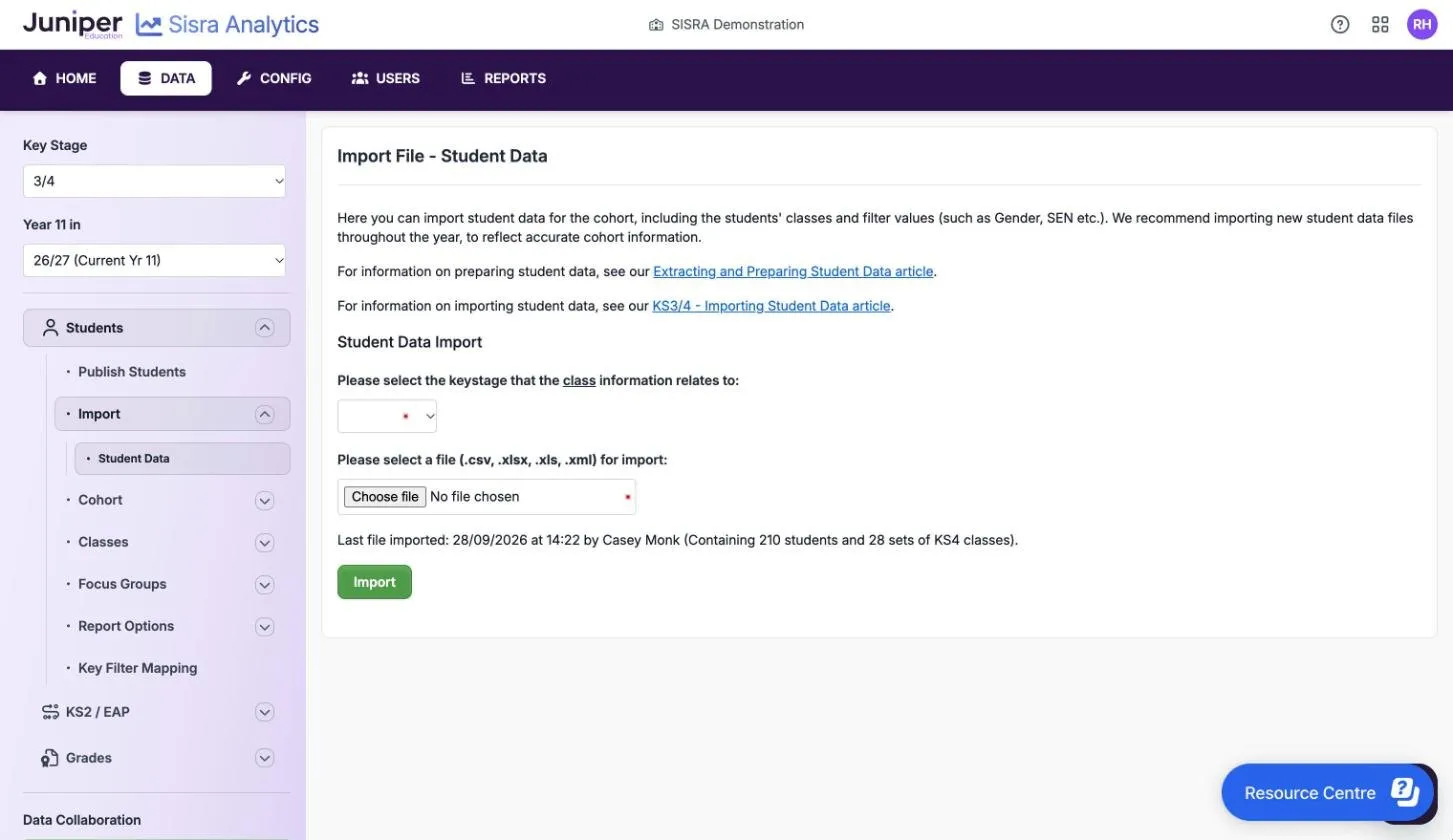
Update Classes: set to No keeps the classes you have now, which may have changed since January. In KS3/4, Update Statuses: is a tick box that reads “Yes - this file contains the most recent cohort information”. Ticked, it marks everyone missing from the file Left School. It also brings back anyone in the file who was Left School. In KS5, Sisra works out statuses from the year 12 and year 13 files instead.
Import student data covers the file and every import option.
After the import
Section titled “After the import”- In KS3/4, look for pupils who joined after census day. They are not in the file, so they are now Left School. To keep one in the reports but out of headline figures, set them to Guest.
- Check every status again.
- Publish student data, as in Publish student data. In KS5, then republish every grades data set, because publishing grades works out who counts.
Check KS5 statuses and ages
Section titled “Check KS5 statuses and ages”| Status | Who it is for | Set by | In headline figures |
|---|---|---|---|
| On Roll | On roll in year 12 and year 13 | Import | Only with enough entries |
| On Roll Aged 18 | On roll for both years, and academic age 18 | Hand | Yes |
| Year 12 Only | Studied only year 12 at your school | Import | Only with enough entries |
| Year 13 Only | Studied only year 13 at your school | Import | Only with enough entries |
| Year 12 Addback | Left after year 12, but the DfE’s rules add them back to this cohort | Hand | Yes |
| Year 13 Only Aged 18 | Studied only year 13 at your school, and academic age 18 | Hand | Yes |
| Guest | Kept in student-level reports but out of headline figures | Hand | No |
| Left School | Left out of every report for the cohort | Import or hand | No |
Enough entries means two or more qualifications each at least the size of an A level, or one at least the size of two. Sisra checks this when you publish grades.
Before results day, check that:
- year 13 has a year 12 student file as at the end of year 12, and a year 13 file as at the spring census
- students of academic age 18 are On Roll Aged 18, or Year 13 Only Aged 18 if they joined in year 13
- students the DfE’s rules add back into this cohort are Year 12 Addback
- each On Roll, Year 12 Only and Year 13 Only student has enough entries, because those who do not will not count
Sisra works out On Roll, Year 12 Only and Year 13 Only from the files each student is in. Academic age 18 means 18 on 31 August at the start of year 13: for the 26/27 cohort, 31 August 2026. The age rule applies only to students who were not reported in an earlier year.
Imports never change Guest, On Roll Aged 18, Year 12 Addback or Year 13 Only Aged 18. An orange diamond marks all of these except On Roll Aged 18, and the key calls it Manual Status. On the Inactive Students tab, Revert Status returns a student to their previous status. After any change, publish student data and then every grades data set.
Use the DfE’s checking exercises
Section titled “Use the DfE’s checking exercises”| Exercise | 2026 dates | What to check in Sisra |
|---|---|---|
| KS4 June checking exercise | 15 June to 5pm on 26 June 2026 | The DfE’s list of your KS4 pupils against your year 11 On Roll pupils. It is the only chance to correct the list. |
| KS4 and 16 to 19 October checking exercises | Monday 5 October to 5pm on Friday 16 October 2026 | The DfE’s results and cohort against your leavers’ Exams reports |
In the KS4 October exercise you can only ask to remove a pupil who was not on the June list, or to merge duplicate records. In 2026, KS4 had no September checking exercise. The dates change every year: see Check your performance measures data (DfE).
If the DfE’s cohort still differs from yours after an exercise, change the statuses in Sisra to match. Then publish student data again, and in KS5 every grades data set.
If something goes wrong
Section titled “If something goes wrong”Pupils who have left still count. They were in the last file you imported. Import a census file with Update Statuses: set to Yes, or change their statuses by hand.
A pupil who joined after the census counts in headline figures. Set them to Guest.
The import replaced your current classes. Update Classes: was set to Yes. Import your current student data file with Update Classes: set to Yes, and Update Filters: and Update Statuses: set to No.
The KS5 headline cohort is smaller than you expect. Students with On Roll, Year 12 Only or Year 13 Only need enough entries to count. Check their statuses and the size of their qualifications.