


 Sonar Tracker
Baselines and EAPs
Set up EAPs for KS3/4
An Expected Attainment Pathway (EAP) sets the grade method a qualification uses in each term, from year 7 to the KS4 exams. It can also hold the grade you expect a pupil to reach in each term from their starting point, or baseline. Sisra Analytics uses those expected grades for on track analysis, flight paths and Sisra Basic Projections (SBP).
Every qualification needs an EAP before you can match it and publish its grades. EAPs, flight paths and on track explains how EAPs work in the reports. For sixth form cohorts, see Set up KS5 baselines and EAPs.
Before you start
Section titled “Before you start”You need:
- an authority group with Access Data Section, such as Admin
- the cohort’s student data imported
- at least one KS3/4 grade method with Attainment 8 points, set up in CONFIG
- a baseline uploaded and given a Grade Type in Baseline Management
Without a baseline, Create EAP is unavailable and says “You cannot create an EAP as you have no KS2/Baseline”. Upload KS2 baselines explains how to upload baselines, including targets. Create grade methods covers grade methods.
Plan your EAPs
Section titled “Plan your EAPs”Agree the plan with your senior leaders before you build anything. Two decisions shape it.
First, decide whether you want expected grades. With them, the reports show whether each grade is on, above or below track, and you can use flight paths and SBP. Without them, an EAP only sets grade methods, and you leave every expected grade blank. Any baseline will do for a blank EAP, but targets let you add expected grades later.
Then work out how many EAPs you need. Each EAP holds one set of grade methods, so you need at least one for each way of grading in the cohort. GCSE 9 to 1, combined science (9-9 to 1-1) and a BTEC Tech Award need three. With expected grades, you usually need one EAP per qualification, because each qualification has its own baselines.
Most schools use target-based EAPs, where each pupil’s target is both their baseline and their expected grade. Expected grades can follow one of two shapes:
| Shape | Expected grades | Example for a target of 8 |
|---|---|---|
| Flat line | The same grade in every term | 8 in every term |
| Linear | Rising towards the target | 7= in year 11 term 1, 7+ in year 11 term 2, then 8 |
Good practice with school data sets out what the DfE says about flight paths and predicted grades.
Choose a baseline type
Section titled “Choose a baseline type”The Baseline Type decides how Sisra places pupils on pathways. It must match the Grade Type of the baseline subject, and you cannot change it once the EAP exists.
| Baseline Type | Use it for | Pathways |
|---|---|---|
| KS3/4 Method | Targets or estimates graded with a KS3/4 grade method | One for each grade in the method, such as 9+ to 1- |
| Scaled Scores | KS2 reading, KS2 maths, or a baseline group that averages them | One for each scaled score |
| Number Range | Your own numbers, such as Cognitive Abilities Test (CAT) or MidYIS standardised scores | One for each whole number between a Lower Limit and an Upper Limit you set, from 0 to 300 |
| NC Fine Levels, NC Whole / Sub Levels | Older National Curriculum levels. NC Fine Levels also lists subjects with the grade type NC Fine Levels (5dp) | One for each level |
A baseline group combines two or more KS2 or Number Range subjects into one baseline, using their Average or their Best grade. Use one to base an EAP on the average of KS2 reading and maths. Groups do not change any headline measure. To make one, open Baseline Management, go to Baseline Groups and select Add New.
Create an EAP
Section titled “Create an EAP”- Select KS2 / EAP, then EAP, then EAP List.
- Select Create EAP.
- Choose Create New EAP.
- Enter an EAP Name that staff will recognise on the Matching page, such as the qualification’s name. EAP Description is optional.
- Choose the Baseline Type, then the baseline subject in KS2/Baseline. For Number Range, also enter the Lower Limit and Upper Limit.
- In the Assessment Method table, choose a grade method for each year from Year 7 to Year 11, then one for Final Exam Grades. Tick By Term to change method part-way through a year.
- Select Create.
The later parts of the form open as you complete the earlier ones. When you select Create, the EAP Detail page opens.
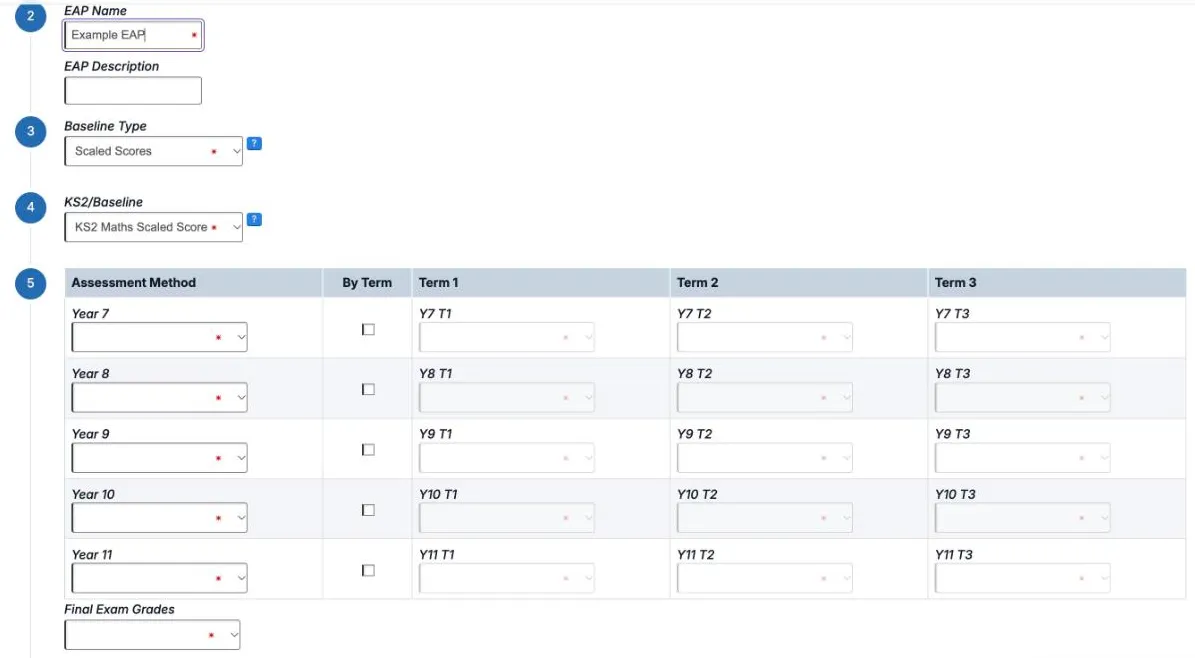
Every year needs a grade method, even years that have passed: a year 11 cohort’s EAP still needs methods for years 7 to 10. Only grade methods with Attainment 8 points can be chosen for the final exams. The demo school’s Art EAP, for example, uses an above, on and below method for years 7 to 9 and 9-1 Sub Grades from year 10.
Copy an EAP
Section titled “Copy an EAP”Copying saves time when several qualifications share a grade method and expected grades. A copy keeps the original’s baseline type, grade methods and expected grades, and you give it its own name and baseline. You can copy from this cohort or another KS3/4 cohort.
- Select Create EAP, then Copy Existing EAP.
- Choose the Cohort to copy from and the EAP to copy.
- Check the preview and select Confirm.
- For each copy, enter an EAP Name and choose an EAP Baseline. You can make up to 10 copies at once.
- Select Create.
The baselines on offer have the same baseline type and grade method as the original’s baseline. If none match, Sisra says: “There are no baselines of the same type as the selected EAP to copy in the cohort. Please select another EAP or configure suitable baselines via Baseline Management.” Change the baselines’ grade method in Baseline Management, or upload baselines in the right format.
Enter expected grades
Section titled “Enter expected grades”Select an EAP’s name in the EAP List to open EAP Detail. Each row is a baseline value, and each column is a term, from year 7 term 1 to KS4 Exams. Each term’s grade method shows under its heading. You need to fill in only the rows for baselines your pupils have.
Enter grades on screen
Section titled “Enter grades on screen”- Select the pencil in the row’s Actions column. A box opens for each term and for KS4 Exams: 16 in all.
- Type the expected grades, pressing Tab to move to the next box. A grade that fits the term’s grade method turns yellow; one that does not turns red.
- Select Save.
Copy Row copies the row above or below. The + and - buttons move every grade in the row up or down one sub grade. They ignore the grade methods, so check the result in any row that changes method.
Export, fill in and import
Section titled “Export, fill in and import”For many rows, Excel is quicker.
- Select Export EAP.
- Fill in the expected grades in Excel, keeping the baseline rows and term columns as they are.
- Save the file as CSV (MS-DOS).
- Select Import EAP and choose the file.
- Read the check, then select Import.
The file has 17 columns: the baseline, the 15 terms and KS4 Exams. Excel does not know which grades each term accepts, so check them against the grade methods. An import replaces the EAP’s pathways: Sisra updates the paths in the file and removes any paths missing from it.
| Message | What to do |
|---|---|
| “X path(s) have conflicts within the imported file.” | A baseline is on more than one row, so Sisra cannot import the file. Keep one row per baseline and import again. |
| “X path(s) have one or more grades greater than 12 characters. These grades will be truncated.” | Shorten the grades, or select Import & Truncate to cut them to 12 characters |
| “X path(s) have an invalid baseline grade and will be excluded from the import.” | A row’s baseline is not one of the EAP’s. Carry on if you do not need the row; otherwise check the EAP’s baseline. |
| “There are blank rows of expected grades in the EAP which will be ignored/removed.” | Rows with no grades are dropped. Carry on, or fill them in first. |
| “There are no valid rows in the import” | The baselines in the file are in another format from the EAP’s, such as distinction, merit and pass instead of 9 to 1. Correct the file and import again. |
X is the number of pathways affected.
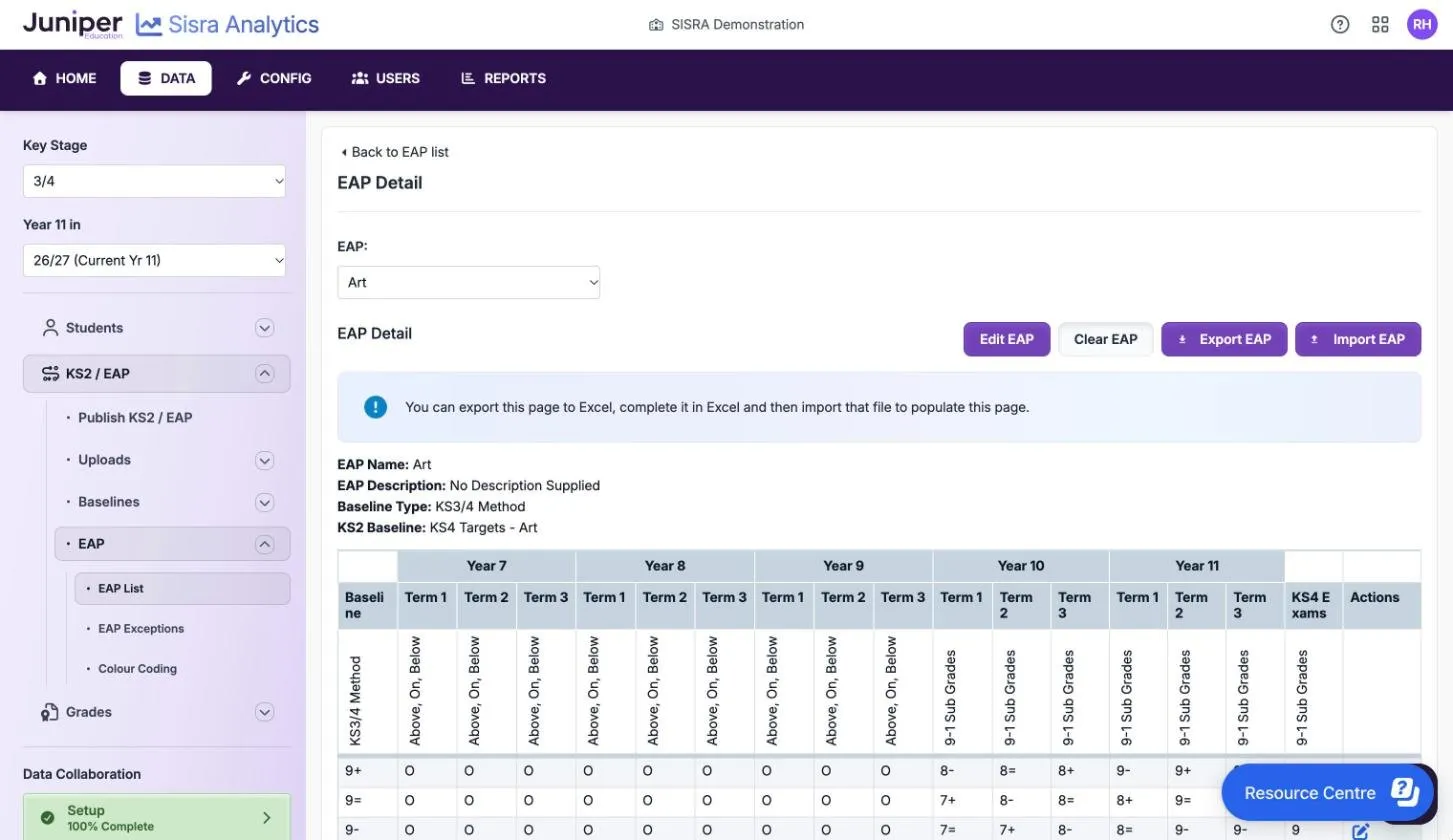
Clear EAP removes every expected grade in the EAP. Export the EAP first, so that you can import the grades again if you need them.
Give a pupil a different pathway
Section titled “Give a pupil a different pathway”An EAP exception gives one pupil different expected grades from others with the same baseline. For example, a pupil who speaks Spanish at home might be expected to do better in GCSE Spanish. Use exceptions for a few pupils only. If most pupils need one, set the EAP up differently.
- Select KS2 / EAP, then EAP, then EAP Exceptions.
- Select the exceptions count next to the EAP.
- Select Add Exception.
- Choose the pupil in Add an exception for, then select Continue.
- In the Exceptions row, enter only the grades that differ from the Default row.
- Select Create.
- Publish KS2 / EAP, then republish the grades.
A pupil needs an EAP baseline before you can give them an exception. An exception for KS4 Exams also changes the pupil’s Sisra Basic Projections.
Turn colour coding on or off
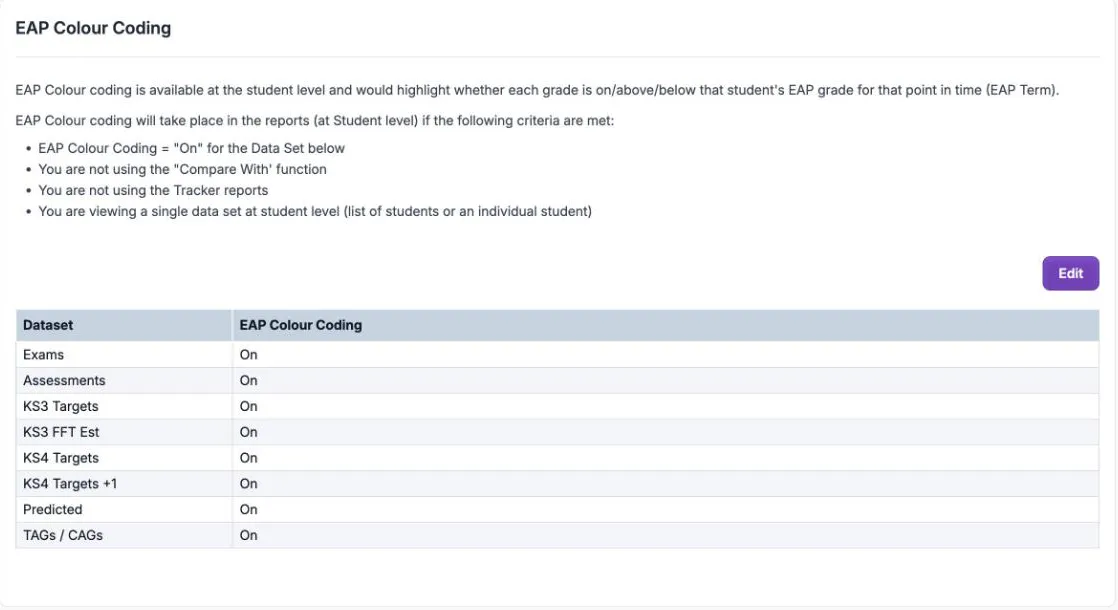
Section titled “Turn colour coding on or off”EAP colour coding shades each grade in a student-level report to show whether it is above, on or below the pupil’s expected grade for that term. It starts as On for every data set, and shows only when all of these are true:
- colour coding is On for the data set
- the user is not using Compare With
- the report is not a tracker report
- the report shows one data set at student level, as a list of pupils or one pupil
To change it:
- Select KS2 / EAP, then EAP, then Colour Coding.
- Select Edit, set each data set to On or Off, then save.
- Publish KS2 / EAP, then republish the grades.
Turn it off where the comparison would mislead. A predicted grades data set compared with an EAP of working-at expectations is one example.
Create target-based EAPs
Section titled “Create target-based EAPs”A target-based EAP uses each pupil’s target as their baseline and as their expected grade in every term, a flat line.
- Export the targets from your MIS, with Student ID, name, qualification and grade.
- Upload them as baselines: select KS2 / EAP, Uploads, KS2 / Baseline, then Upload Grades File. On Confirm Upload Qualification Names, choose New for every subject.
- In Baseline Management, select Edit, set each target subject’s Grade Type to KS3/4 Method, choose its Grades Method, then save.
- Create an EAP for one subject, with the Baseline Type KS3/4 Method and that subject’s targets as the baseline.
- Fill each row with its own baseline grade in every term, so a target of 6= expects 6= in every term and at KS4 Exams.
- Copy the EAP for each subject that uses the same grade method, giving each copy that subject’s targets.
- Choose each qualification’s EAP on the Matching page.
- Publish KS2 / EAP, then the grades.
Exporting and importing is the quickest way to fill the rows in step 5. Where the KS3 terms use a different method, enter its “on” grade in every KS3 term, as the demo school’s Art EAP does with O.
Set up a qualification awarded no points
Section titled “Set up a qualification awarded no points”Some qualifications, such as Entry Level certificates, earn no performance points. Their EAP still needs a grade method with Attainment 8 points for the final exams, so build one where the grades are worth nothing.
- In CONFIG, go to Grade Methods, then KS3/4 Methods, and select Create KS3/4 Grade Method.
- Enter a Method Name:, choose Attainment 8 under Points and No - This method does not use subgrades, then select Next.
- Enter the grades from highest to lowest, each worth 0 points.
- Add either a dummy grade worth 1 point that you never upload, or give one real grade 0.001 points.
- Select Finish on the last step.
- Create an EAP that uses the method in every term.
- On the Matching page, match the qualification as unapproved, then publish KS2 / EAP and the grades.
A dummy grade shows as a column in the overview reports. A grade worth 0.001 shows as 0.00, because points show to 2 decimal places. As an unapproved qualification, it does not count in school performance measures, but it still affects residuals. Match qualifications in KS3/4 covers step 7.
Fix missing expected grades for half scores
Section titled “Fix missing expected grades for half scores”The DfE now keeps one decimal place when it averages a pupil’s KS2 scores, instead of rounding to a whole number. The help centre dates the change to summer 2022. A pupil with 113 in maths and 110 in reading averages 111.5, which used to round to 112.
EAPs built on a KS2 average before summer 2022, or copied from one, have pathways only for whole numbers. Pupils with a .5 average get no expected grade from them. To fix it, either:
- switch to target-based EAPs
- create new EAPs with Create New EAP, not by copying, and fill in the .5 pathways
After either fix, publish KS2 / EAP, choose the new EAPs on the Matching page and republish the grades.
Delete an EAP
Section titled “Delete an EAP”You cannot delete an EAP while a qualification uses it. Unused EAPs do no harm, so delete only those you are replacing.
- On the Matching page, select Edit. Give each qualification that uses the EAP another EAP, or None, including any under Historical. Select Save Changes.
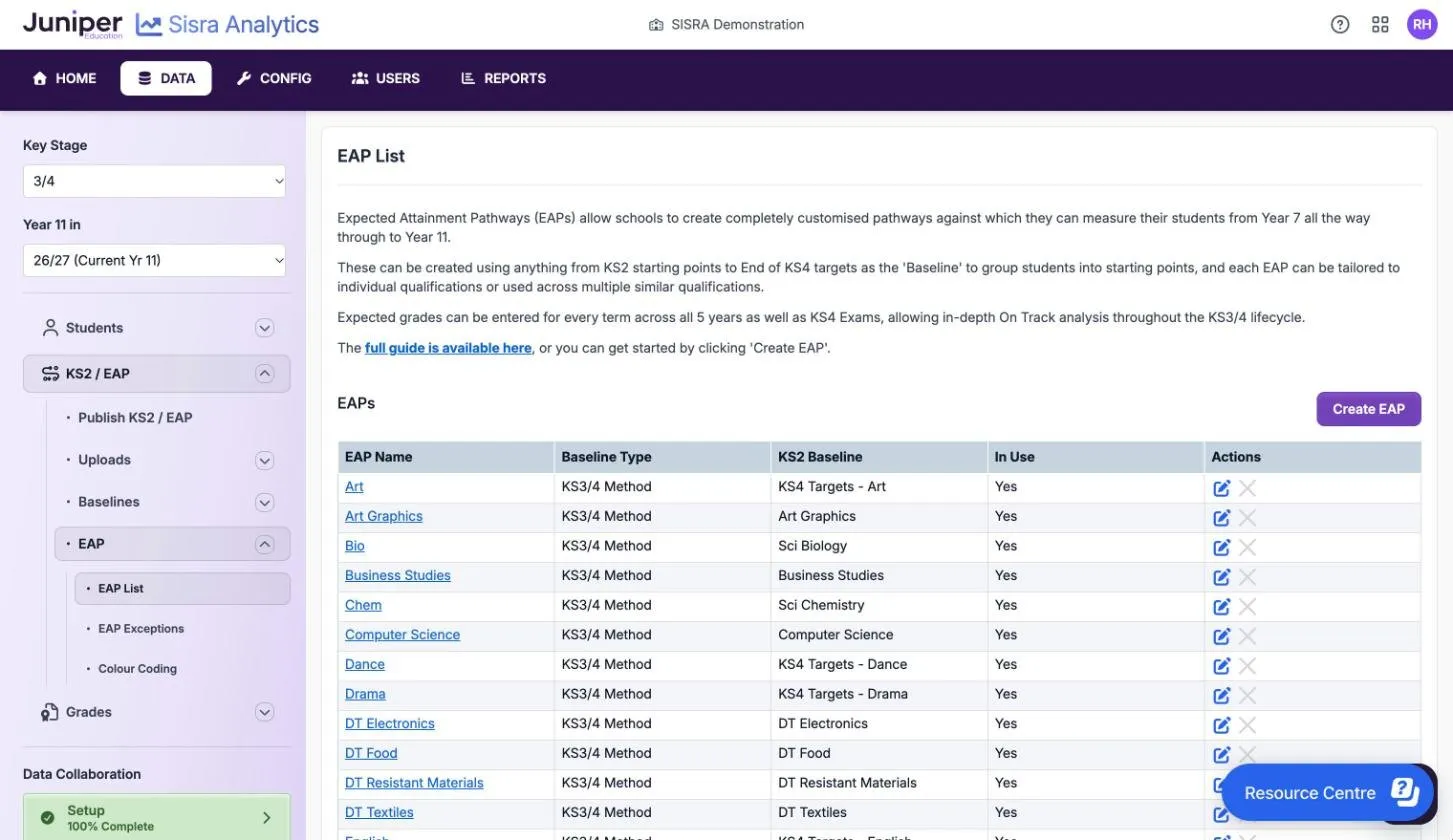
- Select KS2 / EAP, then EAP, then EAP List.
- Select the cross in the EAP’s Actions column.
- Republish the grades.
If the cross is greyed out, a qualification still uses the EAP, and In Use shows Yes.
Change a baseline that an EAP uses
Section titled “Change a baseline that an EAP uses”You cannot change the grade type or grade method of a baseline subject that an EAP or baseline group uses. Baseline Management says “Cannot edit - subject in use in an EAP or Baseline Group”. To change it:
- In the EAP List, note every EAP that uses the baseline, and export each one with Export EAP.
- On the Matching page, set those qualifications’ EAP to None and select Save Changes.
- Delete the EAPs.
- In Baseline Management, select Edit, change the grade type or method, and save.
- Create the EAPs again as they were, and import their expected grades.
- On the Matching page, choose the new EAPs, check Included for each qualification, and select Save Changes.
- Publish KS2 / EAP, then the grades.
If a baseline group uses the subject, contact Juniper support before you change it.
If something goes wrong
Section titled “If something goes wrong”Publishing KS2 / EAP stops with “The reports cannot be published as there are some issues with your EAPs.” Sisra lists the EAPs concerned:
- “The following EAPs have missing KS2 Subjects:” means a baseline subject was deleted. Upload it again, choosing New, and set it up in Baseline Management. Then open the EAP, select Edit EAP, choose the subject in KS2/Baseline and save. The EAPs affected show in red in the KS2 Baseline column of the EAP List.
- “The following EAPs do not have Attainment 8 point for the Exam term:” means the final exams use a method without Attainment 8 points. Select Edit EAP and choose one that has them.
Expected grades turned red after a grade method change. They are not grades in the new method. Export the EAP, change the red grades and import it again.
A pupil has no expected grade. Check that they have a baseline value, that the EAP has a pathway for it, and that the pathway has a grade in the report’s term. KS2 averages ending in .5 are a common cause: see Fix missing expected grades for half scores.
Changing one EAP changed several qualifications. Every qualification that uses an EAP shares its grade methods. Before you edit an EAP, check on the Matching page which qualifications use it.