


 Sonar Tracker
Students
Manage the student list and statuses
The student list in Sisra Analytics shows everyone in a cohort and their status. The status decides whether a pupil or student counts in the headline figures, appears only in other reports, or is left out. This page covers statuses at KS3/4 and KS5, adding someone by hand, Student Detail, cohort history and exporting.
Before you start
Section titled “Before you start”You need:
- an authority group with Access Data Section, such as Admin
- the cohort’s student data imported: see Import student data
Authority groups and permissions explains Access Data Section.
Open the student list
Section titled “Open the student list”- Select DATA, then choose the key stage and the cohort.
- Select Students, then Cohort, then Students List.
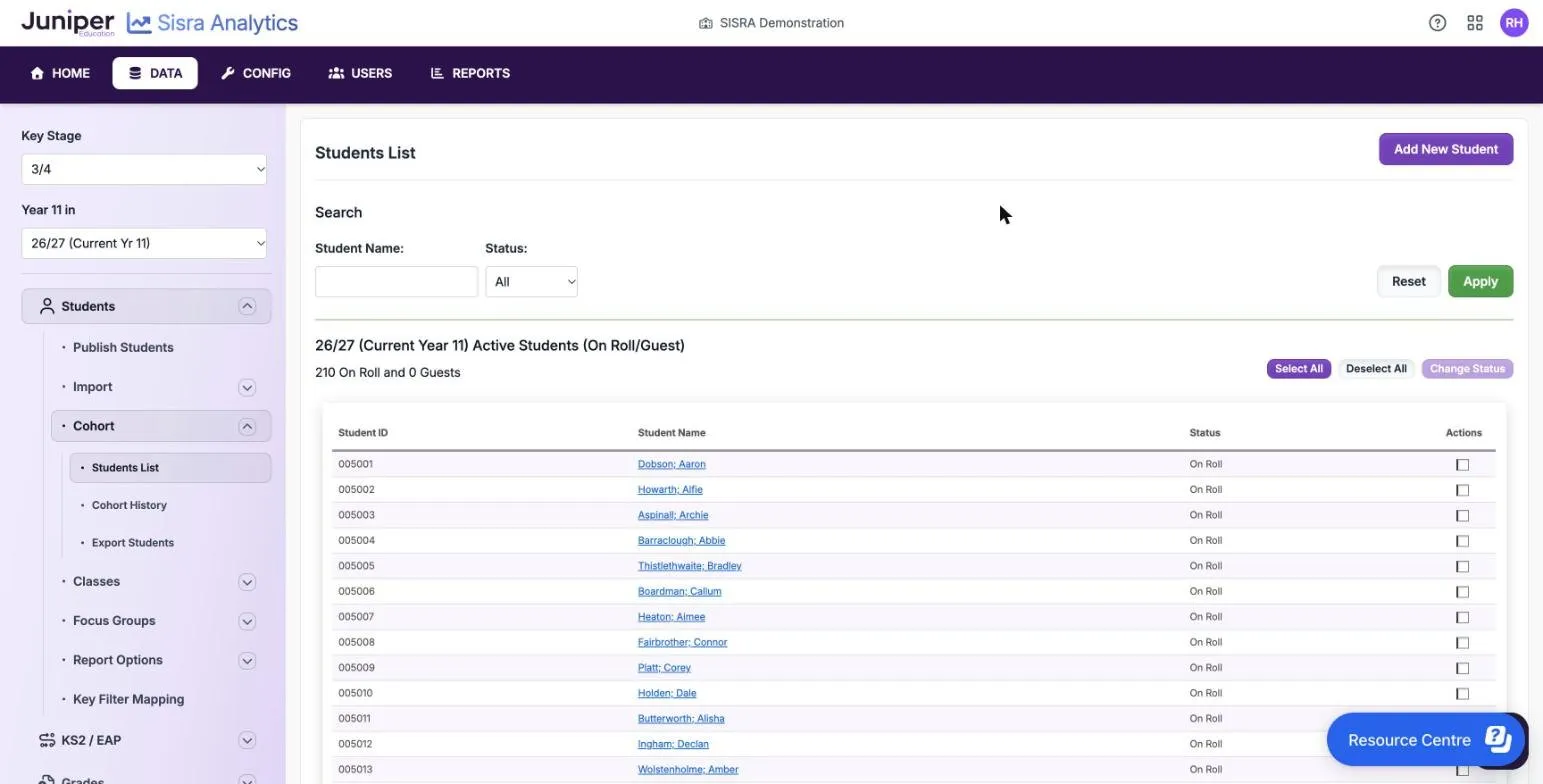
At KS3/4, a line above the list gives the cohort’s counts, such as “210 On Roll and 0 Guests”. The columns are Student ID, Student Name, Status and Actions. Pupils with the status Left School are listed separately, under Inactive Students.
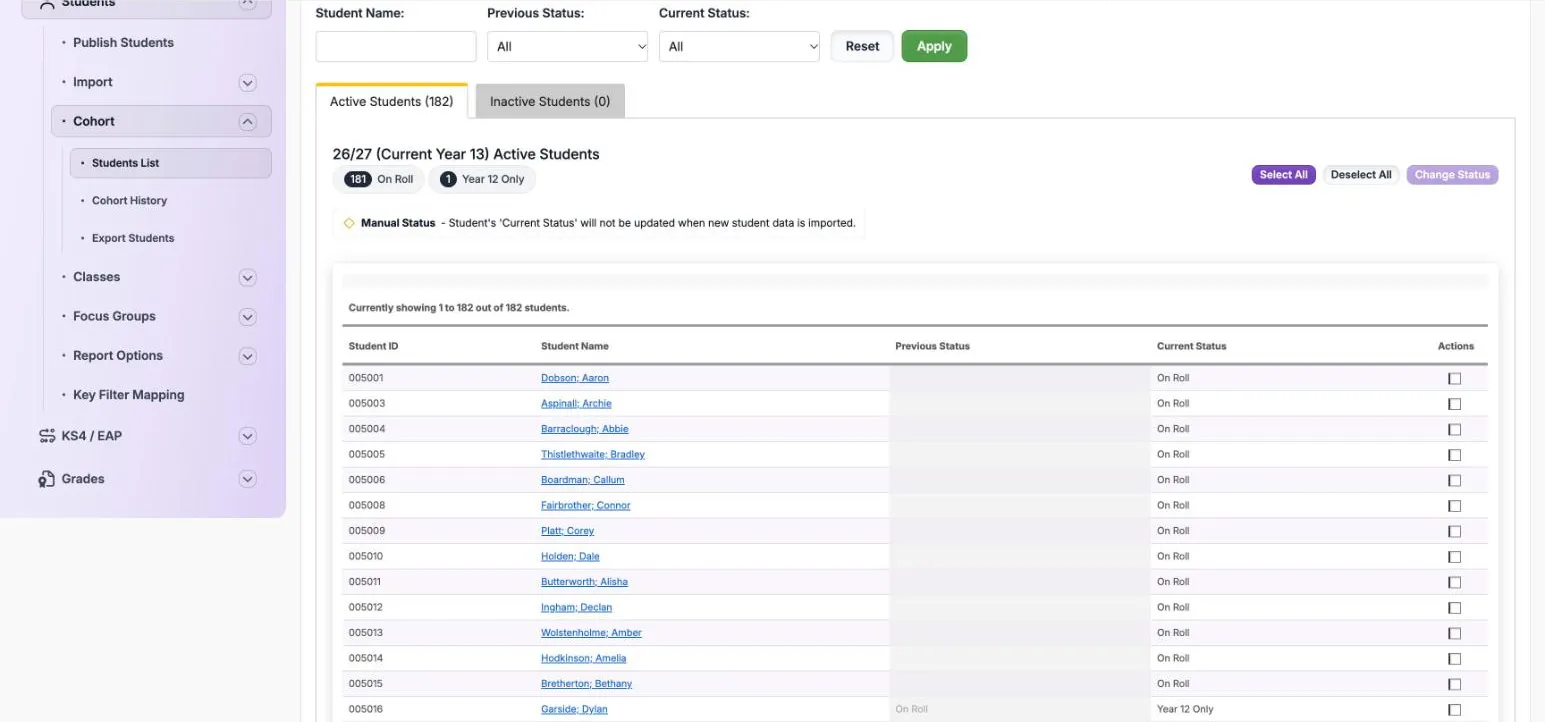
At KS5, the list has two tabs, Active Students and Inactive Students. Its columns are Student ID, Student Name, Previous Status, Current Status and Actions.
To find someone, enter part of their name in Student Name: or choose a status, then select Apply. Reset clears the search. At KS5 you search by Previous Status: or Current Status:.
Statuses at KS3/4
Section titled “Statuses at KS3/4”| Status | Headline figures | Other reports |
|---|---|---|
| On Roll | Included | Included |
| Guest | Left out | Included in qualification, class and pupil-level analysis |
| Left School | Left out | Left out. The pupil moves to Inactive Students |
You set Guest by hand. Use it for a pupil who should not count in the school’s figures but whose grades you want to see. A pupil who joined after the spring census is an example.
Statuses at KS5
Section titled “Statuses at KS5”KS5 has eight statuses. Imports set the first three. You set the next four by hand, and imports never change them.
| Status | Who it is for | Headline figures |
|---|---|---|
| On Roll | Students on roll in years 12 and 13 | Included if they meet the entry rule |
| Year 12 Only | Students who completed only year 12 at the school | Included if they meet the entry rule |
| Year 13 Only | Students who studied only year 13 at the school | Included if they meet the entry rule |
| On Roll Aged 18 | Students on roll for at least 2 years who are academic age 18, or who repeated a year | Included |
| Year 12 Addback | Students added back to this cohort’s figures under the DfE’s rules, after leaving at the end of year 12 | Included |
| Year 13 Only Aged 18 | Students who studied only year 13 here and are academic age 18 | Included |
| Guest | Students whose grades you want to see but who should not count | Left out, but shown in student-level analysis |
| Left School | Students who have left, set by an import or by you | Left out of every report |
The entry rule applies from the 21/22 cohort onwards. Students with the first three statuses need at least 2 qualifications the size of an A level. One qualification the size of 2 A levels also meets the rule. A student must also meet each measure’s own DfE rules to count in it.
Academic age is a student’s age on 31 August at the start of the reporting year. For the 26/27 cohort, a student is academic age 18 if they were 18 on 31 August 2026.
The DfE takes the cohort from the spring census, so check statuses against it. See Check cohorts against the spring census.
How imports set KS5 statuses
Section titled “How imports set KS5 statuses”When an import updates statuses, Sisra sets them from the year of the file:
| Status before | In a Year 12 file | Missing from a Year 12 file | In a Year 13 file | Missing from a Year 13 file |
|---|---|---|---|---|
| Not yet in the cohort | Year 12 Only | Not added | Year 13 Only | Not added |
| On Roll | No change | Year 13 Only | No change | Year 12 Only |
| Year 12 Only | No change | Left School | On Roll | No change |
| Year 13 Only | On Roll | No change | No change | Left School |
| Left School | Year 12 Only | No change | Year 13 Only | No change |
The table applies once the cohort has a file for the other year. Before that, new students join as On Roll, and On Roll students missing from the file become Left School. Left School students in the file return to On Roll.
In the KS5 list, an orange diamond marks students with the status Guest, Year 12 Addback or Year 13 Only Aged 18. On Roll Aged 18 has no diamond, but imports leave it unchanged too. The diamond’s key, Manual Status, says: “Student’s ‘Current Status’ will not be updated when new student data is imported.”
Change statuses
Section titled “Change statuses”- In the student list, tick each person in Actions. Select All ticks everyone listed.
- Select Change Status.
- In Change Student Status, choose the new status, then select Change Status.
- Publish student data. At KS5, then republish every grades data set, because publishing grades works out who counts in the headline figures.
You can also change one person’s status in the status list on their Student Detail page. That list saves as soon as you choose a status.
People set to Left School move to Inactive Students. At KS3/4 you can set them back to On Roll or Guest from there. At KS5, Revert Status gives them back their previous status.
Add a pupil or student by hand
Section titled “Add a pupil or student by hand”Add one or two joiners by hand. For more, import a file of the joiners: see Choose the import options.
- In the student list, select Add New Student.
- Enter a Student ID that nobody else has, the Student Name and the filter values, then select Save.
- On the person’s Student Detail page, open Classes and select Add Class next to the key stage.
- Choose the Set of Classes and the Class, then select Save. Repeat for each class.
- Publish student data.
Use the same Student ID for the person in every later file.
Check and edit someone’s details
Section titled “Check and edit someone’s details”Select a name in the student list to open Student Detail. Showing Detail for: switches to someone else in the cohort. The pencil in Actions edits the Student ID and name, and Manage Student’s Grades opens their grades in Grades Management.
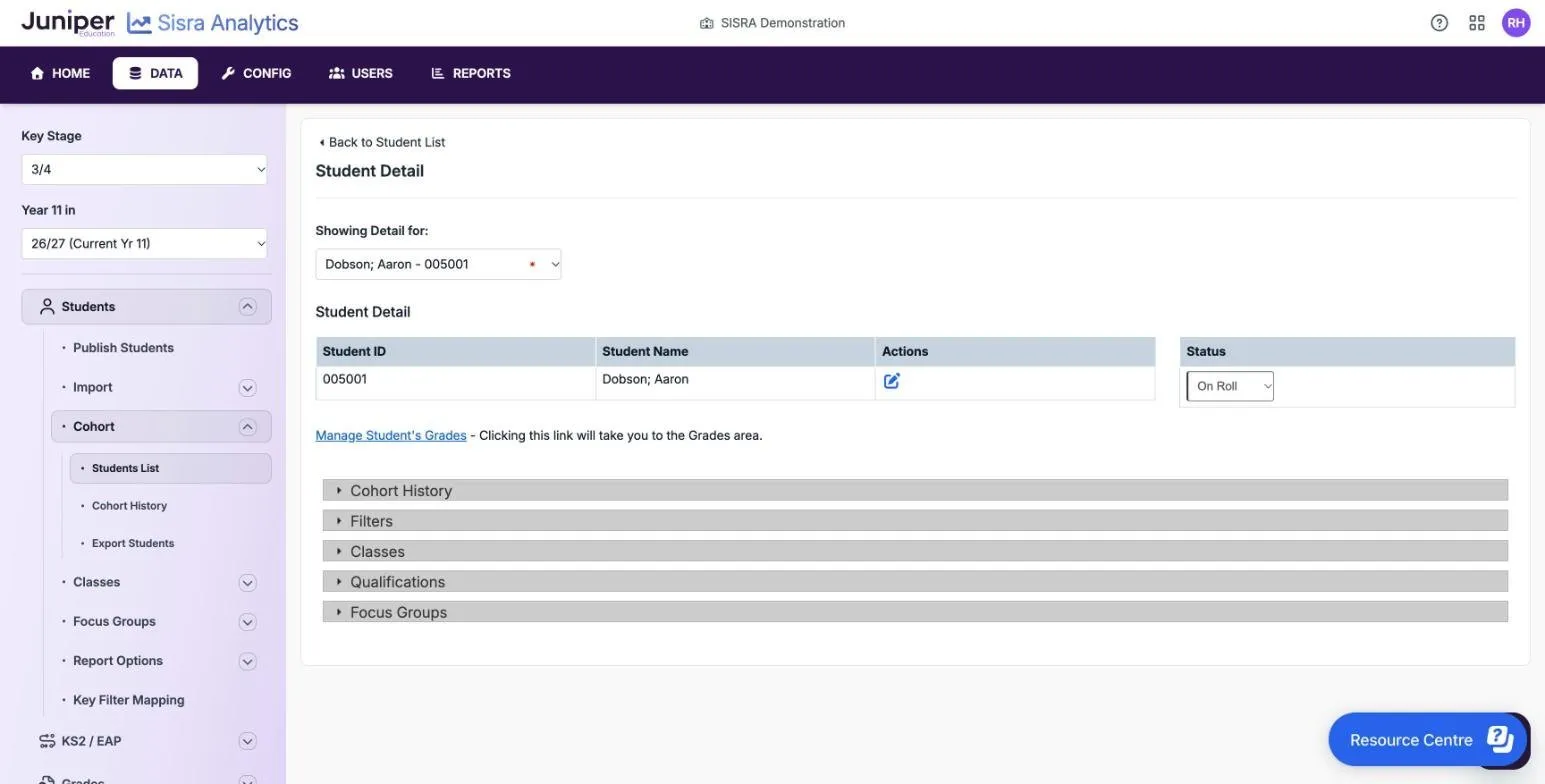
| Section | What you can do |
|---|---|
| Cohort History | Edit Attendance includes or excludes the person in each term’s figures. A red cross marks an excluded term. You cannot edit the history of someone who is Left School |
| Filters | See each filter value and the Report Alias the reports show. Edit Filters changes the values. Select Save at the foot of the page |
| Classes | Edit Classes moves the person to another class, and Add Class adds one. The amber stop icon excludes them from a class, and the red cross removes them |
| Qualifications (KS3/4) | Edit Qualifications sets each qualification to Active or Dropped. A dropped qualification’s grades leave the reports, except in Exams |
| Focus Groups | Add Focus Group adds the person to a group, and the red cross removes them |
At KS5 the sections are tabs, Cohort History covers years 12 and 13, and there is no Qualifications section.
Exclude someone from a class only when they show in the wrong class in the reports. Their grades for that class then show as Not in Class. Staff initials are changed in CONFIG: see Correct staff initials.
After any change, publish student data. After you drop a qualification, republish grades as well. To change many people’s filter values, import a new file instead.
Check the cohort history
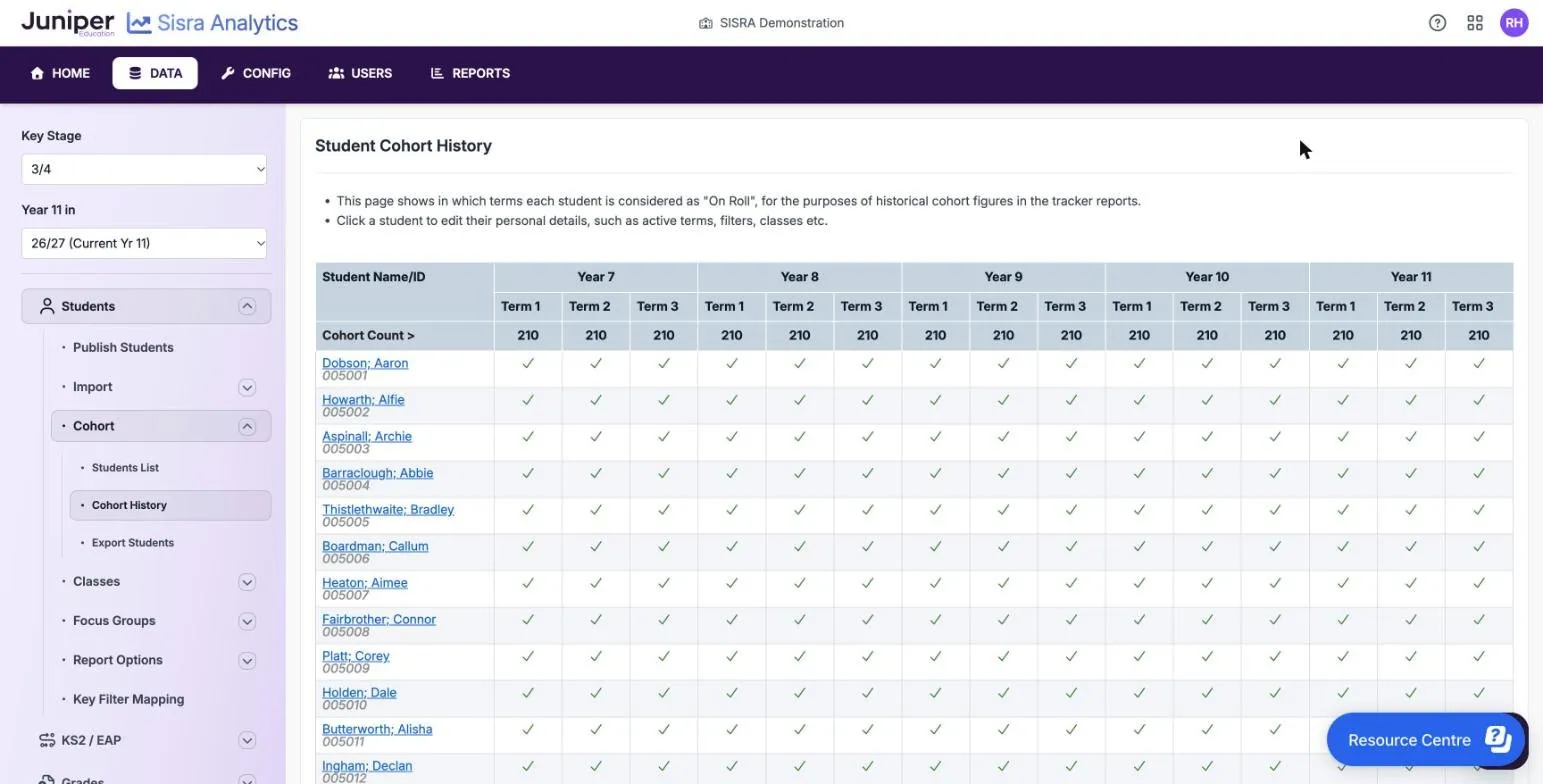
Section titled “Check the cohort history”Select Students, then Cohort, then Cohort History. “This page shows in which terms each student is considered as “On Roll”, for the purposes of historical cohort figures in the tracker reports.”
The grid has a column for each term, from year 7 term 1 to year 11 term 3. At KS5 it covers years 12 and 13. Cohort Count > gives the number on roll in each term. Select a name to change that person’s terms on Student Detail.
Export the cohort
Section titled “Export the cohort”At KS3/4, select Students, then Cohort, then Export Students. Choose All Classes, Only KS3 Classes or Only KS4 Classes. Each downloads a .csv file of the cohort’s pupils with their classes and filter values.
At KS5, Export Students opens a page with one button, KS5 Student Data. It downloads the most recent student data imported.
An export is a quick way to find blank filter values or to check classes.

Delete a pupil or student
Section titled “Delete a pupil or student”Left School keeps a record but leaves the person out of every report, so you rarely need to delete anyone. Delete only in exceptional cases, such as someone imported into the wrong cohort.
- Set the person’s status to Left School.
- Under Inactive Students, tick them, then select Delete.
- At KS3/4, choose in Delete Students whether to delete only their student details, or all their data from the STUDENTS, KS2/EAP and GRADES areas. At KS5, Sisra always deletes all their data, including baselines, grades and Attitude to Learning judgements.
- Select Delete.
- Publish student data.
At KS3/4, if the person has baselines or grades, delete all their data. Otherwise those baselines and grades raise Missing Student Data warnings.
If something goes wrong
Section titled “If something goes wrong”Someone is missing from the list. Look under Inactive Students, and select Reset to clear the search.
A KS5 status changes back after an import. The import updated statuses. When you import a file that does not hold the whole cohort, set Update Statuses: to No.
“In order to publish, at least 1 student must have their status set as ‘On Roll’ or ‘Guest’.” Everyone in the cohort is Left School. Change some statuses back.
KS5 grades will not publish until student data is published. After any change under Students, publish student data first, then grades.
Grades show as Not in Class. The person has no class in the qualification’s sets of classes, or is excluded from it. See Manage classes and assign qualifications.