


 Sonar Tracker
Users and access
Admin history, usage and access history
Three pages in USERS show who has done what in Sisra Analytics. Admin History logs changes to your school’s data and settings. Usage shows which staff use Sisra, and Access History shows when Juniper Education staff accessed your data.
Who can see them: authority groups with Access Users Section, such as Admin. See Authority groups and permissions.
Administration History
Section titled “Administration History”Where to find it: USERS > Users > Admin History.
The page lists changes made in Sisra, newest first, such as imports, uploads, edits, deletions and publishes. It includes changes made through Juniper Portal, such as a member of staff’s authority group changing when their role changes.
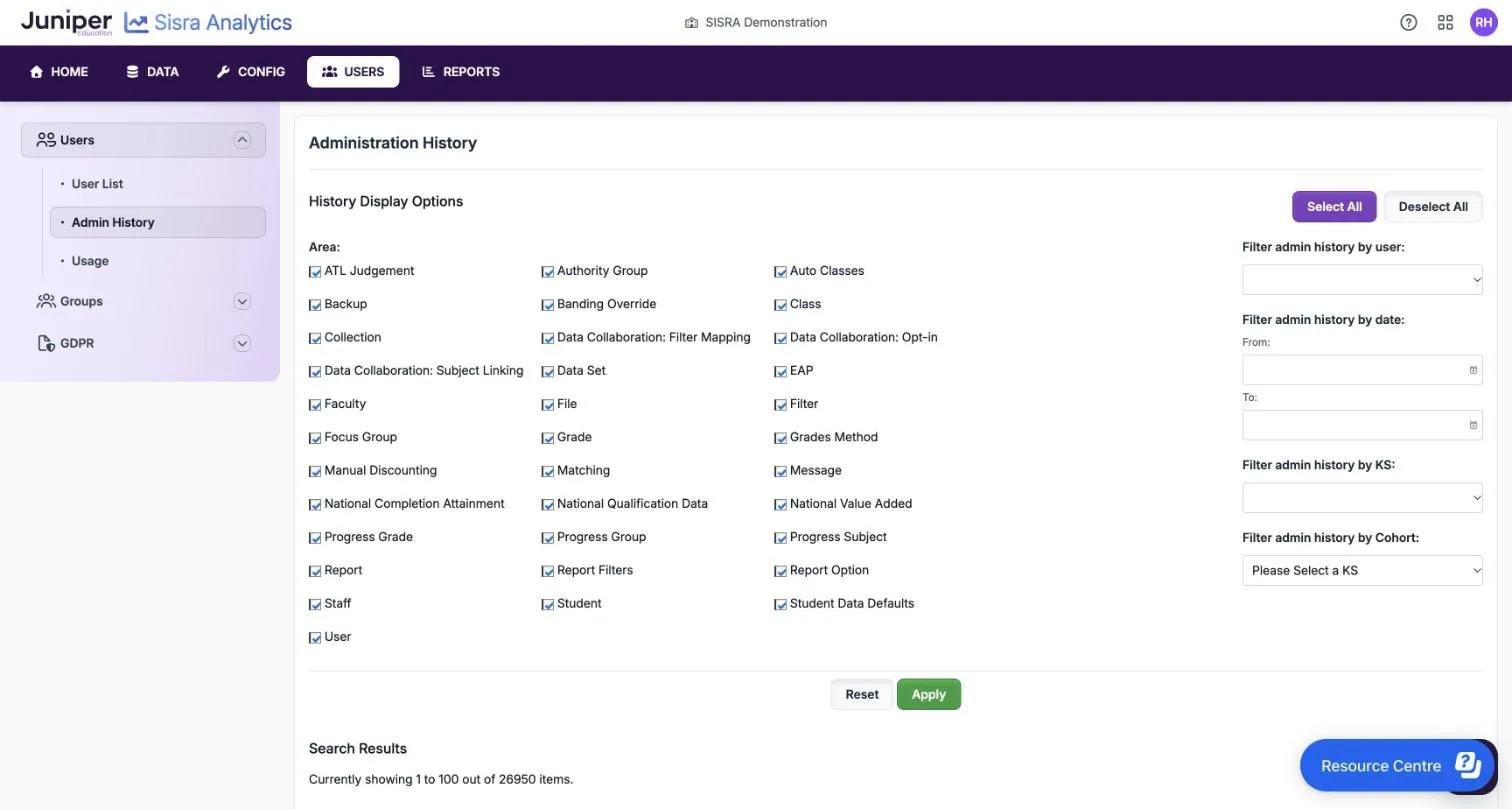
Choose what to show
Section titled “Choose what to show”| Option | What it does |
|---|---|
| Area: | 34 tick boxes, one for each kind of change, such as File, Grade, Matching, Student and User. All are ticked at first. Select All and Deselect All tick or clear them all |
| Filter admin history by user: | Shows changes by one person |
| Filter admin history by date: | Shows changes between the From: and To: dates |
| Filter admin history by KS: | Shows changes in one key stage. The list shows codes: 3/4 EAP is KS3/4 and 5 EAP is KS5 |
| Filter admin history by Cohort: | Shows changes to one cohort. It reads Please Select a KS until you choose a key stage |
Select Apply to update Search Results, or Reset to clear your choices.
Read the results
Section titled “Read the results”Search Results shows 100 rows at a time, with page numbers and Next. A line above the rows gives the total, such as “Currently showing 1 to 100 out of 26950 items.”
| Column | What it shows |
|---|---|
| Date | The date and time of the change |
| Area | The kind of change, such as File, Student or Message |
| Action | What happened, such as Create, Import, Edit, Delete or Dataset Published |
| Description | The details, such as a file’s title and how many pupils or students and qualifications it held |
| Cohort and KS | The cohort and key stage, for changes that belong to one |
| User | Who made the change |
The User column is sometimes empty, so the log does not always show who made a change. In the demo school, it was empty for changes by an account that Juniper Portal had created.
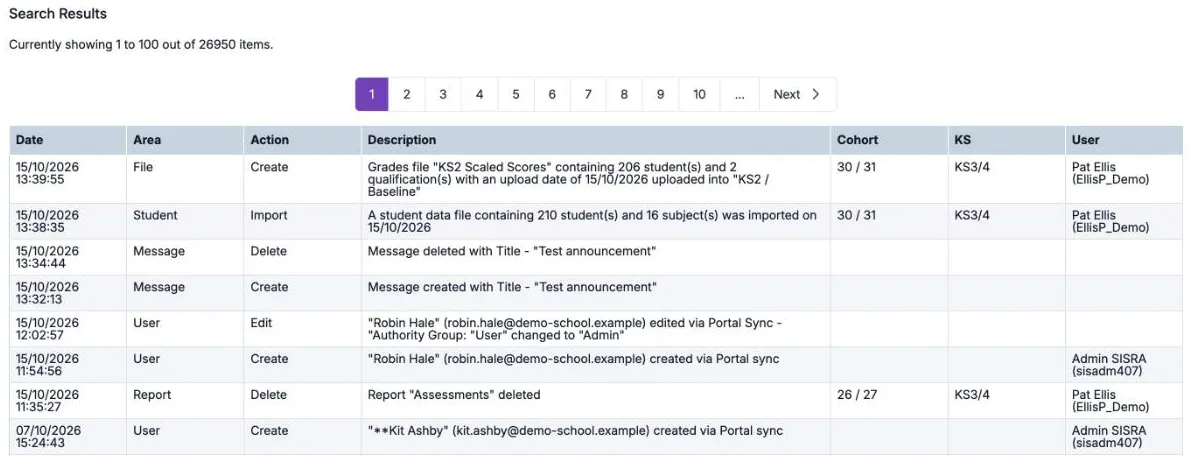
Sisra has no separate list of past publishes. To see when a cohort was published, look for actions such as Dataset Published, KS2EAP Published, Tracker Generated and Flightpaths Published.
Where to find it: USERS > Users > Usage.
School Usage lists everyone with a Sisra account, including blocked accounts, with their authority group, their last sign-in and how often they use Sisra. Nothing on the page shows which accounts are blocked. To see that, open the group under USERS > Groups and look at Users In Group.
| Column | What it shows |
|---|---|
| Last Name, First Name and Email Address | The member of staff |
| Authority Group | Their authority group |
| Last Login | The date they last signed in, or Never |
| 90 days, 30 days, 14 days and 7 days | Under Count of days with user activity in the last:, the number of days in each period on which they used Sisra |
| Used Today? | Whether they have used Sisra today |
Rows for staff who have never signed in are shaded pink, and so is every count of 0 and every No. A sign-in today is highlighted.
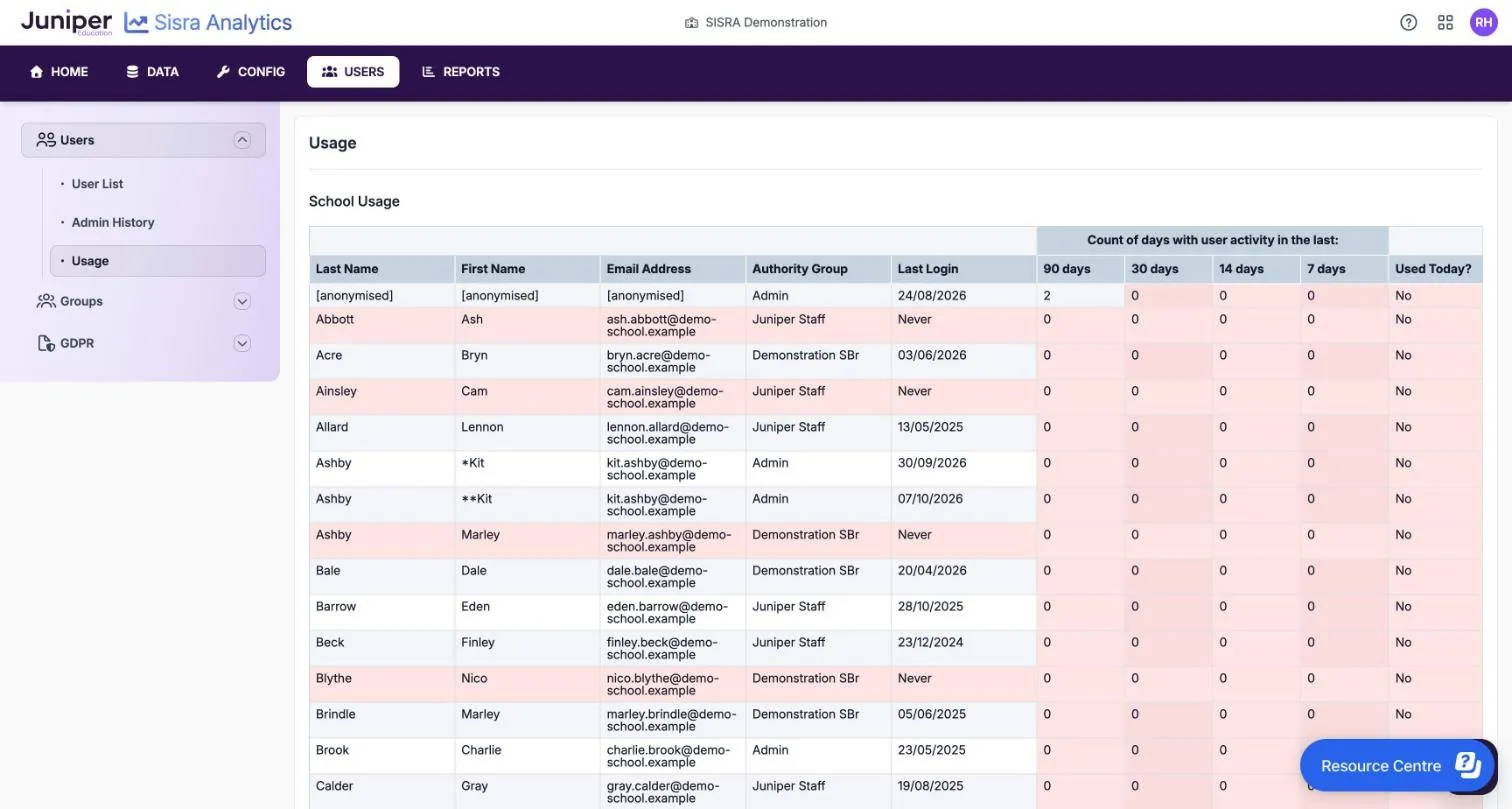
Before a deadline or results day, use the list to see which staff have never signed in. It also shows accounts that may belong to staff who have left. To remove one, see Remove access.
Access History
Section titled “Access History”Where to find it: USERS > GDPR > Access History.
Access History records when Juniper staff have signed in to your school’s Sisra, and why, for example to help during a live chat with support. The record is complete from 21 May 2018. If nobody from Juniper has accessed your data, the page shows only its explanation and no table.
For questions about Juniper’s access to your data, the page gives the email address of Juniper’s data protection officer, dpo@junipereducation.org.