


 Sonar Tracker
Getting started
Sign in and switch schools
You sign in to Sisra Analytics with your work email address, your password and a code that Juniper Education emails to you. Sign-in goes through Juniper Portal, Juniper’s account service, which you also use to switch between schools and products. Juniper’s announcements also call this shared sign-in platform JoinUp.
Before you start
Section titled “Before you start”You need:
- an invitation from your school, sent through Juniper Portal
- access to the email account your invitation went to, because Juniper sends your sign-in codes there
Since the end of August 2026 you sign in with your email address. Sisra usernames no longer work, except to check the email address Sisra holds.
Sisra’s address is www.sisraanalytics.co.uk. Bookmark it in your browser.
Sign in
Section titled “Sign in”- Go to
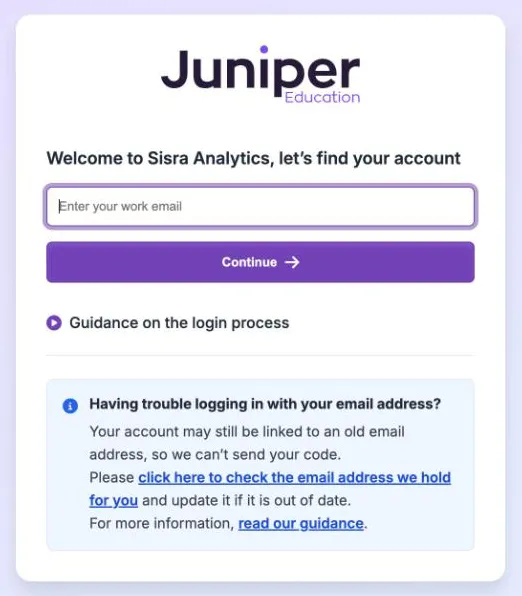
www.sisraanalytics.co.uk. - Enter your work email address and select Continue.
- On Juniper’s sign-in page, which shows your email address, enter your password and select Login.
- Enter the code from the email Juniper sends you.
- Juniper Portal opens. Select Sisra Analytics.
Sisra opens at its HOME page. You can also start in Juniper Portal, at admin.junipereducation.org, and select Sisra Analytics there.
Set up two-factor authentication
Section titled “Set up two-factor authentication”The first time you sign in, Portal takes you through setting up two-factor authentication (2FA). Follow the steps on screen. Juniper emails you a code to enter, and Portal shows you recovery codes: write them down and keep them somewhere safe.
After that, Portal asks for an emailed code when you sign in. Codes come by email, from noreply@junipereducation.org. If one does not arrive within a few minutes, check your junk or spam folder before you ask for another.
Reset a forgotten password
Section titled “Reset a forgotten password”- Go to
www.sisraanalytics.co.uk. - Enter your email address and select Continue.
- Select Forgot your password?.
- Enter your email address and select Submit.
- Open the email from Juniper, select Reset Password and follow the steps.
Your new password must be 8 to 70 characters long. It needs at least one lower case letter, one capital letter, one number and one special character.
If no reset email arrives, your account may hold a different email address. See Check the email address Sisra holds.
To change your password while you are signed in, select your initials in the header, then Profile. Your profile opens in Juniper Portal, where Security has Change Password.
Check the email address Sisra holds
Section titled “Check the email address Sisra holds”Juniper sends codes and password resets to the email address on your account. If your school has changed its email addresses, your account may still hold an old one, so codes never reach you. If you know your old Sisra username and password, you can check the address yourself.
- Go to
www.sisraanalytics.co.uk. - In the Having trouble logging in with your email address? box, select the link to check the email address we hold for you.
- Enter your Analytics username and Analytics password, then select Check my email address.
This does not sign you in. Sisra shows This is the email address we hold for you. If you can receive email at that address, select Log in with this address. If you cannot, change it:
- Select Change my email address.
- Enter the new address in New email address and Confirm new email address.
- Enter your Analytics username and Analytics password again, then select Send confirmation link.
- Open the email sent to the new address and select the link in it. The link lasts 24 hours.
Sisra shows Your email address has been updated. Your codes go to the new address from then on, and your password stays the same.
If you do not know your old username and password, ask your Sisra administrator to change your email address. Fix an email address that no longer works explains how.
Switch to another school
Section titled “Switch to another school”You can have accounts at more than one school, or at a school and its trust, under one email address. Each account can have a different role.
- Select your initials in the header to open the account menu.
- Under Other accounts, select the school or trust.
The account you are using is at the top of the menu, marked Active, and the school name in the header changes. If your email address has more than one account, Select Your Account also appears when you sign in. Choose the school from Your Accounts.
Trust staff who use Sisra Multi-School should read Sign in and find your way around Multi-School.
Switch to another Juniper product
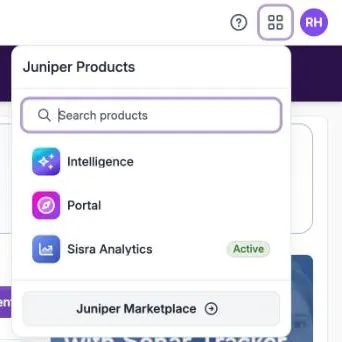
Section titled “Switch to another Juniper product”- Select Products in the header. Its icon is a grid of squares.
- In Juniper Products, select the product you want, such as Intelligence or Portal.
The list shows the products your school uses and marks the one you are in as Active. To find a product in a long list, type its name in Search products.
To go straight back to Juniper Portal, select the Juniper logo in the header.
Sign out
Section titled “Sign out”- Select your initials in the header.
- Select Logout.
Signing out of Sisra also signs you out of Juniper Portal. On a shared computer, close the browser as well.
Sign in again after inactivity
Section titled “Sign in again after inactivity”Sisra signs you out after a period of inactivity. The sign-in page then says “You have reached the maximum allowed period of inactivity and have been logged out. Please login again to continue.” Sign in again to carry on.
This inactivity sign-out ends your Sisra session only, not your Juniper Portal sign-in.
If something goes wrong
Section titled “If something goes wrong”A code or reset email does not arrive. Check your junk, spam and clutter folders. Ask your IT team to add noreply@junipereducation.org to the school’s safe senders list. If it still does not arrive, check the email address Sisra holds.
Your username does not work. Sign in with your work email address instead.
Your password is not accepted. Do not keep trying the same password. Reset it with Forgot your password?. If the reset email arrives, Juniper recognises your address.
You keep going round the sign-in pages. You are probably entering a different email address from the one on your account. Check the address Sisra holds, or ask your Sisra administrator.
“We could not complete your sign in.” This happens when the sign-in page has been open for a long time, or when you have more than one sign-in tab open. Close the other tabs and enter your email address again.
“Your account has been blocked.” Your school has removed your access to Sisra in Juniper Portal. If you still need it, ask your Sisra administrator to invite you again.
A school is missing from Other accounts. You need an account at that school under the same email address. Ask that school to invite you.